How do I approve Ask AI Computer tasks from my phone on Tekmatix?
You've asked Ask AI to work through a task on its Computer, and then you've had to leave your desk. The task gets to a step where it needs you, like a sign-in code or a yes or no. Now you can sort that out from your phone.
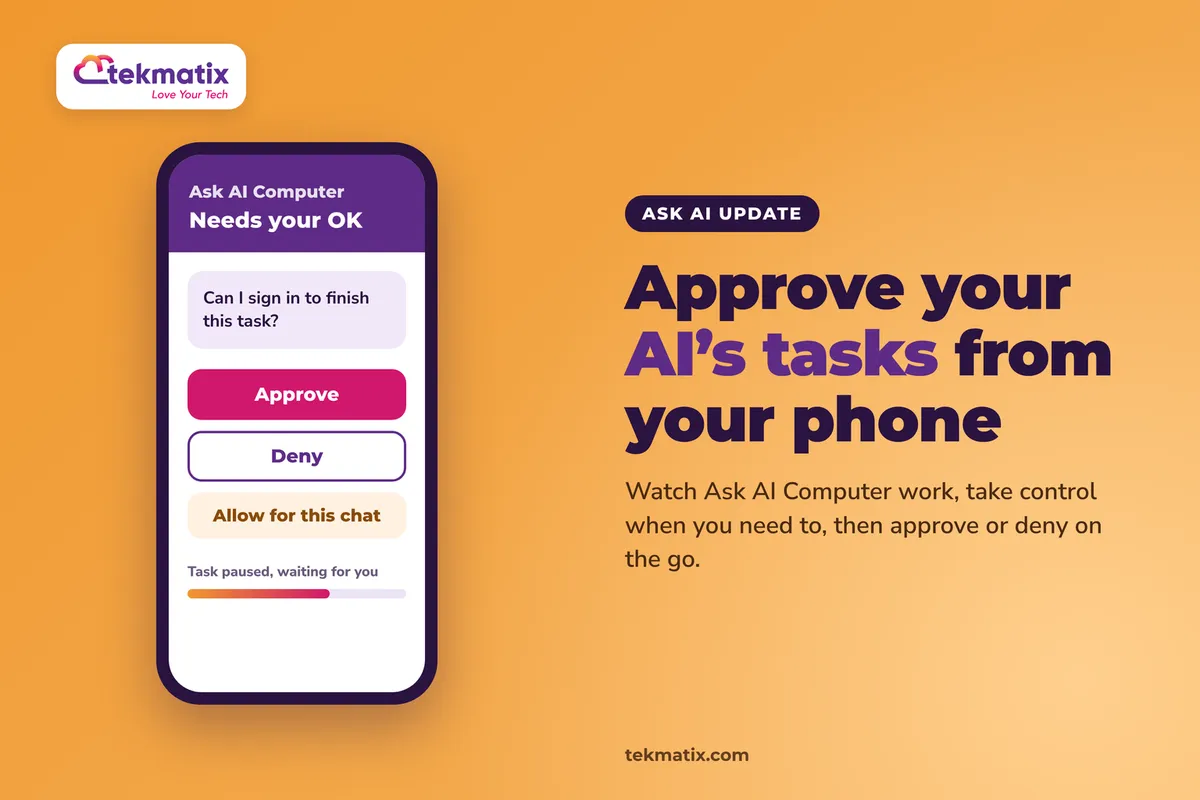
Ask AI Computer is now in the mobile app. You can watch what it's doing, step in and take control, approve or deny what it asks, and hand the task back, all without going back to your laptop.
Open Ask AI in the mobile app. In any new chat, tap the Computer row above the composer, or open the Computer's own chat from History. When the Computer pauses to ask permission, choose approve, deny or Allow for this chat. You can review and revoke what you've allowed later in Settings, then Computer use.
What Ask AI Computer on mobile is
Ask AI Computer is a private cloud machine that Ask AI uses like a person would. It opens a browser, clicks around, fills things in and works through a task for you. On mobile, it's the same Computer you use on the web, not a separate one.
Web and mobile share one conversation. So you can start a task at your desk, walk away, and keep an eye on it from your phone.
- Live view. Open the Computer's browser full screen and watch it work.
- A status line. It tells you whether the Computer is working, idle, done, needs you, or whether you're in control.
- Takeover. Tap to click, drag with two fingers to scroll, and type with your phone's keyboard. Then hand control back.
- Approvals. When the Computer pauses to ask, you can approve, deny, or choose Allow for this chat.
- Files and activity. Results such as sheets, docs and PDFs show up as files in the chat, and an activity log describes each step in plain language.
Why this matters for your business
Tasks don't stall while you're away. A task that needs a quick yes or a sign-in code used to sit there until you got back to your desk. Now you can answer it wherever you are.
You stay in charge of what the AI does. The Computer asks before it acts where permission is needed, and you decide from your phone. Nothing about that control is lost on mobile.
Your passwords stay out of the chat. Sign-ins go through a private form and Secure Store, never the chat, so Ask AI never sees what you type.
You get your time back. Hand the busywork to Ask AI, then check in for the few moments it genuinely needs a human.
Before you start
- Access to Ask AI in your Tekmatix account.
- The mobile app installed and signed in to your Tekmatix account.
- A task you'd like the Computer to work on. You can start it on the web or from any chat on your phone.
Which Tekmatix plan do you need?
Ask AI is included on every current Tekmatix plan: Starter, Pro and Max. Ask AI Computer on mobile has only just been released, so it's rolling out and may not be in every account yet. If you can't see the Computer row in a new chat, check back soon or ask our team on live chat.
Ask AI usage is charged on tokens, at $3.165 USD per 1 million tokens. See current usage pricing at tekmatix.com/rebilling. Compare every plan at tekmatix.com/pricing, or change your plan here.
How to approve Ask AI Computer tasks from your phone
- Open Ask AI in the mobile appEvery new chat shows a Computer row above the composer. Tap it to start a task from any chat. The Computer also has its own chat, which you'll find in History.
- Bring a live session to your phoneIf the Computer's screen is already open on another device, tap Show here to bring it to your phone.
- Watch the status lineOpen the browser full screen to watch it live. The status line shows whether the Computer is working, idle, done, needs you, or whether you're in control.
- Answer the approvalWhen the Computer pauses to ask permission, choose approve or deny. If you're happy for it to keep going without asking again, choose Allow for this chat. That permission lasts 30 days on that site.
- Take over if it needs youIf the status shows Needs you, open the browser and take control. Tap to click, drag with two fingers to scroll, and type with your phone's keyboard.
- Hand control backOnce you've done your part, hand control back and the Computer carries on with the task.
Managing approvals, sign-ins and settings
Everything you've allowed can be checked and changed later. Go to Settings, then Computer use. From there you can:
- Review allowed actions and revoke anything you no longer want the Computer to do without asking.
- Set saved-login rules. Choose whether saved logins are never used, used after asking, or used on matching sites.
- Clear browsing data and check storage.
- Reset a single profile if you want a fresh start for one account.
A few things to know
- No passwords in chat. Sign-ins go through a private form that sends what you type straight to the page. Saved logins live in Secure Store.
- It won't be fooled by a look-alike site. The Computer won't fill a saved password on a look-alike site.
- It recovers on its own. If the Computer is asleep, Turn on wakes it with your files and sign-ins still there. If a task was cut off, tap Resume.
- Same rules as the web. The same controls and limits that apply on the web apply on mobile, so there's nothing new to set up.
Test it with something small first.
Start a simple task on the Computer from your desk, then pick up your phone and open the same chat. Tap Show here, watch the status line, and try taking control and handing it back. Then open Settings, then Computer use and check your allowed actions, so you know where to go if you ever want to undo an approval.
Five ways to actually use this
- Get past one-time codes on the go. If a task reaches a step that needs a code sent to you, the phone shows Needs you. Open the browser, type the code, and hand it back.
- Start the task before you leave, finish it from the car park. Kick off a longer task on the web, then supervise it from your phone. It's the same conversation on both.
- Keep a tight rein on approvals. Use approve or deny for anything you want to check each time, and save Allow for this chat for sites you trust. Review your allowed actions once a month.
- Set saved-login rules that suit you. If you'd rather know every time a saved login is used, choose the option that uses them only after asking.
- Pick up the results wherever you are. Sheets, docs and PDFs the Computer produces arrive as files in the chat, so you can open them on your phone straight away.
Want it done for you?
Ask AI works best when your account underneath it is set up properly. If you'd rather hand the set-up over, our Teksperts can build it straight into your Tekmatix account.
Quick Account Set-Up
A private 90-minute session with a Tekspert on a shared screen. Your core settings and integrations are checked, email sending is set up on your own domain, your contacts are uploaded and tagged, your pipeline and booking calendars are built and your branding is loaded. You get the recording afterwards, and you start with a clean account instead of spending weeks working it out.
See Quick Account Set-UpAI Chat Bot, Chat Widget and AI Auto-Responder
Put AI to work on your customer enquiries too. A branded AI assistant trained on up to 20 of your sources answers on your website chat, Facebook, Instagram and Google Business Profile, qualifies leads, sends your booking link and hands over to you when a person is needed. Fewer missed leads, and less admin for you.
See the AI Chat Bot packageSee every done-for-you package at tekmatix.com/services.
Frequently asked questions
Is Ask AI Computer on mobile a different computer from the one on the web?
No. It's the same private cloud machine you use on the web. Web and mobile share one conversation.
How do I bring a session that's already running onto my phone?
If the Computer's screen is open on another device, tap Show here to bring it to your phone.
What does Allow for this chat do?
It lets the Computer carry on without asking you again for that permission. It lasts 30 days on that site. You can review and revoke allowed actions in Settings, then Computer use.
Can I control the Computer from my phone?
Yes. Take over, then tap to click, drag with two fingers to scroll, and type with your phone's keyboard. Hand control back when you're done.
Does Ask AI see my passwords?
No. Sign-ins go through a private form and Secure Store, never the chat. The form sends what you type straight to the page, so Ask AI never sees it. The Computer also won't fill a saved password on a look-alike site.
What if the Computer goes to sleep or a task gets cut off?
If it's asleep, Turn on wakes it with your files and sign-ins still there. If a task was cut off, tap Resume.
Where do the files it creates go?
Results such as sheets, docs and PDFs show up as files in the chat, along with an activity log that describes each step in plain language.
Which Tekmatix plan do I need?
Ask AI is included on the Starter, Pro and Max plans. Ask AI Computer on mobile is newly released and rolling out, so it may not be in every account yet. Compare the plans here and change your plan here.
How much does Ask AI cost to use?
Ask AI usage is charged at $3.165 USD per 1 million tokens. Current usage pricing is at tekmatix.com/rebilling.
Need a hand?
Free daily group training
Jump on a free group session with a Tekspert and see Ask AI Computer in action.
Book free trainingHire a Tekspert for 60 minutes
Share your screen and we'll work through your Ask AI tasks and settings with you.
Book a Tekspert15 minute advanced tech support
Got one quick question, like where to revoke an approval? A focused 15 minutes sorts it out.
Book 15 minutes24/7 live chat
Our team is on live chat around the clock, right inside your Tekmatix account.
Get supportLet Ask AI get on with the work, and step in from your phone only when it genuinely needs you.
Happy Tekkin'!