How do I add QR codes to my booking calendars on Tekmatix?
Someone's standing at your counter, at your market stall or in front of your flyer, and they want to book. Typing a long booking link into their phone is the last thing they'll do. A quick scan is the first.
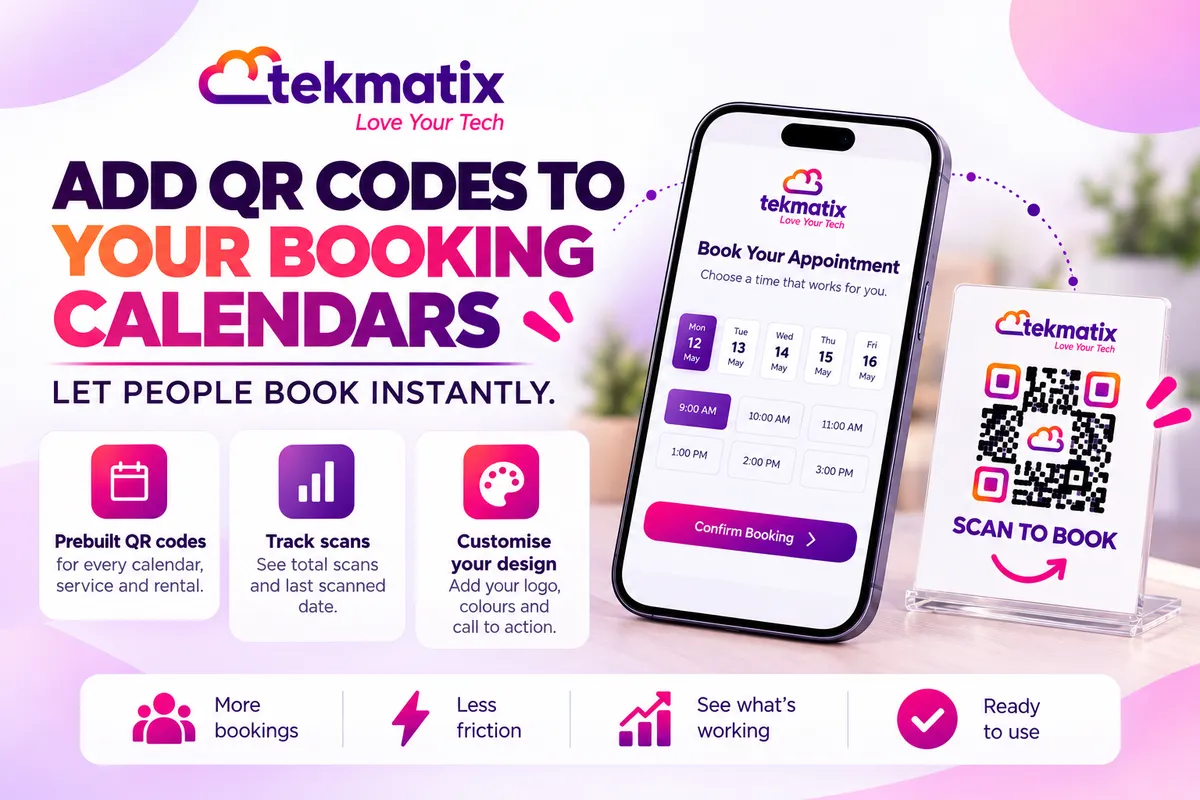
Tekmatix calendars, services and rentals now come with their own QR code, ready to go. You can also build one yourself in the QR Code Builder and point it straight at a calendar or booking page.
Each calendar, service and rental now has a QR Code touchpoint with a QR code already linked to it. Open it to see total scans, edit the design and download it. Or go to Sites, then QR Codes, click Create QR Code, choose Calendars, Services or Rentals as the type, and pick the destination.
What's new with QR codes for bookings
The QR Code Builder in Tekmatix already let you link a QR code to a website, a review link, a form, a payment link and more. Now it can link straight to your booking options too.
| QR code type | Where it can send people |
|---|---|
| Calendars | A calendar or a calendar group |
| Services | A service, a service group, a staff member, a landing page or a booking page |
| Rentals | A rental, a rental category or a booking page |
- Prebuilt QR codes. Every calendar, service and rental has a QR Code touchpoint with a QR code already linked to it, so you don't have to make one by hand.
- Scan tracking where you need it. At the touchpoint you can see total scans and the date it was last scanned.
- Edit and download. Change the design and download it from the same place.
- All in one list. Prebuilt QR codes also show on your QR Codes list, next to the ones you've made yourself.
Why this matters for your business
Bookings from the real world. Flyers, shop windows, business cards and appointment cards can now take a booking on the spot, instead of hoping people remember to look you up later.
Less friction, more bookings. A scan takes seconds. No typing, no searching, no wrong links.
You can see what's working. Total scans and the last scanned date show you whether that poster or flyer is actually being used.
Nothing extra to set up. The QR code is already there for each calendar, service and rental. You just download it and put it to work.
Before you start
- At least one calendar, service or rental set up in your Tekmatix account, with your availability sorted.
- A place to use the QR code, like a flyer, a poster, your shop counter, a business card or a slide at the end of your talk.
- Your logo and brand colours, if you'd like to style the QR code.
Which Tekmatix plan do you need?
Unlimited calendars are included from the Starter plan up, and so is the QR Code Builder through your sites tools. QR codes for calendars, services and rentals are a new release and are rolling out, so they may not be in every account yet. Rentals is still in beta, so it may not show in every account. Compare every plan at tekmatix.com/pricing, or change your plan here.
We're not aware of any usage charge for creating or scanning QR codes. You can see all current usage pricing at tekmatix.com/rebilling.
Option 1: use the prebuilt QR code on your calendar
- Open your calendar, service or rentalGo to the calendar, service or rental you want people to book.
- Find the QR Code touchpointOpen its QR Code touchpoint. The QR code there is already linked to that calendar, service or rental.
- Check its performanceSee the total scans and the last scanned date right there.
- Customise the designEdit the design so it matches your brand.
- Download itDownload the QR code and add it to your flyer, poster, card or slide.
Option 2: create one in the QR Code Builder
- Open the QR Code BuilderGo to Sites, then QR Codes, and click Create QR Code.
- Name it and choose the typeGive your QR code a name you'll recognise, like "Shop counter booking". Choose Calendars, Services or Rentals as the type.
- Pick the destinationChoose where the scan goes. For Calendars, that's a calendar or calendar group. For Services, a service, service group, staff member, landing page or booking page. For Rentals, a rental, rental category or booking page. Click Next.
- Test itThe builder stores your destination as you go, so you can scan the code with your phone and check it opens the right booking page before you save.
- Customise the designStyle it to suit your brand (see below).
- Download or saveDownload it, copy its link, or click Save to keep it in your QR Codes list.
Customising, downloading and managing your QR codes
- Design options. Choose a square, rounded square or circle shape, set the background and dot colours, pick a dot style, and style the corner markers. You can add a border or frame, put call to action text above and below, like "Scan to book", and add your own logo.
- Download formats. PNG for websites, emails and social posts. SVG for designs that need to scale. PDF for print. You can also copy a link to the code instead of downloading it.
- Transparent background. Set the background transparency slider to 0% to get a transparent PNG.
- Change it later. QR codes use dynamic links, so you can edit a code from your QR Codes list without making a new image.
- Stay organised. In your QR Codes list, search by name, filter by type, switch between grid and list view, and move codes into folders.
What your customers see
Your customer points their phone camera at the QR code and taps the link. They land on the booking page you chose, pick a time and book, the same as if they'd clicked your booking link.
Test it before you print.
Before you send anything to the printer, scan the QR code with your own phone and at least one other phone. Check it opens the right calendar or booking page, then make a test booking all the way through. Print a small sample and scan it from a normal distance too, so you know it works at the size you've chosen.
Five ways to actually use this
- Rebook clients before they leave. Put your calendar QR code on the counter or on an appointment card, so clients can book their next visit while they're still with you.
- End every talk with a scan. Add a "Scan to book a call" QR code to your last slide. People in the room can book before they've even left their seats.
- Give each staff member their own code. Services QR codes can point to a staff member, so each person on your team can have their own code on their business card.
- Put rentals on the spot. Running equipment or space hire? Stick a rental QR code on the item or at the venue so people can book the next slot.
- Compare your print marketing. Use a different QR code for your flyers, your shop window and your local newspaper ad. Then check total scans on each to see which one people actually use.
Want it done for you?
A QR code only gets you bookings if the calendar behind it is set up properly. If you'd rather hand that over, our Teksperts can build it straight into your Tekmatix account.
Appointment Booking System
Three branded calendars, including a free 15-minute call and paid sessions, with two-way calendar sync, Zoom or Google Meet links, payment before paid bookings are confirmed, an intake form, and confirmation, reminder and follow-up workflows. Every scan lands on a booking set-up that takes payment and helps cut no-shows.
See the Appointment Booking SystemEvent / Retreat Tickets System
Running a workshop, event or retreat? You get a three-step event funnel, a ticket confirmation workflow with reminders and follow-ups, an abandoned cart sequence, attendees added to a Google Sheet, and a QR code registration form for the day. Less admin on the door, more time with your people.
See the Event / Retreat Tickets SystemQuick Account Set-Up
A private 90-minute screen-share with a Tekspert that includes checking your synced calendar to prevent double bookings, a free 15-minute calendar and a paid 60-minute calendar, with availability, notification, reminder and re-booking workflows. Your booking basics sorted in one session, ready for your first QR code.
See Quick Account Set-UpSee every done-for-you package at tekmatix.com/services.
Frequently asked questions
Do I have to create a QR code for each calendar?
No. Each calendar, service and rental has a QR Code touchpoint with a QR code already linked to it. You can still create your own in the QR Code Builder if you prefer.
Can I point a QR code at a calendar group?
Yes. Calendar QR codes can go to a single calendar or a calendar group.
Can I make a QR code for one staff member?
Yes. Services QR codes can point to a service, service group, staff member, landing page or booking page.
Can I see how many people scanned it?
Yes. The QR Code touchpoint shows total scans and the last scanned date.
Will my prebuilt QR codes show in my QR Codes list?
Yes. They show on the QR Codes list page alongside the ones you've created yourself.
What file types can I download?
PNG for digital use, SVG for designs that need to scale, and PDF for print. You can also copy a link to the code.
Can I add my logo?
Yes. You can upload your own logo, and set the colours, shape and frame to match your brand.
Do I need to be on a particular Tekmatix plan?
Unlimited calendars are included from the Starter plan up. QR codes for calendars, services and rentals are rolling out, and Rentals is still in beta, so they may not be in every account yet. You can compare the plans here and change your plan here.
Do QR codes cost extra?
We're not aware of any usage charge for creating or scanning QR codes. Current usage pricing is at tekmatix.com/rebilling.
Need a hand?
Free daily group training
Jump on a free group session with a Tekspert and make your first booking QR code live.
Book free trainingHire a Tekspert for 60 minutes
Share your screen and we'll set up your calendars and branded QR codes with you.
Book a Tekspert15 minute advanced tech support
Got one quick question, like a QR code opening the wrong page? A focused 15 minutes sorts it out.
Book 15 minutes24/7 live chat
Our team is on live chat around the clock, right inside your Tekmatix account.
Get supportYour calendar is ready to take bookings. Now anyone who sees your QR code can book with a single scan.
Happy Tekkin'!