How do I tag my team in a conversation from a workflow on Tekmatix?
A hot lead just booked. A client missed their appointment. Someone asked for a refund. You need the right person on your team to know, and you need them to see it right where the conversation is happening.
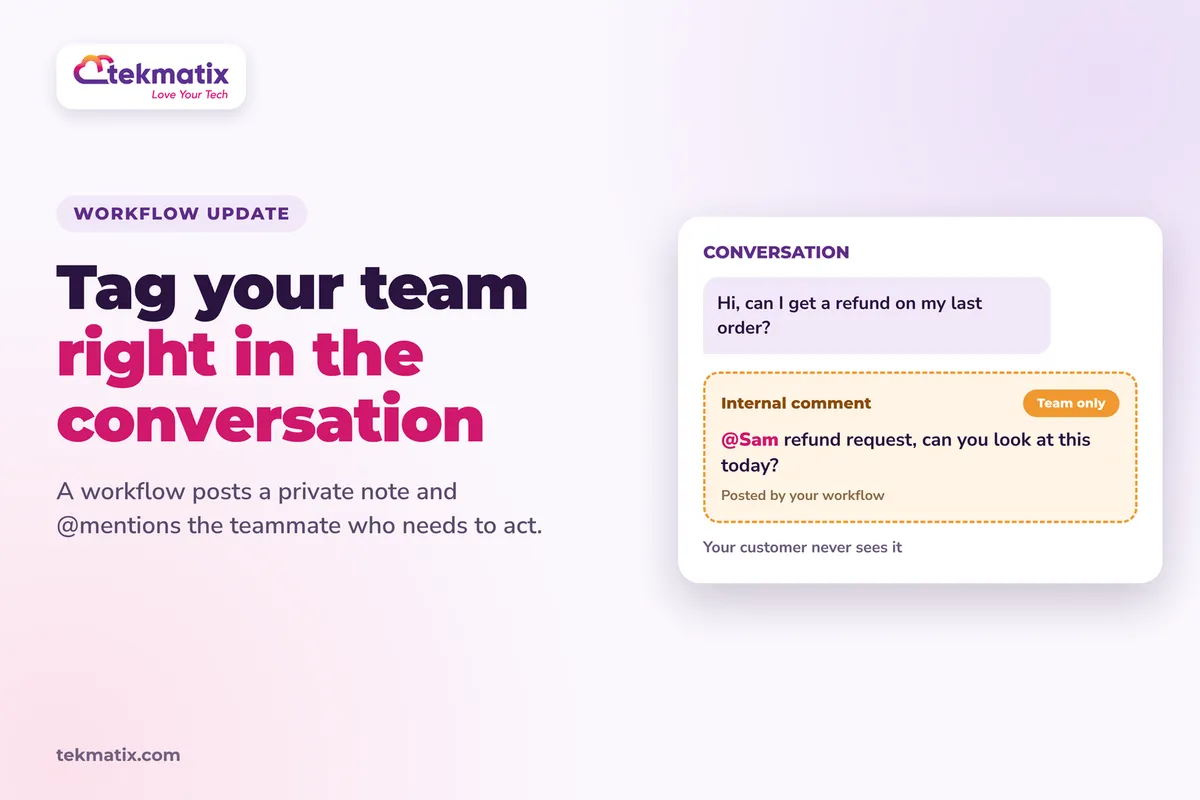
Now a workflow can do that for you. The Add Internal Comment action posts a private, team-only note straight into a contact's conversation and @mentions the teammates who need to act. Your customer never sees it.
Open a workflow in Automations, click the + icon and choose Add Internal Comments under the Communication actions. Type your comment, use the @ button to mention the Assigned User or a Specific User, then click Save Action. Test it on a test contact and publish.
What the Add Internal Comment action is
It's a workflow action that posts a private note into a contact's conversation thread. It works the same way as an internal comment you'd type by hand on the Conversations page.
- Private to your team. The contact never sees it.
- @mentions notify people. Teammates you mention are notified and added as followers of the contact, so they can view and reply to the conversation.
- It sits in the timeline. The comment shows inline in the conversation, in date order, alongside your messages.
- No messaging credits. It isn't sent by SMS, email or any other channel, so it doesn't use any messaging credits.
Why this matters for your business
The right person finds out straight away. Instead of hoping someone notices a new lead or a missed booking, the workflow tags them the moment it happens.
The context is right there. The note sits in the conversation itself, so whoever picks it up can see the whole history without digging.
Nothing goes to the customer by mistake. You can share internal instructions without messaging the contact.
Leads get followed up sooner. Faster follow-up usually means fewer leads go cold.
Before you start
- A workflow, either one you already have or a new one, with a trigger that fits the moment you want your team told about.
- Your team added as users in your Tekmatix account, so you can mention them.
- If you want to mention the Assigned User, contacts that have someone assigned to them.
- A test contact to try it on before you publish.
Which Tekmatix plan do you need?
Workflows are included, unlimited, on the Starter, Pro and Max plans. The Add Internal Comment action doesn't send a message on any channel, so it uses no messaging credits.
Compare every plan at tekmatix.com/pricing, or change your plan here.
How to tag your team in a conversation from a workflow
- Open your workflowGo to Automations and open a workflow, or create a new one from scratch or from a recipe.
- Add the actionClick the + icon to open the actions menu and choose Add Internal Comments under the Communication actions.
- Write your commentType the comment in the editor. This is required, so don't leave it blank. Undo and Redo are there if you need them.
- Mention your teamClick the @ button. Choose Assigned User to mention whoever is assigned to the contact when the action runs, or Specific User to pick a teammate from the list. You can add several mentions to one comment.
- Save itClick Save Action.
- Test, then publishRun the workflow on a test contact, check the comment shows up correctly in the conversation, then publish.
Finding and checking your comments
The comments show in the conversation timeline in Conversations. To find them quickly, use the Internal Comments, Mentions of Me or Mentions of a Specific User filters.
To check the action ran for a contact, open the workflow's Execution Logs. It shows whether the action ran or was skipped, and why.
A few things to know
- Posted comments can't be edited or deleted. Check your wording before you publish the workflow.
- No attachments. The action is text and mentions only.
- Empty comments are skipped. If there's no text, the action doesn't run and the Execution Logs say so.
- No assignee, no mention. If you used Assigned User and the contact has nobody assigned, that mention is dropped. The rest of the comment still posts. If the mention was the only content, the action is skipped.
- Mentions give access. Each mentioned person becomes a follower and can view and reply to the conversation. Keep this in mind for workflows that run on lots of contacts.
- Followers stay. Removing a mention from the workflow later doesn't remove followers added by earlier runs.
- Notifications follow each person's settings. Each teammate controls this in Settings, then My Profile, then Notifications.
- It's not the same as notes. Internal comments go into the conversation timeline. The Add to Notes action saves to the contact's Notes area instead.
What your customers see
Nothing. Internal comments are private to your team and aren't sent on any channel.
Test it on yourself first.
Create a test contact, assign it to yourself, and run the workflow on it. Open Conversations, find the contact and check the comment and mention appear. Check you got the notification. Then open the workflow's Execution Logs to confirm the action ran.
Five ways to actually use this
- Flag hot leads. When a lead fills in a high-intent form or books a sales call, mention the assigned user with "New hot lead, please call within the hour."
- Rescue missed appointments. When an appointment is marked as a no-show, mention your admin to reach out and reschedule.
- Escalate tricky conversations. If a contact is tagged for a complaint or refund request, mention a manager so it gets reviewed.
- Hand over new clients. When a payment comes through, mention the person who looks after onboarding so they know to welcome them.
- Leave instructions where they'll be seen. Write the next step into the comment itself, such as "Send the welcome pack and book their kick-off call", so whoever picks up the conversation knows exactly what to do.
Want it done for you?
Team alerts work best when the systems around them are built properly. If you'd rather hand that over, our Teksperts can build it straight into your Tekmatix account.
New Client Onboarding System
A branded intake form, a welcome page, a kick-off call calendar, a five-email welcome sequence, internal team alerts when a client signs up or completes intake, and automated tasks or pipelines to track each stage. New clients move from paid to onboarded with less manual admin, and your team always knows what to do next.
See the Onboarding SystemAppointment Booking System
Three branded calendars, two-way calendar sync, payment before paid bookings are confirmed, confirmations, reminders and follow-ups, plus self-service reschedule and cancel links. Fewer no-shows and less chasing, with automatic tags so your team can see who's booked, paid or cancelled.
See the Appointment Booking SystemSee every done-for-you package at tekmatix.com/services.
Frequently asked questions
Will the contact see the internal comment?
No. It's private to your team and isn't sent on any channel.
Can I mention more than one person?
Yes. You can add several mentions to one comment, and each person is notified and added as a follower.
What happens if the contact has no assigned user?
The Assigned User mention is dropped. If there's other text in the comment, it still posts. If the mention was the only content, the action is skipped and the reason shows in the Execution Logs.
Can I edit or delete a comment once it's posted?
No. Posted comments can't be edited or deleted, so check the text before you publish the workflow.
Does mentioning someone give them access to the contact?
Yes. Mentioned users become followers and can view and reply to the conversation, the same as when you mention them by hand in Conversations.
How do I know the action ran?
Open the workflow's Execution Logs for that contact. It shows whether the action ran or was skipped, and why.
Is this the same as the Add to Notes action?
No. Internal comments go into the conversation timeline. Add to Notes saves information to the contact's Notes area.
Can I add attachments to the comment?
No. Attachments aren't supported in this action.
Which Tekmatix plan do I need?
Workflows are included on the Starter, Pro and Max plans. Compare the plans here and change your plan here.
Does it cost anything to post internal comments from a workflow?
The Add Internal Comment action uses no messaging credits, because it isn't sent by SMS, email or any other channel. For other usage pricing, see tekmatix.com/rebilling.
Need a hand?
Free daily group training
Jump on a free group session with a Tekspert and build your first team alert workflow live.
Book free trainingHire a Tekspert for 60 minutes
Share your screen and we'll map out and build your team alerts with you.
Book a Tekspert15 minute advanced tech support
Got one quick question, like why a mention isn't showing? A focused 15 minutes sorts it out.
Book 15 minutes24/7 live chat
Our team is on live chat around the clock, right inside your Tekmatix account.
Get supportLet your workflows tap the right person on the shoulder, so nothing important sits unanswered.
Happy Tekkin'!