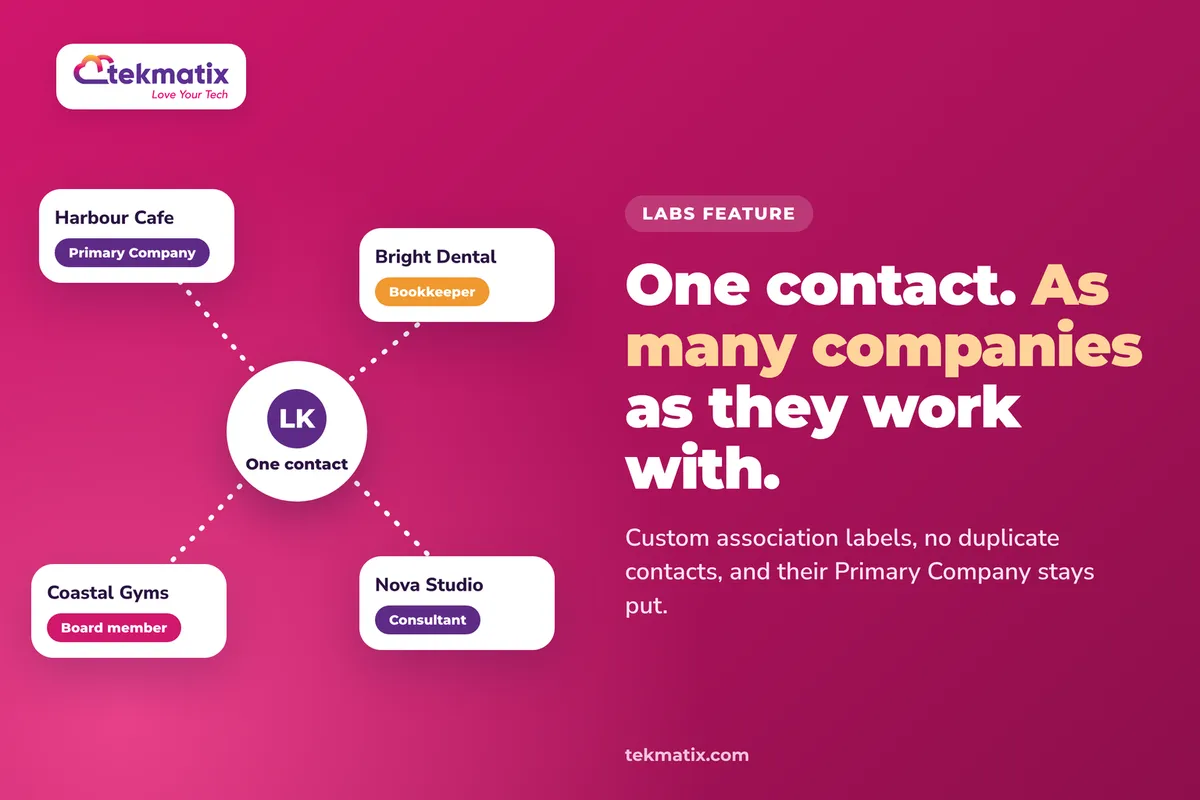
How do I link one contact to more than one company on Tekmatix?
Your bookkeeper looks after six businesses. Your consultant sits on two boards. A franchise owner runs three locations. In real life, plenty of people belong to more than one company. Your CRM should be able to show that too.
Tekmatix now lets you link one contact to as many companies as they work with, using your own association labels. No duplicate contacts, and their main company stays exactly where it is.
This is a Labs feature. Once Association Labels and Multiple Companies for Contacts is switched on in Labs, go to Settings, then Objects, then Companies, then Associations, click Create association, choose Contacts, name your labels and set the relationship to Many Companies. Then open a contact, click Add next to Companies, pick the company and your new label, and save.
What linking a contact to multiple companies means
Every contact in Tekmatix has one Primary Company. It's their main company, and it's a system label you can't edit or remove. Until now, that was the only company link a contact could have.
With this feature, you create your own association label between contacts and companies, such as "Consultant" and "Client", or "Employee" and "Employer". That label can allow many companies per contact, so you can link the same person to every business they work with.
- One contact record. You don't need a separate contact for each company. The same person links to all of them.
- Primary Company stays put. Extra company links sit alongside the Primary Company. They don't replace it.
- Each link has a meaning. The label tells your team what the relationship is, not just that one exists.
Why this matters for your business
No more duplicate contacts. Creating "Sam at Company A" and "Sam at Company B" splits their history in two. One record keeps every email, note and conversation together.
You can see who connects your clients. Accountants, consultants and advisers often send you work from several businesses. Linking them to each one shows how much they really bring in.
Your team knows the relationship at a glance. A label like "Board member" or "Bookkeeper" tells whoever opens the record what this person does for each company.
Your merge fields stay reliable. Company merge fields keep using the Primary Company, so adding extra links won't change what your emails say.
Before you start
- The Labs feature Association Labels and Multiple Companies for Contacts switched on.
- The companies already in your Tekmatix account. Search for existing contacts and companies before creating new ones, so you don't make duplicates.
- A clear idea of the relationship you're labelling. Paired labels work well, such as Employer and Employee.
- Your Primary Company links kept accurate, because merge fields and automations still use them.
Which Tekmatix plan do you need?
Linking a contact to multiple companies is currently in Labs, which is early access to new features. On Tekmatix, Labs is switched on for the Max plan. If you're on Max and can't see it yet, ask our team on live chat to check it for you.
Compare every plan at tekmatix.com/pricing, or change your plan here.
How to create a label for additional companies
- Open company associationsGo to Settings, then Objects, then Companies, then Associations.
- Create a new associationClick Create association and choose Contacts.
- Name your labelsGive the association a clear name. A paired label works well, for example Employer on the company side and Employee on the contact side.
- Allow many companiesUnder Configure relationship, set Contacts to Many Companies. Then save.
How to link a contact to another company
From the contact record
- Open the contactFind Companies in the contact's associations.
- Add a companyClick Add, search for the company, and choose Link existing Company.
- Pick the labelSelect the company and choose the association label that describes the relationship.
- SaveSave, and the contact now shows each company with its label. Repeat for any other companies, within the limits of your association.
From the company record
- Open the companyGo to the company's Associations.
- Add the contactIn Contacts, click Add and search for the contact.
- Choose the label and savePick your custom association label and save. A contact who already has a Primary Company can still be linked this way.
Reviewing who's linked to what
Open a contact's associations to see every company they're linked to, with the label for each. In your Contact Smart Lists, you can also set up company association columns so additional companies show next to the Primary Company.
A few things to know
- Primary Company can't be edited. It's a system label. For any extra relationship, use a custom label.
- Automations still use Primary Company. Domain name and business name company automations link contacts under Primary Company by default. Your custom links sit alongside it.
- Merge fields use Primary Company. Linking extra companies doesn't change company merge field values.
- Check your limits. The association you choose must allow the number of company links you need. If you hit a limit, check the relationship settings.
- "Add to primary company" is different. That bulk action sets the Primary Company. It doesn't add an extra link. Use the association controls on the record for that.
Test it with one contact first.
Pick a contact you know works with two businesses. Open their record, add the second company with your new label, and save. Check both companies show on the contact, each with the right label. Then open the second company's Associations and check the contact appears there. Finally, check the contact's Primary Company hasn't changed.
Five ways to actually use this
- Map your referral partners. Link the accountant, bookkeeper or adviser who sends you work to every client business they look after. You'll see at a glance who your best referrers are.
- Track consultants and contractors. If you sell to agencies or consultancies, link each consultant to every client company they manage, so you know who to talk to about which account.
- Handle business owners with several businesses. One owner, three companies, one contact record. Every conversation stays in one place.
- Use meaningful label names. "Decision maker", "Billing contact" or "Board member" tell your team far more than a plain link. Agree on a short list of labels and stick to it.
- Keep Primary Company for the main relationship. Set Primary Company to the business you mostly deal with this person through, because that's what your email merge fields will use.
Want it done for you?
A CRM that reflects how your clients really work takes a bit of planning. If you'd rather have it set up properly, our Teksperts can build it into your Tekmatix account.
Quick Account Set-Up
A private 90 minute session with a Tekspert on a shared screen. We check your core settings and integrations, set up email sending on your own domain, verify your contacts, build a customer journey pipeline around your offers, and set up tags, a smart mailing list and booking calendars. You keep the recording and transcript, and anything not finished live is completed for you afterwards.
See Quick Account Set-UpNew Client Onboarding System
Working with businesses means onboarding them properly. We build a branded intake form, a welcome page, a kick-off call calendar, a five-email welcome sequence, internal team notifications, task automation and automatic tagging, plus a snapshot backup so you can reuse it. New clients go from paid to onboarded with far less admin.
See the New Client Onboarding SystemContracts, Proposals & Invoicing
We set up a master contract with e-signature fields, a proposal template and an invoice template, plus a proposal follow-up workflow, a contract-signed workflow and a three-stage invoice reminder sequence. Less chasing, and a shorter wait to get paid by every company you work with.
See Contracts, Proposals & InvoicingSee every done-for-you package at tekmatix.com/services.
Frequently asked questions
Do I need a separate contact for each company?
No. Link the same contact to each company using a custom association label.
Does linking another company replace the Primary Company?
No. Custom labels add relationships. The Primary Company stays the same, and merge fields still use it.
Can I edit the Primary Company label?
No. Primary Company is a system label. Create a new association label for additional companies.
How many companies can I link to one contact?
The limits set on your association apply. If you hit a limit, check the relationship settings for that association.
Does "Add to primary company" create an extra company link?
No. That bulk action sets the Primary Company. To add more companies, use the association controls on the contact or company record.
Do the automatic company automations use my custom labels?
No. Domain name and business name automations link contacts under Primary Company by default. Your custom links sit alongside that.
Is this feature available in every Tekmatix account?
It's currently in Labs, which is early access. On Tekmatix, Labs is switched on for the Max plan.
Do I need to be on a particular Tekmatix plan?
Yes. Because this is a Labs feature, it's available on the Max plan, where Labs is switched on. You can compare the plans here and change your plan here.
Does linking contacts to multiple companies cost extra?
There's no separate usage charge listed for association labels. They're part of your Tekmatix subscription. You can see all current usage pricing at tekmatix.com/rebilling.
Need a hand?
Free daily group training
Jump on a free group session with a Tekspert and set up your first association label live.
Book free trainingHire a Tekspert for 60 minutes
Share your screen and we'll plan your labels and link your key contacts with you, so your CRM matches how your clients really work.
Book a Tekspert15 minute advanced tech support
Got one quick question, like why you can't add a second company? A focused 15 minutes sorts it out.
Book 15 minutes24/7 live chat
Our team is on live chat around the clock, right inside your Tekmatix account.
Get supportPeople don't fit in one box, and now your contacts don't have to either. One record, every company, each relationship labelled.
Happy Tekkin'!