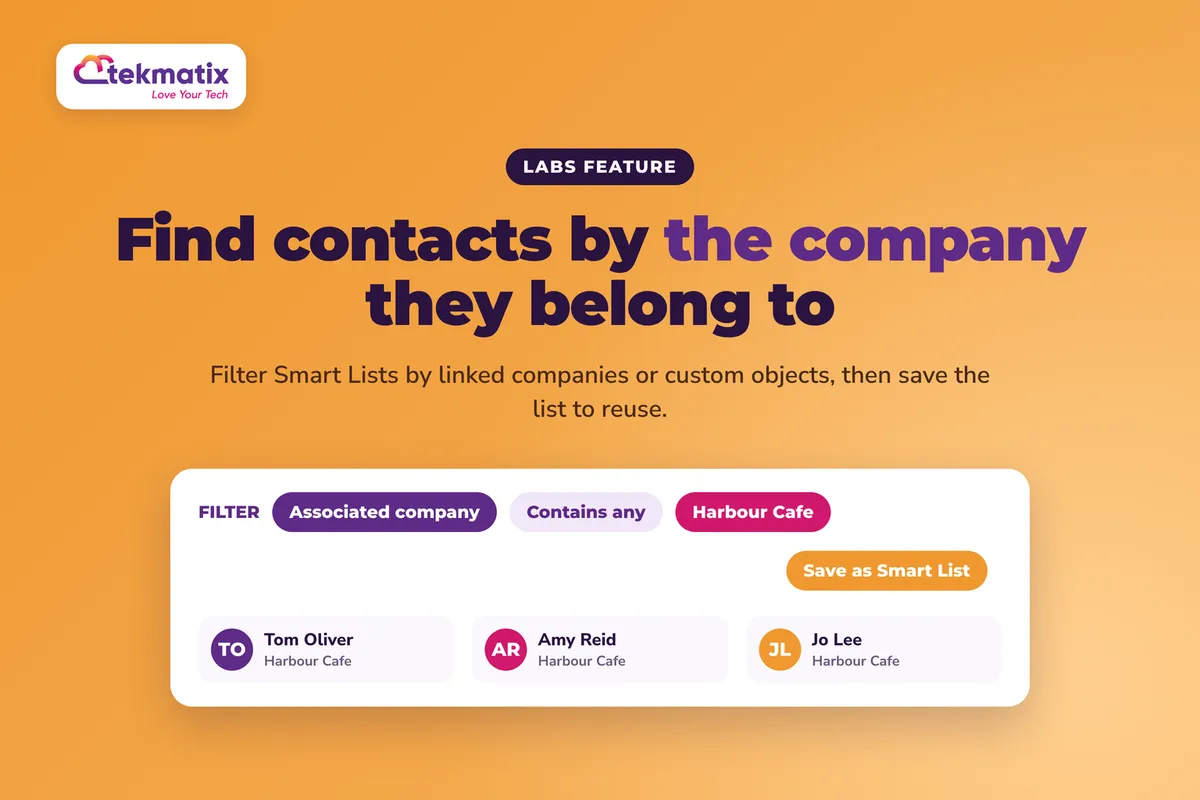
How do I filter my contacts by company or custom object on Tekmatix?
You want to email everyone who works at one client business. Or every contact who owns a particular product, pet or property you track. Or you want to find the contacts who aren't linked to anything yet. Until now, that meant a lot of clicking.
Contact Smart Lists in Tekmatix can now show the companies and custom object records linked to each contact. You can filter by those links, and save the result as a list you can come back to.
This is a Labs feature. Once Association Columns and Filters for Contacts is switched on in Labs, go to Contacts, then Smart Lists. Click Filters, search for Associated, pick the association, choose an operator such as Contains any or Is empty, and apply. Save it as a Smart List to reuse it.
What associated records in Smart Lists means
An association is a link between a contact and another record, such as a company or a custom object you've set up. Each association has a label that describes the relationship, like "Primary Company", "Owned Pet" or "Additional Company".
Your Contact Smart Lists can now use those links in three ways:
- Relationship columns. Each association label can have its own column, even when a contact has several different relationships to the same type of record.
- Clickable chips. Linked records show as chips in the column. Click a chip to open that record. If there are more links than fit, a "+N" shows how many more.
- Association filters. Filter contacts by their linked records using Contains any or Does not contain any, or check whether a link exists at all with Is empty or Is not empty.
You'll also notice the old Company name column is now called Primary Company, and it shows a chip for the linked company.
Why this matters for your business
You can talk to a whole account at once. Pull every contact linked to one company into a list, and send them the right message without hunting them down one by one.
You can find the gaps. Contacts with no company or no linked record are easy to miss. An "Is empty" filter shows them straight away, so you can tidy them up.
Your messages get more relevant. If you track things like products, properties or pets as custom objects, you can segment by them and send messages that actually fit the person.
You build the list once. Saved Smart Lists keep your filters, so the same audience is ready next time.
Before you start
- The Labs feature Association Columns and Filters for Contacts switched on.
- Contacts already linked to companies or custom object records. If you haven't linked any yet, the columns and filters won't have anything to show.
- Your association labels set up with clear names, because the column headings use the names you've configured.
Which Tekmatix plan do you need?
Association columns and filters in Contact Smart Lists are currently in Labs, which is early access to new features. On Tekmatix, Labs is switched on for the Max plan. If you're on Max and can't see it yet, ask our team on live chat to check it for you.
Compare every plan at tekmatix.com/pricing, or change your plan here.
How to show association columns in your Smart List
- Open your Smart ListsGo to Contacts, then Smart Lists.
- Open Manage fieldsClick the column count above the list, then open Manage fields.
- Pick your association labelsUnder Associations, select the association labels you want to see as columns.
- ApplyClick Apply. Each label now shows as its own column, with linked records as clickable chips.
How to filter contacts by company or custom object
- Open FiltersIn your Smart List, click Filters.
- Search for AssociatedSearch for Associated and select the association field you want to filter by.
- Choose an operatorPick Contains any, Does not contain any, Is empty or Is not empty. If you choose Contains any or Does not contain any, select the linked records to match.
- Apply and saveApply your filters. Combine them with any other contact filters you need, then save it as a Smart List so you can use it again.
| Operator | What it finds |
|---|---|
| Contains any | Contacts linked to any of the records you select |
| Does not contain any | Contacts not linked to any of the records you select |
| Is empty | Contacts with no link under that association label |
| Is not empty | Contacts with at least one link under that association label |
A few things to know
- Pick the right label. Different labels can describe different relationships to the same type of record. Choose the label that matches the relationship you're filtering on.
- Headings use your names. Association columns use the object names you've configured, so clear names make your lists easier to read.
- Company name is now Primary Company. If you had saved views using that column, look for the new name.
Test it on a company you know well.
Pick a company where you know exactly who works there. In your Smart List, add a filter on its association, choose Contains any and select that company. Check the contacts shown match the people you expect. Then switch the operator to Is empty on the same label and see which contacts aren't linked to any company yet.
Five ways to actually use this
- Send account updates to everyone at a client. Filter by company with Contains any, save the list, and use it whenever you need to update the whole team at that business.
- Clean up unlinked contacts. Use Is empty on Primary Company to find contacts with no company. Work through the list and link them, so your CRM stays useful.
- Segment by what people own or use. If you track records like properties, vehicles, pets or products as custom objects, filter by them to send messages that actually fit.
- Find your referral partners' clients. If you've linked advisers to the businesses they look after, filter on that label to see who sits in each partner's network.
- Exclude existing accounts from prospecting. Use Does not contain any to leave out contacts linked to your current client companies before you send a cold campaign.
Want it done for you?
Smart Lists are only as good as the data and messages behind them. If you'd rather have this set up properly, our Teksperts can build it straight into your Tekmatix account.
Quick Account Set-Up
A private 90 minute session with a Tekspert on a shared screen. We set up email sending on your own domain, verify your contacts and remove bad addresses, create a mailing list tag and smart list, upload and tag your contacts from your CSV file, and build a customer journey pipeline around your offers. You keep the recording and transcript, and anything not finished live is completed for you afterwards.
See Quick Account Set-UpEmails, Newsletter & Nurture System
Once your lists are segmented, put them to work. We set up your sending domain authentication, Smart List segmentation, a branded master email template, an opt-in form, an RSS newsletter workflow that emails each new blog post, and a 10-email welcome and nurture sequence. Your list hears from you regularly without you sending every email by hand.
See the Emails, Newsletter & Nurture SystemSee every done-for-you package at tekmatix.com/services.
Frequently asked questions
Can I filter contacts by the company they're linked to?
Yes. Click Filters in your Smart List, search for Associated, choose the company association and use Contains any, then select the company.
Can I filter by custom objects as well as companies?
Yes. Associations to custom object records show up as columns and filters too, using the object names you've configured.
How do I find contacts that aren't linked to anything?
Filter on the association label you want to check and choose Is empty. You'll see every contact with no link under that label.
What does the +N on a chip mean?
It shows how many more linked records the contact has beyond the ones shown in the column.
Where did the Company name column go?
It's now called Primary Company, and it shows a chip for the linked company.
Can I save these filters?
Yes. Apply your filters, combine them with any other contact criteria, and save them as a Smart List to reuse.
Is this available in every Tekmatix account?
It's currently in Labs, which is early access. On Tekmatix, Labs is switched on for the Max plan.
Do I need to be on a particular Tekmatix plan?
Yes. Because this is a Labs feature, it's available on the Max plan, where Labs is switched on. You can compare the plans here and change your plan here.
Does filtering by associated records cost extra?
There's no separate usage charge listed for Smart List filters. They're part of your Tekmatix subscription. If you then email a list, normal email sending costs apply. You can see all current usage pricing at tekmatix.com/rebilling.
Need a hand?
Free daily group training
Jump on a free group session with a Tekspert and build your first association filter live.
Book free trainingHire a Tekspert for 60 minutes
Share your screen and we'll set up your association columns, filters and saved Smart Lists with you.
Book a Tekspert15 minute advanced tech support
Got one quick question, like why an association isn't showing as a column? A focused 15 minutes sorts it out.
Book 15 minutes24/7 live chat
Our team is on live chat around the clock, right inside your Tekmatix account.
Get supportYour contacts are already linked to the things that matter. Now you can see those links in your lists and use them to reach the right people.
Happy Tekkin'!