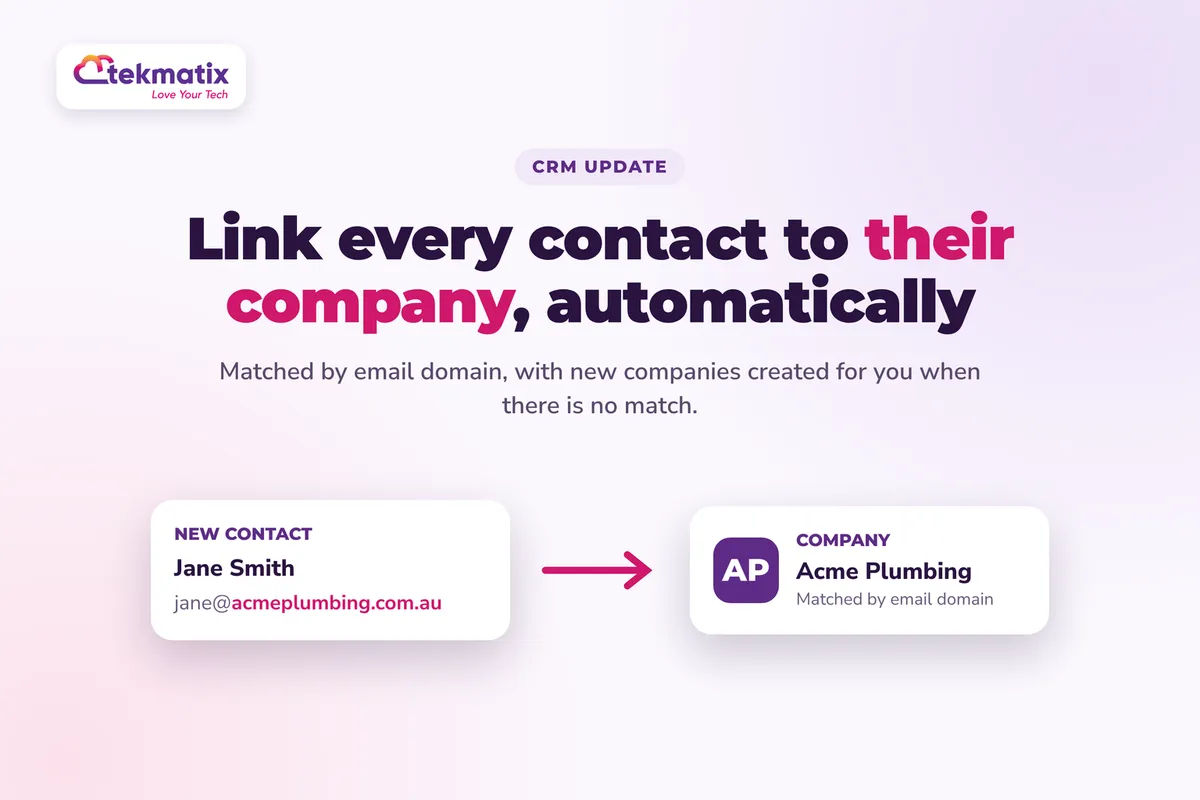
How do I automatically link contacts to their company on Tekmatix?
A new lead fills in your form with [email protected]. Three weeks later her colleague books a call. Are they in your CRM as two strangers, or as two people from the same business?
Tekmatix can now sort that out for you. When a contact comes in with a business email address, your account can match them to the right company by their email domain, link them up, and create the company for you if it doesn't exist yet.
Go to Settings, then Objects, then Companies, and under Automations turn on Create companies from contact's email domain, Enrich companies automatically and Automatically prevent duplicate companies. Click Save changes. From then on, new contacts with a business email are linked to their company automatically, and a new company is created, named and given a logo when there's no match.
What automatic company creation does
A company record in Tekmatix holds the business, and contacts are the people who work there. This automation looks at the domain in each contact's email address, the part after the @, and uses it to find or create the right company.
- It runs on its own. No workflow is needed. Once the settings are on, matching happens when a contact is created or their email changes.
- It reuses companies you already have. If a company already holds that domain, the contact is linked to it. If a company has no domain yet but its name matches the domain, it's reused and the domain is saved to it.
- It creates companies when there's no match. The new company gets the domain, and where the domain is recognised, a name and logo too.
- It skips personal email. Free providers such as Gmail, Yahoo, Outlook and iCloud are always excluded, so you don't end up with a company called "Gmail".
- It leaves existing links alone. A contact who is already linked to a company is not moved.
Why this matters for your business
You see the whole account, not just one person. If you sell to businesses, the deal often involves more than one person. Having them all under one company shows you who you're really dealing with.
No more typing company details by hand. Every lead from the same business lands in the right place without anyone on your team doing data entry.
Cleaner data from day one. With duplicate prevention switched on, each domain belongs to one company, so you don't end up with "Acme", "Acme Pty Ltd" and "ACME" as three separate records.
Better follow-up. When you can see every contact at a business, you can pick the right person to talk to and avoid emailing three people at the same company the same thing.
Before you start
- Contacts with business email addresses. Domain matching only works on business emails, not free personal ones.
- A quick look at your existing companies. If you already have duplicates, sort them out first, because duplicate prevention only blocks new duplicates. It doesn't merge the ones you already have.
- A list of any domains you don't want used for matching, such as your own business domain or a shared domain your clients use.
Which Tekmatix plan do you need?
Companies are part of the CRM in your Tekmatix account, which is included on the Starter, Pro and Max plans. Compare every plan at tekmatix.com/pricing, or change your plan here.
This feature has now moved out of Labs. If you can't see the company automations in your settings, check Settings, then Labs, or ask our team on live chat to check it for you.
How to switch on automatic company creation
- Open your company settingsGo to Settings, then Objects, then Companies.
- Find AutomationsScroll to the Automations section. You'll see these options:
- Automatically create and associate companies from contact business names
- Create companies from contact's email domain
- Enrich companies automatically
- Automatically prevent duplicate companies
- Turn on the recommended settingsSwitch on Create companies from contact's email domain, Enrich companies automatically and Automatically prevent duplicate companies. We recommend leaving the business name option off, so email domain matching stays in charge.
- Exclude any domains you don't want matched (optional)Under Create companies from contact's email domain, select Exclude domains from automatic association. Enter the bare domain, for example
acme.com, and add it. - Choose what happens to your existing recordsWhen email domain matching is on, two options are ticked by default. Fill in domains for existing companies adds domains to companies that don't have one. Apply to existing contacts links your existing contacts to companies, and creates companies where needed. If both are ticked, domains are filled in first, then contacts are processed.
- SaveClick Save changes. Any processing of existing records runs in the background, so you can keep working.
How contacts are matched to companies
Tekmatix checks in this order and stops at the first company that fits:
| Check | What happens |
|---|---|
| 1. Already linked to a company | Nothing changes |
| 2. Business name matches (only if that option is on) | Uses or creates a company with that name |
| 3. A company already has the email domain | The contact is linked to it |
| 4. A company with no domain has a name that matches the domain | That company is reused and the domain is saved to it |
| 5. No match at all | A new company is created with the domain |
Watch the business name option. If business name matching is on and finds a match first, the email domain checks don't run and the domain isn't added. That company may then sit outside duplicate prevention. This is why we suggest leaving business name matching off.
The company domain name field
Each company now has a Domain name field under Company Info on the company record. It also shows as a column in your companies list, and as domainname in imports and smart lists.
- Enter the bare domain only. Use
acme.com, not https://, www., a page path or an email address. - One domain per company. If a business uses more than one domain, you'll need to handle the others manually.
- Matching is exact.
acme.comandmail.acme.comare treated as different domains. - Your own entries are safe. Filling in domains never overwrites a domain you typed in yourself.
- Filling in domains can't be undone. Have a quick look at your company list before you run it.
To add a domain yourself, open the company record, enter the domain in Domain name under Company Info, and click Save.
A few things to know
- Turning it off doesn't undo anything. Switching the settings off stops future processing, but companies, links, domains and logos already created stay as they are.
- Enrichment is best effort. If a domain isn't recognised, the company is still created, with a name based on the domain. A missing logo doesn't stop the company being created.
- Want to refresh names and logos? Turn Enrich companies automatically off, save, then turn it back on and save again. That runs a one-time re-enrichment of your existing companies.
- Exclusions only apply to email domains. A company can still be created from a business name if that option is on.
- Some domains are skipped when filling in. Free email, social and website-builder addresses (such as Facebook, LinkedIn, Wix, Squarespace and Linktree), values that aren't domains, and domains that would clash with another company.
Test it with one contact first.
After saving, create a test contact with a business email address at a domain you know, such as a colleague's work email. Open the contact and check it's linked to a company. Open that company and check the Domain name field holds the right domain, and see whether a name and logo were added. Then create a second test contact at the same domain and check it joins the same company instead of creating a new one.
Five ways to actually use this
- Exclude your own domain. If your team's addresses end up as contacts, add your business domain to the exclusions so you don't create a company for yourself.
- Run the backfill once, then let it run. Tick both existing-record options the first time you switch it on so your old contacts are sorted too. After that, new contacts are handled as they arrive.
- Spot when one business sends several leads. Three enquiries from the same company in a month is a sign of real interest. Check your companies list and give that business a personal call.
- Clean up your old duplicates. Duplicate prevention stops new ones, but it won't merge the past. Sort your companies list by Domain name and tidy up any doubles by hand.
- Check in after your next import. If you import a list of business contacts, open a few afterwards and confirm they've been linked to the right companies before you send a campaign.
Want it done for you?
Company records are only as useful as the CRM around them. If you'd rather have your account set up properly from the start, our Teksperts can do it with you or for you.
Quick Account Set-Up
A private 90 minute session with a Tekspert on a shared screen. We check your core settings and integrations, set up email sending on your own domain, verify your contacts and remove bad addresses, build a customer journey pipeline around your offers, and set up tags, a smart mailing list and your booking calendars. You get the recording and transcript, and anything not finished live is completed for you afterwards. It saves you weeks of working it out alone.
See Quick Account Set-UpLead Magnet & Nurture System
Get more business contacts coming in. We build a two-step opt-in funnel for your free resource, automate the delivery, and set up a 10-step nurture email sequence, with the opt-in form, tags and CRM records set up so every lead lands organised. It keeps collecting and warming leads while you get on with the work.
See the Lead Magnet & Nurture SystemContracts, Proposals & Invoicing
Selling to businesses usually means proposals and contracts. We set up a master contract with e-signature fields, a proposal template and an invoice template, plus a proposal follow-up workflow, a contract-signed workflow and a three-stage invoice reminder sequence. That means less chasing and a shorter wait to get paid.
See Contracts, Proposals & InvoicingSee every done-for-you package at tekmatix.com/services.
Frequently asked questions
Do I need a workflow to link contacts to companies?
No. Once the company automations are switched on, matching and company creation run on their own.
Should I match by business name or email domain?
Email domain is recommended because it gives cleaner data. Business name matching is still there if you need it, but spelling, spacing, punctuation and legal suffixes like "Pty Ltd" can stop names matching.
What happens if a contact has both a business name and an email?
If business name matching is on and finds a match, it takes priority and the email domain checks don't run.
What about contacts with Gmail or Yahoo addresses?
Common free email providers are always excluded, so those contacts won't be used to create companies by email domain.
Does duplicate prevention merge my existing duplicate companies?
No. It only stops new duplicates. Any duplicates you already have need to be sorted out manually.
Will filling in domains overwrite a domain I entered myself?
No. Domains you entered manually are kept.
Why wasn't a company created for my contact?
Check that the contact has a business email, that the domain isn't excluded or a free provider, and that the contact wasn't already linked to a company.
Why didn't my new company get a logo?
The domain may not be recognised, enrichment may be off, or the company may have been created before enrichment was switched on.
Do I need to be on a particular Tekmatix plan?
Companies are part of the CRM included on the Starter, Pro and Max plans. You can compare the plans here and change your plan here.
Does automatic company creation cost extra?
There's no separate usage charge listed for this feature. It runs as part of your Tekmatix subscription. You can see all current usage pricing at tekmatix.com/rebilling.
Need a hand?
Free daily group training
Jump on a free group session with a Tekspert and switch on your company automations live.
Book free trainingHire a Tekspert for 60 minutes
Share your screen and we'll set up your companies, exclusions and backfill with you, and help tidy up existing duplicates.
Book a Tekspert15 minute advanced tech support
Got one quick question, like why a contact isn't linking? A focused 15 minutes sorts it out.
Book 15 minutes24/7 live chat
Our team is on live chat around the clock, right inside your Tekmatix account.
Get supportSwitch it on once, and every new business contact finds their company on their own. Your CRM stays tidy while you get on with selling.
Happy Tekkin'!