How do I add live chat to my AI Studio app on Tekmatix?
You've built a website or app in AI Studio. It looks the part. Now you want visitors to be able to ask you a question without leaving the page, and you want those messages to land in the same inbox as everything else.
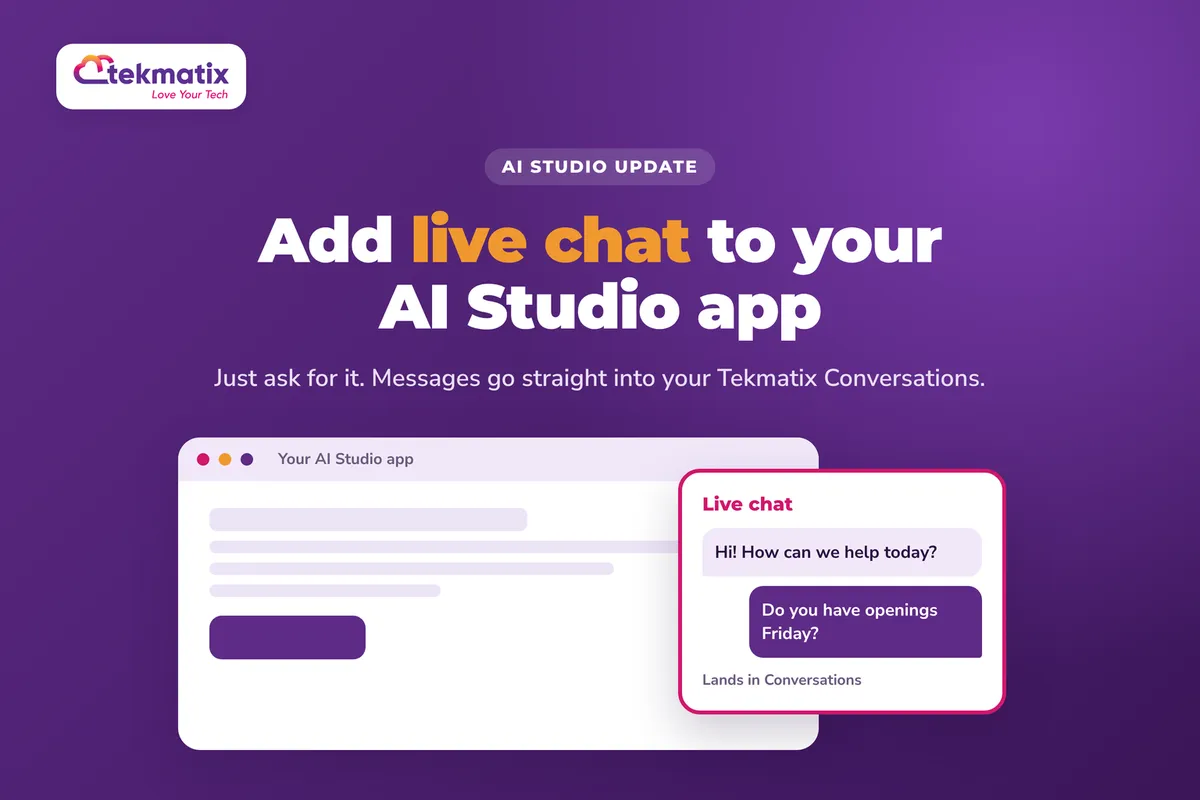
AI Studio can now add a chat widget to your app for you. Just ask for it. The widget is designed to match the look of your app, and underneath it's the same chat you already use in your Tekmatix account, so messages go straight into Conversations.
Open your AI Studio project and ask it to add a live chat. Choose the chat type, click Connect, answer the design questions about greeting, placement and tone, and AI Studio builds and connects the widget. Adjust its settings in More, then Chat Widgets, and see how it's performing in More, then Analytics, then Chat Widgets.
What AI Studio chat widgets are
Instead of a standard chat bubble dropped onto your page, AI Studio builds a chat widget that's designed to match the site or app you've made. It still uses your Tekmatix contacts, Conversations and chat settings, so nothing about how you reply changes.
- Two chat types are supported. Live Chat, and SMS or Email Chat.
- Messages land in Conversations. When a visitor sends a message, it appears in Conversations, and your team's replies go back to the visitor through the widget.
- Returning visitors pick up where they left off. Conversation history is kept, so people can continue earlier chats.
- The practical bits are built in. File attachments, message delivery status (sending, sent or failed, with retry), business hours and spam protection.
- You can have more than one. You can create multiple widgets in one project.
Why this matters for your business
Visitors can ask before they leave. A question that goes unanswered is often a sale that goes elsewhere. A chat on the page gives people an easy way to reach you while they're interested.
Every enquiry lands in one place. Chat messages go into Conversations alongside your email, SMS and social messages, and visitors become contacts in your CRM.
It looks like it belongs. The widget is designed to match your app, so it doesn't look bolted on.
You can see what's working. Analytics show how often the chat loads and opens, your open rate and visitor feedback, plus a table of every lead the widget brought in.
Before you start
- An AI Studio project, such as a website or app you've built.
- Know what you want the chat to say when it opens, where it should sit on the page, and the tone you'd like. AI Studio will ask.
- Someone ready to reply in Conversations, or business hours set so visitors know when to expect an answer.
Which Tekmatix plan do you need?
AI Studio is included on the Starter, Pro and Max plans. Building and changing your app with AI Studio uses AI tokens, charged at $3.165 USD per 1 million tokens. See current usage pricing at tekmatix.com/rebilling.
Compare every plan at tekmatix.com/pricing, or change your plan here.
How to add live chat to your AI Studio app
- Ask AI Studio for a chat widgetOpen your AI Studio project and prompt it to add one. Something as simple as "add a live chat" works.
- Choose the chat type and connectAI Studio shows a card to create the widget. Choose Live Chat or SMS / Email Chat, then click Connect.
- Answer the design questionsFor a new chat, AI Studio asks about the greeting, placement and tone before it builds anything.
- Check the previewAI Studio creates the widget, names it after your project and connects it to your app. Check it in the app preview.
- Ask for changesWant it somewhere else, or worded differently? Ask AI Studio by prompt, or edit the generated code.
Editing and managing your chat widget
In your AI Studio project, go to More, then Chat Widgets. You can also add another widget from here with Add a chat widget. You can rename the widget and set up:
- Messaging. Your welcome, inactivity, chat-ended, acknowledgement and feedback messages.
- Contact form. The details you need visitors to give you.
- Compliance notice and consent. Privacy, marketing, SMS and HIPAA-related notices.
- Spam protection. How suspicious leads are handled. They're kept for review and tagged, with optional Do Not Disturb on SMS, email or both.
- Business hours for Live Chat.
Your AI Studio widgets also show in Sites, then Chat Widgets. If you choose to edit one from there, you're taken back to AI Studio.
A few things to know
- Some chat types aren't supported yet. Voice chat, WhatsApp, Facebook Messenger and Instagram chat widgets aren't available in AI Studio yet.
- Attachments follow your widget's rules. Files are limited to the widget's supported file types and size limits.
- Bots get checked. Visitor sessions use tokens kept out of your app's code, and a captcha appears when a bot is suspected. Rate limits and your spam settings apply to every message.
What your visitors see
Visitors see a chat that matches your app, with the greeting, placement and tone you chose. They can send messages and files, see whether their message has sent, and retry if it fails. If they come back later, they can carry on the earlier conversation. If you've set up a contact form, they're asked for those details too.
Test it as a visitor.
Open your app in a private browser window and send yourself a message through the widget. Check it arrives in Conversations, reply from there, and make sure the reply shows up in the widget. Then look in More, then Analytics, then Chat Widgets to see your test lead in the All Leads table.
Five ways to actually use this
- Put a chat on your sales page. People often have one last question before they buy. Give them somewhere to ask it right there on the page.
- Use business hours to set expectations. Set your Live Chat business hours so visitors know when a person will reply, rather than wondering.
- Collect the details you need up front. Use the contact form settings so every chat gives you a name and a way to follow up, even if the visitor leaves.
- Check where your chats start. The All Leads table shows the page each conversation started on. If one page brings in most of your chats, that's the page to improve and promote.
- Read the feedback. Turn on the feedback message and check visitor satisfaction in your analytics, so you know how your replies are landing.
Want it done for you?
A chat widget is only as good as the site it sits on and the replies behind it. If you'd rather hand that over, our Teksperts can build it straight into your Tekmatix account.
5 Page Website
Up to five branded, mobile-friendly pages, an opt-in form, a checkout for one product or service, an AI chat widget for general enquiries, SEO set-up and connection to your own domain. You get a professional site that's set up to capture leads and enquiries, without spending weeks building it yourself, and you can keep editing it after.
See the 5 Page WebsiteAI Chat Bot, Chat Widget and AI Auto-Responder
Want enquiries answered even when nobody's free to reply? A branded AI assistant trained on up to 20 of your sources answers on your website chat, Facebook, Instagram and Google Business Profile, qualifies leads, sends your booking link and hands over to you when a person is needed. Fewer missed leads, and hours of admin back each week.
See the AI Chat Bot packageSee every done-for-you package at tekmatix.com/services.
Frequently asked questions
Which chat types can I add in AI Studio?
Live Chat, and SMS or Email Chat. Voice chat, WhatsApp, Facebook Messenger and Instagram chat widgets aren't supported in AI Studio yet.
Where do the chat messages go?
Into Conversations in your Tekmatix account. Your team replies from there, and the reply goes back to the visitor through the widget.
Can I have more than one chat widget in a project?
Yes. You can create multiple widgets in one AI Studio project.
How do I change the widget's messages or business hours?
In your AI Studio project, go to More, then Chat Widgets. You can change messaging, the contact form, compliance notices, spam protection and Live Chat business hours.
Can I change how the widget looks?
Yes. Ask AI Studio for changes by prompt, or edit the generated code.
Where can I see how my chat widget is performing?
Go to More, then Analytics, then Chat Widgets. You'll see loads, opens, open rate and visitor feedback, plus an All Leads table showing each contact, chat type, widget and the page where the conversation started.
Will it show up in my other chat widgets?
Yes. AI Studio widgets also appear in Sites, then Chat Widgets. Editing one there takes you back to AI Studio.
Which Tekmatix plan do I need?
AI Studio is included on the Starter, Pro and Max plans. Compare the plans here and change your plan here.
How much does it cost?
Building and changing your app in AI Studio uses AI tokens, charged at $3.165 USD per 1 million tokens. Current usage pricing is at tekmatix.com/rebilling.
Need a hand?
Free daily group training
Jump on a free group session with a Tekspert and add a chat widget to your app live.
Book free trainingHire a Tekspert for 60 minutes
Share your screen and we'll set up your widget, messages and business hours with you.
Book a Tekspert15 minute advanced tech support
Got one quick question, like why messages aren't coming through? A focused 15 minutes sorts it out.
Book 15 minutes24/7 live chat
Our team is on live chat around the clock, right inside your Tekmatix account.
Get supportYour app is already doing the work of bringing people in. Now they can talk to you while they're there.
Happy Tekkin'!