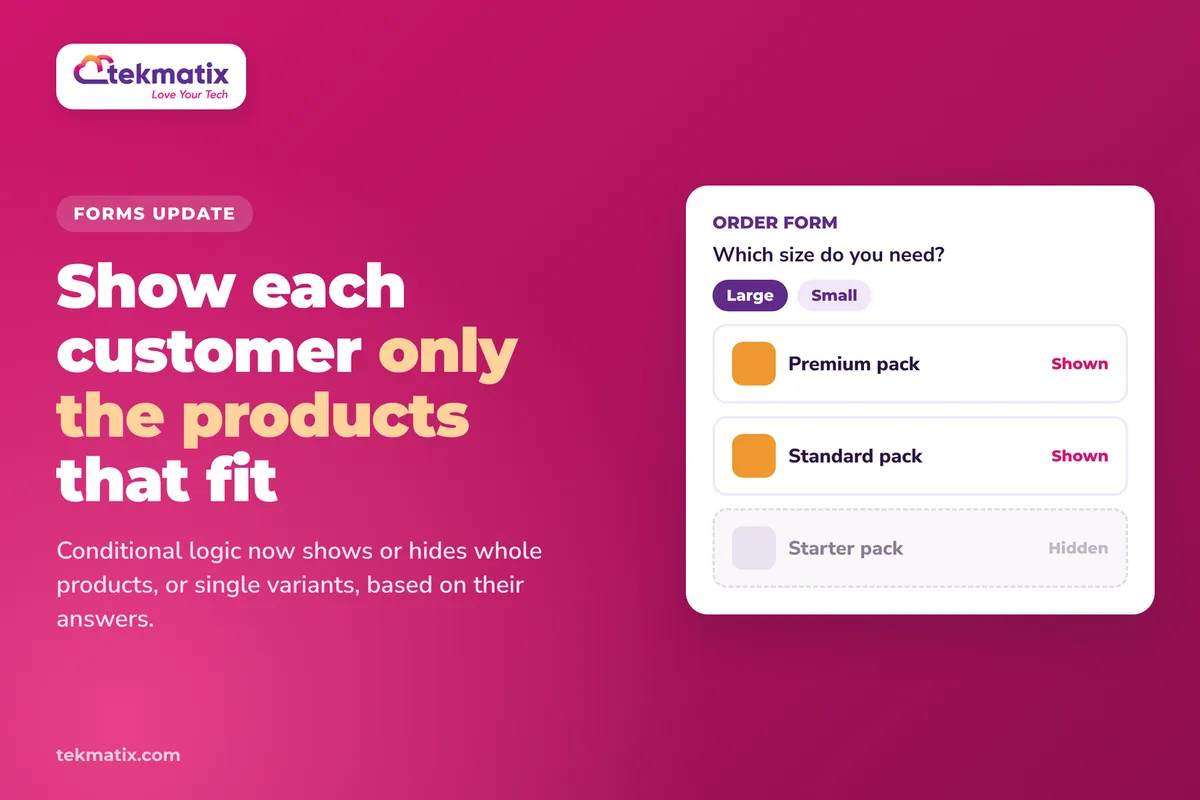
How do I show or hide products in my forms on Tekmatix?
You sell more than one thing on your order form. Maybe a standard and a premium option, or a few sizes. But not every customer should see every product. So how do you show people only the products that fit their answers?
Tekmatix forms and surveys can now do exactly that. You can show or hide individual products, and even individual variants of a product, based on what someone picks. You can also use the product someone chooses to trigger other logic, like a redirect or a custom message.
Open your form or survey in the builder and go to the Conditional Logic section. Choose the Show/Hide Fields logic type, then target a whole Sell Products element, a single product inside it, or specific variants of a product. You can also pick a product as the IF condition in any of the four logic types.
What's changed with products in forms
The Sell Products element lets people choose and pay for products right inside a form or survey. Before this update, conditional logic could only show or hide that whole element. It was all or nothing.
Now there are two new things you can do:
- Use a product as a condition. A product someone selects can be the IF condition in all four conditional logic types: Redirect URL, Display Custom Message, Disqualify Lead and Show/Hide Fields.
- Show or hide single products and variants. With Show/Hide Fields you can now target an entire product inside the Sell Products element, or specific variants of a product, not just the whole element.
- The old way still works. Showing or hiding the entire Sell Products element works the same as before.
- Both builders are covered. This works in both the old and new Forms and Surveys builders.
Why this matters for your business
Customers only see what's right for them. A long list of products can stop people in their tracks. Showing only the options that match their answers makes the choice easier.
One form can do the job of several. Instead of building a separate order form for each type of customer, you can build one and let the logic decide which products appear.
Fewer wrong orders. If a variant doesn't suit a customer's answers, you can hide it so they can't pick it by mistake.
Your follow-up starts at the form. Sending people to a different page, or showing a message, based on the product they chose means the next step already fits what they bought.
Before you start
- A form or survey in your Tekmatix account, new or existing.
- A Sell Products element added to it, with your payment provider connected and your products selected.
- Products set up with variants, if you want to show or hide specific variants.
- The questions you want to base the logic on, added above the products.
Which Tekmatix plan do you need?
Unlimited forms are included from the Starter plan. Unlimited surveys with conditional logic are included on the Pro and Max plans. If you want to use this inside a survey, you'll need Pro or above.
Compare every plan at tekmatix.com/pricing, or change your plan here.
How to show or hide products in a form or survey
- Open your builderGo to any existing or new form or survey and open it in the builder.
- Open Conditional LogicFind the Conditional Logic section inside the builder.
- Choose Show/Hide FieldsSelect the Show/Hide Fields logic type.
- Choose what to show or hideTarget the entire Sell Products element, an individual product inside it, or specific variants of a product.
- Set your conditionsDecide when those products or variants should appear or disappear, based on what the customer selects earlier in the form.
- Save and previewSave your form or survey, then preview it and try a few different answers to check the right products appear.
How to use a product as a condition
You can also flip it around and use the product someone picks to trigger something else.
- Open Conditional LogicIn your form or survey builder, open the Conditional Logic section.
- Pick your logic typeChoose Redirect URL, Display Custom Message, Disqualify Lead or Show/Hide Fields.
- Choose a product in the IF conditionWhen you set up the IF condition, choose a product. The logic now runs based on whether that product is selected.
- Set the outcomeAdd the URL, message or fields that should follow, then save.
A few things to know
- Nothing changes on its own. Your existing forms and surveys keep working as they are until you add new logic.
- Whole-element logic is still there. If you already show or hide the entire Sell Products element, that keeps working.
- Required selections are checked. Where a price or variant choice is required, it's checked before the form can be submitted.
What your customers see
Your customers just see a form that makes sense for them. As they answer your questions, products and variants appear or disappear, so the list they choose from only shows what fits. Depending on your logic, they might also see a custom message, or land on a different page after they submit.
Test it before you share the form.
Open the form preview and fill it in as each type of customer you're planning for. Check that the right products and variants show each time, and that hidden ones stay hidden. If you've set a redirect or custom message based on a product, choose that product and submit to make sure it works.
Five ways to actually use this
- One order form for every customer type. Ask "Are you a new or returning customer?" at the top, then show a starter product to new customers and a top-up product to returning ones.
- Only show the sizes or options that fit. If someone tells you they need the small version, hide the large variants so they can't pick the wrong one.
- Online or in person. Running a workshop with both options? Ask how they'd like to attend, then show only the matching ticket product.
- Send buyers to the right next page. Use a product as the IF condition for Redirect URL, so people who choose your premium option land on a page with their onboarding steps.
- Explain what they just picked. Use Display Custom Message with a product condition to tell people what happens next, like "Great choice, we'll be in touch within one business day to book your first session".
Want it done for you?
A smart order form is only one part of selling well. If you'd rather hand the build over, our Teksperts can set it up straight inside your Tekmatix account.
Sales Funnel System
A three-step funnel (landing or sales page, checkout and thank-you page) built in your branding, plus a purchase confirmation workflow and an abandoned cart recovery workflow. You get a proper place to sell your products from day one, and it's yours to edit and clone for every offer after it.
See the Sales Funnel SystemEvent / Retreat Tickets System
Selling tickets with different options? This package includes a three-step event funnel, up to two ticket types (like standard and VIP, or online and in-person), a ticket confirmation workflow with reminders and follow-ups, an abandoned cart sequence, a Google Sheet of attendees and a QR code registration form for the day. Less time on admin, and fewer lost ticket sales.
See the Event Tickets SystemSee every done-for-you package at tekmatix.com/services.
Frequently asked questions
Can I hide one variant of a product but keep the others?
Yes. With the Show/Hide Fields logic type you can target specific variants of a product, not just the whole product.
Can I still hide the whole Sell Products element?
Yes. Showing or hiding the entire Sell Products element still works the same way as before.
Which logic types can use a product as a condition?
All four: Redirect URL, Display Custom Message, Disqualify Lead and Show/Hide Fields.
Does this work in the old form builder?
Yes. It's available in both the old and new Forms and Surveys builders.
Will my existing forms change?
No. Your forms and surveys keep working as they are. Nothing changes until you add product-based logic yourself.
Do I need to be on a particular Tekmatix plan?
Unlimited forms are included from the Starter plan. Unlimited surveys with conditional logic are included on the Pro and Max plans. You can compare the plans here and change your plan here.
Does product conditional logic cost extra?
Conditional logic is part of the form and survey builders in your plan, not a pay as you go item. Payments you take through the form go through your own connected payment provider. You can check current usage pricing at tekmatix.com/rebilling.
Need a hand?
Free daily group training
Jump on a free group session with a Tekspert and set up your product logic live.
Book free trainingHire a Tekspert for 60 minutes
Share your screen and we'll build your order form and its logic with you, so you know exactly how it works.
Book a Tekspert15 minute advanced tech support
Got one quick question, like why a variant isn't hiding? A focused 15 minutes sorts it out.
Book 15 minutes24/7 live chat
Our team is on live chat around the clock, right inside your Tekmatix account.
Get supportYour customers don't need to see everything you sell. Show them what fits, and the choice gets easier for everyone.
Happy Tekkin'!