How do I make my emails look great on mobile on Tekmatix?
Your email looks great on your laptop. Then you open it on your phone and the button is tiny, the image is squashed and there's a huge gap halfway down. Most of your list is probably reading on their phone too.
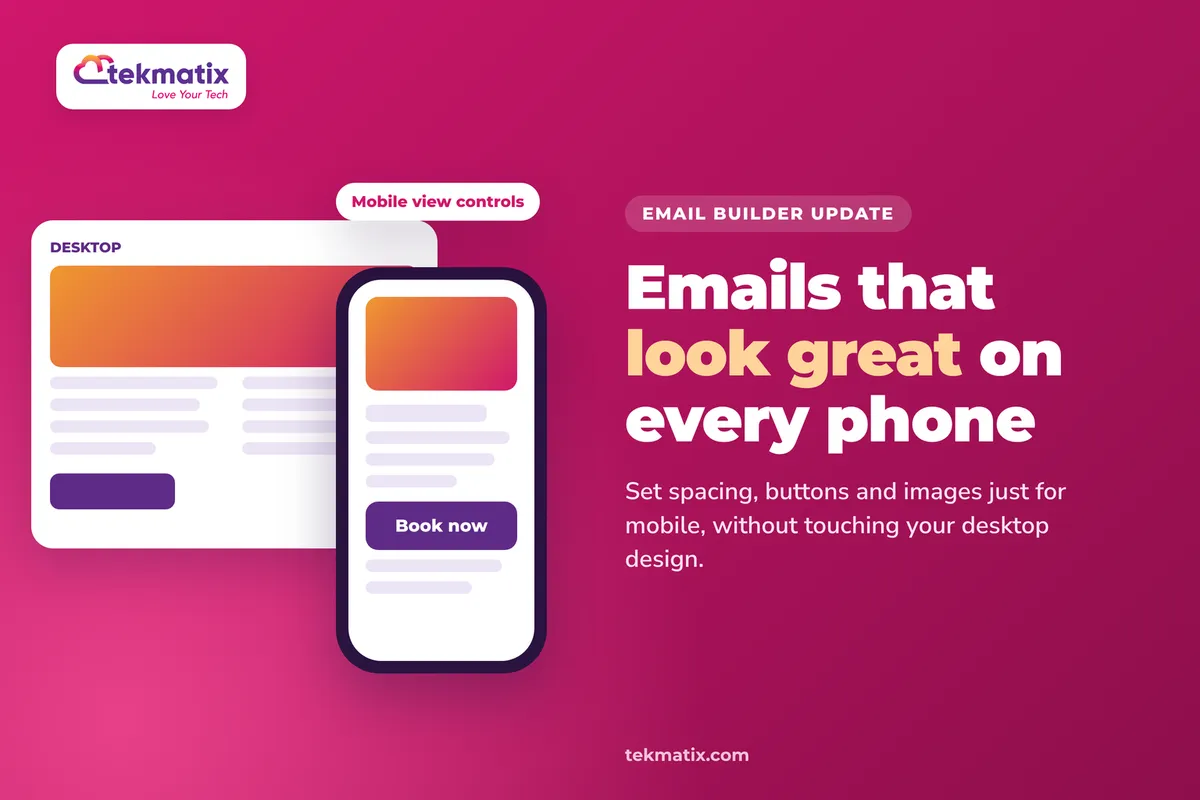
The Tekmatix Email Builder now has mobile view controls. You can change how spacing, buttons, images and social icons look on mobile, without touching the desktop version you've already got right.
Go to Marketing, then Emails, and open a campaign or template in the Design Editor. Select a section or element, open Style and use the device selector to switch to Mobile. Change the values you want, check the mobile preview, then save. Your desktop design stays exactly as it was.
What mobile view controls do
Until now, most styling in an email applied to every screen. If you made a button wider for phones, it got wider on desktop too. Mobile view controls let you set separate mobile styles for supported sections and elements.
Mobile styles start out matching your desktop settings. Nothing changes until you choose to override something for mobile.
| What you can adjust | Mobile controls |
|---|---|
| Sections and supported elements | Padding and margins |
| Buttons | Alignment, full width, spacing, padding and text style (font, size, bold, italic, underline) |
| Images, logos and videos | Alignment, dimensions and padding, with an aspect ratio lock to keep proportions |
| Social icons | Alignment, icon size and spacing |
| Text | Font size, line height and alignment for default text styles, under Appearance, then Mobile Formatting |
Not every setting is available on every element. Look for the device selector next to a setting. If it's there, you can set a mobile value.
Why this matters for your business
More clicks from phone readers. A full-width button that's easy to tap gets tapped. A tiny one squeezed in the corner often doesn't.
You don't have to compromise. Before, you had to pick a design that was "good enough" on both screens. Now each one can look the way it should.
Your brand looks professional everywhere. Emails that look broken on a phone make a business look careless. Tidy mobile emails build trust.
Your old emails are safe. Existing campaigns and templates keep their current look unless you change their mobile styles, so nothing breaks overnight.
Before you start
- An email campaign or template built in the Tekmatix Email Builder. Get the desktop version looking right first.
- Your phone handy, so you can send yourself a test and see the real thing.
- A quick idea of what bothers you on mobile, such as gaps that are too big, a button that's too small or an image that's too wide.
Which Tekmatix plan do you need?
Email marketing and the Email Builder are included on every Tekmatix plan, from Launch up. Mobile view controls are a new release and are rolling out, so they may not be in every account yet. Compare every plan at tekmatix.com/pricing, or change your plan here.
Styling your emails doesn't cost anything extra. Sending email is billed at $0.001 USD per email. See all usage pricing at tekmatix.com/rebilling.
How to set mobile styles in the Email Builder
- Open your emailGo to Marketing, then Emails, and create or open a campaign or template in the Design Editor.
- Select what you want to changeClick a section, or a supported element like a button, image or social icons block.
- Open Style and switch to MobileOpen Style and use the device selector next to the setting you want to change. Choose Mobile. If an override needs switching on for that setting, switch it on.
- Adjust the valuesChange the mobile values, for example less padding, a full-width button or a smaller image. Watch the mobile preview as you go.
- Check desktop hasn't movedSwitch back to Desktop and check your desktop design still looks the same.
- Preview both versionsSave, click the eye icon to open Preview, and switch between Desktop and Mobile to review both.
- Send yourself a testSend a test email from the Preview menu and open it on your phone. That's the best check of what your readers will see.
Mobile text, and hiding things on mobile
- Mobile text sizes. To change font size, line height and alignment for your default text styles on mobile, go to Appearance, then Mobile Formatting.
- Formatting is not the same as visibility. Mobile formatting changes how something looks. Device visibility controls whether it shows at all. If you want a block to appear only on desktop or only on mobile, use the visibility settings instead.
- Controls vary by element. If you can't see a device selector next to a setting, that setting doesn't have a separate mobile value.
The refreshed Email Marketing area
You might also notice Email Marketing looks a little different. The whole area has had a refresh, so Campaigns, Templates, Statistics, Campaign details, Settings and the Email Builder now share one consistent design.
- Faster first load. The email tools load up to 7 times faster on a first visit. Campaigns, templates and statistics can still take a moment to load, depending on your connection and device.
- Faster when you come back. Reopening the builder or returning to Email Marketing reuses what's already loaded.
- Easier to find campaigns. The Campaigns tab has filters, sorting, and list or grid views.
- Settings behind the gear icon. Your email configuration settings open from the gear icon.
What your customers see
Readers on a phone see your mobile styles. Readers on a desktop see your desktop design. They don't need to do anything.
Keep your base design readable. Some email apps ignore mobile overrides, and previews may not exactly match what every reader sees. So make sure your desktop design still reads well on a small screen, and treat the mobile styles as a way to make it better.
Test it on a real phone.
Before you send to your list, send a test from the Preview menu to yourself. Open it on your phone and, if you can, in a second email app. Check the button is easy to tap, images fit the screen and there are no awkward gaps. Then open the same test on your computer and check the desktop version still looks right.
Five ways to actually use this
- Make every main button full width on mobile. Your call to action becomes a big, easy target for thumbs, without making it look oversized on desktop.
- Close up the gaps. Generous padding looks elegant on desktop and wasteful on a phone. Trim section padding on mobile so readers get to your message faster.
- Shrink your header logo on mobile. A big logo pushes your opening line below the fold on a phone. Make it smaller on mobile, with the aspect ratio locked so it doesn't stretch.
- Sort out your master template once. Set the mobile styles on your master email template, so every new email you build from it starts mobile-ready.
- Tidy your sign-off. Social icons often wrap or crowd on mobile. Shrink them and adjust the spacing so your footer looks tidy on every screen.
Want it done for you?
If you'd rather have emails that look right on every screen from day one, our Teksperts can build them straight into your Tekmatix account.
Emails, Newsletter & Nurture System
A mobile-responsive master email template styled with your colours, fonts, logo and social links, plus your sending domain authenticated, Smart Lists, a 10-email welcome and nurture sequence and an RSS newsletter workflow. Every email you send after that starts from a template that already looks good on a phone.
See the Emails, Newsletter & Nurture SystemLead Magnet & Nurture System
A two-step opt-in funnel built on Tekmatix templates, branded to your business and mobile responsive, with a delivery automation and a professionally structured 10-step nurture email sequence. New subscribers get a polished experience from the first tap.
See the Lead Magnet & Nurture SystemSee every done-for-you package at tekmatix.com/services.
Frequently asked questions
Will changing the mobile style change my desktop email?
No. Mobile overrides only apply on mobile. Your desktop design stays as it is.
Do I have to redo my existing emails?
No. Existing campaigns and templates keep their current look unless you update their mobile styles. Mobile styles inherit your desktop values until you change them.
Which elements have mobile controls?
Sections and supported elements (padding and margins), buttons, images, logos, videos and social icons. Default text styles have mobile font size, line height and alignment under Appearance, then Mobile Formatting. Controls vary by element.
I changed the mobile font size and nothing happened. Why?
Check the mobile override is switched on for that setting. Some email apps also ignore mobile styles, so send a test and check it in more than one app.
What's the difference between mobile formatting and hiding something on mobile?
Mobile formatting changes how something looks on a phone. Visibility settings control whether it shows at all.
Is the preview exactly what my readers will see?
Not always. Previews may not exactly match every email app. Sending yourself a test email is the best check.
Do I need to be on a particular Tekmatix plan?
Email marketing and the Email Builder are included on every Tekmatix plan. Mobile view controls are rolling out, so they may not be in every account yet. You can compare the plans here and change your plan here.
Do mobile view controls cost extra?
No. Styling is part of the Email Builder. Sending email is billed at $0.001 USD per email. See tekmatix.com/rebilling.
Need a hand?
Free daily group training
Jump on a free group session with a Tekspert and tidy up your mobile emails live.
Book free trainingHire a Tekspert for 60 minutes
Share your screen and we'll set the mobile styles on your master template with you.
Book a Tekspert15 minute advanced tech support
Got one quick question, like a button that won't go full width? A focused 15 minutes sorts it out.
Book 15 minutes24/7 live chat
Our team is on live chat around the clock, right inside your Tekmatix account.
Get supportYour readers are on their phones. Now your emails can look like they were made for them.
Happy Tekkin'!