How to Connect Claude AI to Tekmatix Using the MCP Integration (Step-by-Step)
Want Claude to actually do the work inside your Tekmatix account? Not just answer questions, but find your contacts, chase your enquiries, report on your sales, fill your social calendar and even build your workflows, all from one chat?
Connecting Claude to Tekmatix takes about five minutes. This guide shows you exactly how, step by step, with the new setup screens.
Updated 25 November 2026: the setup has changed
- Claude has moved its connectors. You now find them under Customize, then Connectors, and add Tekmatix with + Add, then Add custom connector.
- Claude now detects the sign-in settings for you, so there are no Client ID or Client Secret fields to worry about.
- When you click Connect, you sign in with your Tekmatix login, choose your business and approve access.
- Custom connectors now work on every Claude plan, including Free (limited to one custom connector).
- Claude can now carry out more than 600 actions across around 40 areas of your account, including building workflows.
- You switch Tekmatix on for each chat from the + button, then Connectors.
What can Claude do once it is connected?
Once Claude is connected, you just ask in plain English and it works inside your Tekmatix account for you. It can:
- Find, add and update contacts, tags, notes and tasks
- Read your conversations and draft replies to your enquiries
- Report on your pipelines, opportunities, sales and payments
- Check your calendars and appointments
- Draft social media posts in your Social Planner
- Prepare invoices, estimates and blog post drafts
- Build, check and update workflows (see how to get AI to build all of your workflows)
- And hundreds more actions across your account
What it can do depends on the permissions you approve, and Claude asks before it uses a tool, so you stay in control.
What AI should I use?
Start with Ask AI, the AI assistant already built into your Tekmatix dashboard. You do not need to connect anything. Just open it and ask it to do the work, such as finding contacts, building a funnel, sending a campaign or creating a calendar. Here is how to use Ask AI.
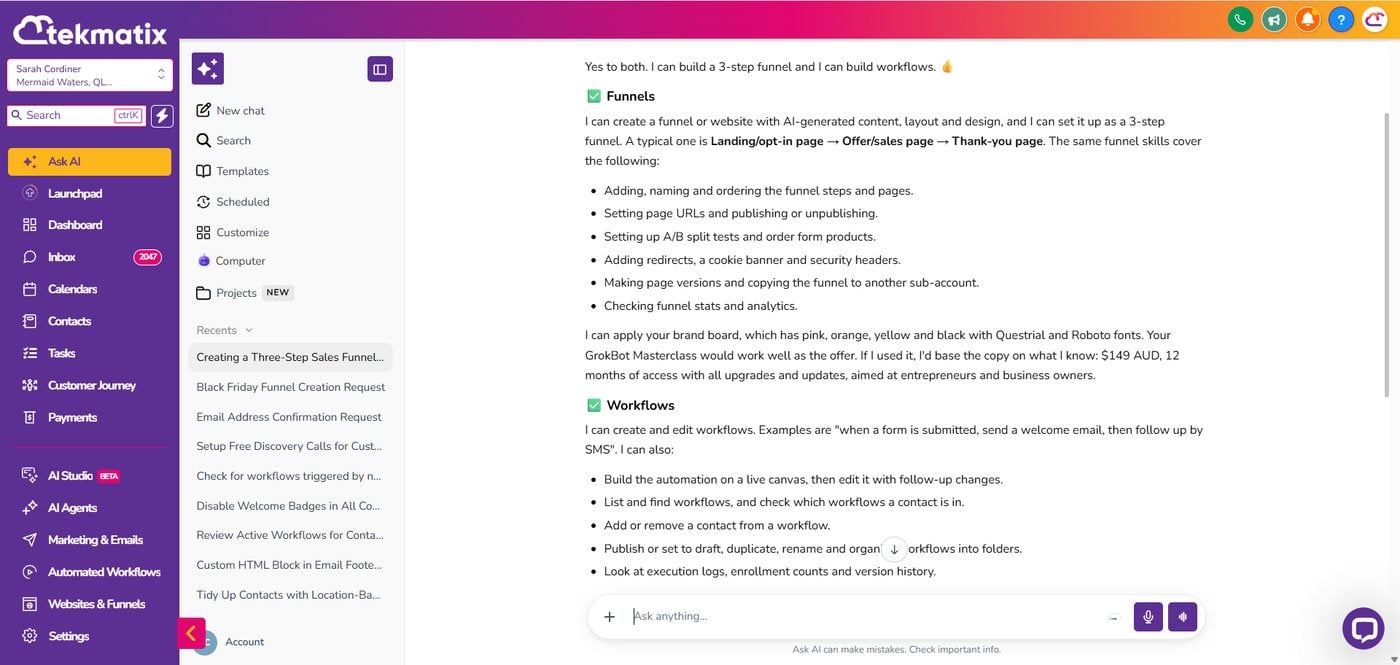
*Tekmatix AI usage applies as a billable consumable. You can find out more about pricing on our public page: tekmatix.com/pricing.
Prefer to work in the AI you already use? Tekmatix also connects to Claude, ChatGPT, GrokBot and other AIs that support custom MCP connectors. MCP is simply the secure connection that lets your AI work inside your account. This guide is for Claude. Using ChatGPT? Follow our guide to connecting ChatGPT to Tekmatix.
What you will need
- A Claude account. Any plan works, including Free. The Free plan allows one custom connector. On a Team or Enterprise plan, an owner needs to add the connector for your organisation first (see the note under Step 5).
- Your Tekmatix login. You will sign in and approve access, so make sure you can log in to the right account.
- A computer. Do the setup in Claude on the web at claude.ai or in the Claude desktop app. Once it is connected, you can use it from the Claude mobile app too.
- About five minutes.
Step 1: Copy your Tekmatix connection URL for Claude
Copy this URL. Click it once to select it, then copy.
Claude MCP URL to paste
You can also find it in your Tekmatix account: click Automated Workflows in the left menu, then MCP Connection for Your AI. Each AI has its own URL, so make sure you copy the one for Claude.
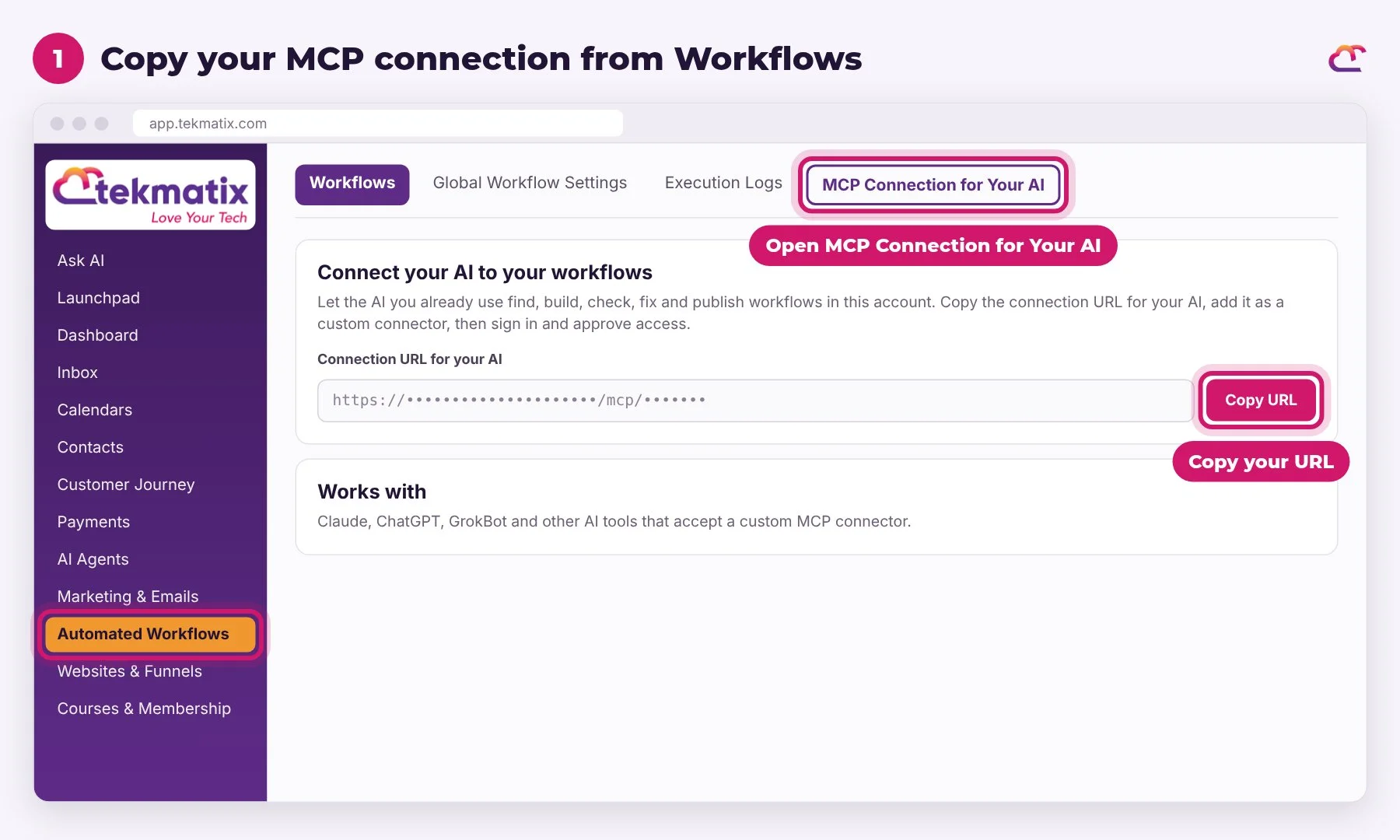
The URL on its own cannot open your account. Claude can only get in after you sign in with your own Tekmatix login and approve access.
Step 2: Open Connectors in Claude
Go to claude.ai or open the Claude desktop app and log in. Click Customize, then Connectors.
You can also get there from any chat: click the + button at the bottom left of the message box, hover over Connectors and choose Manage connectors.
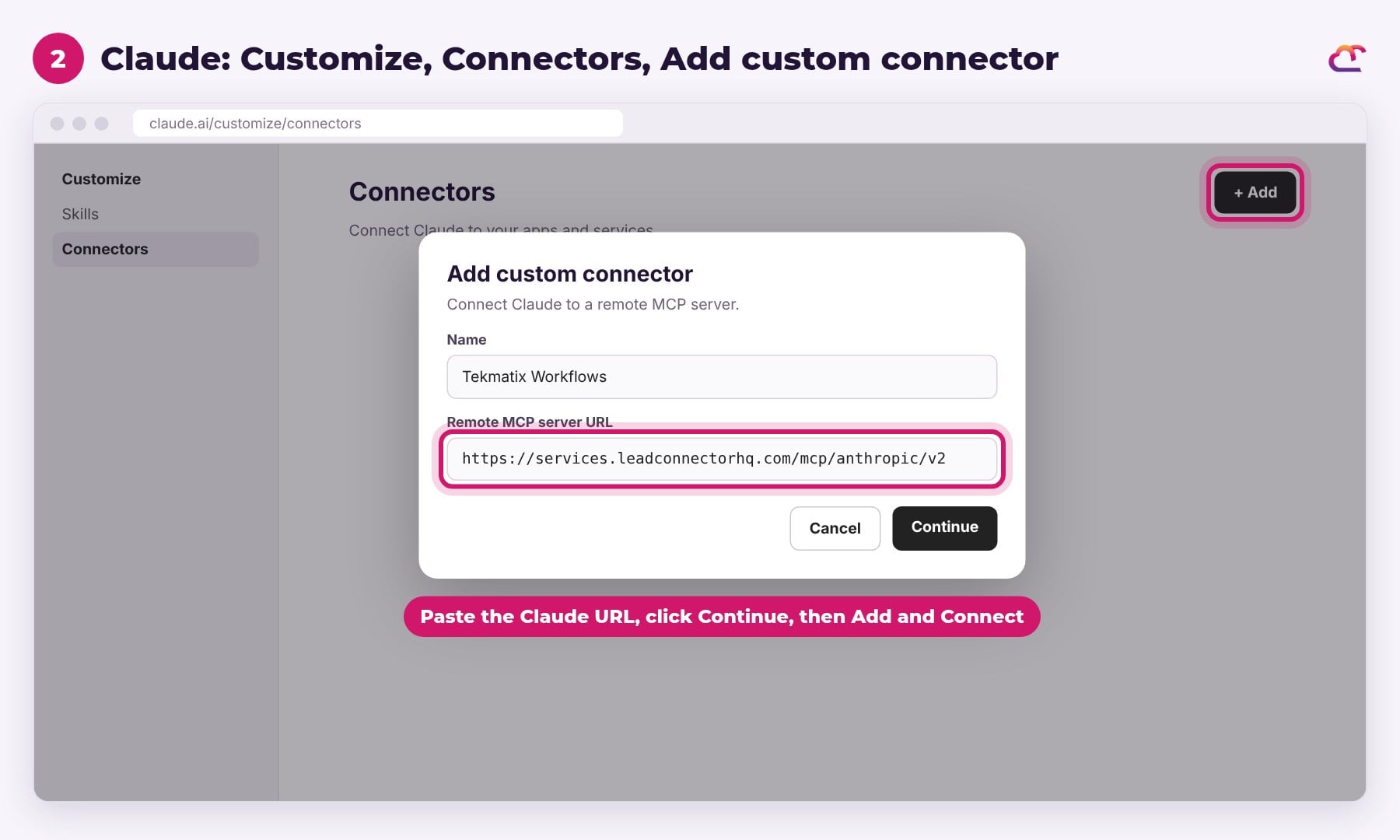
Step 3: Click + Add, then Add custom connector
At the top of the Connectors page, click + Add, then Add custom connector. Tekmatix is added as a custom connector using the URL you copied.
Step 4: Name it and paste the URL
- In Name, type Tekmatix.
- In Remote MCP server URL, paste the Claude URL from Step 1. Check there are no spaces before or after it.
- Click Continue.
Step 5: Keep the sign-in settings Claude detects, then click Add
Claude checks the URL and fills in the sign-in settings for you. Leave them as they are. You do not need a Client ID, a Client Secret or any request headers. Click Add.
On a Claude Team or Enterprise plan? An owner adds the connector first under Organization settings, then Connectors, using Add, then Custom, then Web. Each team member then goes to Customize, then Connectors, finds it in the list and clicks Connect.
Step 6: Click Connect
Tekmatix now appears in your list of connectors. Click it, then click Connect. A new tab opens so you can sign in and approve the connection.
Step 7: Sign in with your Tekmatix login
Sign in with your usual Tekmatix email and password. The sign-in and install screens may show a different app name rather than Tekmatix. That is normal. It is the secure connection Tekmatix uses behind the scenes.
Step 8: Choose your business
Choose the Tekmatix business (sub-account) you want Claude to work in, then click Continue. If you look after more than one business, you may be able to select several. Claude can only reach the businesses you choose here.
Step 9: Review the permissions, then click Allow & Install
The next screen shows the business you picked and the permissions Claude is asking for, grouped into areas such as Contacts, Calendars, Conversations, Opportunities, Payments, Workflows and Voice AI. Expand each area to read what is included. Depending on your account, these may be shown as a list rather than boxes you can untick.
When you are happy, click Allow & Install. You are taken back to Claude and see a message that the connector is connected.
Step 10: Keep approvals switched on
Open the Tekmatix connector in Customize, then Connectors. You will see its tools and whether Claude needs your approval to use them. Most of them only look things up. The one that actually makes changes is usually called Execute Operation.
We recommend leaving tools that make changes set to Needs approval. Claude then shows you exactly what it is about to do and waits for you to click Allow once. Only choose Allow always for tools you are completely comfortable with.
Step 11: Switch Tekmatix on in a new chat and test it
Start a new chat. Click the + button at the bottom left, choose Connectors and make sure Tekmatix is switched on. Then ask something only your account would know:
Taking everything you know about me and access to all of the data and systems you already have, use the Tekmatix connector to work inside my Tekmatix account. Find the last 5 contacts I added and tell me when each one was added and which tags they have.
Claude searches for the right action, asks for your approval, and answers with live data from your Tekmatix account. If it asks you to choose a business, pick the one you want it to work in.
Using Claude on desktop, mobile and Claude Code
- Claude desktop app: it uses the same connectors as your Claude account, so once Tekmatix is added on the web it shows up on desktop too, and the other way around.
- Claude mobile app: once Tekmatix is connected, you can switch it on in a chat on your phone and ask Claude to do the work wherever you are. Adding new custom connectors on mobile is still in beta, so do the setup on a computer.
- Claude Code: run
claude mcp add --transport http tekmatix https://services.leadconnectorhq.com/mcp/anthropic/v2, then sign in with your Tekmatix login when your browser opens.
Copy-and-paste prompts to try
Paste any of these into a Claude chat with Tekmatix switched on. Swap the words in square brackets for your own.
Get a quick health check of your account
Taking everything you know about me and access to all of the data and systems you already have, use the Tekmatix connector to work inside my Tekmatix account. Tell me how many contacts I have, how many were added in the last 30 days, how many workflows are published and how many are drafts, and list anything that looks like it needs my attention.
Catch up on your enquiries
Taking everything you know about me and access to all of the data and systems you already have, use the Tekmatix connector to work inside my Tekmatix account. Review every conversation from the last 7 days that has not had a reply. Summarise each one in a sentence, flag anything urgent, and draft a friendly reply for each in my voice. Do not send anything until I approve each reply.
See where your sales are up to
Taking everything you know about me and access to all of the data and systems you already have, use the Tekmatix connector to work inside my Tekmatix account. Summarise all open opportunities in my main pipeline, grouped by stage, with the total value of each stage. List any opportunity that has not moved in 14 days and suggest the next step for each.
Fill your social calendar
Taking everything you know about me and access to all of the data and systems you already have, use the Tekmatix connector to work inside my Tekmatix account. Write 5 social media posts promoting [your offer] in my brand voice and save them as drafts in my Tekmatix Social Planner for next week. Show me the list before you schedule anything.
Book in your week
Taking everything you know about me and access to all of the data and systems you already have, use the Tekmatix connector to work inside my Tekmatix account. Check my [calendar name] calendar and list every free 30-minute slot next Tuesday and Wednesday. Then tell me which appointments I already have booked this week.
Chase unpaid invoices
Taking everything you know about me and access to all of the data and systems you already have, use the Tekmatix connector to work inside my Tekmatix account. Find every invoice that is overdue. Give me a list with the client name, amount and days overdue, and draft a polite reminder for each. Ask me before you send any of them.
Get AI to build a workflow for you
Taking everything you know about me and access to all of the data and systems you already have, use the Tekmatix connector to work inside my Tekmatix account. Build a draft workflow that tags new opt-ins from my [form name] form, sends them a welcome email straight away and a follow-up email 2 days later. Check it for errors, save it as a draft and show me a summary. Do not publish it until I say yes.
Troubleshooting
- The connector will not add. Check the URL is exactly
https://services.leadconnectorhq.com/mcp/anthropic/v2with no spaces or extra characters. On the Free plan, you can only have one custom connector, so remove another one first if you need to. - Connect loops or fails. Make sure you are logged in to the right Tekmatix account in the same browser, then click Connect again and finish the sign-in and install.
- Claude cannot see some of your data. Check Tekmatix is switched on in that chat, that you chose the right business during sign-in, and that you approved permissions for that area. If not, remove the connector and add it again.
- Claude says it cannot do something. AI is improving every week, and sometimes it will say it cannot do something it actually can. Ask it: "Are you sure? Check your tools and try again."
- You want to remove access. In Claude, go to Customize, then Connectors, click the three dots next to Tekmatix and remove it.
Already a customer and still stuck? Bring your questions to the free daily training calls with a Tekspert and we will help you get connected.
Frequently asked questions
Do I need a paid Claude plan?
Not any more. Custom connectors now work on every Claude plan, including Free, but the Free plan is limited to one custom connector. On Team and Enterprise plans, an owner has to add the connector for your organisation first.
Do I need a Client ID, Client Secret or token?
No. Leave those settings as Claude detects them. You connect by signing in with your own Tekmatix login, so there is nothing to copy or store.
Can I use it on my phone?
Yes. Once you have added and connected Tekmatix in Claude on the web or desktop, it is available in the Claude mobile app too, so you can run your business from your phone. Adding new connectors from the mobile app is still in beta, so do the setup on a computer first.
Can I connect more than one business?
Each request works inside one Tekmatix sub-account. If you look after several businesses, you may be offered the choice to select more than one during sign-in. If you only see one option, connect each business separately, and always tell Claude which business you mean.
Is it safe?
Claude can only do what the permissions you approved allow, and it asks you before it uses a tool unless you change that setting. Only connect an AI you trust, keep approvals switched on for anything that changes or sends, and remove the connector at any time from Customize, then Connectors in Claude.
I connected Claude before. Do I need to do it again?
If your existing connection still works, you do not have to. If Claude says it cannot reach Tekmatix, or you want the newer, bigger set of actions, remove the old connector in Customize, then Connectors, and add it again using the steps above.
Start with one question today
Connect Claude, paste one prompt, and watch it work inside your Tekmatix account. The five minutes you spend on setup will save you hours every week.
Love Your Tech.