How to Get AI to Build All of Your Workflows for You (Prompts Included)
Building workflows used to mean dragging boxes around a screen for hours, watching tutorials, and hoping you got the triggers right. Not any more.
You can now connect your Tekmatix workflows to the AI you already use, such as Claude, ChatGPT or GrokBot, and ask it to build your workflows for you. A full 90-day nurture sequence. Your order fulfilment. Your abandoned cart recovery. Tell your AI what you want, make a cuppa, and come back to a finished draft waiting for your approval.
This guide shows you exactly how to connect it in three simple steps, with pictures, and gives you copy-paste prompts for the workflows every business needs.
What's new?
Inside your Tekmatix account there is now an MCP Connection for Your AI for your workflows. MCP is simply the secure connection that lets an AI work inside your account. Once it is connected, your AI can:
- Build workflows from a plain-language description, at an advanced level, with triggers, waits, conditions, tags, pipeline stages and emails.
- Check them for errors before saving them as a draft for you to review.
- Update and publish workflows when you say yes.
- Debug what went wrong: which steps failed, for whom, and why.
- Report on how your workflows are performing, such as how many people entered, finished or got stuck.
In other words, the job that used to need a tech VA or a weekend of tutorials now takes one prompt.
What AI should I use?
Any AI that lets you add a custom MCP connector will work. The three most popular are GrokBot, Claude and ChatGPT, and we show you how to connect each one below.
Already have Ask AI, the AI assistant built into your Tekmatix dashboard? It is brilliant for planning your workflows, writing the emails that go in them, and handling the rest of your account. To have AI actually build and publish the workflows for you, connect the workflows MCP to your preferred AI as shown below. The prompts in this guide work in any of them.
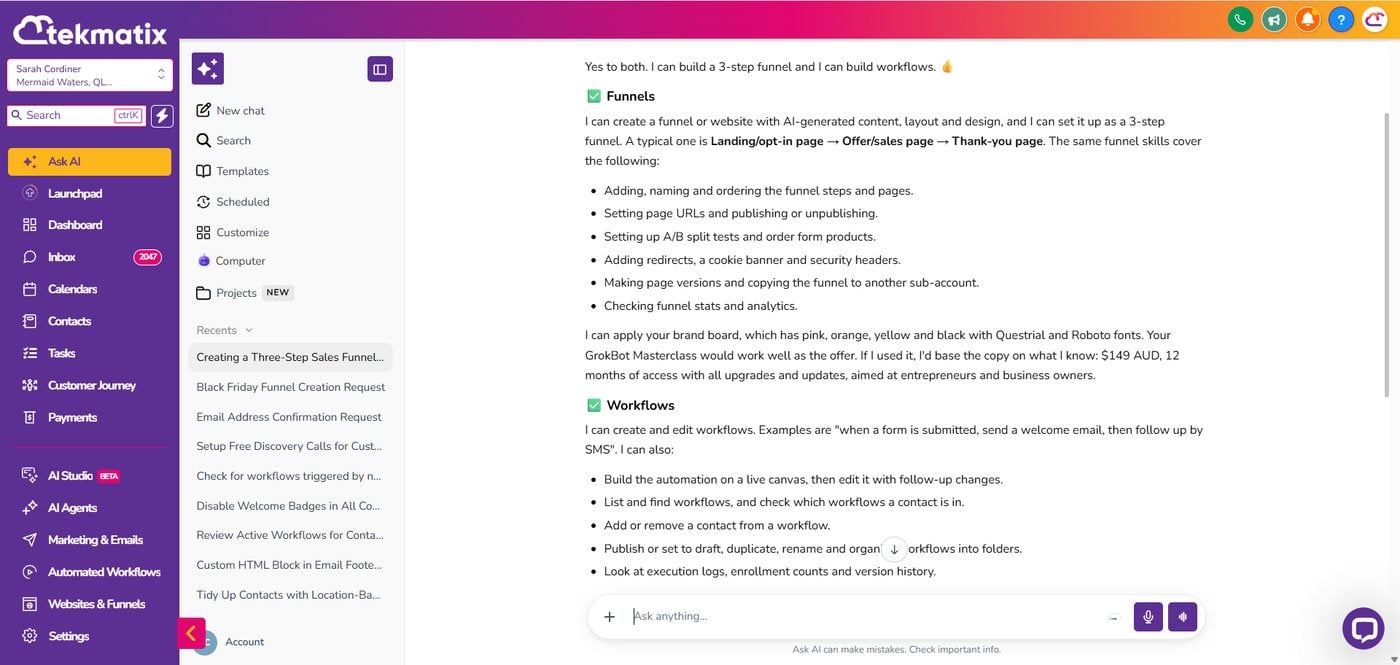
*Tekmatix AI usage applies as a billable consumable. You can find out more about pricing on our public page: tekmatix.com/pricing.
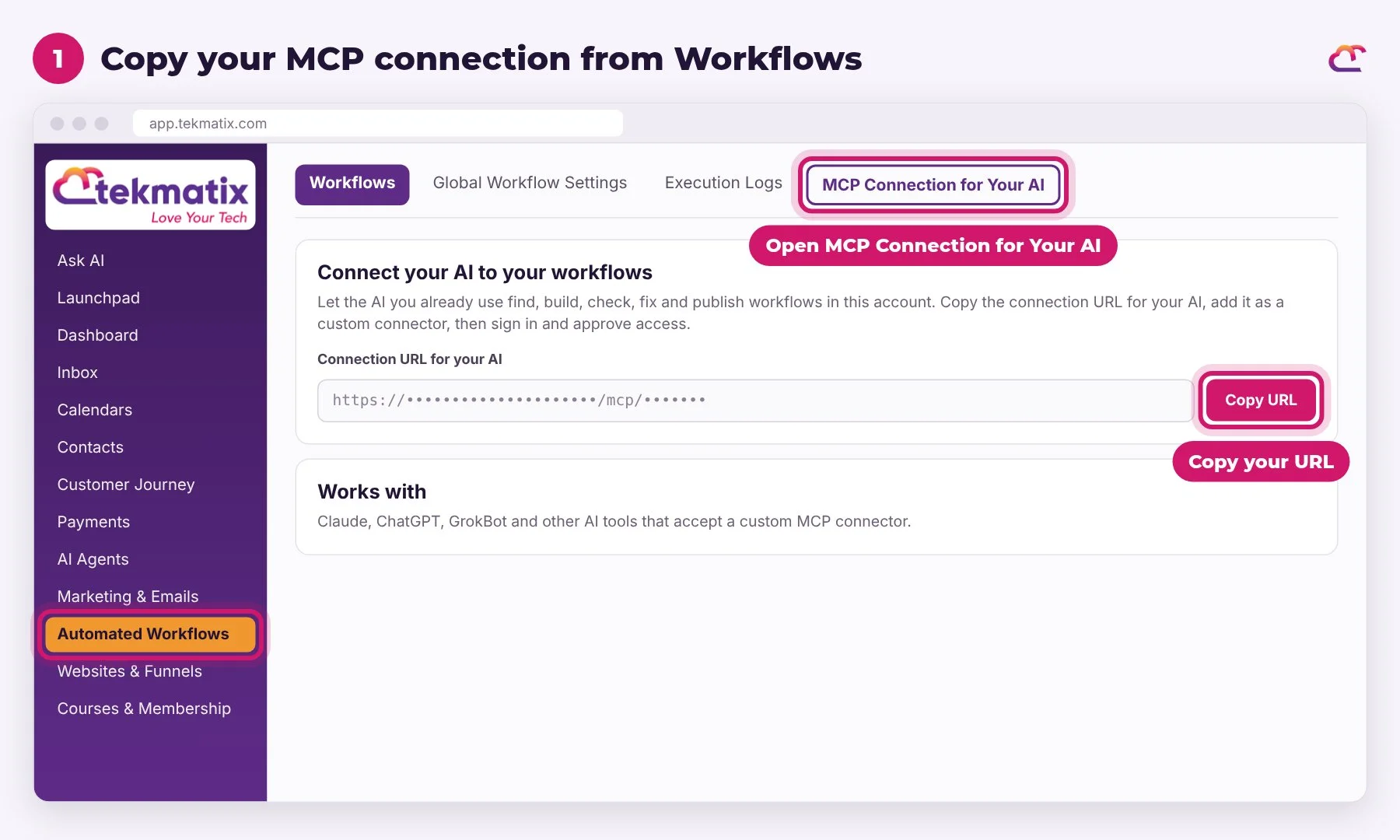
Step 1: Find your MCP connection in Tekmatix
- Log into your Tekmatix account.
- Click Automated Workflows in the left menu.
- Click MCP Connection for Your AI.
- Check the connection URL for the AI you use. Each AI has its own URL, and we have put all three in the steps below so you can copy them straight from this page.
The URL only connects your AI to the Tekmatix sign-in. Your AI can only get into your account after you sign in with your own Tekmatix login and approve access, so only connect an AI you trust.
Step 2: Connect your AI
Pick the AI you use, copy its URL from the box, and follow the matching steps. It takes about two minutes. Click the URL once to select it, then copy.
If you use GrokBot
GrokBot MCP URL to paste
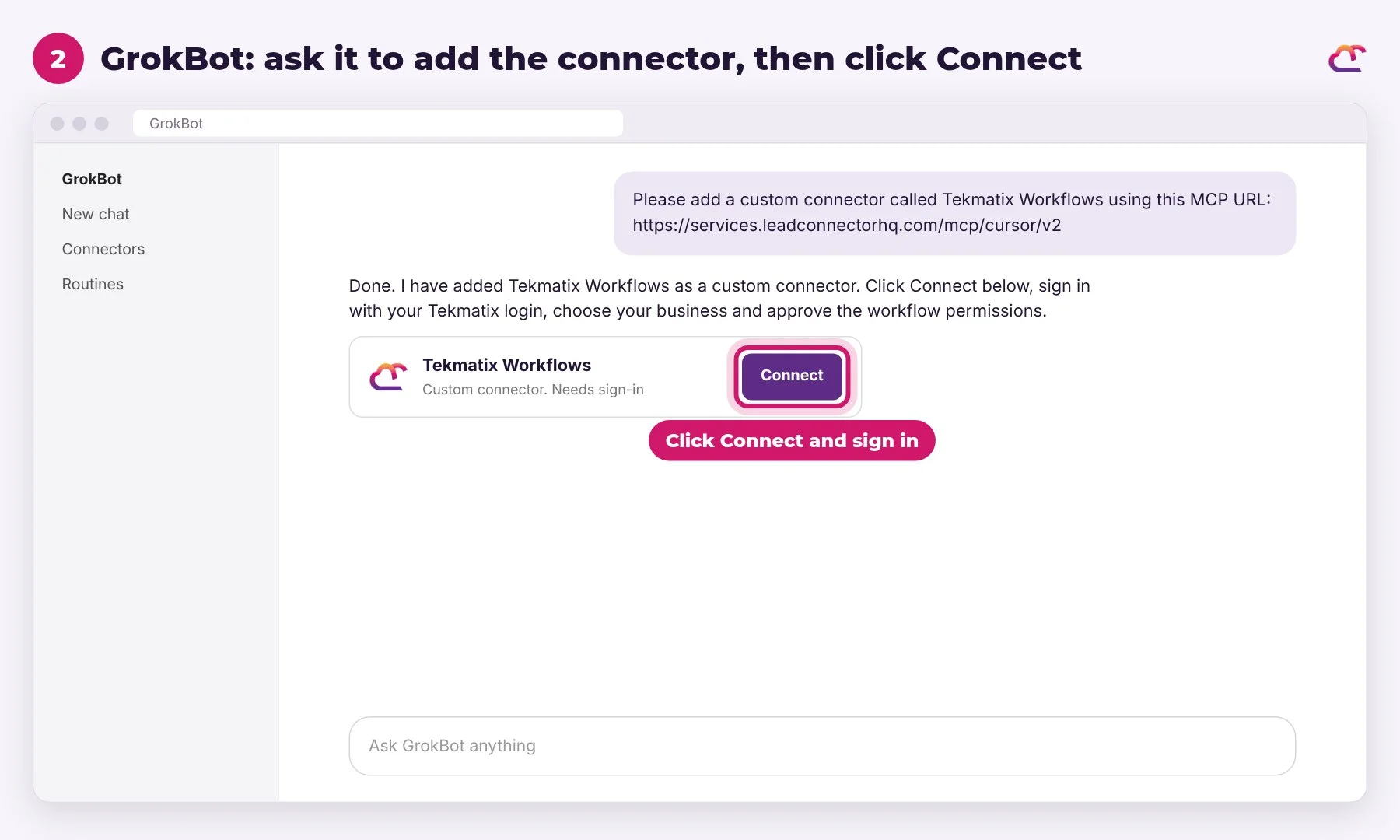
- Open a new chat in GrokBot.
- Type: Please add a custom connector called Tekmatix Workflows using this MCP URL: and paste the GrokBot MCP URL above.
- GrokBot adds it and shows you a Connect button. Click it.
- Sign in with your Tekmatix login details, choose your business and approve the workflow permissions.
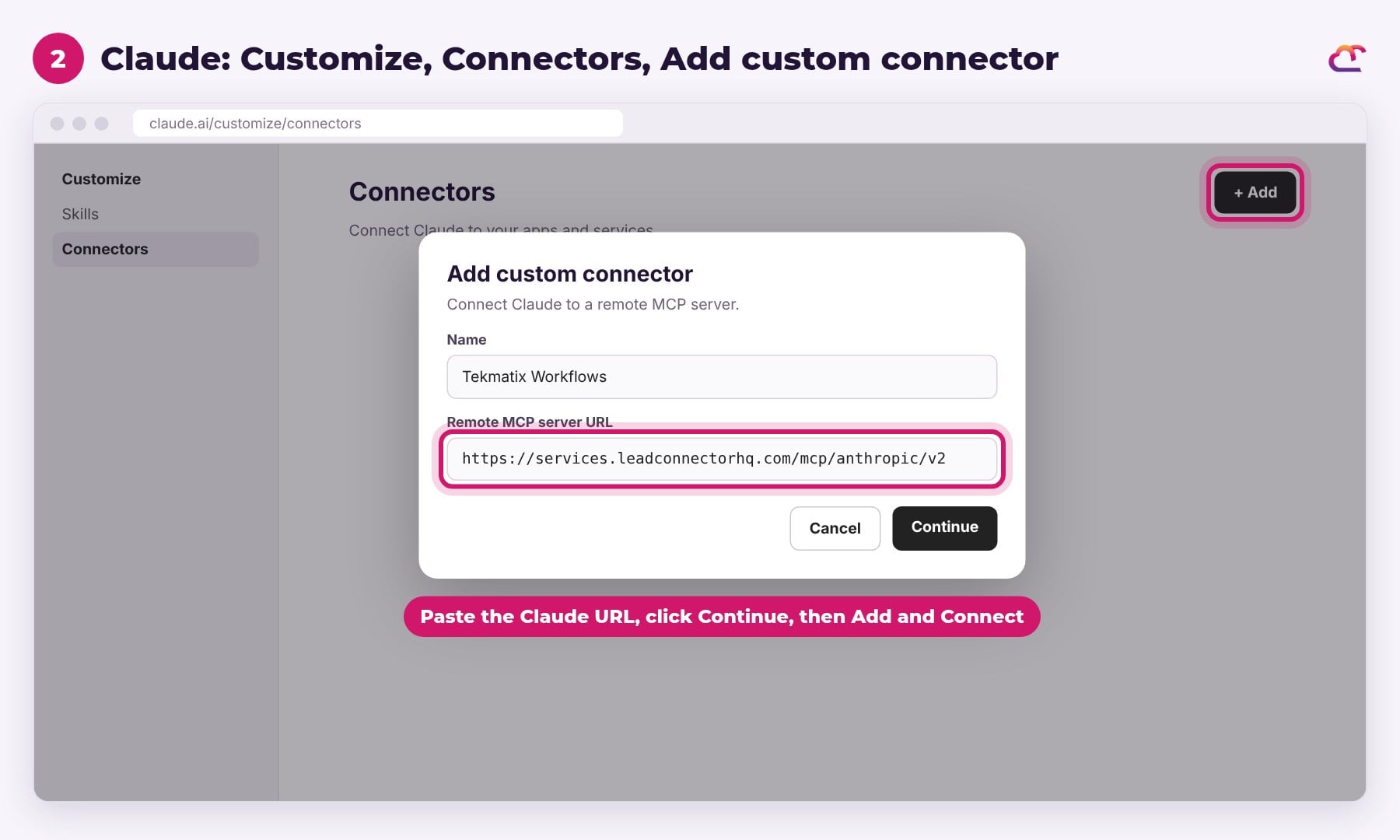
If you use Claude
Claude MCP URL to paste
- In Claude, go to Customize, then Connectors.
- Click + Add, then Add custom connector.
- Name it Tekmatix Workflows and paste the Claude MCP URL above into Remote MCP server URL. Click Continue.
- Keep the sign-in settings Claude detects, click Add, then click Connect.
- Sign in with your Tekmatix login details, choose your business and approve the workflow permissions.
On a Claude Team or Enterprise plan, an account owner adds the connector first under Organization settings, then you click Connect.
If you use ChatGPT
ChatGPT MCP URL to paste
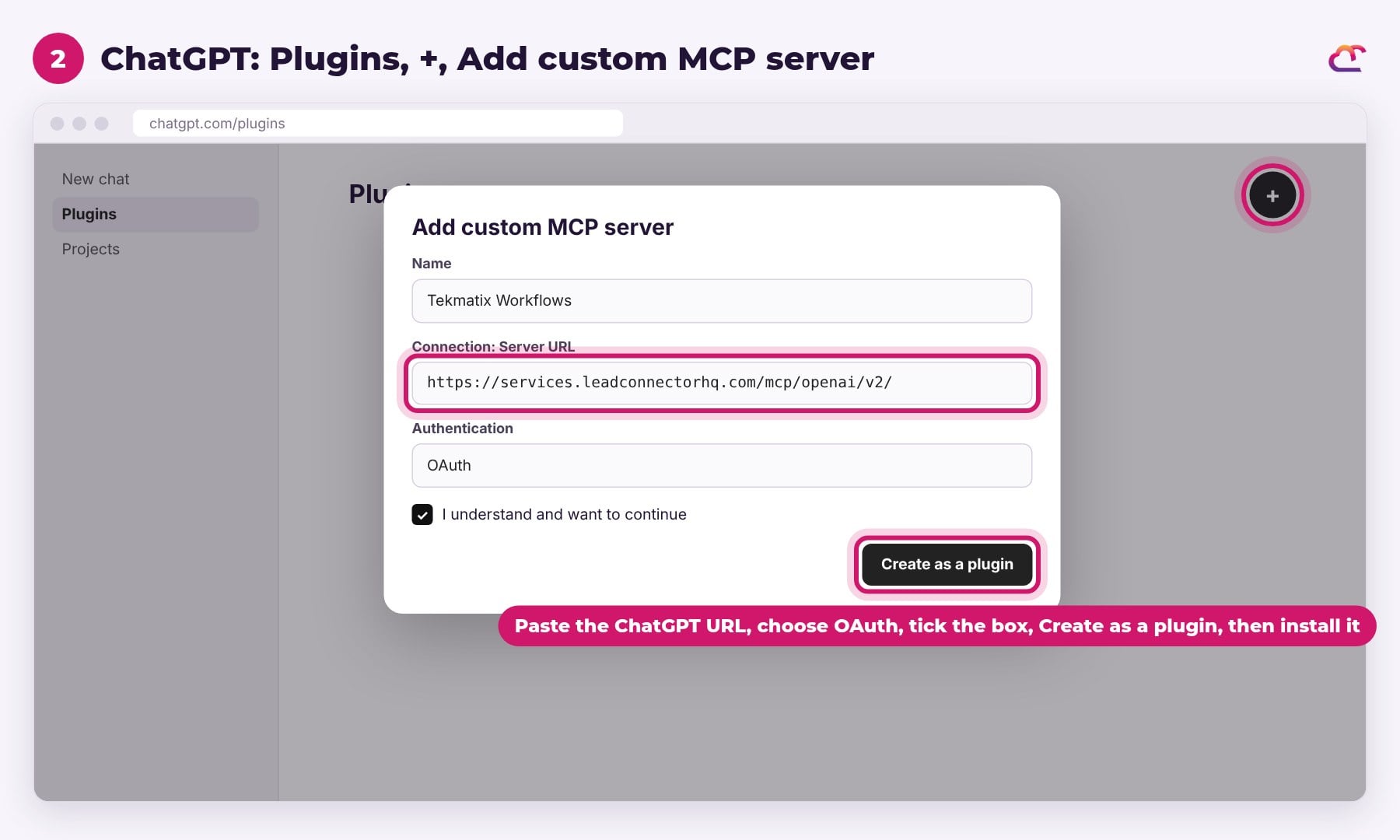
- Open ChatGPT in your web browser and click Plugins in the sidebar.
- Click the + button, then Add custom MCP server.
- Name it Tekmatix Workflows and paste the ChatGPT MCP URL above under Connection as the Server URL, including the slash at the end.
- Choose OAuth for authentication, tick I understand and want to continue, then click Create as a plugin.
- Install the plugin, sign in with your Tekmatix login details, choose your business and approve the workflow permissions.
- In a new chat, type @ and pick Tekmatix Workflows.
What ChatGPT can do through a custom connection depends on your ChatGPT plan and workspace settings, so check yours allows write actions if you want it to build for you.
Using a different AI? Look for connectors, plugins or MCP servers in its settings, add a custom one, and use the URL shown for it on the MCP Connection for Your AI page in your Tekmatix account.
The sign-in screen you see may say LeadConnector. That is normal. Use your usual Tekmatix login details.
Step 3: Paste a prompt and approve the draft
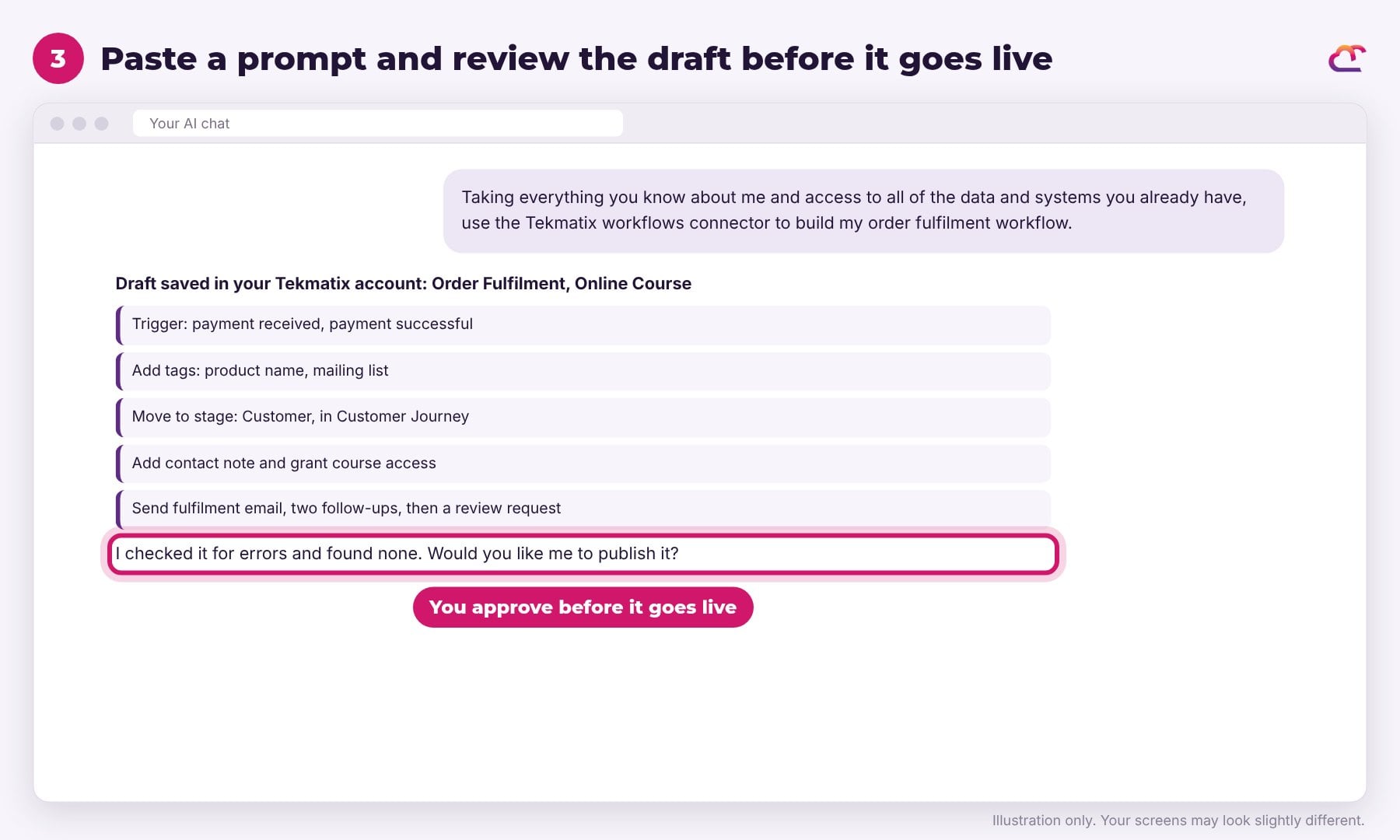
Copy any prompt below into your AI. It builds the workflow inside your Tekmatix account as a draft, checks it, and shows you a summary. Nothing goes live until you say yes.
Prompt 1: Your 90-day welcome nurture sequence
Someone joins your email list. Over the next 90 days they get a genuinely helpful email every 4 days, they are tagged and placed in the right stage of your customer journey, and every email reminds them of everything you sell. Nurture sequence done.
Prompt to copy into Ask AI, GrokBot, Claude or ChatGPT
Taking everything you know about me and access to all of the data and systems you already have, log into my Tekmatix account using the Tekmatix workflows MCP connection and build me a 90-day welcome nurture workflow for every new person who joins my email list. Do not ask me to paste anything into this chat. Look up my business, brand voice, products, tags, forms and pipelines in my account yourself.
Trigger: a contact joins my email list, using whichever opt-in forms or mailing list tag I already use. Then: add my mailing list tag; create or update their opportunity in my customer journey pipeline at the right lead stage; then send one genuinely helpful, educational email every 4 days for 90 days, which is about 23 emails.
Each email should teach one useful thing my ideal customer needs to know, in my voice, with one clear idea and no hard sell. Plan the topics so they build on each other. Write every email in full, mobile friendly, with a subject line that starts with How to. In the footer of every email, add a P.S. that lists everything I sell, with each product or service linked to its page. Pull the product names and links from my account, not from memory. Stop the sequence if they buy, unsubscribe or are set to do not disturb.
Build it as a draft, check it for errors, and test it with a test contact if you can. Then show me a plain-language summary of the trigger, every step, wait, tag, stage and email subject, and ask me before you publish anything.
Prompt 2: Your order fulfilment sequence
A payment comes in. Your customer is tagged, moved to the right stage, given access to what they bought, welcomed, followed up and asked for a review. Order fulfilment done.
Prompt to copy into Ask AI, GrokBot, Claude or ChatGPT
Taking everything you know about me and access to all of the data and systems you already have, log into my Tekmatix account using the Tekmatix workflows MCP connection and build an order fulfilment workflow for each of my products. Do not ask me to paste anything into this chat. Look up my products, prices, courses, memberships, communities, tags and pipelines in my account yourself, and tell me which products you found before you start.
For each product, build a workflow that does this:
- Trigger: payment received, when the payment is successful for that product.
- Add a tag with the name of the product purchased.
- Add my mailing list tag.
- Move them to the right customer stage in my customer journey pipeline.
- Add a note to their contact record saying what they bought, when and for how much.
- Grant access to whatever they bought, whether that is a course, membership, community group, project or product.
- Send their fulfilment email straight away, in my voice, with their login or access details and exactly what to do next.
- Follow up twice: after 2 days to check they got in, and after 7 days with a quick win to help them get results.
- After 14 days, ask for a review, with a link to my review page.
Build each one as a draft, check it for errors, and test it with a test contact if you can. Then show me a plain-language summary of every workflow and ask me before you publish anything.
Prompt 3: Your abandoned cart sequence
Someone starts checking out and does not finish. Instead of losing the sale, they get a friendly nudge, an answer to their doubts and a final reminder. Abandoned cart recovery done.
Prompt to copy into Ask AI, GrokBot, Claude or ChatGPT
Taking everything you know about me and access to all of the data and systems you already have, log into my Tekmatix account using the Tekmatix workflows MCP connection and build an abandoned cart workflow for my checkout pages. Do not ask me to paste anything into this chat. Find my funnels, checkout pages, products, tags and pipelines in my account yourself.
Trigger: a contact fills in their details on one of my checkout pages but has not paid within 1 hour. Then: add an abandoned cart tag and a tag with the product name; move them to an abandoned cart stage in my customer journey pipeline; send a friendly reminder email with a link back to the checkout after 1 hour; send a second email after 24 hours that answers the most common questions and doubts about that product; and send a final reminder after 48 hours. Only add a text message if they have agreed to receive texts.
If they pay at any point, stop the sequence straight away, remove the abandoned cart tag and let my fulfilment workflow take over. If they still have not bought after the last email, move them back to the right lead stage and add a note to their contact record.
Build it as a draft, check it for errors, and test it with a test contact if you can. Then show me a plain-language summary and ask me before you publish anything.
More workflows you can build in seconds
Once your AI is connected, any workflow you can describe, it can build. Here are a few more ideas to get you started.
Webinar and event reminders
Taking everything you know about me and access to all of the data and systems you already have, use the Tekmatix workflows MCP connection to build a webinar and event reminder workflow in my Tekmatix account. When someone registers, tag them, send a confirmation with the joining link, then remind them 1 day before, 1 hour before and when we go live. Afterwards, send the replay to everyone and a special offer to those who attended. Build it as a draft, show me a summary and ask before you publish.
Appointment no-show follow-up
Taking everything you know about me and access to all of the data and systems you already have, use the Tekmatix workflows MCP connection to build a no-show workflow in my Tekmatix account. When an appointment is marked as a no-show, send a kind email with my booking link to reschedule, follow up 2 days later, create a task for me if they still have not rebooked, and add a note to their contact record. Build it as a draft, show me a summary and ask before you publish.
Review requests
Taking everything you know about me and access to all of the data and systems you already have, use the Tekmatix workflows MCP connection to build a review request workflow in my Tekmatix account. When an appointment is completed or a project is marked done, wait 1 day, then ask for a review with my review link, and send one gentle reminder 5 days later if they have not left one. Build it as a draft, show me a summary and ask before you publish.
Win back quiet contacts
Taking everything you know about me and access to all of the data and systems you already have, use the Tekmatix workflows MCP connection to build a re-engagement workflow in my Tekmatix account for mailing list contacts who have not opened an email in 90 days. Send three short emails a week apart asking if they would still like to hear from me, with my most helpful free resource. Tag anyone who clicks as re-engaged. Remove the mailing list tag from anyone who does not respond. Build it as a draft, show me a summary and ask before you publish.
Instant follow-up for new enquiries
Taking everything you know about me and access to all of the data and systems you already have, use the Tekmatix workflows MCP connection to build a new enquiry workflow in my Tekmatix account. When someone submits one of my contact or enquiry forms, reply within 2 minutes with a helpful email and my booking link, notify me, create an opportunity at the new lead stage, and create a follow-up task for the next day if they have not booked. Build it as a draft, show me a summary and ask before you publish.
Find and fix broken workflows
Taking everything you know about me and access to all of the data and systems you already have, use the Tekmatix workflows MCP connection to check every published workflow in my Tekmatix account for failed steps in the last 7 days. List each failed step, how many contacts it affected and the error, explain the cause in plain language, and suggest a fix. Do not change any live workflow until I approve the exact fix.
A few good habits
- Drafts first. New workflows are saved as drafts. Publishing is a separate step, and you decide when.
- Be careful with live workflows. When an AI edits a published workflow, it is set back to draft while it changes, which switches off its triggers and pauses the contacts in it until it is published again. For workflows that are running, ask your AI to make a copy, change the copy, and only swap it in once you have approved it.
- Deleting is permanent. It stops everyone currently in that workflow, so always ask your AI to confirm with you first.
- One business at a time. Each connection works in one Tekmatix sub-account. Check your AI is in the right one before it builds.
- Check the important bits. As with any assistant, human or AI, read the summary and test the emails before you publish.
If your AI tells you the workflows connection is not switched on for your account yet, or it cannot find the MCP Connection for Your AI option, chat to our support team and we will help.
If your AI says it can't, question it
AI is improving every week, and sometimes it will tell you it cannot do something it actually can. Ask it: "Are you sure? Check your tools and try again." If it still cannot, check that the Tekmatix Workflows connector is switched on in that chat and that you approved the workflow permissions when you signed in.
Start with one workflow today
Pick the workflow that would save you the most time, paste the prompt, and review the draft. Most people start with order fulfilment, because it is the one customers notice when it is missing.
Already a customer? Bring your questions to the free daily training calls with a Tekspert and we will help you get connected.
Love Your Tech.