
Use the search bar below to find help guides and articles for using Tekmatix

Editing Funnels, Websites, Blogs, Webinars, or E-Commerce pages can be stressful especially when you worry about losing your work. Tekmatix Auto-Save and Version History are here to make your editing experience seamless, reliable, and more productive.
This guide walks you through how these features work, how to restore previous versions, and a real-world scenario to help you use them effectively.
Protect Your Work: Auto-Save ensures that every change is automatically recorded in real time, reducing the risk of losing edits due to browser crashes or accidental tab closures.
Undo Mistakes: Version History allows you to review, compare, and restore previous versions of any page or element.
Track Progress: Keep a clear record of edits with time-stamped versions, helping teams coordinate changes.
Save Time: Spend less time worrying about manually saving and more time focusing on creating content.
Real-Time Auto-Save: Changes are automatically saved as you edit. No need to click “Save” manually.
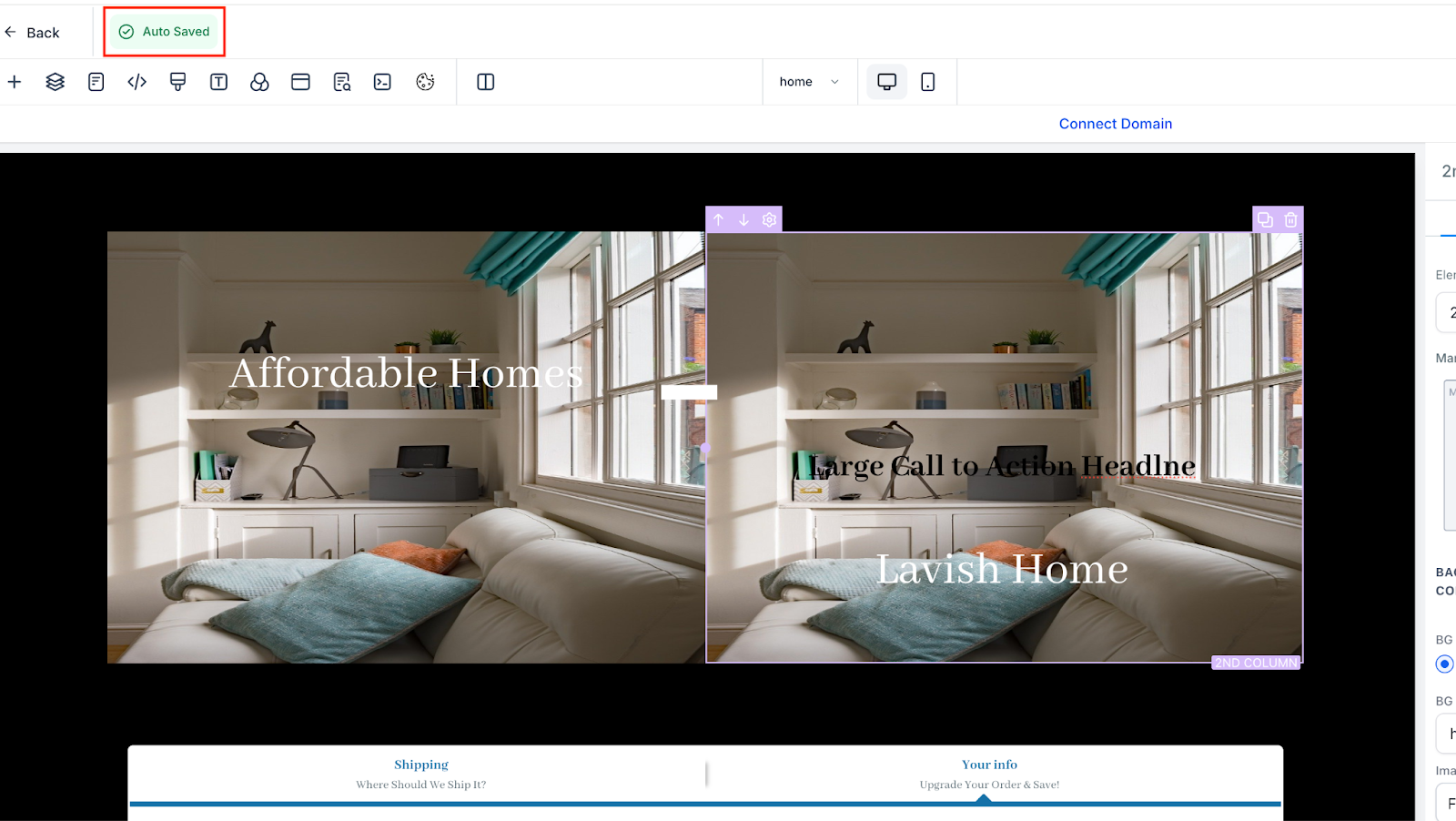
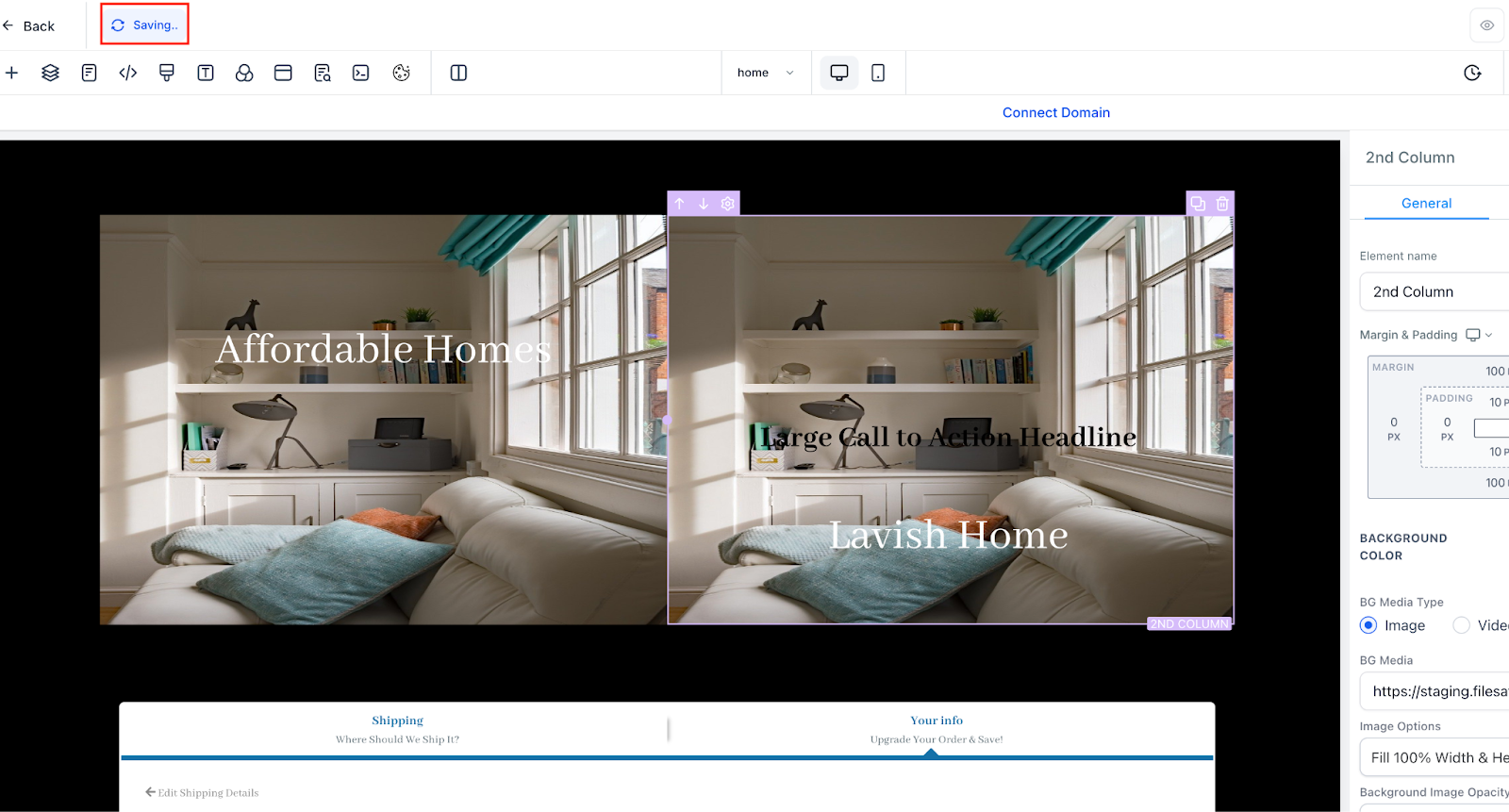
Visual Indicators: Look for “Saving…” or “Auto Saved” notifications confirming that your edits are protected.
Manual Save Option: You still have the option to click “Save” if you want to take full control.
Tip: Auto-Save is triggered whenever you make changes, so you don’t need to remember to save repeatedly.
Version History lets you view and restore previous versions of your content. This is perfect for undoing accidental edits or reverting to earlier designs.
How to Use Version History:
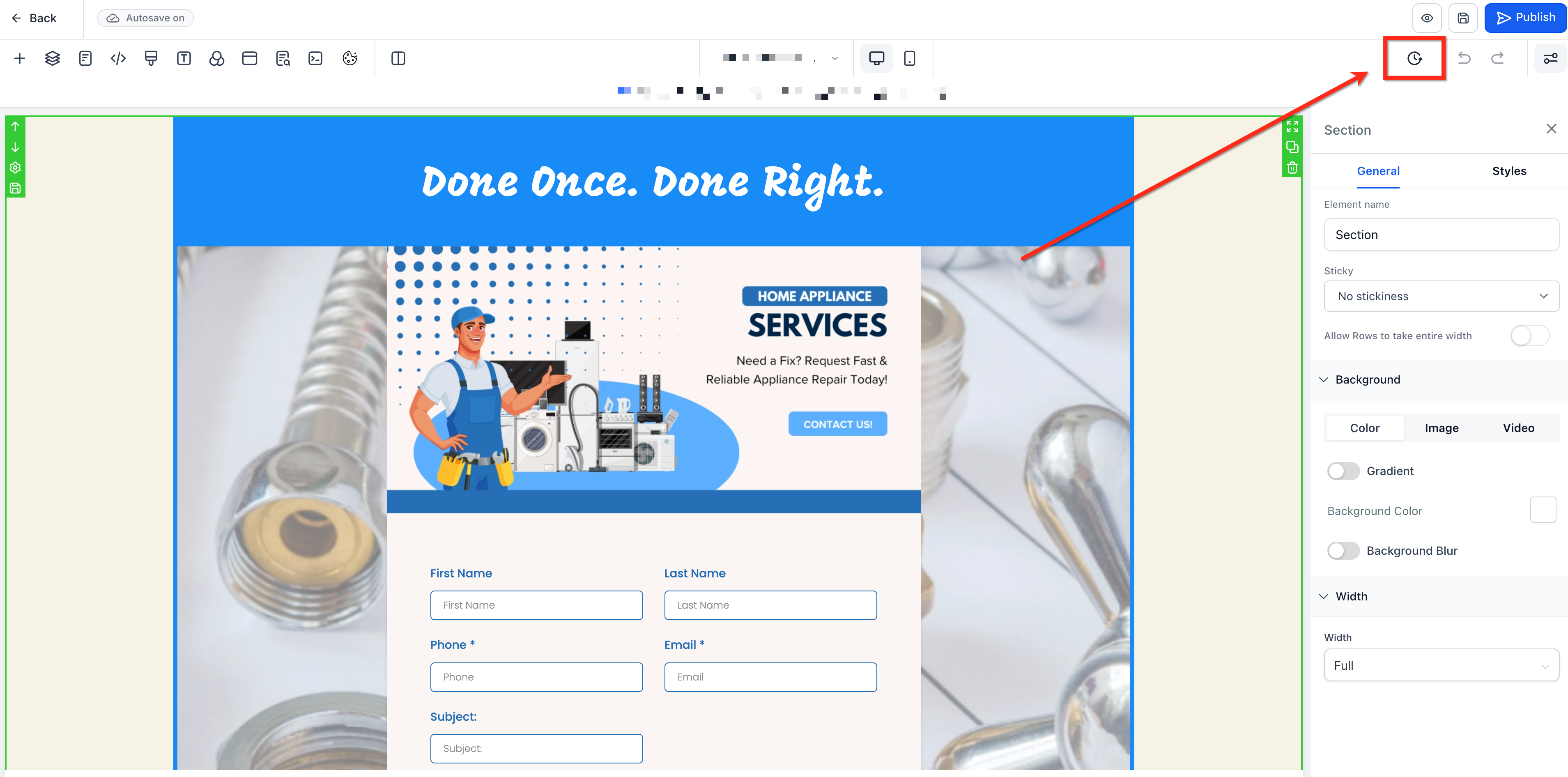
Open Version History: Click the Clock icon in the upper-right corner of the editor.
Select a Version: Previous versions appear on the left. Click a version to preview it.
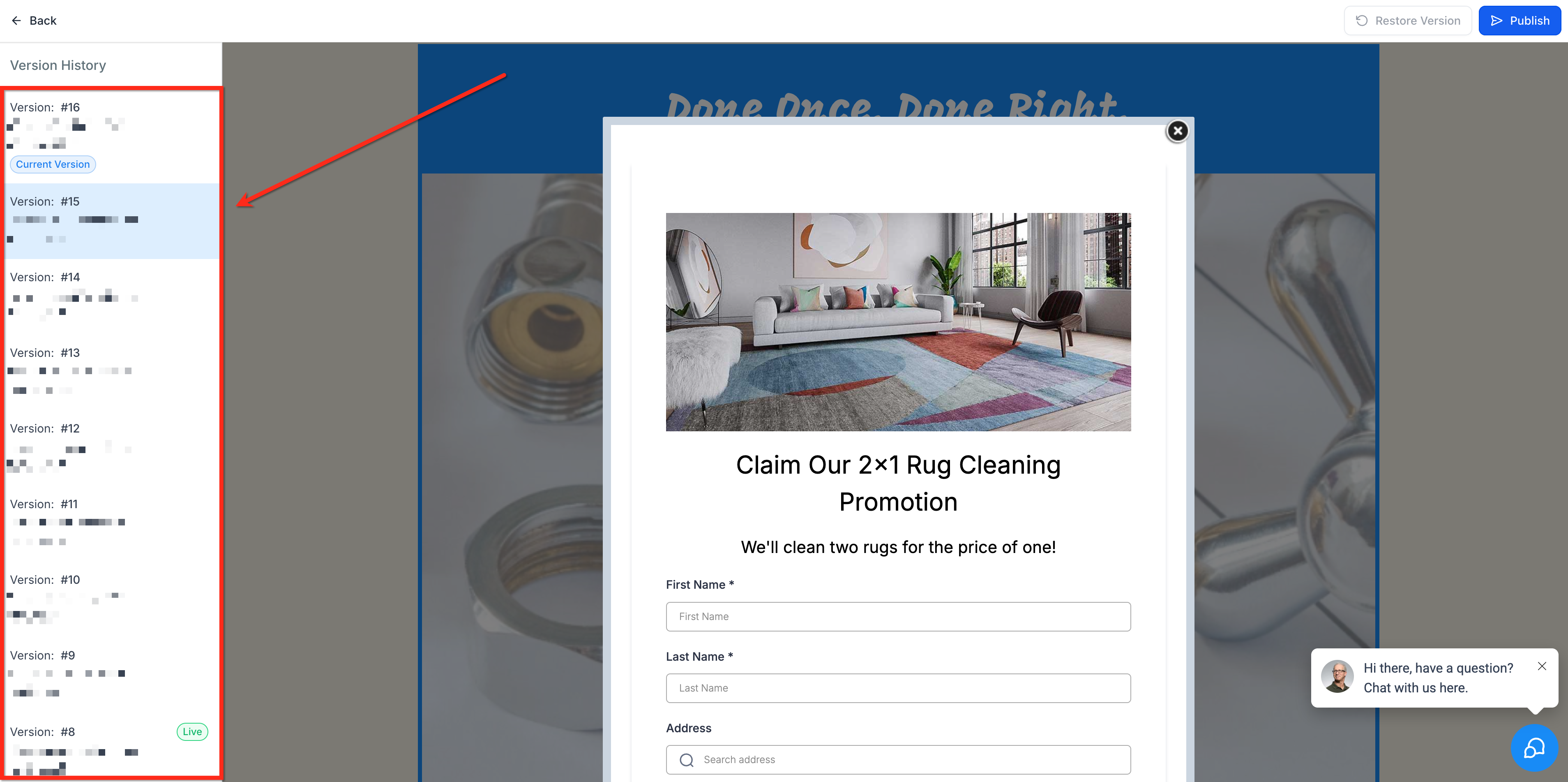
Restore or Publish: Once you’ve selected the desired version, use Publish or Restore Version buttons in the top-right corner.
Key Details:
Versions are time-stamped for easy reference.
Auto-Save creates a new version every 10 minutes if changes were made.
Up to 50 versions are stored per item; older versions are automatically removed.
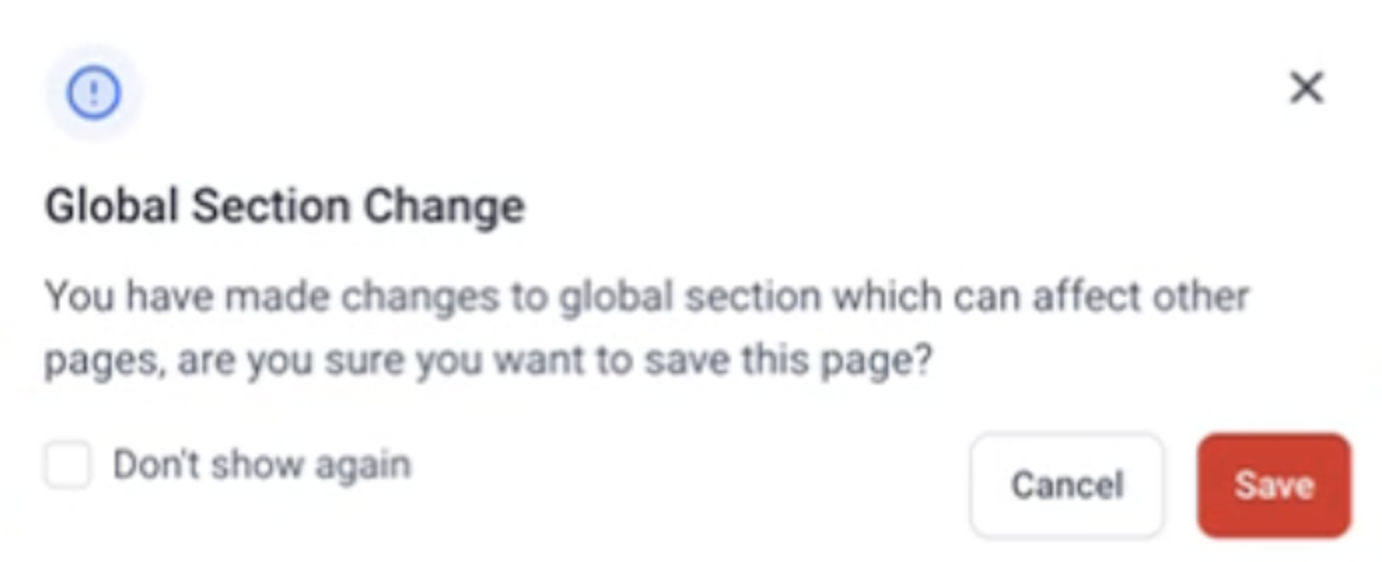
Editing a Global Section triggers a popup, alerting you that changes apply to all instances.
These features are supported across all major Tekmatix editing areas:
Funnels – all steps, elements, and sections
Websites – all pages and components
Blogs
Webinars
E-Commerce
Additional Notes:
Auto-Save is triggered by edits automatically.
Protects work in cases of browser crashes or tab closures.
Optimized for smooth performance, even on content-heavy pages.
Alex is editing a detailed Tekmatix blog post with multiple images and custom sections. Midway through, their browser crashes unexpectedly.
How Version History Helps:
Alex reopens the blog editor.
Clicks the Clock icon to access Version History.
Selects the most recent Auto-Saved version before the crash.
Clicks Restore Version.
All edits are recovered, and Alex can continue working without losing hours of effort.
Outcome:
No work is lost.
The blog is restored to the desired state quickly and safely.
Peace of mind and efficiency for future editing sessions.

Editing Funnels, Websites, Blogs, Webinars, or E-Commerce pages can be stressful especially when you worry about losing your work. Tekmatix Auto-Save and Version History are here to make your editing experience seamless, reliable, and more productive.
This guide walks you through how these features work, how to restore previous versions, and a real-world scenario to help you use them effectively.
Protect Your Work: Auto-Save ensures that every change is automatically recorded in real time, reducing the risk of losing edits due to browser crashes or accidental tab closures.
Undo Mistakes: Version History allows you to review, compare, and restore previous versions of any page or element.
Track Progress: Keep a clear record of edits with time-stamped versions, helping teams coordinate changes.
Save Time: Spend less time worrying about manually saving and more time focusing on creating content.
Real-Time Auto-Save: Changes are automatically saved as you edit. No need to click “Save” manually.
Visual Indicators: Look for “Saving…” or “Auto Saved” notifications confirming that your edits are protected.
Manual Save Option: You still have the option to click “Save” if you want to take full control.


Tip: Auto-Save is triggered whenever you make changes, so you don’t need to remember to save repeatedly.
Version History lets you view and restore previous versions of your content. This is perfect for undoing accidental edits or reverting to earlier designs.
How to Use Version History:
Open Version History: Click the Clock icon in the upper-right corner of the editor.

Select a Version: Previous versions appear on the left. Click a version to preview it.

Restore or Publish: Once you’ve selected the desired version, use Publish or Restore Version buttons in the top-right corner.
Key Details:
Versions are time-stamped for easy reference.
Auto-Save creates a new version every 10 minutes if changes were made.
Up to 50 versions are stored per item; older versions are automatically removed.
Editing a Global Section triggers a popup, alerting you that changes apply to all instances.

These features are supported across all major Tekmatix editing areas:
Funnels – all steps, elements, and sections
Websites – all pages and components
Blogs
Webinars
E-Commerce
Additional Notes:
Auto-Save is triggered by edits automatically.
Protects work in cases of browser crashes or tab closures.
Optimized for smooth performance, even on content-heavy pages.
Alex is editing a detailed Tekmatix blog post with multiple images and custom sections. Midway through, their browser crashes unexpectedly.
How Version History Helps:
Alex reopens the blog editor.
Clicks the Clock icon to access Version History.
Selects the most recent Auto-Saved version before the crash.
Clicks Restore Version.
All edits are recovered, and Alex can continue working without losing hours of effort.
Outcome:
No work is lost.
The blog is restored to the desired state quickly and safely.
Peace of mind and efficiency for future editing sessions.


Editing Funnels, Websites, Blogs, Webinars, or E-Commerce pages can be stressful especially when you worry about losing your work. Tekmatix Auto-Save and Version History are here to make your editing experience seamless, reliable, and more productive.
This guide walks you through how these features work, how to restore previous versions, and a real-world scenario to help you use them effectively.
Protect Your Work: Auto-Save ensures that every change is automatically recorded in real time, reducing the risk of losing edits due to browser crashes or accidental tab closures.
Undo Mistakes: Version History allows you to review, compare, and restore previous versions of any page or element.
Track Progress: Keep a clear record of edits with time-stamped versions, helping teams coordinate changes.
Save Time: Spend less time worrying about manually saving and more time focusing on creating content.
Real-Time Auto-Save: Changes are automatically saved as you edit. No need to click “Save” manually.
Visual Indicators: Look for “Saving…” or “Auto Saved” notifications confirming that your edits are protected.
Manual Save Option: You still have the option to click “Save” if you want to take full control.


Tip: Auto-Save is triggered whenever you make changes, so you don’t need to remember to save repeatedly.
Version History lets you view and restore previous versions of your content. This is perfect for undoing accidental edits or reverting to earlier designs.
How to Use Version History:
Open Version History: Click the Clock icon in the upper-right corner of the editor.

Select a Version: Previous versions appear on the left. Click a version to preview it.

Restore or Publish: Once you’ve selected the desired version, use Publish or Restore Version buttons in the top-right corner.
Key Details:
Versions are time-stamped for easy reference.
Auto-Save creates a new version every 10 minutes if changes were made.
Up to 50 versions are stored per item; older versions are automatically removed.
Editing a Global Section triggers a popup, alerting you that changes apply to all instances.

These features are supported across all major Tekmatix editing areas:
Funnels – all steps, elements, and sections
Websites – all pages and components
Blogs
Webinars
E-Commerce
Additional Notes:
Auto-Save is triggered by edits automatically.
Protects work in cases of browser crashes or tab closures.
Optimized for smooth performance, even on content-heavy pages.
Alex is editing a detailed Tekmatix blog post with multiple images and custom sections. Midway through, their browser crashes unexpectedly.
How Version History Helps:
Alex reopens the blog editor.
Clicks the Clock icon to access Version History.
Selects the most recent Auto-Saved version before the crash.
Clicks Restore Version.
All edits are recovered, and Alex can continue working without losing hours of effort.
Outcome:
No work is lost.
The blog is restored to the desired state quickly and safely.
Peace of mind and efficiency for future editing sessions.

Editing Funnels, Websites, Blogs, Webinars, or E-Commerce pages can be stressful especially when you worry about losing your work. Tekmatix Auto-Save and Version History are here to make your editing experience seamless, reliable, and more productive.
This guide walks you through how these features work, how to restore previous versions, and a real-world scenario to help you use them effectively.
Protect Your Work: Auto-Save ensures that every change is automatically recorded in real time, reducing the risk of losing edits due to browser crashes or accidental tab closures.
Undo Mistakes: Version History allows you to review, compare, and restore previous versions of any page or element.
Track Progress: Keep a clear record of edits with time-stamped versions, helping teams coordinate changes.
Save Time: Spend less time worrying about manually saving and more time focusing on creating content.
Real-Time Auto-Save: Changes are automatically saved as you edit. No need to click “Save” manually.
Visual Indicators: Look for “Saving…” or “Auto Saved” notifications confirming that your edits are protected.
Manual Save Option: You still have the option to click “Save” if you want to take full control.


Tip: Auto-Save is triggered whenever you make changes, so you don’t need to remember to save repeatedly.
Version History lets you view and restore previous versions of your content. This is perfect for undoing accidental edits or reverting to earlier designs.
How to Use Version History:
Open Version History: Click the Clock icon in the upper-right corner of the editor.

Select a Version: Previous versions appear on the left. Click a version to preview it.

Restore or Publish: Once you’ve selected the desired version, use Publish or Restore Version buttons in the top-right corner.
Key Details:
Versions are time-stamped for easy reference.
Auto-Save creates a new version every 10 minutes if changes were made.
Up to 50 versions are stored per item; older versions are automatically removed.
Editing a Global Section triggers a popup, alerting you that changes apply to all instances.

These features are supported across all major Tekmatix editing areas:
Funnels – all steps, elements, and sections
Websites – all pages and components
Blogs
Webinars
E-Commerce
Additional Notes:
Auto-Save is triggered by edits automatically.
Protects work in cases of browser crashes or tab closures.
Optimized for smooth performance, even on content-heavy pages.
Alex is editing a detailed Tekmatix blog post with multiple images and custom sections. Midway through, their browser crashes unexpectedly.
How Version History Helps:
Alex reopens the blog editor.
Clicks the Clock icon to access Version History.
Selects the most recent Auto-Saved version before the crash.
Clicks Restore Version.
All edits are recovered, and Alex can continue working without losing hours of effort.
Outcome:
No work is lost.
The blog is restored to the desired state quickly and safely.
Peace of mind and efficiency for future editing sessions.

Editing Funnels, Websites, Blogs, Webinars, or E-Commerce pages can be stressful especially when you worry about losing your work. Tekmatix Auto-Save and Version History are here to make your editing experience seamless, reliable, and more productive.
This guide walks you through how these features work, how to restore previous versions, and a real-world scenario to help you use them effectively.
Protect Your Work: Auto-Save ensures that every change is automatically recorded in real time, reducing the risk of losing edits due to browser crashes or accidental tab closures.
Undo Mistakes: Version History allows you to review, compare, and restore previous versions of any page or element.
Track Progress: Keep a clear record of edits with time-stamped versions, helping teams coordinate changes.
Save Time: Spend less time worrying about manually saving and more time focusing on creating content.
Real-Time Auto-Save: Changes are automatically saved as you edit. No need to click “Save” manually.
Visual Indicators: Look for “Saving…” or “Auto Saved” notifications confirming that your edits are protected.
Manual Save Option: You still have the option to click “Save” if you want to take full control.


Tip: Auto-Save is triggered whenever you make changes, so you don’t need to remember to save repeatedly.
Version History lets you view and restore previous versions of your content. This is perfect for undoing accidental edits or reverting to earlier designs.
How to Use Version History:
Open Version History: Click the Clock icon in the upper-right corner of the editor.

Select a Version: Previous versions appear on the left. Click a version to preview it.

Restore or Publish: Once you’ve selected the desired version, use Publish or Restore Version buttons in the top-right corner.
Key Details:
Versions are time-stamped for easy reference.
Auto-Save creates a new version every 10 minutes if changes were made.
Up to 50 versions are stored per item; older versions are automatically removed.
Editing a Global Section triggers a popup, alerting you that changes apply to all instances.

These features are supported across all major Tekmatix editing areas:
Funnels – all steps, elements, and sections
Websites – all pages and components
Blogs
Webinars
E-Commerce
Additional Notes:
Auto-Save is triggered by edits automatically.
Protects work in cases of browser crashes or tab closures.
Optimized for smooth performance, even on content-heavy pages.
Alex is editing a detailed Tekmatix blog post with multiple images and custom sections. Midway through, their browser crashes unexpectedly.
How Version History Helps:
Alex reopens the blog editor.
Clicks the Clock icon to access Version History.
Selects the most recent Auto-Saved version before the crash.
Clicks Restore Version.
All edits are recovered, and Alex can continue working without losing hours of effort.
Outcome:
No work is lost.
The blog is restored to the desired state quickly and safely.
Peace of mind and efficiency for future editing sessions.

Editing Funnels, Websites, Blogs, Webinars, or E-Commerce pages can be stressful especially when you worry about losing your work. Tekmatix Auto-Save and Version History are here to make your editing experience seamless, reliable, and more productive.
This guide walks you through how these features work, how to restore previous versions, and a real-world scenario to help you use them effectively.
Protect Your Work: Auto-Save ensures that every change is automatically recorded in real time, reducing the risk of losing edits due to browser crashes or accidental tab closures.
Undo Mistakes: Version History allows you to review, compare, and restore previous versions of any page or element.
Track Progress: Keep a clear record of edits with time-stamped versions, helping teams coordinate changes.
Save Time: Spend less time worrying about manually saving and more time focusing on creating content.
Real-Time Auto-Save: Changes are automatically saved as you edit. No need to click “Save” manually.
Visual Indicators: Look for “Saving…” or “Auto Saved” notifications confirming that your edits are protected.
Manual Save Option: You still have the option to click “Save” if you want to take full control.


Tip: Auto-Save is triggered whenever you make changes, so you don’t need to remember to save repeatedly.
Version History lets you view and restore previous versions of your content. This is perfect for undoing accidental edits or reverting to earlier designs.
How to Use Version History:
Open Version History: Click the Clock icon in the upper-right corner of the editor.

Select a Version: Previous versions appear on the left. Click a version to preview it.

Restore or Publish: Once you’ve selected the desired version, use Publish or Restore Version buttons in the top-right corner.
Key Details:
Versions are time-stamped for easy reference.
Auto-Save creates a new version every 10 minutes if changes were made.
Up to 50 versions are stored per item; older versions are automatically removed.
Editing a Global Section triggers a popup, alerting you that changes apply to all instances.

These features are supported across all major Tekmatix editing areas:
Funnels – all steps, elements, and sections
Websites – all pages and components
Blogs
Webinars
E-Commerce
Additional Notes:
Auto-Save is triggered by edits automatically.
Protects work in cases of browser crashes or tab closures.
Optimized for smooth performance, even on content-heavy pages.
Alex is editing a detailed Tekmatix blog post with multiple images and custom sections. Midway through, their browser crashes unexpectedly.
How Version History Helps:
Alex reopens the blog editor.
Clicks the Clock icon to access Version History.
Selects the most recent Auto-Saved version before the crash.
Clicks Restore Version.
All edits are recovered, and Alex can continue working without losing hours of effort.
Outcome:
No work is lost.
The blog is restored to the desired state quickly and safely.
Peace of mind and efficiency for future editing sessions.


Editing Funnels, Websites, Blogs, Webinars, or E-Commerce pages can be stressful especially when you worry about losing your work. Tekmatix Auto-Save and Version History are here to make your editing experience seamless, reliable, and more productive.
This guide walks you through how these features work, how to restore previous versions, and a real-world scenario to help you use them effectively.
Protect Your Work: Auto-Save ensures that every change is automatically recorded in real time, reducing the risk of losing edits due to browser crashes or accidental tab closures.
Undo Mistakes: Version History allows you to review, compare, and restore previous versions of any page or element.
Track Progress: Keep a clear record of edits with time-stamped versions, helping teams coordinate changes.
Save Time: Spend less time worrying about manually saving and more time focusing on creating content.
Real-Time Auto-Save: Changes are automatically saved as you edit. No need to click “Save” manually.
Visual Indicators: Look for “Saving…” or “Auto Saved” notifications confirming that your edits are protected.
Manual Save Option: You still have the option to click “Save” if you want to take full control.


Tip: Auto-Save is triggered whenever you make changes, so you don’t need to remember to save repeatedly.
Version History lets you view and restore previous versions of your content. This is perfect for undoing accidental edits or reverting to earlier designs.
How to Use Version History:
Open Version History: Click the Clock icon in the upper-right corner of the editor.

Select a Version: Previous versions appear on the left. Click a version to preview it.

Restore or Publish: Once you’ve selected the desired version, use Publish or Restore Version buttons in the top-right corner.
Key Details:
Versions are time-stamped for easy reference.
Auto-Save creates a new version every 10 minutes if changes were made.
Up to 50 versions are stored per item; older versions are automatically removed.
Editing a Global Section triggers a popup, alerting you that changes apply to all instances.

These features are supported across all major Tekmatix editing areas:
Funnels – all steps, elements, and sections
Websites – all pages and components
Blogs
Webinars
E-Commerce
Additional Notes:
Auto-Save is triggered by edits automatically.
Protects work in cases of browser crashes or tab closures.
Optimized for smooth performance, even on content-heavy pages.
Alex is editing a detailed Tekmatix blog post with multiple images and custom sections. Midway through, their browser crashes unexpectedly.
How Version History Helps:
Alex reopens the blog editor.
Clicks the Clock icon to access Version History.
Selects the most recent Auto-Saved version before the crash.
Clicks Restore Version.
All edits are recovered, and Alex can continue working without losing hours of effort.
Outcome:
No work is lost.
The blog is restored to the desired state quickly and safely.
Peace of mind and efficiency for future editing sessions.

Editing Funnels, Websites, Blogs, Webinars, or E-Commerce pages can be stressful especially when you worry about losing your work. Tekmatix Auto-Save and Version History are here to make your editing experience seamless, reliable, and more productive.
This guide walks you through how these features work, how to restore previous versions, and a real-world scenario to help you use them effectively.
Protect Your Work: Auto-Save ensures that every change is automatically recorded in real time, reducing the risk of losing edits due to browser crashes or accidental tab closures.
Undo Mistakes: Version History allows you to review, compare, and restore previous versions of any page or element.
Track Progress: Keep a clear record of edits with time-stamped versions, helping teams coordinate changes.
Save Time: Spend less time worrying about manually saving and more time focusing on creating content.
Real-Time Auto-Save: Changes are automatically saved as you edit. No need to click “Save” manually.
Visual Indicators: Look for “Saving…” or “Auto Saved” notifications confirming that your edits are protected.
Manual Save Option: You still have the option to click “Save” if you want to take full control.


Tip: Auto-Save is triggered whenever you make changes, so you don’t need to remember to save repeatedly.
Version History lets you view and restore previous versions of your content. This is perfect for undoing accidental edits or reverting to earlier designs.
How to Use Version History:
Open Version History: Click the Clock icon in the upper-right corner of the editor.

Select a Version: Previous versions appear on the left. Click a version to preview it.

Restore or Publish: Once you’ve selected the desired version, use Publish or Restore Version buttons in the top-right corner.
Key Details:
Versions are time-stamped for easy reference.
Auto-Save creates a new version every 10 minutes if changes were made.
Up to 50 versions are stored per item; older versions are automatically removed.
Editing a Global Section triggers a popup, alerting you that changes apply to all instances.

These features are supported across all major Tekmatix editing areas:
Funnels – all steps, elements, and sections
Websites – all pages and components
Blogs
Webinars
E-Commerce
Additional Notes:
Auto-Save is triggered by edits automatically.
Protects work in cases of browser crashes or tab closures.
Optimized for smooth performance, even on content-heavy pages.
Alex is editing a detailed Tekmatix blog post with multiple images and custom sections. Midway through, their browser crashes unexpectedly.
How Version History Helps:
Alex reopens the blog editor.
Clicks the Clock icon to access Version History.
Selects the most recent Auto-Saved version before the crash.
Clicks Restore Version.
All edits are recovered, and Alex can continue working without losing hours of effort.
Outcome:
No work is lost.
The blog is restored to the desired state quickly and safely.
Peace of mind and efficiency for future editing sessions.