
Use the search bar below to find help guides and articles for using Tekmatix

Managing multiple staff calendars individually is time-consuming, error-prone, and can lead to double-bookings. Schedules in Tekmatix provide a centralized, reusable template for staff availability, letting you define working hours, date-specific overrides, and time zones in one place.
Benefits include:
Centralized management: One schedule applies to multiple calendars
Flexibility: Quickly create custom schedules for specific calendars
Consistency: Every staff member follows the same availability rules
Time-saving: New staff or calendars are instantly ready for bookings
A Schedule is a shared availability template that combines:
Weekly working hours
Date-specific overrides (for holidays, special events, etc.)
Staff-level time zones
Custom Schedules are calendar-specific edits that override a central Schedule but only apply to that particular calendar.
Key Features:
Reusable across multiple calendars
Multiple schedules per staff member
Automatic legacy availability migration
Default schedules for new staff or calendars
All Schedules: Calendars → Calendar Settings → Availability. Select the staff member you want to manage through the dropdown.

Individual Staff Member: Settings → My Profile → Schedules

Admin Access for Staff: Settings → My Staff → Edit (pencil) → User Availability.


Click Create Schedule
Enter a Schedule Name (e.g., "Consultations")
Configure:
Weekly Working Hours: Set the days and hours staff are available
Time Zone: Determines the reference zone for all availability
Date-Specific Overrides: Mark specific days as unavailable or with special hours
Use the Active On dropdown to select calendars this schedule should apply to
Click Save
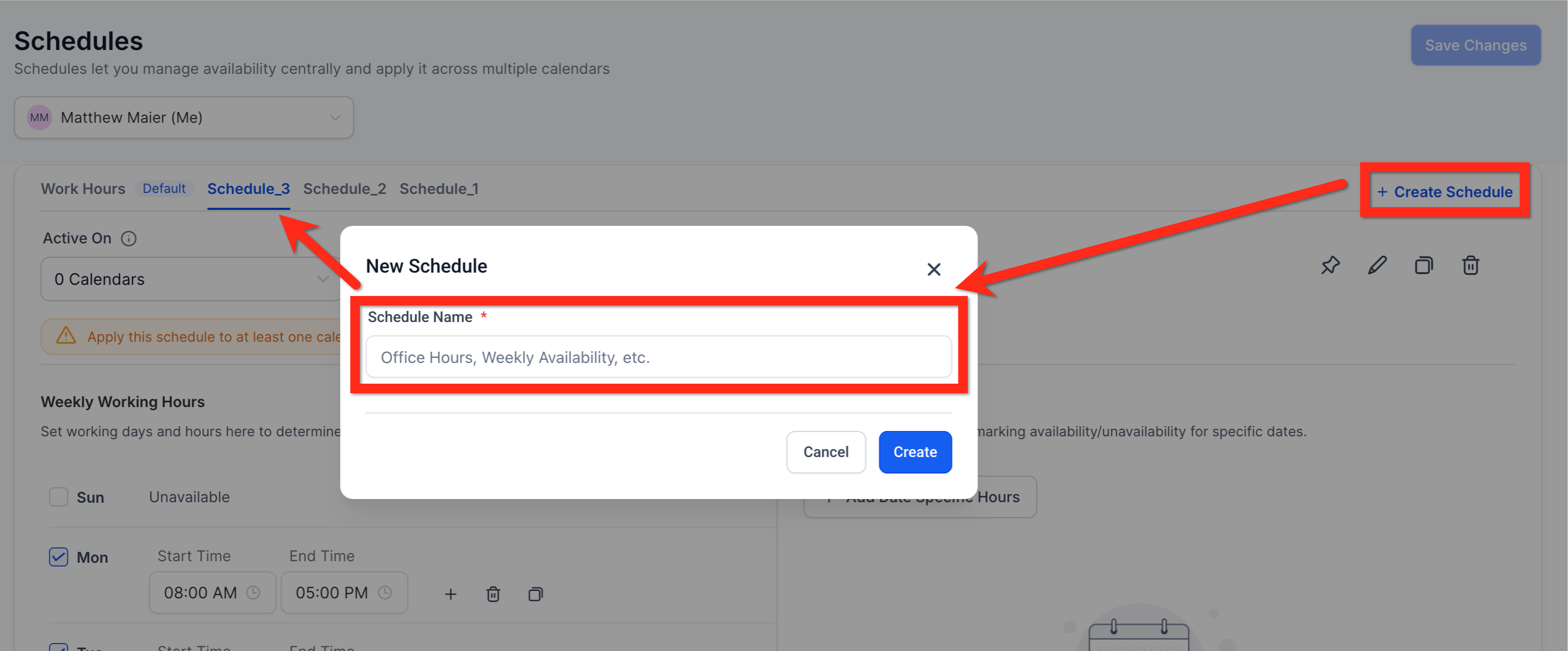
Tip: Create multiple schedules (e.g., "Demos," "On-Site Meetings") and assign them to different calendars for flexibility.
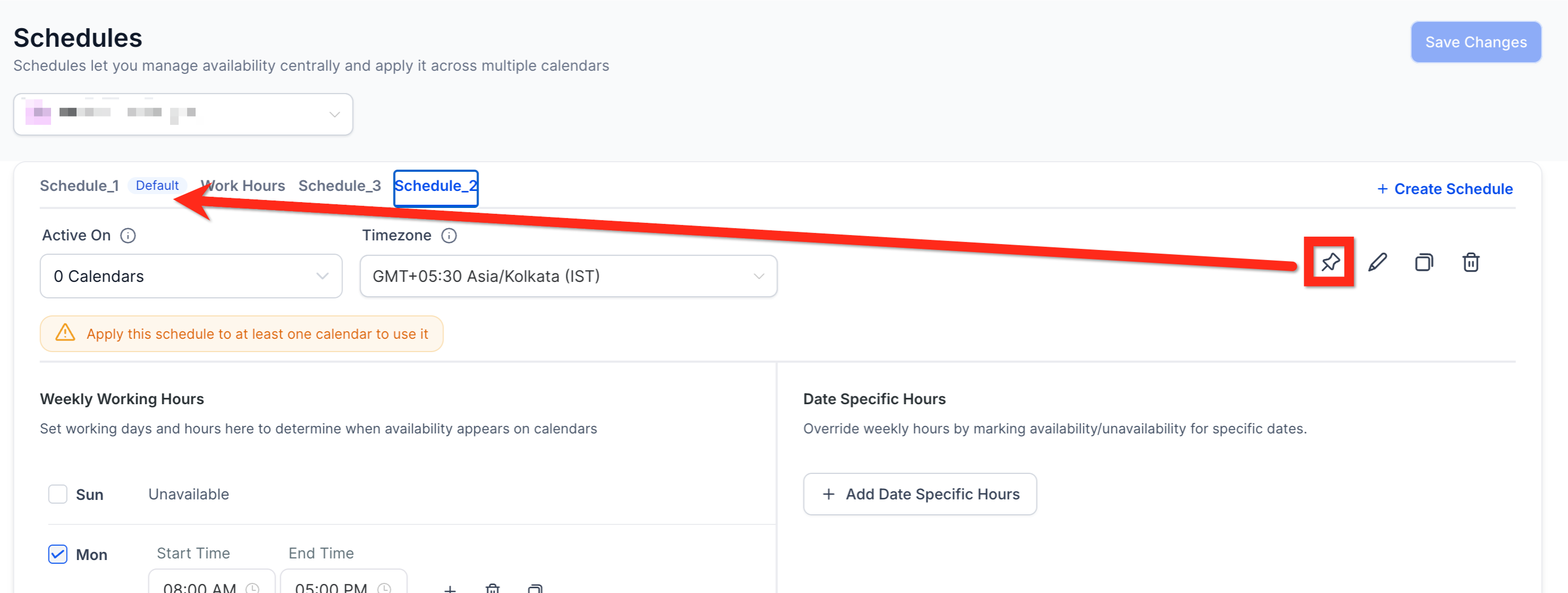
From the Schedules List, you can:
Set as Default (Pushpin): Automatically apply this schedule to new staff or calendars
Rename (Pencil): Update schedule names for clarity
Duplicate (Papers): Quickly copy an existing schedule to create a variation
Delete (Trashcan): Remove unused schedules (only if not active on any calendar)
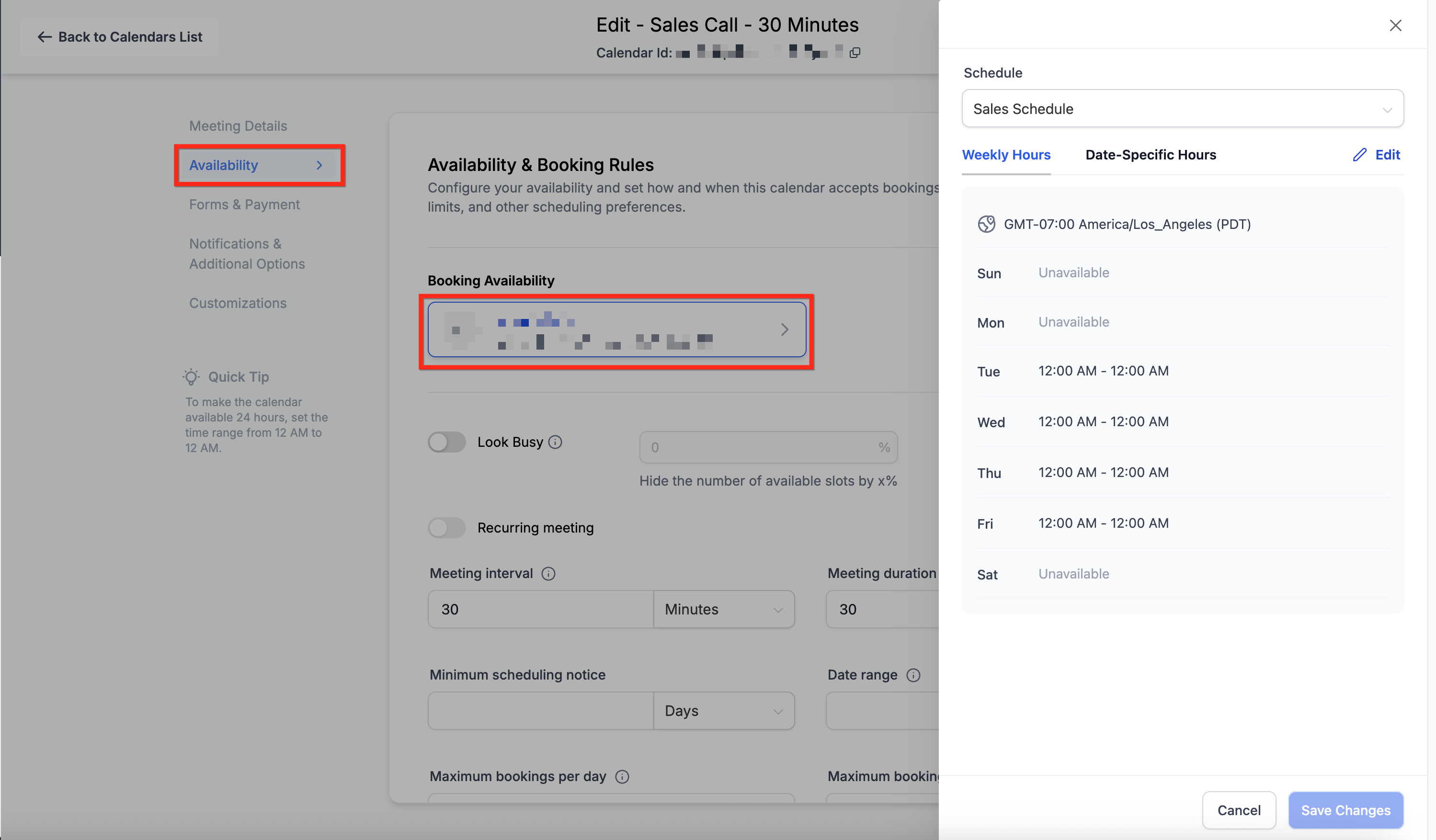
Navigate to Calendars → Calendar Settings → Edit Calendar → Availability tab
Switch Schedule: Apply a different schedule for the calendar
Custom Schedule: Create a calendar-specific schedule that overrides the central schedule for this calendar only
Important: Updates to a central schedule automatically apply to all linked calendars, ensuring consistency.

Scenario:
Your business has 3 sales reps and 2 services: "Consultations" and "Product Demos." Each staff member manages multiple calendars, including personal and round-robin group calendars.
Solution with Tekmatix Schedules:
Create a Consultation Schedule and a Demo Schedule
Assign schedules to each staff member’s relevant calendars
Set default schedules so new staff are immediately ready for booking
Apply date-specific overrides for holidays or events
Result:
Centralized management reduces errors
No double-booking even across multiple calendars
Changes to a schedule automatically propagate to all linked calendars
Custom schedules handle exceptions without affecting other calendars
Q: What happens to old availability settings?
A: Tekmatix automatically migrates them to custom schedules, ensuring no downtime.
Q: Can I attach the same schedule to Round-Robin calendars?
A: Yes, assign each user in the Round-Robin group to the same schedule.
Q: How do date-specific overrides work?
A: Overrides apply to all linked calendars. For calendar-specific exceptions, use a custom schedule.
Q: How many schedules can I create?
A: Unlimited—create as many as needed for your workflow.
Q: Will updating a schedule cancel existing appointments?
A: No, only future open time slots are updated.
Q: How does staff time zone affect bookings?
A: The schedule respects the staff time zone; booking widgets convert slots to the visitor’s browser time.
Q: Can I import schedules via API?
A: Not yet; schedules are currently managed in-app.

Managing multiple staff calendars individually is time-consuming, error-prone, and can lead to double-bookings. Schedules in Tekmatix provide a centralized, reusable template for staff availability, letting you define working hours, date-specific overrides, and time zones in one place.
Benefits include:
Centralized management: One schedule applies to multiple calendars
Flexibility: Quickly create custom schedules for specific calendars
Consistency: Every staff member follows the same availability rules
Time-saving: New staff or calendars are instantly ready for bookings
A Schedule is a shared availability template that combines:
Weekly working hours
Date-specific overrides (for holidays, special events, etc.)
Staff-level time zones
Custom Schedules are calendar-specific edits that override a central Schedule but only apply to that particular calendar.
Key Features:
Reusable across multiple calendars
Multiple schedules per staff member
Automatic legacy availability migration
Default schedules for new staff or calendars
All Schedules: Calendars → Calendar Settings → Availability. Select the staff member you want to manage through the dropdown.

Individual Staff Member: Settings → My Profile → Schedules

Admin Access for Staff: Settings → My Staff → Edit (pencil) → User Availability.


Click Create Schedule
Enter a Schedule Name (e.g., "Consultations")
Configure:
Weekly Working Hours: Set the days and hours staff are available
Time Zone: Determines the reference zone for all availability
Date-Specific Overrides: Mark specific days as unavailable or with special hours
Use the Active On dropdown to select calendars this schedule should apply to
Click Save

Tip: Create multiple schedules (e.g., "Demos," "On-Site Meetings") and assign them to different calendars for flexibility.
From the Schedules List, you can:
Set as Default (Pushpin): Automatically apply this schedule to new staff or calendars
Rename (Pencil): Update schedule names for clarity
Duplicate (Papers): Quickly copy an existing schedule to create a variation
Delete (Trashcan): Remove unused schedules (only if not active on any calendar)

Navigate to Calendars → Calendar Settings → Edit Calendar → Availability tab
Switch Schedule: Apply a different schedule for the calendar
Custom Schedule: Create a calendar-specific schedule that overrides the central schedule for this calendar only
Important: Updates to a central schedule automatically apply to all linked calendars, ensuring consistency.


Scenario:
Your business has 3 sales reps and 2 services: "Consultations" and "Product Demos." Each staff member manages multiple calendars, including personal and round-robin group calendars.
Solution with Tekmatix Schedules:
Create a Consultation Schedule and a Demo Schedule
Assign schedules to each staff member’s relevant calendars
Set default schedules so new staff are immediately ready for booking
Apply date-specific overrides for holidays or events
Result:
Centralized management reduces errors
No double-booking even across multiple calendars
Changes to a schedule automatically propagate to all linked calendars
Custom schedules handle exceptions without affecting other calendars
Q: What happens to old availability settings?
A: Tekmatix automatically migrates them to custom schedules, ensuring no downtime.
Q: Can I attach the same schedule to Round-Robin calendars?
A: Yes, assign each user in the Round-Robin group to the same schedule.
Q: How do date-specific overrides work?
A: Overrides apply to all linked calendars. For calendar-specific exceptions, use a custom schedule.
Q: How many schedules can I create?
A: Unlimited—create as many as needed for your workflow.
Q: Will updating a schedule cancel existing appointments?
A: No, only future open time slots are updated.
Q: How does staff time zone affect bookings?
A: The schedule respects the staff time zone; booking widgets convert slots to the visitor’s browser time.
Q: Can I import schedules via API?
A: Not yet; schedules are currently managed in-app.


Managing multiple staff calendars individually is time-consuming, error-prone, and can lead to double-bookings. Schedules in Tekmatix provide a centralized, reusable template for staff availability, letting you define working hours, date-specific overrides, and time zones in one place.
Benefits include:
Centralized management: One schedule applies to multiple calendars
Flexibility: Quickly create custom schedules for specific calendars
Consistency: Every staff member follows the same availability rules
Time-saving: New staff or calendars are instantly ready for bookings
A Schedule is a shared availability template that combines:
Weekly working hours
Date-specific overrides (for holidays, special events, etc.)
Staff-level time zones
Custom Schedules are calendar-specific edits that override a central Schedule but only apply to that particular calendar.
Key Features:
Reusable across multiple calendars
Multiple schedules per staff member
Automatic legacy availability migration
Default schedules for new staff or calendars
All Schedules: Calendars → Calendar Settings → Availability. Select the staff member you want to manage through the dropdown.

Individual Staff Member: Settings → My Profile → Schedules

Admin Access for Staff: Settings → My Staff → Edit (pencil) → User Availability.


Click Create Schedule
Enter a Schedule Name (e.g., "Consultations")
Configure:
Weekly Working Hours: Set the days and hours staff are available
Time Zone: Determines the reference zone for all availability
Date-Specific Overrides: Mark specific days as unavailable or with special hours
Use the Active On dropdown to select calendars this schedule should apply to
Click Save

Tip: Create multiple schedules (e.g., "Demos," "On-Site Meetings") and assign them to different calendars for flexibility.
From the Schedules List, you can:
Set as Default (Pushpin): Automatically apply this schedule to new staff or calendars
Rename (Pencil): Update schedule names for clarity
Duplicate (Papers): Quickly copy an existing schedule to create a variation
Delete (Trashcan): Remove unused schedules (only if not active on any calendar)

Navigate to Calendars → Calendar Settings → Edit Calendar → Availability tab
Switch Schedule: Apply a different schedule for the calendar
Custom Schedule: Create a calendar-specific schedule that overrides the central schedule for this calendar only
Important: Updates to a central schedule automatically apply to all linked calendars, ensuring consistency.


Scenario:
Your business has 3 sales reps and 2 services: "Consultations" and "Product Demos." Each staff member manages multiple calendars, including personal and round-robin group calendars.
Solution with Tekmatix Schedules:
Create a Consultation Schedule and a Demo Schedule
Assign schedules to each staff member’s relevant calendars
Set default schedules so new staff are immediately ready for booking
Apply date-specific overrides for holidays or events
Result:
Centralized management reduces errors
No double-booking even across multiple calendars
Changes to a schedule automatically propagate to all linked calendars
Custom schedules handle exceptions without affecting other calendars
Q: What happens to old availability settings?
A: Tekmatix automatically migrates them to custom schedules, ensuring no downtime.
Q: Can I attach the same schedule to Round-Robin calendars?
A: Yes, assign each user in the Round-Robin group to the same schedule.
Q: How do date-specific overrides work?
A: Overrides apply to all linked calendars. For calendar-specific exceptions, use a custom schedule.
Q: How many schedules can I create?
A: Unlimited—create as many as needed for your workflow.
Q: Will updating a schedule cancel existing appointments?
A: No, only future open time slots are updated.
Q: How does staff time zone affect bookings?
A: The schedule respects the staff time zone; booking widgets convert slots to the visitor’s browser time.
Q: Can I import schedules via API?
A: Not yet; schedules are currently managed in-app.

Managing multiple staff calendars individually is time-consuming, error-prone, and can lead to double-bookings. Schedules in Tekmatix provide a centralized, reusable template for staff availability, letting you define working hours, date-specific overrides, and time zones in one place.
Benefits include:
Centralized management: One schedule applies to multiple calendars
Flexibility: Quickly create custom schedules for specific calendars
Consistency: Every staff member follows the same availability rules
Time-saving: New staff or calendars are instantly ready for bookings
A Schedule is a shared availability template that combines:
Weekly working hours
Date-specific overrides (for holidays, special events, etc.)
Staff-level time zones
Custom Schedules are calendar-specific edits that override a central Schedule but only apply to that particular calendar.
Key Features:
Reusable across multiple calendars
Multiple schedules per staff member
Automatic legacy availability migration
Default schedules for new staff or calendars
All Schedules: Calendars → Calendar Settings → Availability. Select the staff member you want to manage through the dropdown.

Individual Staff Member: Settings → My Profile → Schedules

Admin Access for Staff: Settings → My Staff → Edit (pencil) → User Availability.


Click Create Schedule
Enter a Schedule Name (e.g., "Consultations")
Configure:
Weekly Working Hours: Set the days and hours staff are available
Time Zone: Determines the reference zone for all availability
Date-Specific Overrides: Mark specific days as unavailable or with special hours
Use the Active On dropdown to select calendars this schedule should apply to
Click Save

Tip: Create multiple schedules (e.g., "Demos," "On-Site Meetings") and assign them to different calendars for flexibility.
From the Schedules List, you can:
Set as Default (Pushpin): Automatically apply this schedule to new staff or calendars
Rename (Pencil): Update schedule names for clarity
Duplicate (Papers): Quickly copy an existing schedule to create a variation
Delete (Trashcan): Remove unused schedules (only if not active on any calendar)

Navigate to Calendars → Calendar Settings → Edit Calendar → Availability tab
Switch Schedule: Apply a different schedule for the calendar
Custom Schedule: Create a calendar-specific schedule that overrides the central schedule for this calendar only
Important: Updates to a central schedule automatically apply to all linked calendars, ensuring consistency.


Scenario:
Your business has 3 sales reps and 2 services: "Consultations" and "Product Demos." Each staff member manages multiple calendars, including personal and round-robin group calendars.
Solution with Tekmatix Schedules:
Create a Consultation Schedule and a Demo Schedule
Assign schedules to each staff member’s relevant calendars
Set default schedules so new staff are immediately ready for booking
Apply date-specific overrides for holidays or events
Result:
Centralized management reduces errors
No double-booking even across multiple calendars
Changes to a schedule automatically propagate to all linked calendars
Custom schedules handle exceptions without affecting other calendars
Q: What happens to old availability settings?
A: Tekmatix automatically migrates them to custom schedules, ensuring no downtime.
Q: Can I attach the same schedule to Round-Robin calendars?
A: Yes, assign each user in the Round-Robin group to the same schedule.
Q: How do date-specific overrides work?
A: Overrides apply to all linked calendars. For calendar-specific exceptions, use a custom schedule.
Q: How many schedules can I create?
A: Unlimited—create as many as needed for your workflow.
Q: Will updating a schedule cancel existing appointments?
A: No, only future open time slots are updated.
Q: How does staff time zone affect bookings?
A: The schedule respects the staff time zone; booking widgets convert slots to the visitor’s browser time.
Q: Can I import schedules via API?
A: Not yet; schedules are currently managed in-app.

Managing multiple staff calendars individually is time-consuming, error-prone, and can lead to double-bookings. Schedules in Tekmatix provide a centralized, reusable template for staff availability, letting you define working hours, date-specific overrides, and time zones in one place.
Benefits include:
Centralized management: One schedule applies to multiple calendars
Flexibility: Quickly create custom schedules for specific calendars
Consistency: Every staff member follows the same availability rules
Time-saving: New staff or calendars are instantly ready for bookings
A Schedule is a shared availability template that combines:
Weekly working hours
Date-specific overrides (for holidays, special events, etc.)
Staff-level time zones
Custom Schedules are calendar-specific edits that override a central Schedule but only apply to that particular calendar.
Key Features:
Reusable across multiple calendars
Multiple schedules per staff member
Automatic legacy availability migration
Default schedules for new staff or calendars
All Schedules: Calendars → Calendar Settings → Availability. Select the staff member you want to manage through the dropdown.

Individual Staff Member: Settings → My Profile → Schedules

Admin Access for Staff: Settings → My Staff → Edit (pencil) → User Availability.


Click Create Schedule
Enter a Schedule Name (e.g., "Consultations")
Configure:
Weekly Working Hours: Set the days and hours staff are available
Time Zone: Determines the reference zone for all availability
Date-Specific Overrides: Mark specific days as unavailable or with special hours
Use the Active On dropdown to select calendars this schedule should apply to
Click Save

Tip: Create multiple schedules (e.g., "Demos," "On-Site Meetings") and assign them to different calendars for flexibility.
From the Schedules List, you can:
Set as Default (Pushpin): Automatically apply this schedule to new staff or calendars
Rename (Pencil): Update schedule names for clarity
Duplicate (Papers): Quickly copy an existing schedule to create a variation
Delete (Trashcan): Remove unused schedules (only if not active on any calendar)

Navigate to Calendars → Calendar Settings → Edit Calendar → Availability tab
Switch Schedule: Apply a different schedule for the calendar
Custom Schedule: Create a calendar-specific schedule that overrides the central schedule for this calendar only
Important: Updates to a central schedule automatically apply to all linked calendars, ensuring consistency.


Scenario:
Your business has 3 sales reps and 2 services: "Consultations" and "Product Demos." Each staff member manages multiple calendars, including personal and round-robin group calendars.
Solution with Tekmatix Schedules:
Create a Consultation Schedule and a Demo Schedule
Assign schedules to each staff member’s relevant calendars
Set default schedules so new staff are immediately ready for booking
Apply date-specific overrides for holidays or events
Result:
Centralized management reduces errors
No double-booking even across multiple calendars
Changes to a schedule automatically propagate to all linked calendars
Custom schedules handle exceptions without affecting other calendars
Q: What happens to old availability settings?
A: Tekmatix automatically migrates them to custom schedules, ensuring no downtime.
Q: Can I attach the same schedule to Round-Robin calendars?
A: Yes, assign each user in the Round-Robin group to the same schedule.
Q: How do date-specific overrides work?
A: Overrides apply to all linked calendars. For calendar-specific exceptions, use a custom schedule.
Q: How many schedules can I create?
A: Unlimited—create as many as needed for your workflow.
Q: Will updating a schedule cancel existing appointments?
A: No, only future open time slots are updated.
Q: How does staff time zone affect bookings?
A: The schedule respects the staff time zone; booking widgets convert slots to the visitor’s browser time.
Q: Can I import schedules via API?
A: Not yet; schedules are currently managed in-app.

Managing multiple staff calendars individually is time-consuming, error-prone, and can lead to double-bookings. Schedules in Tekmatix provide a centralized, reusable template for staff availability, letting you define working hours, date-specific overrides, and time zones in one place.
Benefits include:
Centralized management: One schedule applies to multiple calendars
Flexibility: Quickly create custom schedules for specific calendars
Consistency: Every staff member follows the same availability rules
Time-saving: New staff or calendars are instantly ready for bookings
A Schedule is a shared availability template that combines:
Weekly working hours
Date-specific overrides (for holidays, special events, etc.)
Staff-level time zones
Custom Schedules are calendar-specific edits that override a central Schedule but only apply to that particular calendar.
Key Features:
Reusable across multiple calendars
Multiple schedules per staff member
Automatic legacy availability migration
Default schedules for new staff or calendars
All Schedules: Calendars → Calendar Settings → Availability. Select the staff member you want to manage through the dropdown.

Individual Staff Member: Settings → My Profile → Schedules

Admin Access for Staff: Settings → My Staff → Edit (pencil) → User Availability.


Click Create Schedule
Enter a Schedule Name (e.g., "Consultations")
Configure:
Weekly Working Hours: Set the days and hours staff are available
Time Zone: Determines the reference zone for all availability
Date-Specific Overrides: Mark specific days as unavailable or with special hours
Use the Active On dropdown to select calendars this schedule should apply to
Click Save

Tip: Create multiple schedules (e.g., "Demos," "On-Site Meetings") and assign them to different calendars for flexibility.
From the Schedules List, you can:
Set as Default (Pushpin): Automatically apply this schedule to new staff or calendars
Rename (Pencil): Update schedule names for clarity
Duplicate (Papers): Quickly copy an existing schedule to create a variation
Delete (Trashcan): Remove unused schedules (only if not active on any calendar)

Navigate to Calendars → Calendar Settings → Edit Calendar → Availability tab
Switch Schedule: Apply a different schedule for the calendar
Custom Schedule: Create a calendar-specific schedule that overrides the central schedule for this calendar only
Important: Updates to a central schedule automatically apply to all linked calendars, ensuring consistency.


Scenario:
Your business has 3 sales reps and 2 services: "Consultations" and "Product Demos." Each staff member manages multiple calendars, including personal and round-robin group calendars.
Solution with Tekmatix Schedules:
Create a Consultation Schedule and a Demo Schedule
Assign schedules to each staff member’s relevant calendars
Set default schedules so new staff are immediately ready for booking
Apply date-specific overrides for holidays or events
Result:
Centralized management reduces errors
No double-booking even across multiple calendars
Changes to a schedule automatically propagate to all linked calendars
Custom schedules handle exceptions without affecting other calendars
Q: What happens to old availability settings?
A: Tekmatix automatically migrates them to custom schedules, ensuring no downtime.
Q: Can I attach the same schedule to Round-Robin calendars?
A: Yes, assign each user in the Round-Robin group to the same schedule.
Q: How do date-specific overrides work?
A: Overrides apply to all linked calendars. For calendar-specific exceptions, use a custom schedule.
Q: How many schedules can I create?
A: Unlimited—create as many as needed for your workflow.
Q: Will updating a schedule cancel existing appointments?
A: No, only future open time slots are updated.
Q: How does staff time zone affect bookings?
A: The schedule respects the staff time zone; booking widgets convert slots to the visitor’s browser time.
Q: Can I import schedules via API?
A: Not yet; schedules are currently managed in-app.


Managing multiple staff calendars individually is time-consuming, error-prone, and can lead to double-bookings. Schedules in Tekmatix provide a centralized, reusable template for staff availability, letting you define working hours, date-specific overrides, and time zones in one place.
Benefits include:
Centralized management: One schedule applies to multiple calendars
Flexibility: Quickly create custom schedules for specific calendars
Consistency: Every staff member follows the same availability rules
Time-saving: New staff or calendars are instantly ready for bookings
A Schedule is a shared availability template that combines:
Weekly working hours
Date-specific overrides (for holidays, special events, etc.)
Staff-level time zones
Custom Schedules are calendar-specific edits that override a central Schedule but only apply to that particular calendar.
Key Features:
Reusable across multiple calendars
Multiple schedules per staff member
Automatic legacy availability migration
Default schedules for new staff or calendars
All Schedules: Calendars → Calendar Settings → Availability. Select the staff member you want to manage through the dropdown.

Individual Staff Member: Settings → My Profile → Schedules

Admin Access for Staff: Settings → My Staff → Edit (pencil) → User Availability.


Click Create Schedule
Enter a Schedule Name (e.g., "Consultations")
Configure:
Weekly Working Hours: Set the days and hours staff are available
Time Zone: Determines the reference zone for all availability
Date-Specific Overrides: Mark specific days as unavailable or with special hours
Use the Active On dropdown to select calendars this schedule should apply to
Click Save

Tip: Create multiple schedules (e.g., "Demos," "On-Site Meetings") and assign them to different calendars for flexibility.
From the Schedules List, you can:
Set as Default (Pushpin): Automatically apply this schedule to new staff or calendars
Rename (Pencil): Update schedule names for clarity
Duplicate (Papers): Quickly copy an existing schedule to create a variation
Delete (Trashcan): Remove unused schedules (only if not active on any calendar)

Navigate to Calendars → Calendar Settings → Edit Calendar → Availability tab
Switch Schedule: Apply a different schedule for the calendar
Custom Schedule: Create a calendar-specific schedule that overrides the central schedule for this calendar only
Important: Updates to a central schedule automatically apply to all linked calendars, ensuring consistency.


Scenario:
Your business has 3 sales reps and 2 services: "Consultations" and "Product Demos." Each staff member manages multiple calendars, including personal and round-robin group calendars.
Solution with Tekmatix Schedules:
Create a Consultation Schedule and a Demo Schedule
Assign schedules to each staff member’s relevant calendars
Set default schedules so new staff are immediately ready for booking
Apply date-specific overrides for holidays or events
Result:
Centralized management reduces errors
No double-booking even across multiple calendars
Changes to a schedule automatically propagate to all linked calendars
Custom schedules handle exceptions without affecting other calendars
Q: What happens to old availability settings?
A: Tekmatix automatically migrates them to custom schedules, ensuring no downtime.
Q: Can I attach the same schedule to Round-Robin calendars?
A: Yes, assign each user in the Round-Robin group to the same schedule.
Q: How do date-specific overrides work?
A: Overrides apply to all linked calendars. For calendar-specific exceptions, use a custom schedule.
Q: How many schedules can I create?
A: Unlimited—create as many as needed for your workflow.
Q: Will updating a schedule cancel existing appointments?
A: No, only future open time slots are updated.
Q: How does staff time zone affect bookings?
A: The schedule respects the staff time zone; booking widgets convert slots to the visitor’s browser time.
Q: Can I import schedules via API?
A: Not yet; schedules are currently managed in-app.

Managing multiple staff calendars individually is time-consuming, error-prone, and can lead to double-bookings. Schedules in Tekmatix provide a centralized, reusable template for staff availability, letting you define working hours, date-specific overrides, and time zones in one place.
Benefits include:
Centralized management: One schedule applies to multiple calendars
Flexibility: Quickly create custom schedules for specific calendars
Consistency: Every staff member follows the same availability rules
Time-saving: New staff or calendars are instantly ready for bookings
A Schedule is a shared availability template that combines:
Weekly working hours
Date-specific overrides (for holidays, special events, etc.)
Staff-level time zones
Custom Schedules are calendar-specific edits that override a central Schedule but only apply to that particular calendar.
Key Features:
Reusable across multiple calendars
Multiple schedules per staff member
Automatic legacy availability migration
Default schedules for new staff or calendars
All Schedules: Calendars → Calendar Settings → Availability. Select the staff member you want to manage through the dropdown.

Individual Staff Member: Settings → My Profile → Schedules

Admin Access for Staff: Settings → My Staff → Edit (pencil) → User Availability.


Click Create Schedule
Enter a Schedule Name (e.g., "Consultations")
Configure:
Weekly Working Hours: Set the days and hours staff are available
Time Zone: Determines the reference zone for all availability
Date-Specific Overrides: Mark specific days as unavailable or with special hours
Use the Active On dropdown to select calendars this schedule should apply to
Click Save

Tip: Create multiple schedules (e.g., "Demos," "On-Site Meetings") and assign them to different calendars for flexibility.
From the Schedules List, you can:
Set as Default (Pushpin): Automatically apply this schedule to new staff or calendars
Rename (Pencil): Update schedule names for clarity
Duplicate (Papers): Quickly copy an existing schedule to create a variation
Delete (Trashcan): Remove unused schedules (only if not active on any calendar)

Navigate to Calendars → Calendar Settings → Edit Calendar → Availability tab
Switch Schedule: Apply a different schedule for the calendar
Custom Schedule: Create a calendar-specific schedule that overrides the central schedule for this calendar only
Important: Updates to a central schedule automatically apply to all linked calendars, ensuring consistency.


Scenario:
Your business has 3 sales reps and 2 services: "Consultations" and "Product Demos." Each staff member manages multiple calendars, including personal and round-robin group calendars.
Solution with Tekmatix Schedules:
Create a Consultation Schedule and a Demo Schedule
Assign schedules to each staff member’s relevant calendars
Set default schedules so new staff are immediately ready for booking
Apply date-specific overrides for holidays or events
Result:
Centralized management reduces errors
No double-booking even across multiple calendars
Changes to a schedule automatically propagate to all linked calendars
Custom schedules handle exceptions without affecting other calendars
Q: What happens to old availability settings?
A: Tekmatix automatically migrates them to custom schedules, ensuring no downtime.
Q: Can I attach the same schedule to Round-Robin calendars?
A: Yes, assign each user in the Round-Robin group to the same schedule.
Q: How do date-specific overrides work?
A: Overrides apply to all linked calendars. For calendar-specific exceptions, use a custom schedule.
Q: How many schedules can I create?
A: Unlimited—create as many as needed for your workflow.
Q: Will updating a schedule cancel existing appointments?
A: No, only future open time slots are updated.
Q: How does staff time zone affect bookings?
A: The schedule respects the staff time zone; booking widgets convert slots to the visitor’s browser time.
Q: Can I import schedules via API?
A: Not yet; schedules are currently managed in-app.