


Tekmatix Help Articles
Love your help
Use the search bar below to find help guides and articles for using Tekmatix
Use the search bar below to look for help articles you need.

Shopify Integration
Shopify is a widely used e-commerce platform for online and retail shopping. By integrating Shopify with TekMatix, you can enhance your e-commerce capabilities in several ways, including workflows, the use of Shopify-specific custom values, and more. Follow these steps to integrate Shopify with TekMatix:
Step 1: Create or Log In To A Shopify Account

Step 2: Enable Private App Development (if already enabled, skip to Step 3.)
Once logged in to your Shopify store, navigate to “Apps” from your dashboard.

Click “Develop Apps” in the top right of the screen
Click "Allow custom app development"

NOTE: IF you already had enabled the private app development, you’ll be directed straight to the create/develop apps button and won’t need to re-accept the terms/permissions.
Step 3: Create Your Private App
Click to Create an App

Enter a name for your app such as “my App” or “Sally’s Shopify Store”, and enter your email address in the appropriate field.

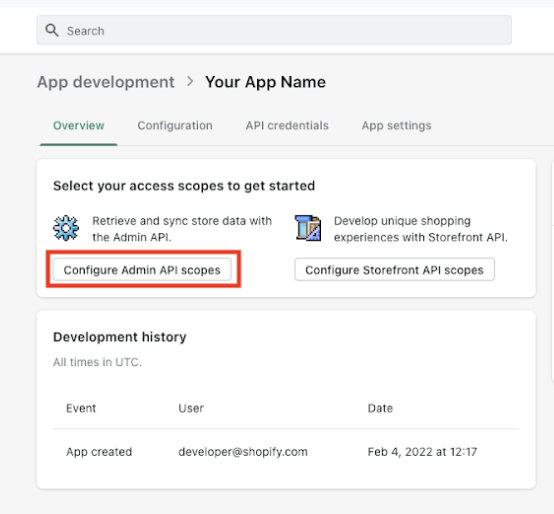
Click "Configure Admin API scopes" to configure Admin API integration.
Scroll down to "Orders" and enable at least "read_orders" access
Scroll down to "Products" and enable at least "read_products" access
Click the "Save" button on the top right.
Click the "Install app" button on the top right.
Click "Install" in the popup window that appears.
Your app is now ready to be integrated.
Step 4: Retrieve the Admin API Access Token for Integration
After the installation is complete, you will be able to find the Admin API Access Token under the API Credentials Section.
Click “Reveal Token Once” to get access.
Copy the "Admin API access token" by clicking on the clipboard icon or highlighting it all and using the control+c or command+c keyboard shortcut ono your computer. Keep this password copied, as you’ll need it in the next step.
Step 5: Connecting Shopify to TekMatix
Back in TekMatix, navigate to Settings > Integrations.
Click “Connect” under Shopify.

In the popup window, paste the previously copied password and type out your Shopify App name.

Click “Connect” to complete the integration.

Latest Blog Posts
Shopify Integration
Shopify is a widely used e-commerce platform for online and retail shopping. By integrating Shopify with TekMatix, you can enhance your e-commerce capabilities in several ways, including workflows, the use of Shopify-specific custom values, and more. Follow these steps to integrate Shopify with TekMatix:
Step 1: Create or Log In To A Shopify Account
Step 2: Enable Private App Development (if already enabled, skip to Step 3.)
Once logged in to your Shopify store, navigate to “Apps” from your dashboard.
Click “Develop Apps” in the top right of the screen
Click "Allow custom app development"
NOTE: IF you already had enabled the private app development, you’ll be directed straight to the create/develop apps button and won’t need to re-accept the terms/permissions.
Step 3: Create Your Private App
Click to Create an App
Enter a name for your app such as “my App” or “Sally’s Shopify Store”, and enter your email address in the appropriate field.
Click "Configure Admin API scopes" to configure Admin API integration.
Scroll down to "Orders" and enable at least "read_orders" access
Scroll down to "Products" and enable at least "read_products" access
Click the "Save" button on the top right.
Click the "Install app" button on the top right.
Click "Install" in the popup window that appears.
Your app is now ready to be integrated.
Step 4: Retrieve the Admin API Access Token for Integration
After the installation is complete, you will be able to find the Admin API Access Token under the API Credentials Section.
Click “Reveal Token Once” to get access.
Copy the "Admin API access token" by clicking on the clipboard icon or highlighting it all and using the control+c or command+c keyboard shortcut ono your computer. Keep this password copied, as you’ll need it in the next step.
Step 5: Connecting Shopify to TekMatix
Back in TekMatix, navigate to Settings > Integrations.
Click “Connect” under Shopify.
In the popup window, paste the previously copied password and type out your Shopify App name.
Click “Connect” to complete the integration.