


Tekmatix Help Articles
Love your help
Use the search bar below to find help guides and articles for using Tekmatix
Use the search bar below to look for help articles you need.

How To Use Rich Text in Notes and Tasks to Improve Team Clarity in Tekmatix
How To Use Rich Text in Notes and Tasks to Improve Team Clarity in Tekmatix
Why This Matters
Notes and tasks are only useful if your team can quickly understand and act on them.
Without formatting, important details get buried in long text blocks, follow-ups are missed, and handoffs between team members become inefficient. Rich Text for Notes & Task Descriptions in Tekmatix solves this by adding simple formatting tools like bold text, lists, and links directly inside your CRM, without needing external documents or tools.
This helps teams:
Scan notes faster
Reduce misunderstandings
Standardize internal documentation
Improve collaboration across departments
What Is Rich Text for Notes & Task Descriptions in Tekmatix?
Rich Text adds lightweight formatting to notes and task descriptions inside Tekmatix.
You can apply:
Bold, italics, underline, and strikethrough
Bulleted and numbered lists
Clickable hyperlinks
Undo and redo
Basic formatting preservation when pasting content
Formatting stays consistent wherever the note or task appears across Tekmatix—so everyone sees the same structured information.
Key Benefits of Using Rich Text
1. Improved Clarity
Highlight critical information so teammates can instantly spot key updates, decisions, or next steps.
2. Consistent Formatting Across the CRM
Notes look the same whether viewed in:
Contacts
Opportunities
Companies
Conversations
Calendars
3. Faster Note-Taking
Format text and insert links without switching tools or pasting raw URLs.
4. Fewer Errors During Edits
Undo and redo options reduce mistakes when updating longer notes.
5. Better Collaboration
Standardized note formats and linked resources improve handoffs between team members.
6. Reduced Cleanup
When pasting content from emails or docs, basic formatting is preserved—saving time.
Understanding the Rich Text Toolbar
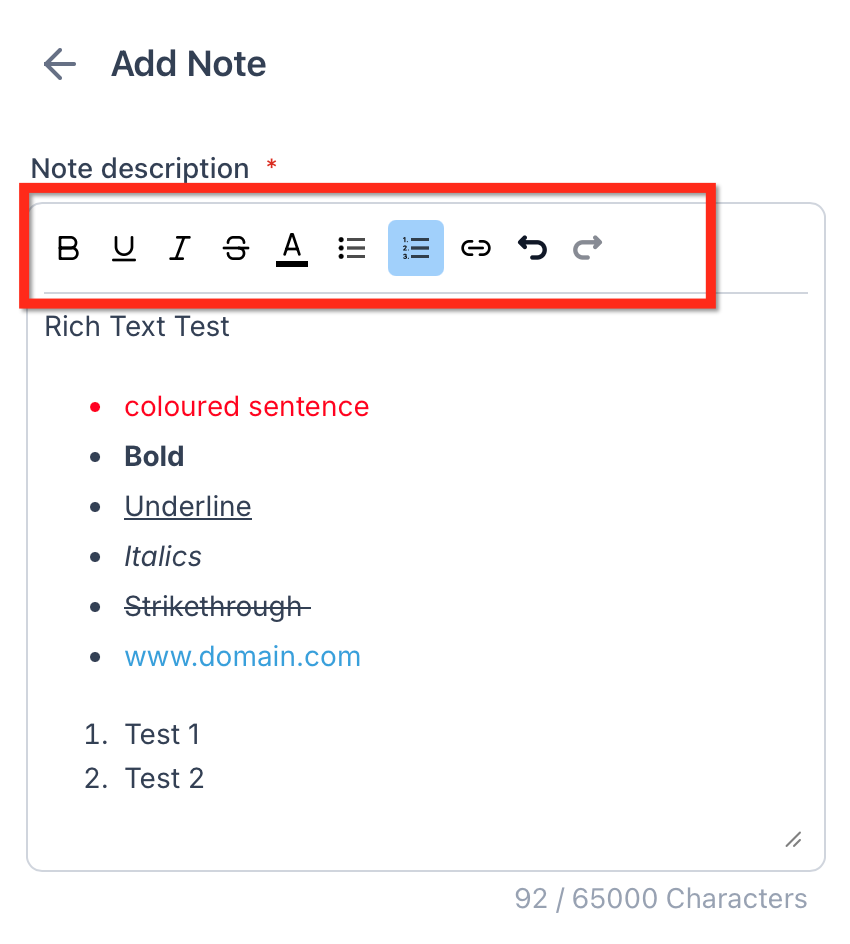
The formatting toolbar appears when editing a note or task description.
Available Tools:
Bold
Italics
Underline
Strikethrough
Bulleted lists
Numbered lists
Insert or edit hyperlinks
Undo / Redo
These tools are designed for quick, everyday formatting, not advanced document styling.
Using Lists to Structure Notes and Tasks
Lists make information easier to read and maintain.
Best Practices:
Bulleted lists – use for meeting notes, talking points, or general observations
Numbered lists – use for step-by-step instructions, action items, or follow-ups
This structure helps teams quickly understand what needs to happen next.
Adding Hyperlinks to Notes and Tasks
Links allow your team to jump directly to related resources.
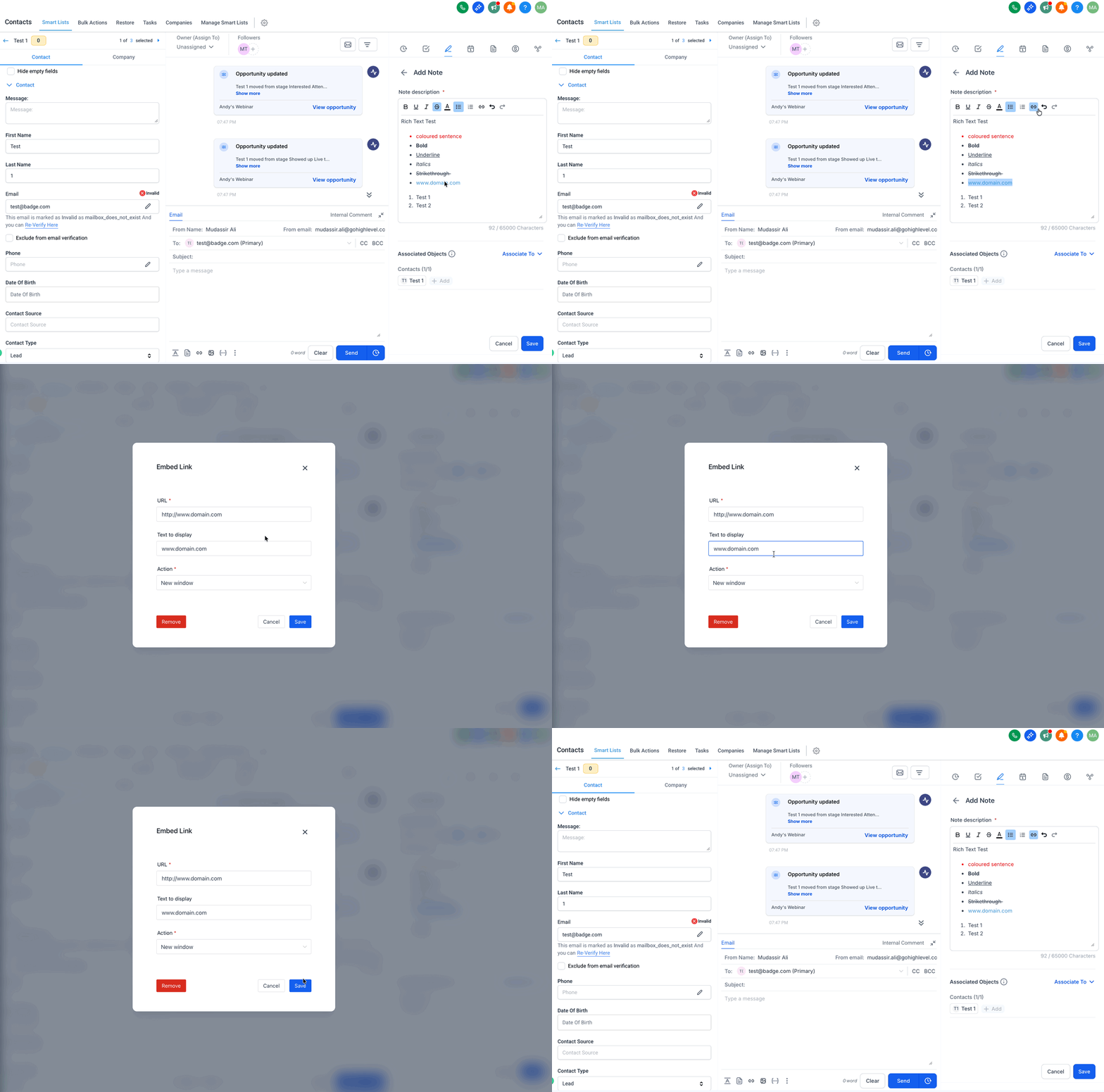
How To Add a Hyperlink:
Highlight the text you want to link
Click the Link icon in the toolbar
Paste the URL
Confirm and save
The link will appear as clickable text anywhere the note or task is viewed in Tekmatix.
Where Rich Text Appears in Tekmatix
Rich Text formatting renders consistently across the platform, including:
Contact records
Opportunity pipelines
Company profiles
Conversations
Calendar events
This ensures notes remain readable no matter where your team accesses them.
Limitations to Keep in Mind
Rich Text is intentionally lightweight.
Not Currently Supported:
Images
Tables
Headings
Text colors
Text alignment
Code blocks
Checkbox-style task lists
When pasting content, only basic formatting (text emphasis, lists, links) is preserved.
Step-by-Step: How To Use Rich Text in Notes & Tasks
Open any Contact, Opportunity, Company, or Task
Create a new note or edit an existing one
Click inside the Note or Task Description field
Use the toolbar to:
Apply text formatting
Add lists
Insert hyperlinks
Click Save
Your formatting will apply automatically wherever the note or task appears.

Sample Scenario: Improving Internal Handoffs
Scenario
A support agent needs to hand off a client issue to the onboarding team.
Without Rich Text:
Long paragraph of unformatted text
Key steps and links buried
Onboarding team misses an important follow-up
With Rich Text in Tekmatix:
Bold heading-style text for the issue summary
Numbered list for required next steps
Hyperlinks to the support ticket and client documents
Result
The onboarding team immediately understands:
What the issue is
What actions are required
Where to find supporting resources
This leads to faster resolution and fewer back-and-forth messages.
Frequently Asked Questions
Does Rich Text change how notes or tasks are stored or exported?
No. Rich Text improves on-screen readability. Exports or printed versions may simplify formatting.
Can I add images or tables to notes or tasks?
No. The feature supports lightweight formatting only.
Are hyperlinks tracked?
No. Links are for navigation only and are not tracked.
Will formatting display on mobile?
Yes. Formatting remains visible. Editing is best done on desktop or web.
Are there API changes?
No. This feature does not introduce any API updates.
Does this affect internal comments in Conversations?
No. Rich Text applies only to Notes and Task Descriptions.

Latest Blog Posts
How To Use Rich Text in Notes and Tasks to Improve Team Clarity in Tekmatix
How To Use Rich Text in Notes and Tasks to Improve Team Clarity in Tekmatix
Why This Matters
Notes and tasks are only useful if your team can quickly understand and act on them.
Without formatting, important details get buried in long text blocks, follow-ups are missed, and handoffs between team members become inefficient. Rich Text for Notes & Task Descriptions in Tekmatix solves this by adding simple formatting tools like bold text, lists, and links directly inside your CRM, without needing external documents or tools.
This helps teams:
Scan notes faster
Reduce misunderstandings
Standardize internal documentation
Improve collaboration across departments
What Is Rich Text for Notes & Task Descriptions in Tekmatix?
Rich Text adds lightweight formatting to notes and task descriptions inside Tekmatix.
You can apply:
Bold, italics, underline, and strikethrough
Bulleted and numbered lists
Clickable hyperlinks
Undo and redo
Basic formatting preservation when pasting content
Formatting stays consistent wherever the note or task appears across Tekmatix—so everyone sees the same structured information.
Key Benefits of Using Rich Text
1. Improved Clarity
Highlight critical information so teammates can instantly spot key updates, decisions, or next steps.
2. Consistent Formatting Across the CRM
Notes look the same whether viewed in:
Contacts
Opportunities
Companies
Conversations
Calendars
3. Faster Note-Taking
Format text and insert links without switching tools or pasting raw URLs.
4. Fewer Errors During Edits
Undo and redo options reduce mistakes when updating longer notes.
5. Better Collaboration
Standardized note formats and linked resources improve handoffs between team members.
6. Reduced Cleanup
When pasting content from emails or docs, basic formatting is preserved—saving time.
Understanding the Rich Text Toolbar
The formatting toolbar appears when editing a note or task description.
Available Tools:
Bold
Italics
Underline
Strikethrough
Bulleted lists
Numbered lists
Insert or edit hyperlinks
Undo / Redo
These tools are designed for quick, everyday formatting, not advanced document styling.
Using Lists to Structure Notes and Tasks
Lists make information easier to read and maintain.
Best Practices:
Bulleted lists – use for meeting notes, talking points, or general observations
Numbered lists – use for step-by-step instructions, action items, or follow-ups
This structure helps teams quickly understand what needs to happen next.
Adding Hyperlinks to Notes and Tasks
Links allow your team to jump directly to related resources.
How To Add a Hyperlink:
Highlight the text you want to link
Click the Link icon in the toolbar
Paste the URL
Confirm and save
The link will appear as clickable text anywhere the note or task is viewed in Tekmatix.
Where Rich Text Appears in Tekmatix
Rich Text formatting renders consistently across the platform, including:
Contact records
Opportunity pipelines
Company profiles
Conversations
Calendar events
This ensures notes remain readable no matter where your team accesses them.
Limitations to Keep in Mind
Rich Text is intentionally lightweight.
Not Currently Supported:
Images
Tables
Headings
Text colors
Text alignment
Code blocks
Checkbox-style task lists
When pasting content, only basic formatting (text emphasis, lists, links) is preserved.
Step-by-Step: How To Use Rich Text in Notes & Tasks
Open any Contact, Opportunity, Company, or Task
Create a new note or edit an existing one
Click inside the Note or Task Description field
Use the toolbar to:
Apply text formatting
Add lists
Insert hyperlinks
Click Save
Your formatting will apply automatically wherever the note or task appears.
Sample Scenario: Improving Internal Handoffs
Scenario
A support agent needs to hand off a client issue to the onboarding team.
Without Rich Text:
Long paragraph of unformatted text
Key steps and links buried
Onboarding team misses an important follow-up
With Rich Text in Tekmatix:
Bold heading-style text for the issue summary
Numbered list for required next steps
Hyperlinks to the support ticket and client documents
Result
The onboarding team immediately understands:
What the issue is
What actions are required
Where to find supporting resources
This leads to faster resolution and fewer back-and-forth messages.
Frequently Asked Questions
Does Rich Text change how notes or tasks are stored or exported?
No. Rich Text improves on-screen readability. Exports or printed versions may simplify formatting.
Can I add images or tables to notes or tasks?
No. The feature supports lightweight formatting only.
Are hyperlinks tracked?
No. Links are for navigation only and are not tracked.
Will formatting display on mobile?
Yes. Formatting remains visible. Editing is best done on desktop or web.
Are there API changes?
No. This feature does not introduce any API updates.
Does this affect internal comments in Conversations?
No. Rich Text applies only to Notes and Task Descriptions.
Marketing
How To Use Rich Text in Notes and Tasks to Improve Team Clarity in Tekmatix
How To Use Rich Text in Notes and Tasks to Improve Team Clarity in Tekmatix
Why This Matters
Notes and tasks are only useful if your team can quickly understand and act on them.
Without formatting, important details get buried in long text blocks, follow-ups are missed, and handoffs between team members become inefficient. Rich Text for Notes & Task Descriptions in Tekmatix solves this by adding simple formatting tools like bold text, lists, and links directly inside your CRM, without needing external documents or tools.
This helps teams:
Scan notes faster
Reduce misunderstandings
Standardize internal documentation
Improve collaboration across departments
What Is Rich Text for Notes & Task Descriptions in Tekmatix?
Rich Text adds lightweight formatting to notes and task descriptions inside Tekmatix.
You can apply:
Bold, italics, underline, and strikethrough
Bulleted and numbered lists
Clickable hyperlinks
Undo and redo
Basic formatting preservation when pasting content
Formatting stays consistent wherever the note or task appears across Tekmatix—so everyone sees the same structured information.
Key Benefits of Using Rich Text
1. Improved Clarity
Highlight critical information so teammates can instantly spot key updates, decisions, or next steps.
2. Consistent Formatting Across the CRM
Notes look the same whether viewed in:
Contacts
Opportunities
Companies
Conversations
Calendars
3. Faster Note-Taking
Format text and insert links without switching tools or pasting raw URLs.
4. Fewer Errors During Edits
Undo and redo options reduce mistakes when updating longer notes.
5. Better Collaboration
Standardized note formats and linked resources improve handoffs between team members.
6. Reduced Cleanup
When pasting content from emails or docs, basic formatting is preserved—saving time.
Understanding the Rich Text Toolbar
The formatting toolbar appears when editing a note or task description.
Available Tools:
Bold
Italics
Underline
Strikethrough
Bulleted lists
Numbered lists
Insert or edit hyperlinks
Undo / Redo
These tools are designed for quick, everyday formatting, not advanced document styling.
Using Lists to Structure Notes and Tasks
Lists make information easier to read and maintain.
Best Practices:
Bulleted lists – use for meeting notes, talking points, or general observations
Numbered lists – use for step-by-step instructions, action items, or follow-ups
This structure helps teams quickly understand what needs to happen next.
Adding Hyperlinks to Notes and Tasks
Links allow your team to jump directly to related resources.
How To Add a Hyperlink:
Highlight the text you want to link
Click the Link icon in the toolbar
Paste the URL
Confirm and save
The link will appear as clickable text anywhere the note or task is viewed in Tekmatix.
Where Rich Text Appears in Tekmatix
Rich Text formatting renders consistently across the platform, including:
Contact records
Opportunity pipelines
Company profiles
Conversations
Calendar events
This ensures notes remain readable no matter where your team accesses them.
Limitations to Keep in Mind
Rich Text is intentionally lightweight.
Not Currently Supported:
Images
Tables
Headings
Text colors
Text alignment
Code blocks
Checkbox-style task lists
When pasting content, only basic formatting (text emphasis, lists, links) is preserved.
Step-by-Step: How To Use Rich Text in Notes & Tasks
Open any Contact, Opportunity, Company, or Task
Create a new note or edit an existing one
Click inside the Note or Task Description field
Use the toolbar to:
Apply text formatting
Add lists
Insert hyperlinks
Click Save
Your formatting will apply automatically wherever the note or task appears.
Sample Scenario: Improving Internal Handoffs
Scenario
A support agent needs to hand off a client issue to the onboarding team.
Without Rich Text:
Long paragraph of unformatted text
Key steps and links buried
Onboarding team misses an important follow-up
With Rich Text in Tekmatix:
Bold heading-style text for the issue summary
Numbered list for required next steps
Hyperlinks to the support ticket and client documents
Result
The onboarding team immediately understands:
What the issue is
What actions are required
Where to find supporting resources
This leads to faster resolution and fewer back-and-forth messages.
Frequently Asked Questions
Does Rich Text change how notes or tasks are stored or exported?
No. Rich Text improves on-screen readability. Exports or printed versions may simplify formatting.
Can I add images or tables to notes or tasks?
No. The feature supports lightweight formatting only.
Are hyperlinks tracked?
No. Links are for navigation only and are not tracked.
Will formatting display on mobile?
Yes. Formatting remains visible. Editing is best done on desktop or web.
Are there API changes?
No. This feature does not introduce any API updates.
Does this affect internal comments in Conversations?
No. Rich Text applies only to Notes and Task Descriptions.
How To Use Rich Text in Notes and Tasks to Improve Team Clarity in Tekmatix
How To Use Rich Text in Notes and Tasks to Improve Team Clarity in Tekmatix
Why This Matters
Notes and tasks are only useful if your team can quickly understand and act on them.
Without formatting, important details get buried in long text blocks, follow-ups are missed, and handoffs between team members become inefficient. Rich Text for Notes & Task Descriptions in Tekmatix solves this by adding simple formatting tools like bold text, lists, and links directly inside your CRM, without needing external documents or tools.
This helps teams:
Scan notes faster
Reduce misunderstandings
Standardize internal documentation
Improve collaboration across departments
What Is Rich Text for Notes & Task Descriptions in Tekmatix?
Rich Text adds lightweight formatting to notes and task descriptions inside Tekmatix.
You can apply:
Bold, italics, underline, and strikethrough
Bulleted and numbered lists
Clickable hyperlinks
Undo and redo
Basic formatting preservation when pasting content
Formatting stays consistent wherever the note or task appears across Tekmatix—so everyone sees the same structured information.
Key Benefits of Using Rich Text
1. Improved Clarity
Highlight critical information so teammates can instantly spot key updates, decisions, or next steps.
2. Consistent Formatting Across the CRM
Notes look the same whether viewed in:
Contacts
Opportunities
Companies
Conversations
Calendars
3. Faster Note-Taking
Format text and insert links without switching tools or pasting raw URLs.
4. Fewer Errors During Edits
Undo and redo options reduce mistakes when updating longer notes.
5. Better Collaboration
Standardized note formats and linked resources improve handoffs between team members.
6. Reduced Cleanup
When pasting content from emails or docs, basic formatting is preserved—saving time.
Understanding the Rich Text Toolbar
The formatting toolbar appears when editing a note or task description.
Available Tools:
Bold
Italics
Underline
Strikethrough
Bulleted lists
Numbered lists
Insert or edit hyperlinks
Undo / Redo
These tools are designed for quick, everyday formatting, not advanced document styling.
Using Lists to Structure Notes and Tasks
Lists make information easier to read and maintain.
Best Practices:
Bulleted lists – use for meeting notes, talking points, or general observations
Numbered lists – use for step-by-step instructions, action items, or follow-ups
This structure helps teams quickly understand what needs to happen next.
Adding Hyperlinks to Notes and Tasks
Links allow your team to jump directly to related resources.
How To Add a Hyperlink:
Highlight the text you want to link
Click the Link icon in the toolbar
Paste the URL
Confirm and save
The link will appear as clickable text anywhere the note or task is viewed in Tekmatix.
Where Rich Text Appears in Tekmatix
Rich Text formatting renders consistently across the platform, including:
Contact records
Opportunity pipelines
Company profiles
Conversations
Calendar events
This ensures notes remain readable no matter where your team accesses them.
Limitations to Keep in Mind
Rich Text is intentionally lightweight.
Not Currently Supported:
Images
Tables
Headings
Text colors
Text alignment
Code blocks
Checkbox-style task lists
When pasting content, only basic formatting (text emphasis, lists, links) is preserved.
Step-by-Step: How To Use Rich Text in Notes & Tasks
Open any Contact, Opportunity, Company, or Task
Create a new note or edit an existing one
Click inside the Note or Task Description field
Use the toolbar to:
Apply text formatting
Add lists
Insert hyperlinks
Click Save
Your formatting will apply automatically wherever the note or task appears.
Sample Scenario: Improving Internal Handoffs
Scenario
A support agent needs to hand off a client issue to the onboarding team.
Without Rich Text:
Long paragraph of unformatted text
Key steps and links buried
Onboarding team misses an important follow-up
With Rich Text in Tekmatix:
Bold heading-style text for the issue summary
Numbered list for required next steps
Hyperlinks to the support ticket and client documents
Result
The onboarding team immediately understands:
What the issue is
What actions are required
Where to find supporting resources
This leads to faster resolution and fewer back-and-forth messages.
Frequently Asked Questions
Does Rich Text change how notes or tasks are stored or exported?
No. Rich Text improves on-screen readability. Exports or printed versions may simplify formatting.
Can I add images or tables to notes or tasks?
No. The feature supports lightweight formatting only.
Are hyperlinks tracked?
No. Links are for navigation only and are not tracked.
Will formatting display on mobile?
Yes. Formatting remains visible. Editing is best done on desktop or web.
Are there API changes?
No. This feature does not introduce any API updates.
Does this affect internal comments in Conversations?
No. Rich Text applies only to Notes and Task Descriptions.
CRM
How To Use Rich Text in Notes and Tasks to Improve Team Clarity in Tekmatix
How To Use Rich Text in Notes and Tasks to Improve Team Clarity in Tekmatix
Why This Matters
Notes and tasks are only useful if your team can quickly understand and act on them.
Without formatting, important details get buried in long text blocks, follow-ups are missed, and handoffs between team members become inefficient. Rich Text for Notes & Task Descriptions in Tekmatix solves this by adding simple formatting tools like bold text, lists, and links directly inside your CRM, without needing external documents or tools.
This helps teams:
Scan notes faster
Reduce misunderstandings
Standardize internal documentation
Improve collaboration across departments
What Is Rich Text for Notes & Task Descriptions in Tekmatix?
Rich Text adds lightweight formatting to notes and task descriptions inside Tekmatix.
You can apply:
Bold, italics, underline, and strikethrough
Bulleted and numbered lists
Clickable hyperlinks
Undo and redo
Basic formatting preservation when pasting content
Formatting stays consistent wherever the note or task appears across Tekmatix—so everyone sees the same structured information.
Key Benefits of Using Rich Text
1. Improved Clarity
Highlight critical information so teammates can instantly spot key updates, decisions, or next steps.
2. Consistent Formatting Across the CRM
Notes look the same whether viewed in:
Contacts
Opportunities
Companies
Conversations
Calendars
3. Faster Note-Taking
Format text and insert links without switching tools or pasting raw URLs.
4. Fewer Errors During Edits
Undo and redo options reduce mistakes when updating longer notes.
5. Better Collaboration
Standardized note formats and linked resources improve handoffs between team members.
6. Reduced Cleanup
When pasting content from emails or docs, basic formatting is preserved—saving time.
Understanding the Rich Text Toolbar
The formatting toolbar appears when editing a note or task description.
Available Tools:
Bold
Italics
Underline
Strikethrough
Bulleted lists
Numbered lists
Insert or edit hyperlinks
Undo / Redo
These tools are designed for quick, everyday formatting, not advanced document styling.
Using Lists to Structure Notes and Tasks
Lists make information easier to read and maintain.
Best Practices:
Bulleted lists – use for meeting notes, talking points, or general observations
Numbered lists – use for step-by-step instructions, action items, or follow-ups
This structure helps teams quickly understand what needs to happen next.
Adding Hyperlinks to Notes and Tasks
Links allow your team to jump directly to related resources.
How To Add a Hyperlink:
Highlight the text you want to link
Click the Link icon in the toolbar
Paste the URL
Confirm and save
The link will appear as clickable text anywhere the note or task is viewed in Tekmatix.
Where Rich Text Appears in Tekmatix
Rich Text formatting renders consistently across the platform, including:
Contact records
Opportunity pipelines
Company profiles
Conversations
Calendar events
This ensures notes remain readable no matter where your team accesses them.
Limitations to Keep in Mind
Rich Text is intentionally lightweight.
Not Currently Supported:
Images
Tables
Headings
Text colors
Text alignment
Code blocks
Checkbox-style task lists
When pasting content, only basic formatting (text emphasis, lists, links) is preserved.
Step-by-Step: How To Use Rich Text in Notes & Tasks
Open any Contact, Opportunity, Company, or Task
Create a new note or edit an existing one
Click inside the Note or Task Description field
Use the toolbar to:
Apply text formatting
Add lists
Insert hyperlinks
Click Save
Your formatting will apply automatically wherever the note or task appears.
Sample Scenario: Improving Internal Handoffs
Scenario
A support agent needs to hand off a client issue to the onboarding team.
Without Rich Text:
Long paragraph of unformatted text
Key steps and links buried
Onboarding team misses an important follow-up
With Rich Text in Tekmatix:
Bold heading-style text for the issue summary
Numbered list for required next steps
Hyperlinks to the support ticket and client documents
Result
The onboarding team immediately understands:
What the issue is
What actions are required
Where to find supporting resources
This leads to faster resolution and fewer back-and-forth messages.
Frequently Asked Questions
Does Rich Text change how notes or tasks are stored or exported?
No. Rich Text improves on-screen readability. Exports or printed versions may simplify formatting.
Can I add images or tables to notes or tasks?
No. The feature supports lightweight formatting only.
Are hyperlinks tracked?
No. Links are for navigation only and are not tracked.
Will formatting display on mobile?
Yes. Formatting remains visible. Editing is best done on desktop or web.
Are there API changes?
No. This feature does not introduce any API updates.
Does this affect internal comments in Conversations?
No. Rich Text applies only to Notes and Task Descriptions.
How To Use Rich Text in Notes and Tasks to Improve Team Clarity in Tekmatix
How To Use Rich Text in Notes and Tasks to Improve Team Clarity in Tekmatix
Why This Matters
Notes and tasks are only useful if your team can quickly understand and act on them.
Without formatting, important details get buried in long text blocks, follow-ups are missed, and handoffs between team members become inefficient. Rich Text for Notes & Task Descriptions in Tekmatix solves this by adding simple formatting tools like bold text, lists, and links directly inside your CRM, without needing external documents or tools.
This helps teams:
Scan notes faster
Reduce misunderstandings
Standardize internal documentation
Improve collaboration across departments
What Is Rich Text for Notes & Task Descriptions in Tekmatix?
Rich Text adds lightweight formatting to notes and task descriptions inside Tekmatix.
You can apply:
Bold, italics, underline, and strikethrough
Bulleted and numbered lists
Clickable hyperlinks
Undo and redo
Basic formatting preservation when pasting content
Formatting stays consistent wherever the note or task appears across Tekmatix—so everyone sees the same structured information.
Key Benefits of Using Rich Text
1. Improved Clarity
Highlight critical information so teammates can instantly spot key updates, decisions, or next steps.
2. Consistent Formatting Across the CRM
Notes look the same whether viewed in:
Contacts
Opportunities
Companies
Conversations
Calendars
3. Faster Note-Taking
Format text and insert links without switching tools or pasting raw URLs.
4. Fewer Errors During Edits
Undo and redo options reduce mistakes when updating longer notes.
5. Better Collaboration
Standardized note formats and linked resources improve handoffs between team members.
6. Reduced Cleanup
When pasting content from emails or docs, basic formatting is preserved—saving time.
Understanding the Rich Text Toolbar
The formatting toolbar appears when editing a note or task description.
Available Tools:
Bold
Italics
Underline
Strikethrough
Bulleted lists
Numbered lists
Insert or edit hyperlinks
Undo / Redo
These tools are designed for quick, everyday formatting, not advanced document styling.
Using Lists to Structure Notes and Tasks
Lists make information easier to read and maintain.
Best Practices:
Bulleted lists – use for meeting notes, talking points, or general observations
Numbered lists – use for step-by-step instructions, action items, or follow-ups
This structure helps teams quickly understand what needs to happen next.
Adding Hyperlinks to Notes and Tasks
Links allow your team to jump directly to related resources.
How To Add a Hyperlink:
Highlight the text you want to link
Click the Link icon in the toolbar
Paste the URL
Confirm and save
The link will appear as clickable text anywhere the note or task is viewed in Tekmatix.
Where Rich Text Appears in Tekmatix
Rich Text formatting renders consistently across the platform, including:
Contact records
Opportunity pipelines
Company profiles
Conversations
Calendar events
This ensures notes remain readable no matter where your team accesses them.
Limitations to Keep in Mind
Rich Text is intentionally lightweight.
Not Currently Supported:
Images
Tables
Headings
Text colors
Text alignment
Code blocks
Checkbox-style task lists
When pasting content, only basic formatting (text emphasis, lists, links) is preserved.
Step-by-Step: How To Use Rich Text in Notes & Tasks
Open any Contact, Opportunity, Company, or Task
Create a new note or edit an existing one
Click inside the Note or Task Description field
Use the toolbar to:
Apply text formatting
Add lists
Insert hyperlinks
Click Save
Your formatting will apply automatically wherever the note or task appears.
Sample Scenario: Improving Internal Handoffs
Scenario
A support agent needs to hand off a client issue to the onboarding team.
Without Rich Text:
Long paragraph of unformatted text
Key steps and links buried
Onboarding team misses an important follow-up
With Rich Text in Tekmatix:
Bold heading-style text for the issue summary
Numbered list for required next steps
Hyperlinks to the support ticket and client documents
Result
The onboarding team immediately understands:
What the issue is
What actions are required
Where to find supporting resources
This leads to faster resolution and fewer back-and-forth messages.
Frequently Asked Questions
Does Rich Text change how notes or tasks are stored or exported?
No. Rich Text improves on-screen readability. Exports or printed versions may simplify formatting.
Can I add images or tables to notes or tasks?
No. The feature supports lightweight formatting only.
Are hyperlinks tracked?
No. Links are for navigation only and are not tracked.
Will formatting display on mobile?
Yes. Formatting remains visible. Editing is best done on desktop or web.
Are there API changes?
No. This feature does not introduce any API updates.
Does this affect internal comments in Conversations?
No. Rich Text applies only to Notes and Task Descriptions.

Join The TekMatix Newsletter
Get sent regular tech and business growth tips.
Web Design
How To Use Rich Text in Notes and Tasks to Improve Team Clarity in Tekmatix
How To Use Rich Text in Notes and Tasks to Improve Team Clarity in Tekmatix
Why This Matters
Notes and tasks are only useful if your team can quickly understand and act on them.
Without formatting, important details get buried in long text blocks, follow-ups are missed, and handoffs between team members become inefficient. Rich Text for Notes & Task Descriptions in Tekmatix solves this by adding simple formatting tools like bold text, lists, and links directly inside your CRM, without needing external documents or tools.
This helps teams:
Scan notes faster
Reduce misunderstandings
Standardize internal documentation
Improve collaboration across departments
What Is Rich Text for Notes & Task Descriptions in Tekmatix?
Rich Text adds lightweight formatting to notes and task descriptions inside Tekmatix.
You can apply:
Bold, italics, underline, and strikethrough
Bulleted and numbered lists
Clickable hyperlinks
Undo and redo
Basic formatting preservation when pasting content
Formatting stays consistent wherever the note or task appears across Tekmatix—so everyone sees the same structured information.
Key Benefits of Using Rich Text
1. Improved Clarity
Highlight critical information so teammates can instantly spot key updates, decisions, or next steps.
2. Consistent Formatting Across the CRM
Notes look the same whether viewed in:
Contacts
Opportunities
Companies
Conversations
Calendars
3. Faster Note-Taking
Format text and insert links without switching tools or pasting raw URLs.
4. Fewer Errors During Edits
Undo and redo options reduce mistakes when updating longer notes.
5. Better Collaboration
Standardized note formats and linked resources improve handoffs between team members.
6. Reduced Cleanup
When pasting content from emails or docs, basic formatting is preserved—saving time.
Understanding the Rich Text Toolbar
The formatting toolbar appears when editing a note or task description.
Available Tools:
Bold
Italics
Underline
Strikethrough
Bulleted lists
Numbered lists
Insert or edit hyperlinks
Undo / Redo
These tools are designed for quick, everyday formatting, not advanced document styling.
Using Lists to Structure Notes and Tasks
Lists make information easier to read and maintain.
Best Practices:
Bulleted lists – use for meeting notes, talking points, or general observations
Numbered lists – use for step-by-step instructions, action items, or follow-ups
This structure helps teams quickly understand what needs to happen next.
Adding Hyperlinks to Notes and Tasks
Links allow your team to jump directly to related resources.
How To Add a Hyperlink:
Highlight the text you want to link
Click the Link icon in the toolbar
Paste the URL
Confirm and save
The link will appear as clickable text anywhere the note or task is viewed in Tekmatix.
Where Rich Text Appears in Tekmatix
Rich Text formatting renders consistently across the platform, including:
Contact records
Opportunity pipelines
Company profiles
Conversations
Calendar events
This ensures notes remain readable no matter where your team accesses them.
Limitations to Keep in Mind
Rich Text is intentionally lightweight.
Not Currently Supported:
Images
Tables
Headings
Text colors
Text alignment
Code blocks
Checkbox-style task lists
When pasting content, only basic formatting (text emphasis, lists, links) is preserved.
Step-by-Step: How To Use Rich Text in Notes & Tasks
Open any Contact, Opportunity, Company, or Task
Create a new note or edit an existing one
Click inside the Note or Task Description field
Use the toolbar to:
Apply text formatting
Add lists
Insert hyperlinks
Click Save
Your formatting will apply automatically wherever the note or task appears.
Sample Scenario: Improving Internal Handoffs
Scenario
A support agent needs to hand off a client issue to the onboarding team.
Without Rich Text:
Long paragraph of unformatted text
Key steps and links buried
Onboarding team misses an important follow-up
With Rich Text in Tekmatix:
Bold heading-style text for the issue summary
Numbered list for required next steps
Hyperlinks to the support ticket and client documents
Result
The onboarding team immediately understands:
What the issue is
What actions are required
Where to find supporting resources
This leads to faster resolution and fewer back-and-forth messages.
Frequently Asked Questions
Does Rich Text change how notes or tasks are stored or exported?
No. Rich Text improves on-screen readability. Exports or printed versions may simplify formatting.
Can I add images or tables to notes or tasks?
No. The feature supports lightweight formatting only.
Are hyperlinks tracked?
No. Links are for navigation only and are not tracked.
Will formatting display on mobile?
Yes. Formatting remains visible. Editing is best done on desktop or web.
Are there API changes?
No. This feature does not introduce any API updates.
Does this affect internal comments in Conversations?
No. Rich Text applies only to Notes and Task Descriptions.
How To Use Rich Text in Notes and Tasks to Improve Team Clarity in Tekmatix
How To Use Rich Text in Notes and Tasks to Improve Team Clarity in Tekmatix
Why This Matters
Notes and tasks are only useful if your team can quickly understand and act on them.
Without formatting, important details get buried in long text blocks, follow-ups are missed, and handoffs between team members become inefficient. Rich Text for Notes & Task Descriptions in Tekmatix solves this by adding simple formatting tools like bold text, lists, and links directly inside your CRM, without needing external documents or tools.
This helps teams:
Scan notes faster
Reduce misunderstandings
Standardize internal documentation
Improve collaboration across departments
What Is Rich Text for Notes & Task Descriptions in Tekmatix?
Rich Text adds lightweight formatting to notes and task descriptions inside Tekmatix.
You can apply:
Bold, italics, underline, and strikethrough
Bulleted and numbered lists
Clickable hyperlinks
Undo and redo
Basic formatting preservation when pasting content
Formatting stays consistent wherever the note or task appears across Tekmatix—so everyone sees the same structured information.
Key Benefits of Using Rich Text
1. Improved Clarity
Highlight critical information so teammates can instantly spot key updates, decisions, or next steps.
2. Consistent Formatting Across the CRM
Notes look the same whether viewed in:
Contacts
Opportunities
Companies
Conversations
Calendars
3. Faster Note-Taking
Format text and insert links without switching tools or pasting raw URLs.
4. Fewer Errors During Edits
Undo and redo options reduce mistakes when updating longer notes.
5. Better Collaboration
Standardized note formats and linked resources improve handoffs between team members.
6. Reduced Cleanup
When pasting content from emails or docs, basic formatting is preserved—saving time.
Understanding the Rich Text Toolbar
The formatting toolbar appears when editing a note or task description.
Available Tools:
Bold
Italics
Underline
Strikethrough
Bulleted lists
Numbered lists
Insert or edit hyperlinks
Undo / Redo
These tools are designed for quick, everyday formatting, not advanced document styling.
Using Lists to Structure Notes and Tasks
Lists make information easier to read and maintain.
Best Practices:
Bulleted lists – use for meeting notes, talking points, or general observations
Numbered lists – use for step-by-step instructions, action items, or follow-ups
This structure helps teams quickly understand what needs to happen next.
Adding Hyperlinks to Notes and Tasks
Links allow your team to jump directly to related resources.
How To Add a Hyperlink:
Highlight the text you want to link
Click the Link icon in the toolbar
Paste the URL
Confirm and save
The link will appear as clickable text anywhere the note or task is viewed in Tekmatix.
Where Rich Text Appears in Tekmatix
Rich Text formatting renders consistently across the platform, including:
Contact records
Opportunity pipelines
Company profiles
Conversations
Calendar events
This ensures notes remain readable no matter where your team accesses them.
Limitations to Keep in Mind
Rich Text is intentionally lightweight.
Not Currently Supported:
Images
Tables
Headings
Text colors
Text alignment
Code blocks
Checkbox-style task lists
When pasting content, only basic formatting (text emphasis, lists, links) is preserved.
Step-by-Step: How To Use Rich Text in Notes & Tasks
Open any Contact, Opportunity, Company, or Task
Create a new note or edit an existing one
Click inside the Note or Task Description field
Use the toolbar to:
Apply text formatting
Add lists
Insert hyperlinks
Click Save
Your formatting will apply automatically wherever the note or task appears.
Sample Scenario: Improving Internal Handoffs
Scenario
A support agent needs to hand off a client issue to the onboarding team.
Without Rich Text:
Long paragraph of unformatted text
Key steps and links buried
Onboarding team misses an important follow-up
With Rich Text in Tekmatix:
Bold heading-style text for the issue summary
Numbered list for required next steps
Hyperlinks to the support ticket and client documents
Result
The onboarding team immediately understands:
What the issue is
What actions are required
Where to find supporting resources
This leads to faster resolution and fewer back-and-forth messages.
Frequently Asked Questions
Does Rich Text change how notes or tasks are stored or exported?
No. Rich Text improves on-screen readability. Exports or printed versions may simplify formatting.
Can I add images or tables to notes or tasks?
No. The feature supports lightweight formatting only.
Are hyperlinks tracked?
No. Links are for navigation only and are not tracked.
Will formatting display on mobile?
Yes. Formatting remains visible. Editing is best done on desktop or web.
Are there API changes?
No. This feature does not introduce any API updates.
Does this affect internal comments in Conversations?
No. Rich Text applies only to Notes and Task Descriptions.