


Tekmatix Help Articles
Love your help
Use the search bar below to find help guides and articles for using Tekmatix
Use the search bar below to look for help articles you need.
How To Use List View to Manage CRM Records Efficiently in Tekmatix
How To Use List View to Manage CRM Records Efficiently in Tekmatix
Managing your CRM records effectively is key to running a smooth sales and operations process. With Tekmatix’s List View, you can view Contacts, Opportunities, Companies, Tasks, and Custom Objects in a clear tabular format. This view allows you to filter, sort, and customize columns to match your workflow, helping your team stay organized and efficient.
This guide will walk you through using List View, with a real-world scenario to illustrate its benefits.
Why List View is Important
The List View in Tekmatix enhances CRM visibility and usability by:
Showing more data at once: See all relevant fields in a single table instead of navigating between records.
Allowing sorting and filtering: Prioritize records by stage, owner, or any custom field.
Customizing your columns: Resize, rearrange, and select the fields that matter most for your team.
By leveraging these features, your team can reduce manual work, speed up data review, and make informed decisions faster.
Sample Scenario
Scenario:
A B2B account manager wants to review all active Opportunities for the month, prioritize high-value deals, and ensure follow-ups are scheduled with key clients.
How List View Helps:
Switch to Opportunities → List View.
Sort by Opportunity Value to see the largest deals first.
Apply a filter by Stage = “Negotiation” to focus only on deals in progress.
Customize columns to show Client Name, Opportunity Owner, Close Date, and Notes.
Outcome: The account manager has a clear, actionable view of priority deals without opening each record individually, saving time and improving follow-up efficiency.
Step-By-Step Guide to Using List View
Step 1: Access List View
Navigate to the CRM object you want to view (Contacts, Opportunities, Companies, Tasks, or Custom Objects).
For Opportunities, use the List View toggle at the top-right to switch from the default board or pipeline view.
For other objects, List View is usually the default.


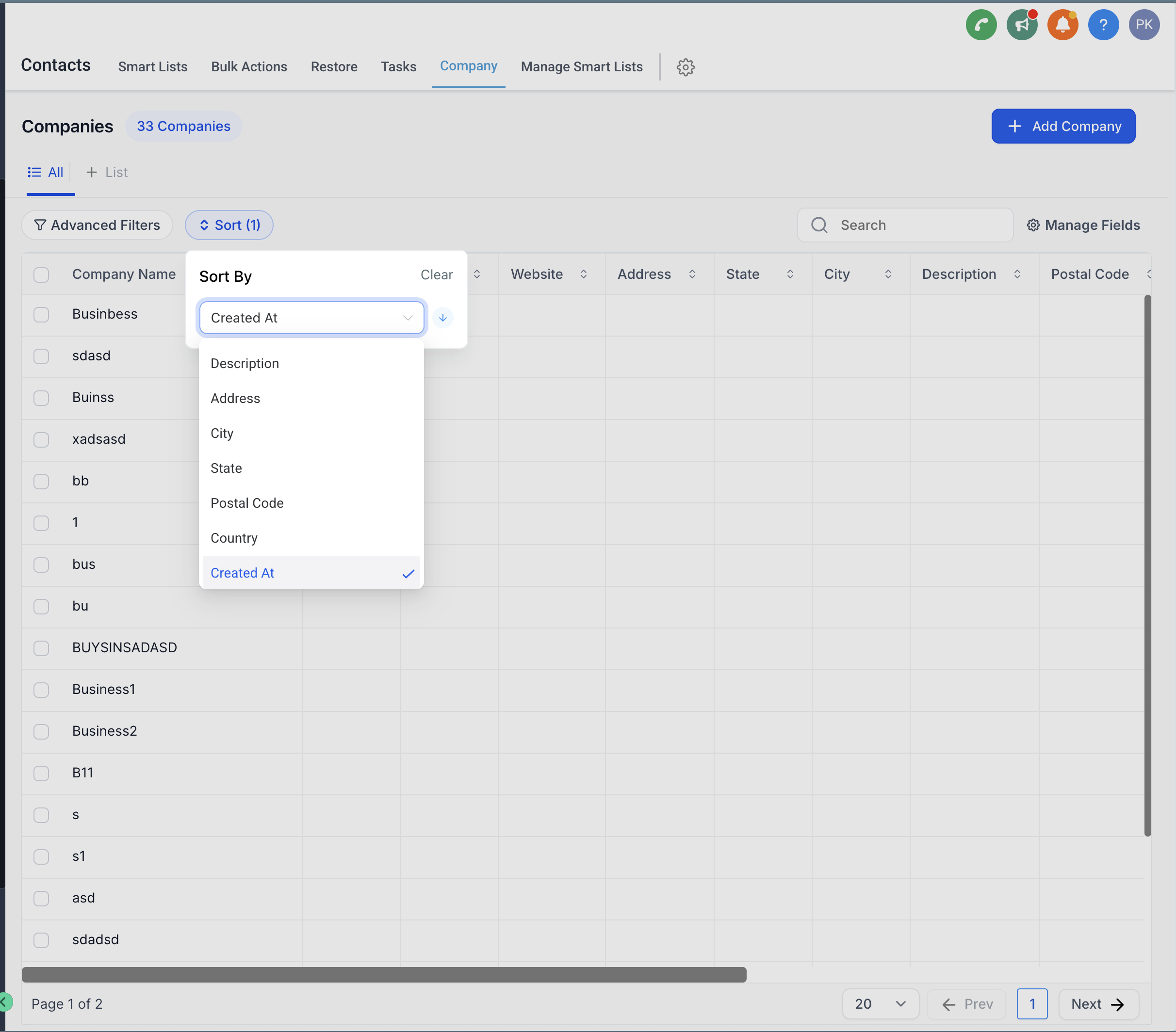
Step 2: Sort Records
Click on any column header to sort by that field.
Use ascending or descending order depending on your priority.
Example: Sort Opportunities by “Close Date” to see upcoming deadlines first.
Step 3: Customize Columns
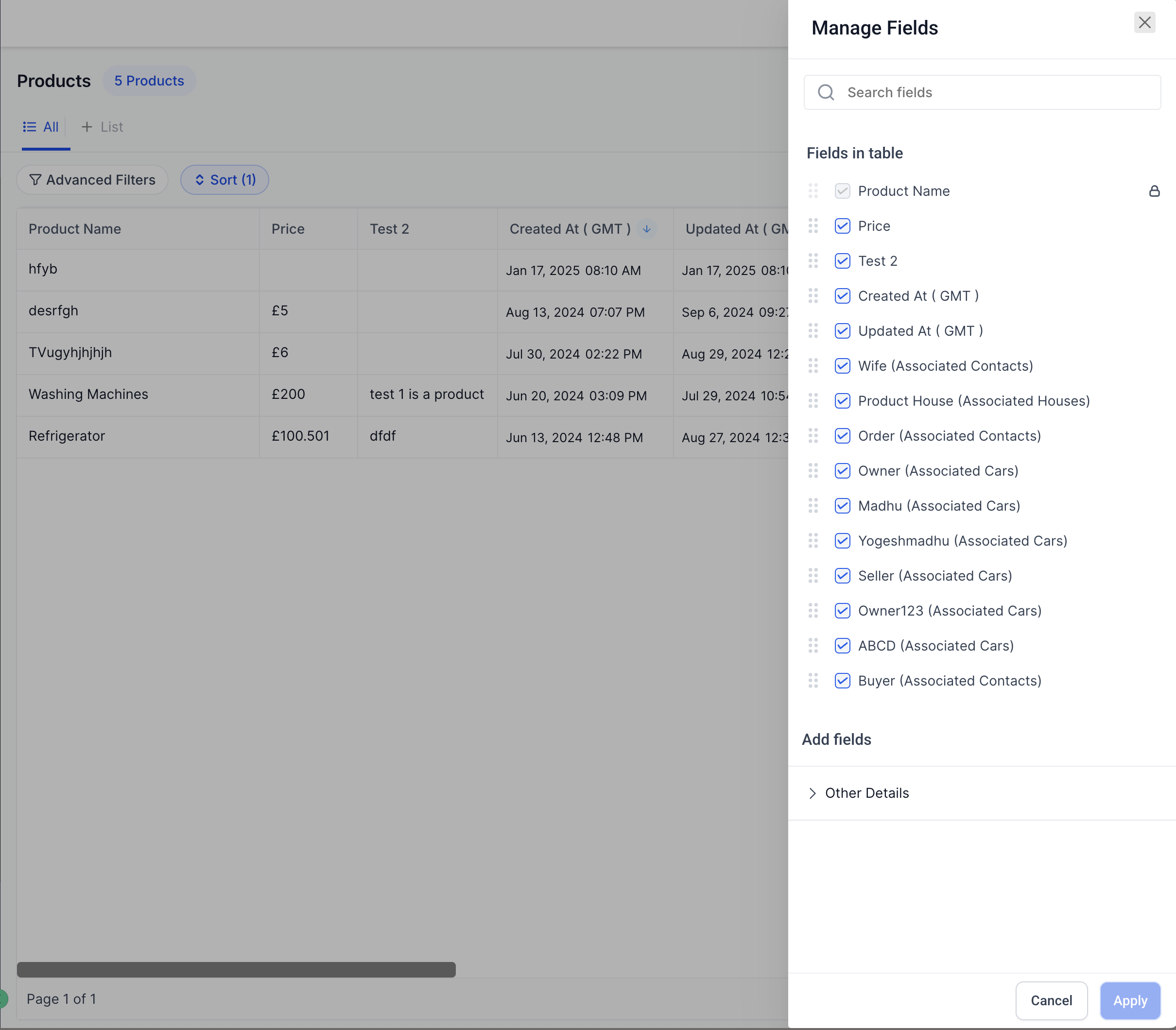
Click the Customize Columns option (usually a gear or settings icon).
Select which fields to display, resize columns, and drag to rearrange order.
Tip: Include fields that are relevant to your workflow, e.g., Owner, Status, Last Contacted, or Deal Value.
Step 4: Filter Records
Apply filters to narrow down your view:
Filter by Stage, Owner, or any custom field.
Combine multiple filters to create specific views, like “High-Value Deals in Negotiation.”
Step 5: Export or Take Action
Some Tekmatix List Views allow exporting records to CSV for reporting.
Quickly click into a record from the table to take immediate action, e.g., sending follow-ups or updating status.
Benefits of Using List View
Enhanced Visibility: See more information without switching screens.
Increased Customization: Tailor your view to match your workflow and team needs.
Improved Efficiency: Sort, filter, and export directly from the table to save time on routine CRM tasks.
Best Practices
Create custom views for recurring tasks (e.g., weekly Opportunity review).
Keep only essential columns visible to reduce clutter.
Use filters strategically to focus on active deals or pending tasks.
Encourage your team to use List View for batch updates instead of opening records individually.

Latest Blog Posts
How To Use List View to Manage CRM Records Efficiently in Tekmatix
How To Use List View to Manage CRM Records Efficiently in Tekmatix
Managing your CRM records effectively is key to running a smooth sales and operations process. With Tekmatix’s List View, you can view Contacts, Opportunities, Companies, Tasks, and Custom Objects in a clear tabular format. This view allows you to filter, sort, and customize columns to match your workflow, helping your team stay organized and efficient.
This guide will walk you through using List View, with a real-world scenario to illustrate its benefits.
Why List View is Important
The List View in Tekmatix enhances CRM visibility and usability by:
Showing more data at once: See all relevant fields in a single table instead of navigating between records.
Allowing sorting and filtering: Prioritize records by stage, owner, or any custom field.
Customizing your columns: Resize, rearrange, and select the fields that matter most for your team.
By leveraging these features, your team can reduce manual work, speed up data review, and make informed decisions faster.
Sample Scenario
Scenario:
A B2B account manager wants to review all active Opportunities for the month, prioritize high-value deals, and ensure follow-ups are scheduled with key clients.
How List View Helps:
Switch to Opportunities → List View.
Sort by Opportunity Value to see the largest deals first.
Apply a filter by Stage = “Negotiation” to focus only on deals in progress.
Customize columns to show Client Name, Opportunity Owner, Close Date, and Notes.
Outcome: The account manager has a clear, actionable view of priority deals without opening each record individually, saving time and improving follow-up efficiency.
Step-By-Step Guide to Using List View
Step 1: Access List View
Navigate to the CRM object you want to view (Contacts, Opportunities, Companies, Tasks, or Custom Objects).
For Opportunities, use the List View toggle at the top-right to switch from the default board or pipeline view.
For other objects, List View is usually the default.
Step 2: Sort Records
Click on any column header to sort by that field.
Use ascending or descending order depending on your priority.
Example: Sort Opportunities by “Close Date” to see upcoming deadlines first.
Step 3: Customize Columns
Click the Customize Columns option (usually a gear or settings icon).
Select which fields to display, resize columns, and drag to rearrange order.
Tip: Include fields that are relevant to your workflow, e.g., Owner, Status, Last Contacted, or Deal Value.
Step 4: Filter Records
Apply filters to narrow down your view:
Filter by Stage, Owner, or any custom field.
Combine multiple filters to create specific views, like “High-Value Deals in Negotiation.”
Step 5: Export or Take Action
Some Tekmatix List Views allow exporting records to CSV for reporting.
Quickly click into a record from the table to take immediate action, e.g., sending follow-ups or updating status.
Benefits of Using List View
Enhanced Visibility: See more information without switching screens.
Increased Customization: Tailor your view to match your workflow and team needs.
Improved Efficiency: Sort, filter, and export directly from the table to save time on routine CRM tasks.
Best Practices
Create custom views for recurring tasks (e.g., weekly Opportunity review).
Keep only essential columns visible to reduce clutter.
Use filters strategically to focus on active deals or pending tasks.
Encourage your team to use List View for batch updates instead of opening records individually.
Marketing
How To Use List View to Manage CRM Records Efficiently in Tekmatix
How To Use List View to Manage CRM Records Efficiently in Tekmatix
Managing your CRM records effectively is key to running a smooth sales and operations process. With Tekmatix’s List View, you can view Contacts, Opportunities, Companies, Tasks, and Custom Objects in a clear tabular format. This view allows you to filter, sort, and customize columns to match your workflow, helping your team stay organized and efficient.
This guide will walk you through using List View, with a real-world scenario to illustrate its benefits.
Why List View is Important
The List View in Tekmatix enhances CRM visibility and usability by:
Showing more data at once: See all relevant fields in a single table instead of navigating between records.
Allowing sorting and filtering: Prioritize records by stage, owner, or any custom field.
Customizing your columns: Resize, rearrange, and select the fields that matter most for your team.
By leveraging these features, your team can reduce manual work, speed up data review, and make informed decisions faster.
Sample Scenario
Scenario:
A B2B account manager wants to review all active Opportunities for the month, prioritize high-value deals, and ensure follow-ups are scheduled with key clients.
How List View Helps:
Switch to Opportunities → List View.
Sort by Opportunity Value to see the largest deals first.
Apply a filter by Stage = “Negotiation” to focus only on deals in progress.
Customize columns to show Client Name, Opportunity Owner, Close Date, and Notes.
Outcome: The account manager has a clear, actionable view of priority deals without opening each record individually, saving time and improving follow-up efficiency.
Step-By-Step Guide to Using List View
Step 1: Access List View
Navigate to the CRM object you want to view (Contacts, Opportunities, Companies, Tasks, or Custom Objects).
For Opportunities, use the List View toggle at the top-right to switch from the default board or pipeline view.
For other objects, List View is usually the default.
Step 2: Sort Records
Click on any column header to sort by that field.
Use ascending or descending order depending on your priority.
Example: Sort Opportunities by “Close Date” to see upcoming deadlines first.
Step 3: Customize Columns
Click the Customize Columns option (usually a gear or settings icon).
Select which fields to display, resize columns, and drag to rearrange order.
Tip: Include fields that are relevant to your workflow, e.g., Owner, Status, Last Contacted, or Deal Value.
Step 4: Filter Records
Apply filters to narrow down your view:
Filter by Stage, Owner, or any custom field.
Combine multiple filters to create specific views, like “High-Value Deals in Negotiation.”
Step 5: Export or Take Action
Some Tekmatix List Views allow exporting records to CSV for reporting.
Quickly click into a record from the table to take immediate action, e.g., sending follow-ups or updating status.
Benefits of Using List View
Enhanced Visibility: See more information without switching screens.
Increased Customization: Tailor your view to match your workflow and team needs.
Improved Efficiency: Sort, filter, and export directly from the table to save time on routine CRM tasks.
Best Practices
Create custom views for recurring tasks (e.g., weekly Opportunity review).
Keep only essential columns visible to reduce clutter.
Use filters strategically to focus on active deals or pending tasks.
Encourage your team to use List View for batch updates instead of opening records individually.
How To Use List View to Manage CRM Records Efficiently in Tekmatix
How To Use List View to Manage CRM Records Efficiently in Tekmatix
Managing your CRM records effectively is key to running a smooth sales and operations process. With Tekmatix’s List View, you can view Contacts, Opportunities, Companies, Tasks, and Custom Objects in a clear tabular format. This view allows you to filter, sort, and customize columns to match your workflow, helping your team stay organized and efficient.
This guide will walk you through using List View, with a real-world scenario to illustrate its benefits.
Why List View is Important
The List View in Tekmatix enhances CRM visibility and usability by:
Showing more data at once: See all relevant fields in a single table instead of navigating between records.
Allowing sorting and filtering: Prioritize records by stage, owner, or any custom field.
Customizing your columns: Resize, rearrange, and select the fields that matter most for your team.
By leveraging these features, your team can reduce manual work, speed up data review, and make informed decisions faster.
Sample Scenario
Scenario:
A B2B account manager wants to review all active Opportunities for the month, prioritize high-value deals, and ensure follow-ups are scheduled with key clients.
How List View Helps:
Switch to Opportunities → List View.
Sort by Opportunity Value to see the largest deals first.
Apply a filter by Stage = “Negotiation” to focus only on deals in progress.
Customize columns to show Client Name, Opportunity Owner, Close Date, and Notes.
Outcome: The account manager has a clear, actionable view of priority deals without opening each record individually, saving time and improving follow-up efficiency.
Step-By-Step Guide to Using List View
Step 1: Access List View
Navigate to the CRM object you want to view (Contacts, Opportunities, Companies, Tasks, or Custom Objects).
For Opportunities, use the List View toggle at the top-right to switch from the default board or pipeline view.
For other objects, List View is usually the default.
Step 2: Sort Records
Click on any column header to sort by that field.
Use ascending or descending order depending on your priority.
Example: Sort Opportunities by “Close Date” to see upcoming deadlines first.
Step 3: Customize Columns
Click the Customize Columns option (usually a gear or settings icon).
Select which fields to display, resize columns, and drag to rearrange order.
Tip: Include fields that are relevant to your workflow, e.g., Owner, Status, Last Contacted, or Deal Value.
Step 4: Filter Records
Apply filters to narrow down your view:
Filter by Stage, Owner, or any custom field.
Combine multiple filters to create specific views, like “High-Value Deals in Negotiation.”
Step 5: Export or Take Action
Some Tekmatix List Views allow exporting records to CSV for reporting.
Quickly click into a record from the table to take immediate action, e.g., sending follow-ups or updating status.
Benefits of Using List View
Enhanced Visibility: See more information without switching screens.
Increased Customization: Tailor your view to match your workflow and team needs.
Improved Efficiency: Sort, filter, and export directly from the table to save time on routine CRM tasks.
Best Practices
Create custom views for recurring tasks (e.g., weekly Opportunity review).
Keep only essential columns visible to reduce clutter.
Use filters strategically to focus on active deals or pending tasks.
Encourage your team to use List View for batch updates instead of opening records individually.
CRM
How To Use List View to Manage CRM Records Efficiently in Tekmatix
How To Use List View to Manage CRM Records Efficiently in Tekmatix
Managing your CRM records effectively is key to running a smooth sales and operations process. With Tekmatix’s List View, you can view Contacts, Opportunities, Companies, Tasks, and Custom Objects in a clear tabular format. This view allows you to filter, sort, and customize columns to match your workflow, helping your team stay organized and efficient.
This guide will walk you through using List View, with a real-world scenario to illustrate its benefits.
Why List View is Important
The List View in Tekmatix enhances CRM visibility and usability by:
Showing more data at once: See all relevant fields in a single table instead of navigating between records.
Allowing sorting and filtering: Prioritize records by stage, owner, or any custom field.
Customizing your columns: Resize, rearrange, and select the fields that matter most for your team.
By leveraging these features, your team can reduce manual work, speed up data review, and make informed decisions faster.
Sample Scenario
Scenario:
A B2B account manager wants to review all active Opportunities for the month, prioritize high-value deals, and ensure follow-ups are scheduled with key clients.
How List View Helps:
Switch to Opportunities → List View.
Sort by Opportunity Value to see the largest deals first.
Apply a filter by Stage = “Negotiation” to focus only on deals in progress.
Customize columns to show Client Name, Opportunity Owner, Close Date, and Notes.
Outcome: The account manager has a clear, actionable view of priority deals without opening each record individually, saving time and improving follow-up efficiency.
Step-By-Step Guide to Using List View
Step 1: Access List View
Navigate to the CRM object you want to view (Contacts, Opportunities, Companies, Tasks, or Custom Objects).
For Opportunities, use the List View toggle at the top-right to switch from the default board or pipeline view.
For other objects, List View is usually the default.
Step 2: Sort Records
Click on any column header to sort by that field.
Use ascending or descending order depending on your priority.
Example: Sort Opportunities by “Close Date” to see upcoming deadlines first.
Step 3: Customize Columns
Click the Customize Columns option (usually a gear or settings icon).
Select which fields to display, resize columns, and drag to rearrange order.
Tip: Include fields that are relevant to your workflow, e.g., Owner, Status, Last Contacted, or Deal Value.
Step 4: Filter Records
Apply filters to narrow down your view:
Filter by Stage, Owner, or any custom field.
Combine multiple filters to create specific views, like “High-Value Deals in Negotiation.”
Step 5: Export or Take Action
Some Tekmatix List Views allow exporting records to CSV for reporting.
Quickly click into a record from the table to take immediate action, e.g., sending follow-ups or updating status.
Benefits of Using List View
Enhanced Visibility: See more information without switching screens.
Increased Customization: Tailor your view to match your workflow and team needs.
Improved Efficiency: Sort, filter, and export directly from the table to save time on routine CRM tasks.
Best Practices
Create custom views for recurring tasks (e.g., weekly Opportunity review).
Keep only essential columns visible to reduce clutter.
Use filters strategically to focus on active deals or pending tasks.
Encourage your team to use List View for batch updates instead of opening records individually.
How To Use List View to Manage CRM Records Efficiently in Tekmatix
How To Use List View to Manage CRM Records Efficiently in Tekmatix
Managing your CRM records effectively is key to running a smooth sales and operations process. With Tekmatix’s List View, you can view Contacts, Opportunities, Companies, Tasks, and Custom Objects in a clear tabular format. This view allows you to filter, sort, and customize columns to match your workflow, helping your team stay organized and efficient.
This guide will walk you through using List View, with a real-world scenario to illustrate its benefits.
Why List View is Important
The List View in Tekmatix enhances CRM visibility and usability by:
Showing more data at once: See all relevant fields in a single table instead of navigating between records.
Allowing sorting and filtering: Prioritize records by stage, owner, or any custom field.
Customizing your columns: Resize, rearrange, and select the fields that matter most for your team.
By leveraging these features, your team can reduce manual work, speed up data review, and make informed decisions faster.
Sample Scenario
Scenario:
A B2B account manager wants to review all active Opportunities for the month, prioritize high-value deals, and ensure follow-ups are scheduled with key clients.
How List View Helps:
Switch to Opportunities → List View.
Sort by Opportunity Value to see the largest deals first.
Apply a filter by Stage = “Negotiation” to focus only on deals in progress.
Customize columns to show Client Name, Opportunity Owner, Close Date, and Notes.
Outcome: The account manager has a clear, actionable view of priority deals without opening each record individually, saving time and improving follow-up efficiency.
Step-By-Step Guide to Using List View
Step 1: Access List View
Navigate to the CRM object you want to view (Contacts, Opportunities, Companies, Tasks, or Custom Objects).
For Opportunities, use the List View toggle at the top-right to switch from the default board or pipeline view.
For other objects, List View is usually the default.
Step 2: Sort Records
Click on any column header to sort by that field.
Use ascending or descending order depending on your priority.
Example: Sort Opportunities by “Close Date” to see upcoming deadlines first.
Step 3: Customize Columns
Click the Customize Columns option (usually a gear or settings icon).
Select which fields to display, resize columns, and drag to rearrange order.
Tip: Include fields that are relevant to your workflow, e.g., Owner, Status, Last Contacted, or Deal Value.
Step 4: Filter Records
Apply filters to narrow down your view:
Filter by Stage, Owner, or any custom field.
Combine multiple filters to create specific views, like “High-Value Deals in Negotiation.”
Step 5: Export or Take Action
Some Tekmatix List Views allow exporting records to CSV for reporting.
Quickly click into a record from the table to take immediate action, e.g., sending follow-ups or updating status.
Benefits of Using List View
Enhanced Visibility: See more information without switching screens.
Increased Customization: Tailor your view to match your workflow and team needs.
Improved Efficiency: Sort, filter, and export directly from the table to save time on routine CRM tasks.
Best Practices
Create custom views for recurring tasks (e.g., weekly Opportunity review).
Keep only essential columns visible to reduce clutter.
Use filters strategically to focus on active deals or pending tasks.
Encourage your team to use List View for batch updates instead of opening records individually.

Join The TekMatix Newsletter
Get sent regular tech and business growth tips.
Web Design
How To Use List View to Manage CRM Records Efficiently in Tekmatix
How To Use List View to Manage CRM Records Efficiently in Tekmatix
Managing your CRM records effectively is key to running a smooth sales and operations process. With Tekmatix’s List View, you can view Contacts, Opportunities, Companies, Tasks, and Custom Objects in a clear tabular format. This view allows you to filter, sort, and customize columns to match your workflow, helping your team stay organized and efficient.
This guide will walk you through using List View, with a real-world scenario to illustrate its benefits.
Why List View is Important
The List View in Tekmatix enhances CRM visibility and usability by:
Showing more data at once: See all relevant fields in a single table instead of navigating between records.
Allowing sorting and filtering: Prioritize records by stage, owner, or any custom field.
Customizing your columns: Resize, rearrange, and select the fields that matter most for your team.
By leveraging these features, your team can reduce manual work, speed up data review, and make informed decisions faster.
Sample Scenario
Scenario:
A B2B account manager wants to review all active Opportunities for the month, prioritize high-value deals, and ensure follow-ups are scheduled with key clients.
How List View Helps:
Switch to Opportunities → List View.
Sort by Opportunity Value to see the largest deals first.
Apply a filter by Stage = “Negotiation” to focus only on deals in progress.
Customize columns to show Client Name, Opportunity Owner, Close Date, and Notes.
Outcome: The account manager has a clear, actionable view of priority deals without opening each record individually, saving time and improving follow-up efficiency.
Step-By-Step Guide to Using List View
Step 1: Access List View
Navigate to the CRM object you want to view (Contacts, Opportunities, Companies, Tasks, or Custom Objects).
For Opportunities, use the List View toggle at the top-right to switch from the default board or pipeline view.
For other objects, List View is usually the default.
Step 2: Sort Records
Click on any column header to sort by that field.
Use ascending or descending order depending on your priority.
Example: Sort Opportunities by “Close Date” to see upcoming deadlines first.
Step 3: Customize Columns
Click the Customize Columns option (usually a gear or settings icon).
Select which fields to display, resize columns, and drag to rearrange order.
Tip: Include fields that are relevant to your workflow, e.g., Owner, Status, Last Contacted, or Deal Value.
Step 4: Filter Records
Apply filters to narrow down your view:
Filter by Stage, Owner, or any custom field.
Combine multiple filters to create specific views, like “High-Value Deals in Negotiation.”
Step 5: Export or Take Action
Some Tekmatix List Views allow exporting records to CSV for reporting.
Quickly click into a record from the table to take immediate action, e.g., sending follow-ups or updating status.
Benefits of Using List View
Enhanced Visibility: See more information without switching screens.
Increased Customization: Tailor your view to match your workflow and team needs.
Improved Efficiency: Sort, filter, and export directly from the table to save time on routine CRM tasks.
Best Practices
Create custom views for recurring tasks (e.g., weekly Opportunity review).
Keep only essential columns visible to reduce clutter.
Use filters strategically to focus on active deals or pending tasks.
Encourage your team to use List View for batch updates instead of opening records individually.
How To Use List View to Manage CRM Records Efficiently in Tekmatix
How To Use List View to Manage CRM Records Efficiently in Tekmatix
Managing your CRM records effectively is key to running a smooth sales and operations process. With Tekmatix’s List View, you can view Contacts, Opportunities, Companies, Tasks, and Custom Objects in a clear tabular format. This view allows you to filter, sort, and customize columns to match your workflow, helping your team stay organized and efficient.
This guide will walk you through using List View, with a real-world scenario to illustrate its benefits.
Why List View is Important
The List View in Tekmatix enhances CRM visibility and usability by:
Showing more data at once: See all relevant fields in a single table instead of navigating between records.
Allowing sorting and filtering: Prioritize records by stage, owner, or any custom field.
Customizing your columns: Resize, rearrange, and select the fields that matter most for your team.
By leveraging these features, your team can reduce manual work, speed up data review, and make informed decisions faster.
Sample Scenario
Scenario:
A B2B account manager wants to review all active Opportunities for the month, prioritize high-value deals, and ensure follow-ups are scheduled with key clients.
How List View Helps:
Switch to Opportunities → List View.
Sort by Opportunity Value to see the largest deals first.
Apply a filter by Stage = “Negotiation” to focus only on deals in progress.
Customize columns to show Client Name, Opportunity Owner, Close Date, and Notes.
Outcome: The account manager has a clear, actionable view of priority deals without opening each record individually, saving time and improving follow-up efficiency.
Step-By-Step Guide to Using List View
Step 1: Access List View
Navigate to the CRM object you want to view (Contacts, Opportunities, Companies, Tasks, or Custom Objects).
For Opportunities, use the List View toggle at the top-right to switch from the default board or pipeline view.
For other objects, List View is usually the default.
Step 2: Sort Records
Click on any column header to sort by that field.
Use ascending or descending order depending on your priority.
Example: Sort Opportunities by “Close Date” to see upcoming deadlines first.
Step 3: Customize Columns
Click the Customize Columns option (usually a gear or settings icon).
Select which fields to display, resize columns, and drag to rearrange order.
Tip: Include fields that are relevant to your workflow, e.g., Owner, Status, Last Contacted, or Deal Value.
Step 4: Filter Records
Apply filters to narrow down your view:
Filter by Stage, Owner, or any custom field.
Combine multiple filters to create specific views, like “High-Value Deals in Negotiation.”
Step 5: Export or Take Action
Some Tekmatix List Views allow exporting records to CSV for reporting.
Quickly click into a record from the table to take immediate action, e.g., sending follow-ups or updating status.
Benefits of Using List View
Enhanced Visibility: See more information without switching screens.
Increased Customization: Tailor your view to match your workflow and team needs.
Improved Efficiency: Sort, filter, and export directly from the table to save time on routine CRM tasks.
Best Practices
Create custom views for recurring tasks (e.g., weekly Opportunity review).
Keep only essential columns visible to reduce clutter.
Use filters strategically to focus on active deals or pending tasks.
Encourage your team to use List View for batch updates instead of opening records individually.