


Tekmatix Help Articles
Love your help
Use the search bar below to find help guides and articles for using Tekmatix
Use the search bar below to look for help articles you need.
How To Set Up Taxes and Processing Fees for Services in Tekmatix
How To Set Up Taxes and Processing Fees for Services in Tekmatix
Why This Matters
Properly configured taxes and processing fees ensure your customers see a clear, itemized checkout while your internal reporting remains accurate. With this setup, your business can:
Recover costs: Pass through card or convenience fees transparently
Ensure compliance: Apply accurate local VAT, GST, or sales taxes
Increase trust: Display itemized totals before payment to reduce confusion or chargebacks
Simplify reconciliation: Align totals across booking pages, appointment records, receipts, and exports
Using Services (v2) in Tekmatix, each service automatically links to a Product, allowing you to attach manual tax rates and optional processing fees that appear automatically during booking.
Processing Fees / Miscellaneous Charges
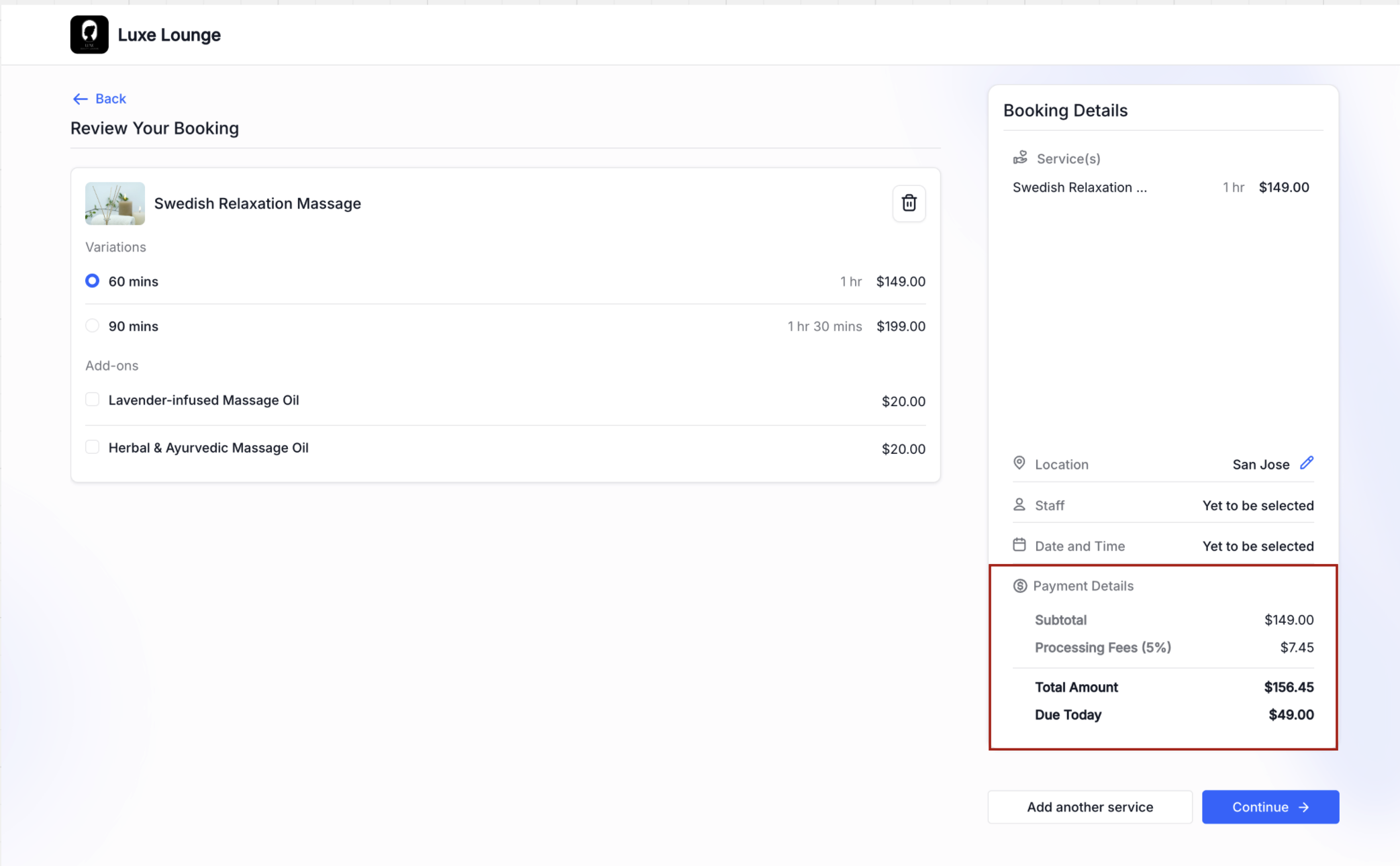
A Miscellaneous Charge (also called a processing fee) is an additional percentage-based line you can add to each Service (v2) to cover processing or convenience costs. Both the label and percentage are fully customizable. This charge appears as a separate line at checkout and on receipts.
Key Features
Percentage-based (e.g., 5%) with a custom label (e.g., “Service Charge”).
Displays as its own line on the public booking form and on customer payment receipts.
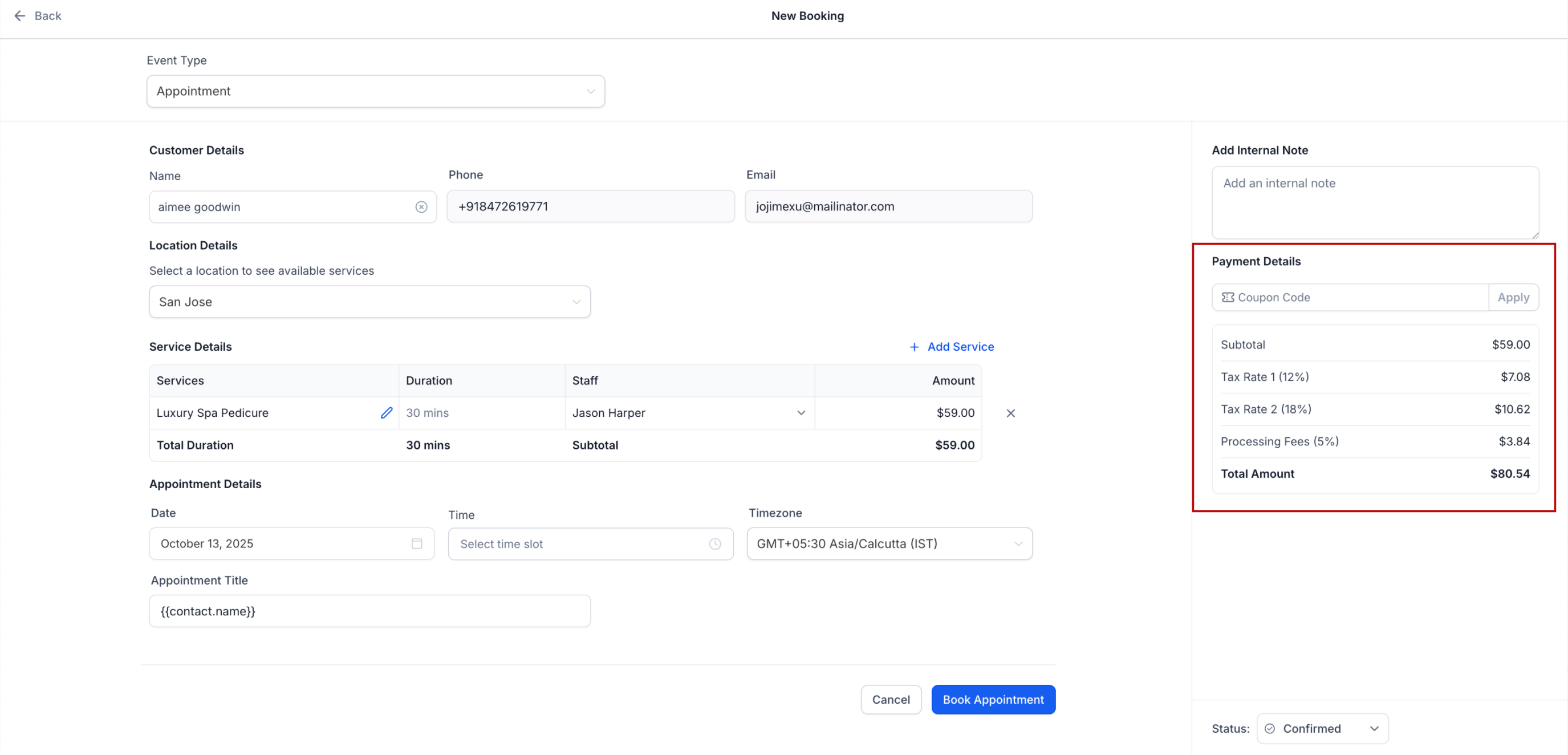
Shows in the appointment record for staff, including the subtotal, fee, tax, and total.

Manual Taxes in Services (v2)
Manual taxes are applied to a Product, not directly to a Service. Since each Service automatically links to a Product, assigning tax rates to that Product ensures the correct taxes are added to the booking total every time the Service is purchased.
How it Works
Each Service (v2) automatically generates a linked Product.
Assign one or more tax rates to that Product under Payments → Settings → Taxes.
When the Service is booked, the tax rates are applied automatically.
Visibility
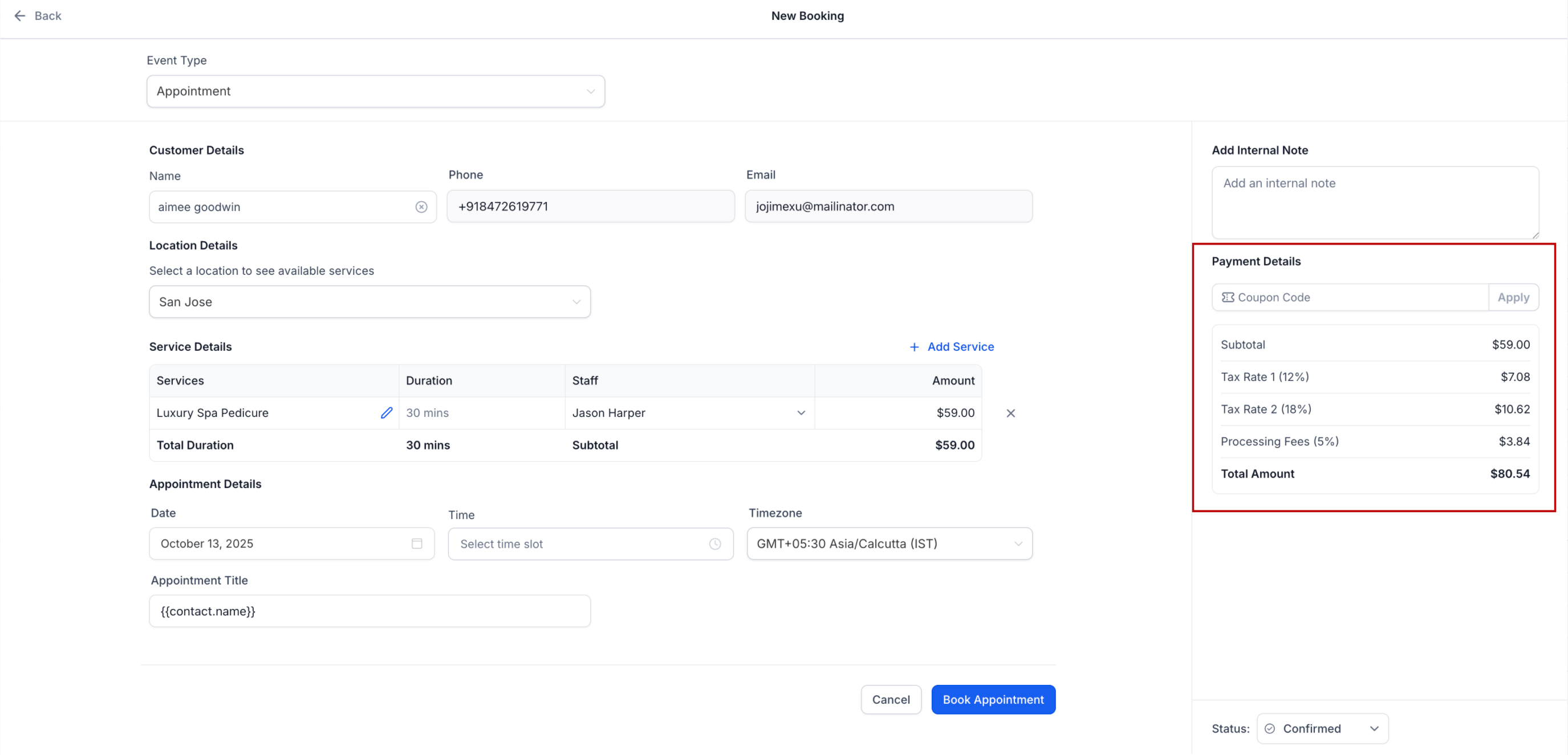
Understanding where fees and taxes show up helps staff confirm totals and answer customer questions. The same amounts are also visible in the appointment record for internal tracking and reporting.
You’ll find taxes and fees:
On the public booking form, itemized just above the total.
Inside the appointment modal for staff, including payment details.
On sales receipts emailed to customers (if receipt emails are enabled).
Step-by-Step Setup: Taxes & Processing Fees
Step 1: Access the Service
In your Account, go to Settings → Calendars → Services
Select the Service you want to edit

Step 2: Configure Taxes
In the Payments section, click Configure Taxes for This Service
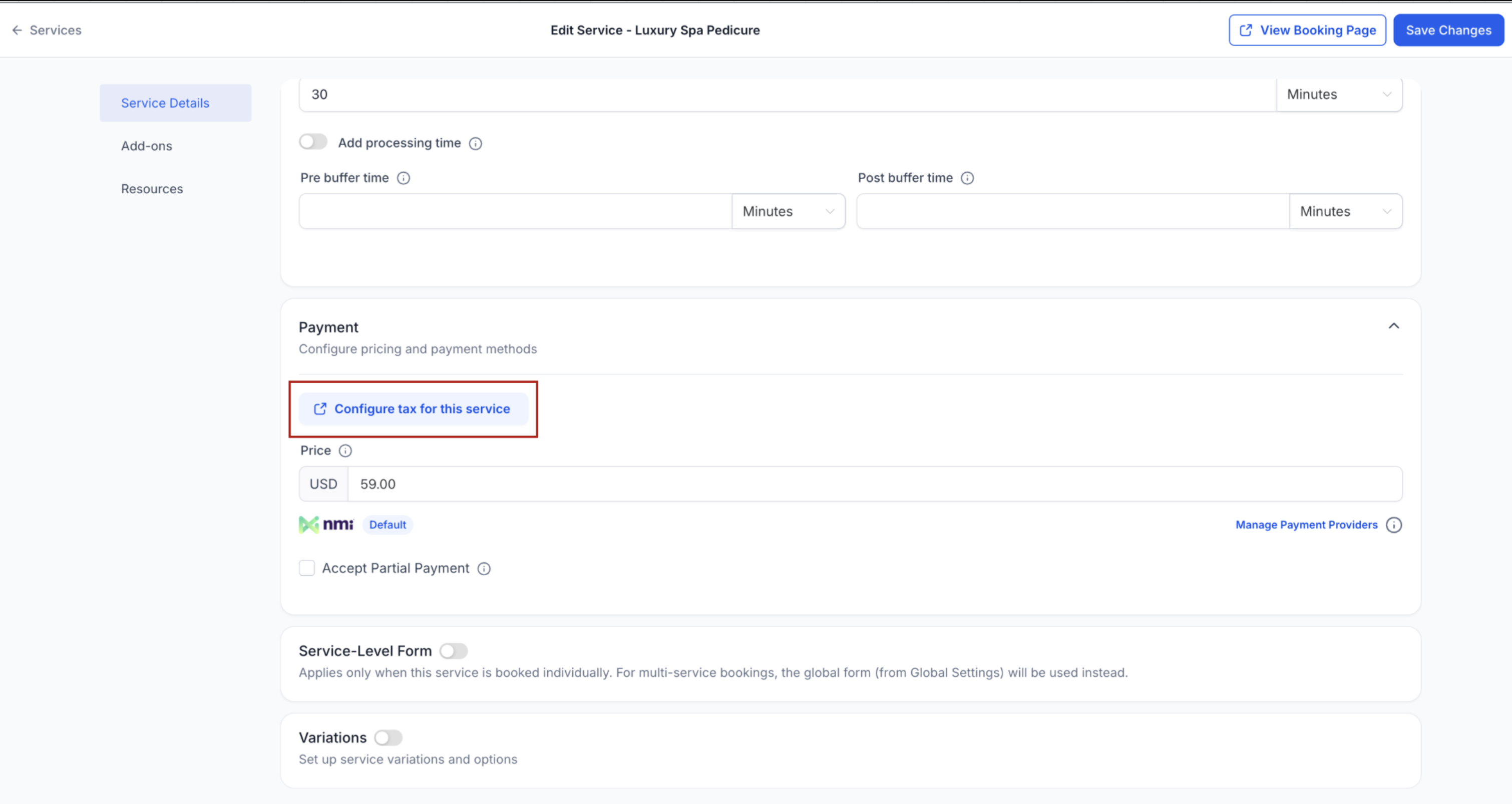
In the linked Product window:
Click Add Tax Rate or select an existing rate
Click Save
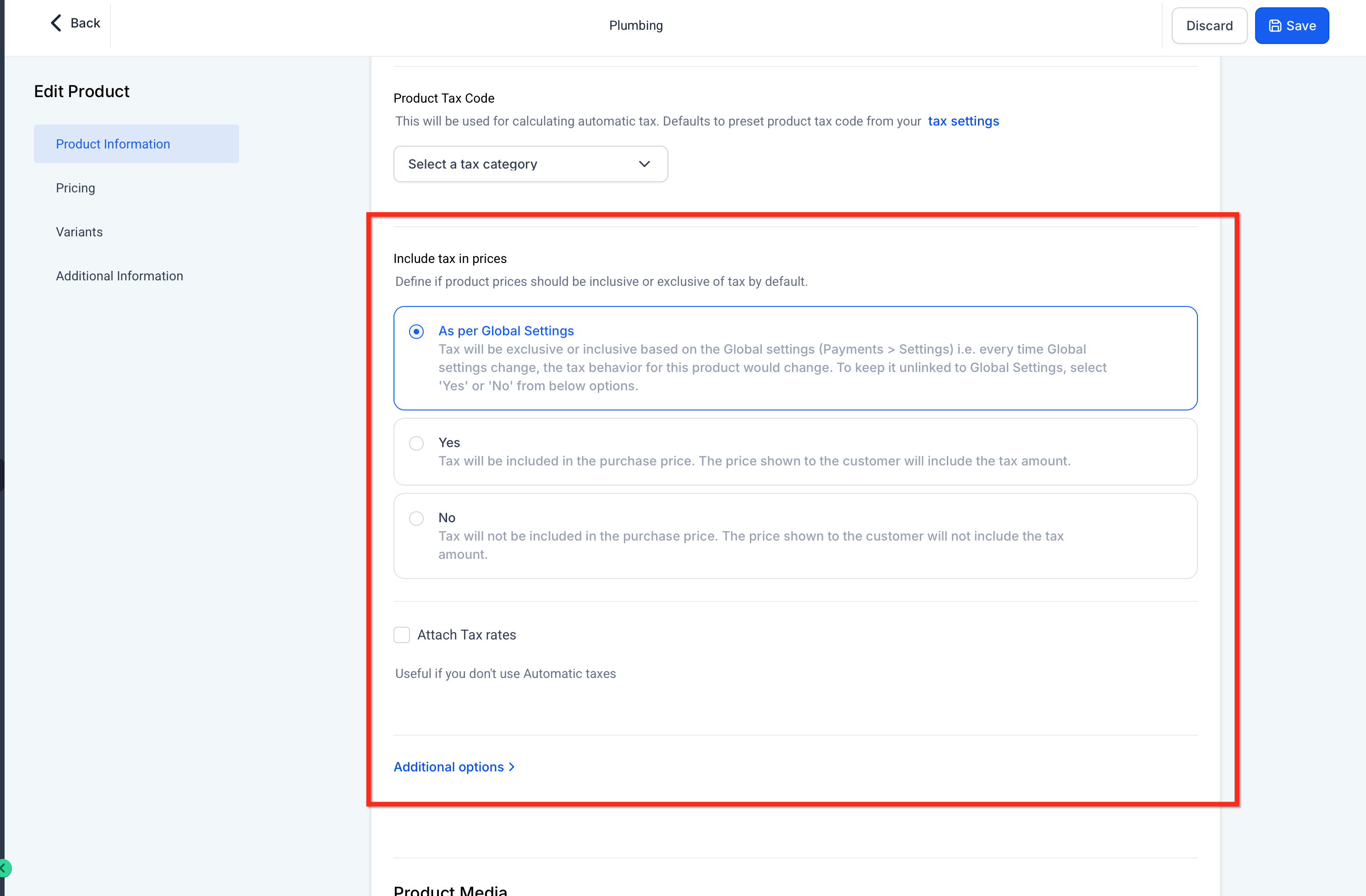
Step 3: Add a Processing Fee (Optional)
On the Service page, add a Processing/Miscellaneous Fee
Enter percentage and custom label
Click Save
Once saved, all future bookings will automatically itemize tax and fee lines on booking pages, appointment records, and receipts.
Sample Scenario: Salon Booking Example
Business: A hair salon offering haircuts, coloring, and spa services.
Goal: Ensure every client sees an accurate breakdown of service costs, taxes, and any convenience fees at checkout.
Setup:
Service: Haircut ($50)
Tax: 8% VAT
Processing Fee: 3% labeled “Card Fee”
Service: Hair Coloring ($80)
Tax: 8% VAT
No processing fee
Test booking: Client books a Haircut → Total shows $50 + $4 tax + $1.50 fee = $55.50
Result:
Transparent checkout for clients
Staff can view exact fees and taxes in the appointment modal
Receipts and exports reflect accurate totals for accounting
Frequently Asked Questions
Q: Can different services have different fees?
A: Yes, each Service (v2) can have its own processing fee percentage and label.
Q: Do changes affect past bookings?
A: No. Edits apply only to future bookings. Past appointments and receipts remain unchanged.
Q: Where can I export a report of taxes and fees?
A: Navigate to Payments → Transactions → Export CSV (or Orders CSV). The export includes fee amounts/labels and taxes.
Q: How do discounts and deposits affect totals?
A: Discounts reduce the taxable base of the linked Product and may affect percentage-based fees. Deposits display collected vs. remaining amounts on receipts and in the appointment modal.

Latest Blog Posts
How To Set Up Taxes and Processing Fees for Services in Tekmatix
How To Set Up Taxes and Processing Fees for Services in Tekmatix
Why This Matters
Properly configured taxes and processing fees ensure your customers see a clear, itemized checkout while your internal reporting remains accurate. With this setup, your business can:
Recover costs: Pass through card or convenience fees transparently
Ensure compliance: Apply accurate local VAT, GST, or sales taxes
Increase trust: Display itemized totals before payment to reduce confusion or chargebacks
Simplify reconciliation: Align totals across booking pages, appointment records, receipts, and exports
Using Services (v2) in Tekmatix, each service automatically links to a Product, allowing you to attach manual tax rates and optional processing fees that appear automatically during booking.
Processing Fees / Miscellaneous Charges
A Miscellaneous Charge (also called a processing fee) is an additional percentage-based line you can add to each Service (v2) to cover processing or convenience costs. Both the label and percentage are fully customizable. This charge appears as a separate line at checkout and on receipts.
Key Features
Percentage-based (e.g., 5%) with a custom label (e.g., “Service Charge”).
Displays as its own line on the public booking form and on customer payment receipts.
Shows in the appointment record for staff, including the subtotal, fee, tax, and total.
Manual Taxes in Services (v2)
Manual taxes are applied to a Product, not directly to a Service. Since each Service automatically links to a Product, assigning tax rates to that Product ensures the correct taxes are added to the booking total every time the Service is purchased.
How it Works
Each Service (v2) automatically generates a linked Product.
Assign one or more tax rates to that Product under Payments → Settings → Taxes.
When the Service is booked, the tax rates are applied automatically.
Visibility
Understanding where fees and taxes show up helps staff confirm totals and answer customer questions. The same amounts are also visible in the appointment record for internal tracking and reporting.
You’ll find taxes and fees:
On the public booking form, itemized just above the total.
Inside the appointment modal for staff, including payment details.
On sales receipts emailed to customers (if receipt emails are enabled).
Step-by-Step Setup: Taxes & Processing Fees
Step 1: Access the Service
In your Account, go to Settings → Calendars → Services
Select the Service you want to edit
Step 2: Configure Taxes
In the Payments section, click Configure Taxes for This Service
In the linked Product window:
Click Add Tax Rate or select an existing rate
Click Save
Step 3: Add a Processing Fee (Optional)
On the Service page, add a Processing/Miscellaneous Fee
Enter percentage and custom label
Click Save
Once saved, all future bookings will automatically itemize tax and fee lines on booking pages, appointment records, and receipts.
Sample Scenario: Salon Booking Example
Business: A hair salon offering haircuts, coloring, and spa services.
Goal: Ensure every client sees an accurate breakdown of service costs, taxes, and any convenience fees at checkout.
Setup:
Service: Haircut ($50)
Tax: 8% VAT
Processing Fee: 3% labeled “Card Fee”
Service: Hair Coloring ($80)
Tax: 8% VAT
No processing fee
Test booking: Client books a Haircut → Total shows $50 + $4 tax + $1.50 fee = $55.50
Result:
Transparent checkout for clients
Staff can view exact fees and taxes in the appointment modal
Receipts and exports reflect accurate totals for accounting
Frequently Asked Questions
Q: Can different services have different fees?
A: Yes, each Service (v2) can have its own processing fee percentage and label.
Q: Do changes affect past bookings?
A: No. Edits apply only to future bookings. Past appointments and receipts remain unchanged.
Q: Where can I export a report of taxes and fees?
A: Navigate to Payments → Transactions → Export CSV (or Orders CSV). The export includes fee amounts/labels and taxes.
Q: How do discounts and deposits affect totals?
A: Discounts reduce the taxable base of the linked Product and may affect percentage-based fees. Deposits display collected vs. remaining amounts on receipts and in the appointment modal.
Marketing
How To Set Up Taxes and Processing Fees for Services in Tekmatix
How To Set Up Taxes and Processing Fees for Services in Tekmatix
Why This Matters
Properly configured taxes and processing fees ensure your customers see a clear, itemized checkout while your internal reporting remains accurate. With this setup, your business can:
Recover costs: Pass through card or convenience fees transparently
Ensure compliance: Apply accurate local VAT, GST, or sales taxes
Increase trust: Display itemized totals before payment to reduce confusion or chargebacks
Simplify reconciliation: Align totals across booking pages, appointment records, receipts, and exports
Using Services (v2) in Tekmatix, each service automatically links to a Product, allowing you to attach manual tax rates and optional processing fees that appear automatically during booking.
Processing Fees / Miscellaneous Charges
A Miscellaneous Charge (also called a processing fee) is an additional percentage-based line you can add to each Service (v2) to cover processing or convenience costs. Both the label and percentage are fully customizable. This charge appears as a separate line at checkout and on receipts.
Key Features
Percentage-based (e.g., 5%) with a custom label (e.g., “Service Charge”).
Displays as its own line on the public booking form and on customer payment receipts.
Shows in the appointment record for staff, including the subtotal, fee, tax, and total.
Manual Taxes in Services (v2)
Manual taxes are applied to a Product, not directly to a Service. Since each Service automatically links to a Product, assigning tax rates to that Product ensures the correct taxes are added to the booking total every time the Service is purchased.
How it Works
Each Service (v2) automatically generates a linked Product.
Assign one or more tax rates to that Product under Payments → Settings → Taxes.
When the Service is booked, the tax rates are applied automatically.
Visibility
Understanding where fees and taxes show up helps staff confirm totals and answer customer questions. The same amounts are also visible in the appointment record for internal tracking and reporting.
You’ll find taxes and fees:
On the public booking form, itemized just above the total.
Inside the appointment modal for staff, including payment details.
On sales receipts emailed to customers (if receipt emails are enabled).
Step-by-Step Setup: Taxes & Processing Fees
Step 1: Access the Service
In your Account, go to Settings → Calendars → Services
Select the Service you want to edit
Step 2: Configure Taxes
In the Payments section, click Configure Taxes for This Service
In the linked Product window:
Click Add Tax Rate or select an existing rate
Click Save
Step 3: Add a Processing Fee (Optional)
On the Service page, add a Processing/Miscellaneous Fee
Enter percentage and custom label
Click Save
Once saved, all future bookings will automatically itemize tax and fee lines on booking pages, appointment records, and receipts.
Sample Scenario: Salon Booking Example
Business: A hair salon offering haircuts, coloring, and spa services.
Goal: Ensure every client sees an accurate breakdown of service costs, taxes, and any convenience fees at checkout.
Setup:
Service: Haircut ($50)
Tax: 8% VAT
Processing Fee: 3% labeled “Card Fee”
Service: Hair Coloring ($80)
Tax: 8% VAT
No processing fee
Test booking: Client books a Haircut → Total shows $50 + $4 tax + $1.50 fee = $55.50
Result:
Transparent checkout for clients
Staff can view exact fees and taxes in the appointment modal
Receipts and exports reflect accurate totals for accounting
Frequently Asked Questions
Q: Can different services have different fees?
A: Yes, each Service (v2) can have its own processing fee percentage and label.
Q: Do changes affect past bookings?
A: No. Edits apply only to future bookings. Past appointments and receipts remain unchanged.
Q: Where can I export a report of taxes and fees?
A: Navigate to Payments → Transactions → Export CSV (or Orders CSV). The export includes fee amounts/labels and taxes.
Q: How do discounts and deposits affect totals?
A: Discounts reduce the taxable base of the linked Product and may affect percentage-based fees. Deposits display collected vs. remaining amounts on receipts and in the appointment modal.
How To Set Up Taxes and Processing Fees for Services in Tekmatix
How To Set Up Taxes and Processing Fees for Services in Tekmatix
Why This Matters
Properly configured taxes and processing fees ensure your customers see a clear, itemized checkout while your internal reporting remains accurate. With this setup, your business can:
Recover costs: Pass through card or convenience fees transparently
Ensure compliance: Apply accurate local VAT, GST, or sales taxes
Increase trust: Display itemized totals before payment to reduce confusion or chargebacks
Simplify reconciliation: Align totals across booking pages, appointment records, receipts, and exports
Using Services (v2) in Tekmatix, each service automatically links to a Product, allowing you to attach manual tax rates and optional processing fees that appear automatically during booking.
Processing Fees / Miscellaneous Charges
A Miscellaneous Charge (also called a processing fee) is an additional percentage-based line you can add to each Service (v2) to cover processing or convenience costs. Both the label and percentage are fully customizable. This charge appears as a separate line at checkout and on receipts.
Key Features
Percentage-based (e.g., 5%) with a custom label (e.g., “Service Charge”).
Displays as its own line on the public booking form and on customer payment receipts.
Shows in the appointment record for staff, including the subtotal, fee, tax, and total.
Manual Taxes in Services (v2)
Manual taxes are applied to a Product, not directly to a Service. Since each Service automatically links to a Product, assigning tax rates to that Product ensures the correct taxes are added to the booking total every time the Service is purchased.
How it Works
Each Service (v2) automatically generates a linked Product.
Assign one or more tax rates to that Product under Payments → Settings → Taxes.
When the Service is booked, the tax rates are applied automatically.
Visibility
Understanding where fees and taxes show up helps staff confirm totals and answer customer questions. The same amounts are also visible in the appointment record for internal tracking and reporting.
You’ll find taxes and fees:
On the public booking form, itemized just above the total.
Inside the appointment modal for staff, including payment details.
On sales receipts emailed to customers (if receipt emails are enabled).
Step-by-Step Setup: Taxes & Processing Fees
Step 1: Access the Service
In your Account, go to Settings → Calendars → Services
Select the Service you want to edit
Step 2: Configure Taxes
In the Payments section, click Configure Taxes for This Service
In the linked Product window:
Click Add Tax Rate or select an existing rate
Click Save
Step 3: Add a Processing Fee (Optional)
On the Service page, add a Processing/Miscellaneous Fee
Enter percentage and custom label
Click Save
Once saved, all future bookings will automatically itemize tax and fee lines on booking pages, appointment records, and receipts.
Sample Scenario: Salon Booking Example
Business: A hair salon offering haircuts, coloring, and spa services.
Goal: Ensure every client sees an accurate breakdown of service costs, taxes, and any convenience fees at checkout.
Setup:
Service: Haircut ($50)
Tax: 8% VAT
Processing Fee: 3% labeled “Card Fee”
Service: Hair Coloring ($80)
Tax: 8% VAT
No processing fee
Test booking: Client books a Haircut → Total shows $50 + $4 tax + $1.50 fee = $55.50
Result:
Transparent checkout for clients
Staff can view exact fees and taxes in the appointment modal
Receipts and exports reflect accurate totals for accounting
Frequently Asked Questions
Q: Can different services have different fees?
A: Yes, each Service (v2) can have its own processing fee percentage and label.
Q: Do changes affect past bookings?
A: No. Edits apply only to future bookings. Past appointments and receipts remain unchanged.
Q: Where can I export a report of taxes and fees?
A: Navigate to Payments → Transactions → Export CSV (or Orders CSV). The export includes fee amounts/labels and taxes.
Q: How do discounts and deposits affect totals?
A: Discounts reduce the taxable base of the linked Product and may affect percentage-based fees. Deposits display collected vs. remaining amounts on receipts and in the appointment modal.
CRM
How To Set Up Taxes and Processing Fees for Services in Tekmatix
How To Set Up Taxes and Processing Fees for Services in Tekmatix
Why This Matters
Properly configured taxes and processing fees ensure your customers see a clear, itemized checkout while your internal reporting remains accurate. With this setup, your business can:
Recover costs: Pass through card or convenience fees transparently
Ensure compliance: Apply accurate local VAT, GST, or sales taxes
Increase trust: Display itemized totals before payment to reduce confusion or chargebacks
Simplify reconciliation: Align totals across booking pages, appointment records, receipts, and exports
Using Services (v2) in Tekmatix, each service automatically links to a Product, allowing you to attach manual tax rates and optional processing fees that appear automatically during booking.
Processing Fees / Miscellaneous Charges
A Miscellaneous Charge (also called a processing fee) is an additional percentage-based line you can add to each Service (v2) to cover processing or convenience costs. Both the label and percentage are fully customizable. This charge appears as a separate line at checkout and on receipts.
Key Features
Percentage-based (e.g., 5%) with a custom label (e.g., “Service Charge”).
Displays as its own line on the public booking form and on customer payment receipts.
Shows in the appointment record for staff, including the subtotal, fee, tax, and total.
Manual Taxes in Services (v2)
Manual taxes are applied to a Product, not directly to a Service. Since each Service automatically links to a Product, assigning tax rates to that Product ensures the correct taxes are added to the booking total every time the Service is purchased.
How it Works
Each Service (v2) automatically generates a linked Product.
Assign one or more tax rates to that Product under Payments → Settings → Taxes.
When the Service is booked, the tax rates are applied automatically.
Visibility
Understanding where fees and taxes show up helps staff confirm totals and answer customer questions. The same amounts are also visible in the appointment record for internal tracking and reporting.
You’ll find taxes and fees:
On the public booking form, itemized just above the total.
Inside the appointment modal for staff, including payment details.
On sales receipts emailed to customers (if receipt emails are enabled).
Step-by-Step Setup: Taxes & Processing Fees
Step 1: Access the Service
In your Account, go to Settings → Calendars → Services
Select the Service you want to edit
Step 2: Configure Taxes
In the Payments section, click Configure Taxes for This Service
In the linked Product window:
Click Add Tax Rate or select an existing rate
Click Save
Step 3: Add a Processing Fee (Optional)
On the Service page, add a Processing/Miscellaneous Fee
Enter percentage and custom label
Click Save
Once saved, all future bookings will automatically itemize tax and fee lines on booking pages, appointment records, and receipts.
Sample Scenario: Salon Booking Example
Business: A hair salon offering haircuts, coloring, and spa services.
Goal: Ensure every client sees an accurate breakdown of service costs, taxes, and any convenience fees at checkout.
Setup:
Service: Haircut ($50)
Tax: 8% VAT
Processing Fee: 3% labeled “Card Fee”
Service: Hair Coloring ($80)
Tax: 8% VAT
No processing fee
Test booking: Client books a Haircut → Total shows $50 + $4 tax + $1.50 fee = $55.50
Result:
Transparent checkout for clients
Staff can view exact fees and taxes in the appointment modal
Receipts and exports reflect accurate totals for accounting
Frequently Asked Questions
Q: Can different services have different fees?
A: Yes, each Service (v2) can have its own processing fee percentage and label.
Q: Do changes affect past bookings?
A: No. Edits apply only to future bookings. Past appointments and receipts remain unchanged.
Q: Where can I export a report of taxes and fees?
A: Navigate to Payments → Transactions → Export CSV (or Orders CSV). The export includes fee amounts/labels and taxes.
Q: How do discounts and deposits affect totals?
A: Discounts reduce the taxable base of the linked Product and may affect percentage-based fees. Deposits display collected vs. remaining amounts on receipts and in the appointment modal.
How To Set Up Taxes and Processing Fees for Services in Tekmatix
How To Set Up Taxes and Processing Fees for Services in Tekmatix
Why This Matters
Properly configured taxes and processing fees ensure your customers see a clear, itemized checkout while your internal reporting remains accurate. With this setup, your business can:
Recover costs: Pass through card or convenience fees transparently
Ensure compliance: Apply accurate local VAT, GST, or sales taxes
Increase trust: Display itemized totals before payment to reduce confusion or chargebacks
Simplify reconciliation: Align totals across booking pages, appointment records, receipts, and exports
Using Services (v2) in Tekmatix, each service automatically links to a Product, allowing you to attach manual tax rates and optional processing fees that appear automatically during booking.
Processing Fees / Miscellaneous Charges
A Miscellaneous Charge (also called a processing fee) is an additional percentage-based line you can add to each Service (v2) to cover processing or convenience costs. Both the label and percentage are fully customizable. This charge appears as a separate line at checkout and on receipts.
Key Features
Percentage-based (e.g., 5%) with a custom label (e.g., “Service Charge”).
Displays as its own line on the public booking form and on customer payment receipts.
Shows in the appointment record for staff, including the subtotal, fee, tax, and total.
Manual Taxes in Services (v2)
Manual taxes are applied to a Product, not directly to a Service. Since each Service automatically links to a Product, assigning tax rates to that Product ensures the correct taxes are added to the booking total every time the Service is purchased.
How it Works
Each Service (v2) automatically generates a linked Product.
Assign one or more tax rates to that Product under Payments → Settings → Taxes.
When the Service is booked, the tax rates are applied automatically.
Visibility
Understanding where fees and taxes show up helps staff confirm totals and answer customer questions. The same amounts are also visible in the appointment record for internal tracking and reporting.
You’ll find taxes and fees:
On the public booking form, itemized just above the total.
Inside the appointment modal for staff, including payment details.
On sales receipts emailed to customers (if receipt emails are enabled).
Step-by-Step Setup: Taxes & Processing Fees
Step 1: Access the Service
In your Account, go to Settings → Calendars → Services
Select the Service you want to edit
Step 2: Configure Taxes
In the Payments section, click Configure Taxes for This Service
In the linked Product window:
Click Add Tax Rate or select an existing rate
Click Save
Step 3: Add a Processing Fee (Optional)
On the Service page, add a Processing/Miscellaneous Fee
Enter percentage and custom label
Click Save
Once saved, all future bookings will automatically itemize tax and fee lines on booking pages, appointment records, and receipts.
Sample Scenario: Salon Booking Example
Business: A hair salon offering haircuts, coloring, and spa services.
Goal: Ensure every client sees an accurate breakdown of service costs, taxes, and any convenience fees at checkout.
Setup:
Service: Haircut ($50)
Tax: 8% VAT
Processing Fee: 3% labeled “Card Fee”
Service: Hair Coloring ($80)
Tax: 8% VAT
No processing fee
Test booking: Client books a Haircut → Total shows $50 + $4 tax + $1.50 fee = $55.50
Result:
Transparent checkout for clients
Staff can view exact fees and taxes in the appointment modal
Receipts and exports reflect accurate totals for accounting
Frequently Asked Questions
Q: Can different services have different fees?
A: Yes, each Service (v2) can have its own processing fee percentage and label.
Q: Do changes affect past bookings?
A: No. Edits apply only to future bookings. Past appointments and receipts remain unchanged.
Q: Where can I export a report of taxes and fees?
A: Navigate to Payments → Transactions → Export CSV (or Orders CSV). The export includes fee amounts/labels and taxes.
Q: How do discounts and deposits affect totals?
A: Discounts reduce the taxable base of the linked Product and may affect percentage-based fees. Deposits display collected vs. remaining amounts on receipts and in the appointment modal.

Join The TekMatix Newsletter
Get sent regular tech and business growth tips.
Web Design
How To Set Up Taxes and Processing Fees for Services in Tekmatix
How To Set Up Taxes and Processing Fees for Services in Tekmatix
Why This Matters
Properly configured taxes and processing fees ensure your customers see a clear, itemized checkout while your internal reporting remains accurate. With this setup, your business can:
Recover costs: Pass through card or convenience fees transparently
Ensure compliance: Apply accurate local VAT, GST, or sales taxes
Increase trust: Display itemized totals before payment to reduce confusion or chargebacks
Simplify reconciliation: Align totals across booking pages, appointment records, receipts, and exports
Using Services (v2) in Tekmatix, each service automatically links to a Product, allowing you to attach manual tax rates and optional processing fees that appear automatically during booking.
Processing Fees / Miscellaneous Charges
A Miscellaneous Charge (also called a processing fee) is an additional percentage-based line you can add to each Service (v2) to cover processing or convenience costs. Both the label and percentage are fully customizable. This charge appears as a separate line at checkout and on receipts.
Key Features
Percentage-based (e.g., 5%) with a custom label (e.g., “Service Charge”).
Displays as its own line on the public booking form and on customer payment receipts.
Shows in the appointment record for staff, including the subtotal, fee, tax, and total.
Manual Taxes in Services (v2)
Manual taxes are applied to a Product, not directly to a Service. Since each Service automatically links to a Product, assigning tax rates to that Product ensures the correct taxes are added to the booking total every time the Service is purchased.
How it Works
Each Service (v2) automatically generates a linked Product.
Assign one or more tax rates to that Product under Payments → Settings → Taxes.
When the Service is booked, the tax rates are applied automatically.
Visibility
Understanding where fees and taxes show up helps staff confirm totals and answer customer questions. The same amounts are also visible in the appointment record for internal tracking and reporting.
You’ll find taxes and fees:
On the public booking form, itemized just above the total.
Inside the appointment modal for staff, including payment details.
On sales receipts emailed to customers (if receipt emails are enabled).
Step-by-Step Setup: Taxes & Processing Fees
Step 1: Access the Service
In your Account, go to Settings → Calendars → Services
Select the Service you want to edit
Step 2: Configure Taxes
In the Payments section, click Configure Taxes for This Service
In the linked Product window:
Click Add Tax Rate or select an existing rate
Click Save
Step 3: Add a Processing Fee (Optional)
On the Service page, add a Processing/Miscellaneous Fee
Enter percentage and custom label
Click Save
Once saved, all future bookings will automatically itemize tax and fee lines on booking pages, appointment records, and receipts.
Sample Scenario: Salon Booking Example
Business: A hair salon offering haircuts, coloring, and spa services.
Goal: Ensure every client sees an accurate breakdown of service costs, taxes, and any convenience fees at checkout.
Setup:
Service: Haircut ($50)
Tax: 8% VAT
Processing Fee: 3% labeled “Card Fee”
Service: Hair Coloring ($80)
Tax: 8% VAT
No processing fee
Test booking: Client books a Haircut → Total shows $50 + $4 tax + $1.50 fee = $55.50
Result:
Transparent checkout for clients
Staff can view exact fees and taxes in the appointment modal
Receipts and exports reflect accurate totals for accounting
Frequently Asked Questions
Q: Can different services have different fees?
A: Yes, each Service (v2) can have its own processing fee percentage and label.
Q: Do changes affect past bookings?
A: No. Edits apply only to future bookings. Past appointments and receipts remain unchanged.
Q: Where can I export a report of taxes and fees?
A: Navigate to Payments → Transactions → Export CSV (or Orders CSV). The export includes fee amounts/labels and taxes.
Q: How do discounts and deposits affect totals?
A: Discounts reduce the taxable base of the linked Product and may affect percentage-based fees. Deposits display collected vs. remaining amounts on receipts and in the appointment modal.
How To Set Up Taxes and Processing Fees for Services in Tekmatix
How To Set Up Taxes and Processing Fees for Services in Tekmatix
Why This Matters
Properly configured taxes and processing fees ensure your customers see a clear, itemized checkout while your internal reporting remains accurate. With this setup, your business can:
Recover costs: Pass through card or convenience fees transparently
Ensure compliance: Apply accurate local VAT, GST, or sales taxes
Increase trust: Display itemized totals before payment to reduce confusion or chargebacks
Simplify reconciliation: Align totals across booking pages, appointment records, receipts, and exports
Using Services (v2) in Tekmatix, each service automatically links to a Product, allowing you to attach manual tax rates and optional processing fees that appear automatically during booking.
Processing Fees / Miscellaneous Charges
A Miscellaneous Charge (also called a processing fee) is an additional percentage-based line you can add to each Service (v2) to cover processing or convenience costs. Both the label and percentage are fully customizable. This charge appears as a separate line at checkout and on receipts.
Key Features
Percentage-based (e.g., 5%) with a custom label (e.g., “Service Charge”).
Displays as its own line on the public booking form and on customer payment receipts.
Shows in the appointment record for staff, including the subtotal, fee, tax, and total.
Manual Taxes in Services (v2)
Manual taxes are applied to a Product, not directly to a Service. Since each Service automatically links to a Product, assigning tax rates to that Product ensures the correct taxes are added to the booking total every time the Service is purchased.
How it Works
Each Service (v2) automatically generates a linked Product.
Assign one or more tax rates to that Product under Payments → Settings → Taxes.
When the Service is booked, the tax rates are applied automatically.
Visibility
Understanding where fees and taxes show up helps staff confirm totals and answer customer questions. The same amounts are also visible in the appointment record for internal tracking and reporting.
You’ll find taxes and fees:
On the public booking form, itemized just above the total.
Inside the appointment modal for staff, including payment details.
On sales receipts emailed to customers (if receipt emails are enabled).
Step-by-Step Setup: Taxes & Processing Fees
Step 1: Access the Service
In your Account, go to Settings → Calendars → Services
Select the Service you want to edit
Step 2: Configure Taxes
In the Payments section, click Configure Taxes for This Service
In the linked Product window:
Click Add Tax Rate or select an existing rate
Click Save
Step 3: Add a Processing Fee (Optional)
On the Service page, add a Processing/Miscellaneous Fee
Enter percentage and custom label
Click Save
Once saved, all future bookings will automatically itemize tax and fee lines on booking pages, appointment records, and receipts.
Sample Scenario: Salon Booking Example
Business: A hair salon offering haircuts, coloring, and spa services.
Goal: Ensure every client sees an accurate breakdown of service costs, taxes, and any convenience fees at checkout.
Setup:
Service: Haircut ($50)
Tax: 8% VAT
Processing Fee: 3% labeled “Card Fee”
Service: Hair Coloring ($80)
Tax: 8% VAT
No processing fee
Test booking: Client books a Haircut → Total shows $50 + $4 tax + $1.50 fee = $55.50
Result:
Transparent checkout for clients
Staff can view exact fees and taxes in the appointment modal
Receipts and exports reflect accurate totals for accounting
Frequently Asked Questions
Q: Can different services have different fees?
A: Yes, each Service (v2) can have its own processing fee percentage and label.
Q: Do changes affect past bookings?
A: No. Edits apply only to future bookings. Past appointments and receipts remain unchanged.
Q: Where can I export a report of taxes and fees?
A: Navigate to Payments → Transactions → Export CSV (or Orders CSV). The export includes fee amounts/labels and taxes.
Q: How do discounts and deposits affect totals?
A: Discounts reduce the taxable base of the linked Product and may affect percentage-based fees. Deposits display collected vs. remaining amounts on receipts and in the appointment modal.