


Tekmatix Help Articles
Love your help
Use the search bar below to find help guides and articles for using Tekmatix
Use the search bar below to look for help articles you need.
How To Set Up Customizable Calendar Notifications in Tekmatix
How To Set Up Customizable Calendar Notifications in Tekmatix
Why This Matters
Effective appointment communication is critical for reducing no-shows, keeping clients informed, and streamlining your team’s workflow. Customizable calendar notifications in Tekmatix let you send email, SMS, WhatsApp, and in-app messages for every appointment event booked, confirmed, rescheduled, canceled, or as reminders and follow-ups.
Benefits include:
Improved client engagement: Timely notifications reduce missed appointments
Team efficiency: Keep staff updated automatically without manual reminders
Flexibility: Target notifications to contacts, guests, users, or additional recipients
Cost control: Customize SMS and WhatsApp messages to manage communication expenses
Types of Appointment Notifications in Tekmatix
You can configure six types of notifications for each appointment:
Appointment Booked (Unconfirmed): Sent immediately when a new appointment is booked but unconfirmed
Appointment Booked (Confirmed): Sent when an appointment is confirmed
Cancellation: Sent when an appointment is canceled, marked no-show, or invalid
Reschedule: Sent when an appointment date or time is changed
Reminder: Sent before the appointment, timing configurable
Follow-Up: Sent after the appointment, timing configurable
Notifications can be sent via:
Email
SMS
WhatsApp
In-App
Step-by-Step: How To Configure Calendar Notifications
Step 1: Access the Notifications Tab
Go to Calendar → Calendar Settings → Edit Calendar

Select the calendar you want to configure
Click on the Notifications tab

Step 2: Customize Notifications by Type
You can customize notifications for Contacts, Guests, Users, or Additional Emails/Phone Numbers. You can also disable notifications for specific recipient types.


Step 3: Email Notifications
From the list, click the notification type (e.g., Reminder) → go to the Email tab
Toggle On
Choose an existing template or customize the subject line and email body
Optionally, send a test email
For Reminders or Follow-Ups, configure timing
Click Save


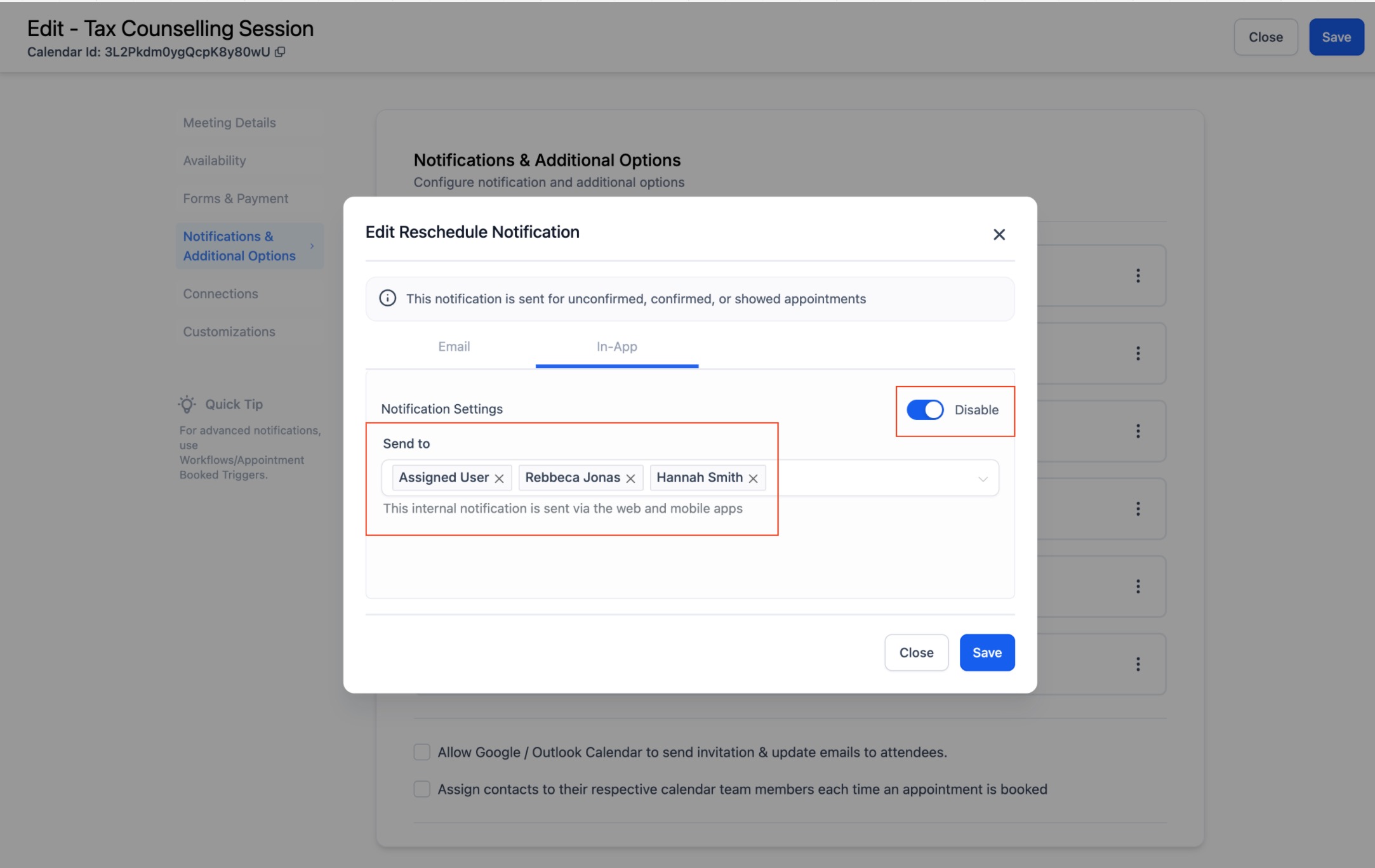
Step 4: In-App Notifications
Click the In-App tab for the chosen notification type
Toggle On
Select Users to Notify
Configure timing for Reminders/Follow-Ups
Click Save


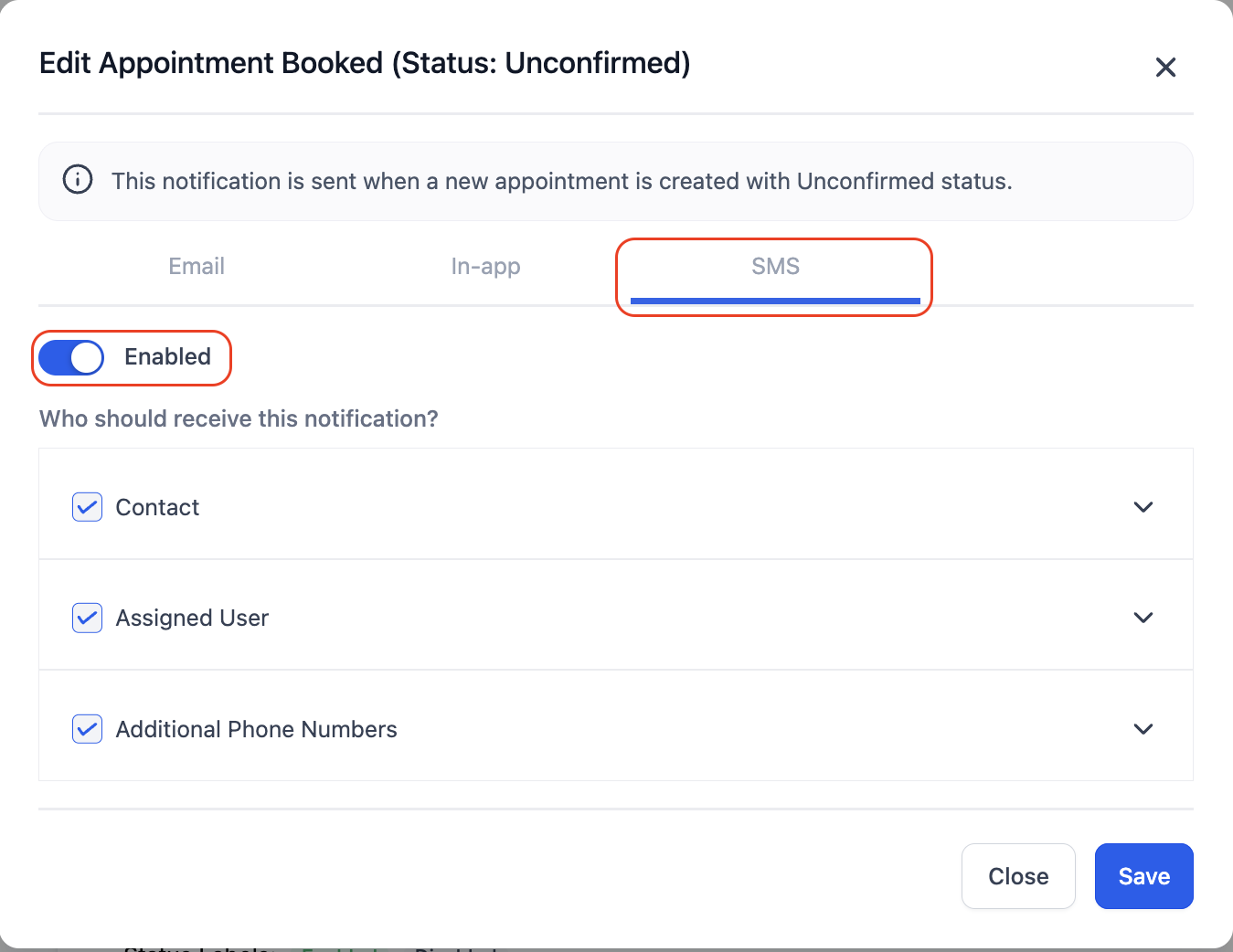
Step 5: SMS Notifications
Click the SMS tab for the chosen notification type
Toggle On
Choose recipients: Contact, Assigned User, Additional Phone Numbers
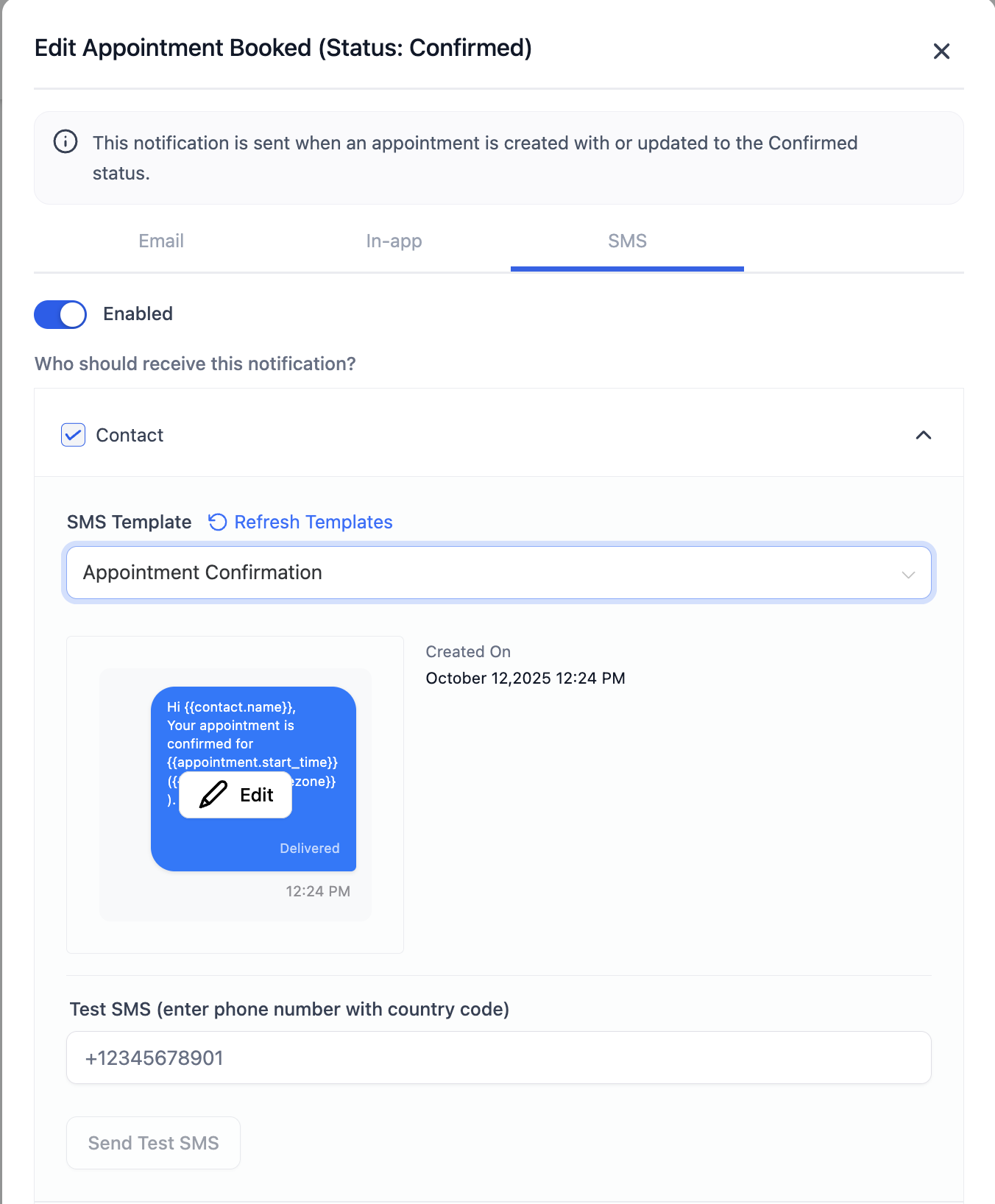
Select or edit an SMS template
Send a test SMS if needed
Configure timing for Reminders/Follow-Ups
Click Save
Note: SMS messages are billed per segment; include country codes for additional numbers.
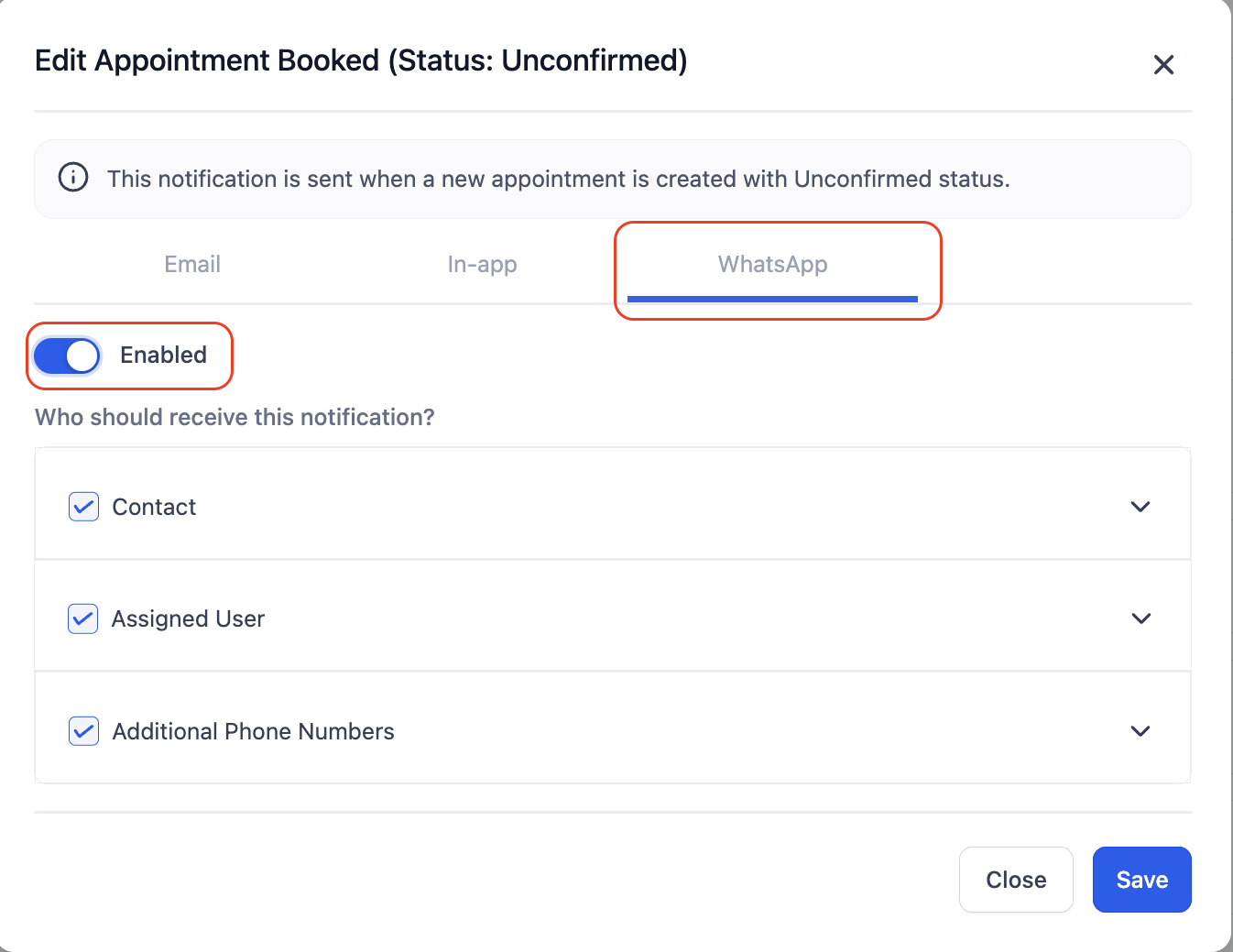
Step 6: WhatsApp Notifications
Click the WhatsApp tab
Toggle On
Choose recipients: Contact, Assigned User, Additional Numbers
Select or create an approved WhatsApp template
Send a test message
Click Save
Important: Ensure your WhatsApp Business Account is connected and verified. Only approved templates can be used.
Important Notes
In-App Notifications
In-app notification settings are fully customizable. For example, you can enable confirmation alerts for calendars while disabling all other notification types.
For Event Calendars, notifications are sent to account administrators by default.
For all other calendar types, notifications are automatically sent to the assigned user.
Email Notifications
Additional Emails allow you to include extra recipients. Simply enter their email addresses to ensure they receive notifications.
Email templates can be created and managed in the Email Builder under Marketing & Emails > Emails > Templates.
Make sure your email template includes a subject line to ensure proper delivery.
If the Add Guest option is enabled and a custom form is attached, guests can receive the form automatically. Once the appointment is confirmed, a system-generated email will be sent with a link to the custom form.
To avoid sending duplicate emails, confirm that a separate guest confirmation email is not already active in the Notifications tab under Confirmation Notification.


SMS Notifications
Additional Phone Numbers lets you add extra recipients who should receive SMS notifications.
All phone numbers must include the correct country code to ensure successful delivery.
SMS messages are charged per segment, so keeping messages short can help reduce costs.
WhatsApp Notifications
Your WhatsApp Business Account must be connected and verified before use.
Only pre-approved WhatsApp templates are supported.
Use Fetch New Templates to refresh and display the latest available templates.
Always test templates for formatting and accuracy before enabling them for live use.
Sample Scenario: Streamlining Notifications for a Spa Business
Business: A spa with multiple therapists, offering consultations and treatments.
Goal: Ensure clients and staff are informed for every appointment without manual effort.
Setup:
Create a calendar for each therapist
Configure notifications:
Email: Send confirmation to client & therapist
SMS: Reminder 24 hours before appointment
WhatsApp: Follow-up 2 hours after appointment for feedback
In-App: Notify therapists immediately of new bookings
Assign additional numbers for admin staff to monitor all appointments
Result:
Clients receive timely reminders, reducing no-shows
Therapists stay updated in real-time
Admins can track and manage appointments efficiently
Frequently Asked Questions
Q: Can I personalize SMS or emails with appointment details?
A: Yes. Use Custom Values like {{contact.name}}, {{appointment.start_time}}, {{appointment.time_zone}}.
Q: Can all appointment events trigger notifications?
A: Yes—Unconfirmed, Confirmed, Cancellation, Reschedule, Reminder, and Follow-Up.
Q: How do I test without notifying clients?
A: Use Send Test SMS/Email/WhatsApp with a team or personal test number.

Latest Blog Posts
How To Set Up Customizable Calendar Notifications in Tekmatix
How To Set Up Customizable Calendar Notifications in Tekmatix
Why This Matters
Effective appointment communication is critical for reducing no-shows, keeping clients informed, and streamlining your team’s workflow. Customizable calendar notifications in Tekmatix let you send email, SMS, WhatsApp, and in-app messages for every appointment event booked, confirmed, rescheduled, canceled, or as reminders and follow-ups.
Benefits include:
Improved client engagement: Timely notifications reduce missed appointments
Team efficiency: Keep staff updated automatically without manual reminders
Flexibility: Target notifications to contacts, guests, users, or additional recipients
Cost control: Customize SMS and WhatsApp messages to manage communication expenses
Types of Appointment Notifications in Tekmatix
You can configure six types of notifications for each appointment:
Appointment Booked (Unconfirmed): Sent immediately when a new appointment is booked but unconfirmed
Appointment Booked (Confirmed): Sent when an appointment is confirmed
Cancellation: Sent when an appointment is canceled, marked no-show, or invalid
Reschedule: Sent when an appointment date or time is changed
Reminder: Sent before the appointment, timing configurable
Follow-Up: Sent after the appointment, timing configurable
Notifications can be sent via:
Email
SMS
WhatsApp
In-App
Step-by-Step: How To Configure Calendar Notifications
Step 1: Access the Notifications Tab
Go to Calendar → Calendar Settings → Edit Calendar
Select the calendar you want to configure
Click on the Notifications tab
Step 2: Customize Notifications by Type
You can customize notifications for Contacts, Guests, Users, or Additional Emails/Phone Numbers. You can also disable notifications for specific recipient types.
Step 3: Email Notifications
From the list, click the notification type (e.g., Reminder) → go to the Email tab
Toggle On
Choose an existing template or customize the subject line and email body
Optionally, send a test email
For Reminders or Follow-Ups, configure timing
Click Save
Step 4: In-App Notifications
Click the In-App tab for the chosen notification type
Toggle On
Select Users to Notify
Configure timing for Reminders/Follow-Ups
Click Save
Step 5: SMS Notifications
Click the SMS tab for the chosen notification type
Toggle On
Choose recipients: Contact, Assigned User, Additional Phone Numbers
Select or edit an SMS template
Send a test SMS if needed
Configure timing for Reminders/Follow-Ups
Click Save
Note: SMS messages are billed per segment; include country codes for additional numbers.
Step 6: WhatsApp Notifications
Click the WhatsApp tab
Toggle On
Choose recipients: Contact, Assigned User, Additional Numbers
Select or create an approved WhatsApp template
Send a test message
Click Save
Important: Ensure your WhatsApp Business Account is connected and verified. Only approved templates can be used.
Important Notes
In-App Notifications
In-app notification settings are fully customizable. For example, you can enable confirmation alerts for calendars while disabling all other notification types.
For Event Calendars, notifications are sent to account administrators by default.
For all other calendar types, notifications are automatically sent to the assigned user.
Email Notifications
Additional Emails allow you to include extra recipients. Simply enter their email addresses to ensure they receive notifications.
Email templates can be created and managed in the Email Builder under Marketing & Emails > Emails > Templates.
Make sure your email template includes a subject line to ensure proper delivery.
If the Add Guest option is enabled and a custom form is attached, guests can receive the form automatically. Once the appointment is confirmed, a system-generated email will be sent with a link to the custom form.
To avoid sending duplicate emails, confirm that a separate guest confirmation email is not already active in the Notifications tab under Confirmation Notification.
SMS Notifications
Additional Phone Numbers lets you add extra recipients who should receive SMS notifications.
All phone numbers must include the correct country code to ensure successful delivery.
SMS messages are charged per segment, so keeping messages short can help reduce costs.
WhatsApp Notifications
Your WhatsApp Business Account must be connected and verified before use.
Only pre-approved WhatsApp templates are supported.
Use Fetch New Templates to refresh and display the latest available templates.
Always test templates for formatting and accuracy before enabling them for live use.
Sample Scenario: Streamlining Notifications for a Spa Business
Business: A spa with multiple therapists, offering consultations and treatments.
Goal: Ensure clients and staff are informed for every appointment without manual effort.
Setup:
Create a calendar for each therapist
Configure notifications:
Email: Send confirmation to client & therapist
SMS: Reminder 24 hours before appointment
WhatsApp: Follow-up 2 hours after appointment for feedback
In-App: Notify therapists immediately of new bookings
Assign additional numbers for admin staff to monitor all appointments
Result:
Clients receive timely reminders, reducing no-shows
Therapists stay updated in real-time
Admins can track and manage appointments efficiently
Frequently Asked Questions
Q: Can I personalize SMS or emails with appointment details?
A: Yes. Use Custom Values like {{contact.name}}, {{appointment.start_time}}, {{appointment.time_zone}}.
Q: Can all appointment events trigger notifications?
A: Yes—Unconfirmed, Confirmed, Cancellation, Reschedule, Reminder, and Follow-Up.
Q: How do I test without notifying clients?
A: Use Send Test SMS/Email/WhatsApp with a team or personal test number.
Marketing
How To Set Up Customizable Calendar Notifications in Tekmatix
How To Set Up Customizable Calendar Notifications in Tekmatix
Why This Matters
Effective appointment communication is critical for reducing no-shows, keeping clients informed, and streamlining your team’s workflow. Customizable calendar notifications in Tekmatix let you send email, SMS, WhatsApp, and in-app messages for every appointment event booked, confirmed, rescheduled, canceled, or as reminders and follow-ups.
Benefits include:
Improved client engagement: Timely notifications reduce missed appointments
Team efficiency: Keep staff updated automatically without manual reminders
Flexibility: Target notifications to contacts, guests, users, or additional recipients
Cost control: Customize SMS and WhatsApp messages to manage communication expenses
Types of Appointment Notifications in Tekmatix
You can configure six types of notifications for each appointment:
Appointment Booked (Unconfirmed): Sent immediately when a new appointment is booked but unconfirmed
Appointment Booked (Confirmed): Sent when an appointment is confirmed
Cancellation: Sent when an appointment is canceled, marked no-show, or invalid
Reschedule: Sent when an appointment date or time is changed
Reminder: Sent before the appointment, timing configurable
Follow-Up: Sent after the appointment, timing configurable
Notifications can be sent via:
Email
SMS
WhatsApp
In-App
Step-by-Step: How To Configure Calendar Notifications
Step 1: Access the Notifications Tab
Go to Calendar → Calendar Settings → Edit Calendar
Select the calendar you want to configure
Click on the Notifications tab
Step 2: Customize Notifications by Type
You can customize notifications for Contacts, Guests, Users, or Additional Emails/Phone Numbers. You can also disable notifications for specific recipient types.
Step 3: Email Notifications
From the list, click the notification type (e.g., Reminder) → go to the Email tab
Toggle On
Choose an existing template or customize the subject line and email body
Optionally, send a test email
For Reminders or Follow-Ups, configure timing
Click Save
Step 4: In-App Notifications
Click the In-App tab for the chosen notification type
Toggle On
Select Users to Notify
Configure timing for Reminders/Follow-Ups
Click Save
Step 5: SMS Notifications
Click the SMS tab for the chosen notification type
Toggle On
Choose recipients: Contact, Assigned User, Additional Phone Numbers
Select or edit an SMS template
Send a test SMS if needed
Configure timing for Reminders/Follow-Ups
Click Save
Note: SMS messages are billed per segment; include country codes for additional numbers.
Step 6: WhatsApp Notifications
Click the WhatsApp tab
Toggle On
Choose recipients: Contact, Assigned User, Additional Numbers
Select or create an approved WhatsApp template
Send a test message
Click Save
Important: Ensure your WhatsApp Business Account is connected and verified. Only approved templates can be used.
Important Notes
In-App Notifications
In-app notification settings are fully customizable. For example, you can enable confirmation alerts for calendars while disabling all other notification types.
For Event Calendars, notifications are sent to account administrators by default.
For all other calendar types, notifications are automatically sent to the assigned user.
Email Notifications
Additional Emails allow you to include extra recipients. Simply enter their email addresses to ensure they receive notifications.
Email templates can be created and managed in the Email Builder under Marketing & Emails > Emails > Templates.
Make sure your email template includes a subject line to ensure proper delivery.
If the Add Guest option is enabled and a custom form is attached, guests can receive the form automatically. Once the appointment is confirmed, a system-generated email will be sent with a link to the custom form.
To avoid sending duplicate emails, confirm that a separate guest confirmation email is not already active in the Notifications tab under Confirmation Notification.
SMS Notifications
Additional Phone Numbers lets you add extra recipients who should receive SMS notifications.
All phone numbers must include the correct country code to ensure successful delivery.
SMS messages are charged per segment, so keeping messages short can help reduce costs.
WhatsApp Notifications
Your WhatsApp Business Account must be connected and verified before use.
Only pre-approved WhatsApp templates are supported.
Use Fetch New Templates to refresh and display the latest available templates.
Always test templates for formatting and accuracy before enabling them for live use.
Sample Scenario: Streamlining Notifications for a Spa Business
Business: A spa with multiple therapists, offering consultations and treatments.
Goal: Ensure clients and staff are informed for every appointment without manual effort.
Setup:
Create a calendar for each therapist
Configure notifications:
Email: Send confirmation to client & therapist
SMS: Reminder 24 hours before appointment
WhatsApp: Follow-up 2 hours after appointment for feedback
In-App: Notify therapists immediately of new bookings
Assign additional numbers for admin staff to monitor all appointments
Result:
Clients receive timely reminders, reducing no-shows
Therapists stay updated in real-time
Admins can track and manage appointments efficiently
Frequently Asked Questions
Q: Can I personalize SMS or emails with appointment details?
A: Yes. Use Custom Values like {{contact.name}}, {{appointment.start_time}}, {{appointment.time_zone}}.
Q: Can all appointment events trigger notifications?
A: Yes—Unconfirmed, Confirmed, Cancellation, Reschedule, Reminder, and Follow-Up.
Q: How do I test without notifying clients?
A: Use Send Test SMS/Email/WhatsApp with a team or personal test number.
How To Set Up Customizable Calendar Notifications in Tekmatix
How To Set Up Customizable Calendar Notifications in Tekmatix
Why This Matters
Effective appointment communication is critical for reducing no-shows, keeping clients informed, and streamlining your team’s workflow. Customizable calendar notifications in Tekmatix let you send email, SMS, WhatsApp, and in-app messages for every appointment event booked, confirmed, rescheduled, canceled, or as reminders and follow-ups.
Benefits include:
Improved client engagement: Timely notifications reduce missed appointments
Team efficiency: Keep staff updated automatically without manual reminders
Flexibility: Target notifications to contacts, guests, users, or additional recipients
Cost control: Customize SMS and WhatsApp messages to manage communication expenses
Types of Appointment Notifications in Tekmatix
You can configure six types of notifications for each appointment:
Appointment Booked (Unconfirmed): Sent immediately when a new appointment is booked but unconfirmed
Appointment Booked (Confirmed): Sent when an appointment is confirmed
Cancellation: Sent when an appointment is canceled, marked no-show, or invalid
Reschedule: Sent when an appointment date or time is changed
Reminder: Sent before the appointment, timing configurable
Follow-Up: Sent after the appointment, timing configurable
Notifications can be sent via:
Email
SMS
WhatsApp
In-App
Step-by-Step: How To Configure Calendar Notifications
Step 1: Access the Notifications Tab
Go to Calendar → Calendar Settings → Edit Calendar
Select the calendar you want to configure
Click on the Notifications tab
Step 2: Customize Notifications by Type
You can customize notifications for Contacts, Guests, Users, or Additional Emails/Phone Numbers. You can also disable notifications for specific recipient types.
Step 3: Email Notifications
From the list, click the notification type (e.g., Reminder) → go to the Email tab
Toggle On
Choose an existing template or customize the subject line and email body
Optionally, send a test email
For Reminders or Follow-Ups, configure timing
Click Save
Step 4: In-App Notifications
Click the In-App tab for the chosen notification type
Toggle On
Select Users to Notify
Configure timing for Reminders/Follow-Ups
Click Save
Step 5: SMS Notifications
Click the SMS tab for the chosen notification type
Toggle On
Choose recipients: Contact, Assigned User, Additional Phone Numbers
Select or edit an SMS template
Send a test SMS if needed
Configure timing for Reminders/Follow-Ups
Click Save
Note: SMS messages are billed per segment; include country codes for additional numbers.
Step 6: WhatsApp Notifications
Click the WhatsApp tab
Toggle On
Choose recipients: Contact, Assigned User, Additional Numbers
Select or create an approved WhatsApp template
Send a test message
Click Save
Important: Ensure your WhatsApp Business Account is connected and verified. Only approved templates can be used.
Important Notes
In-App Notifications
In-app notification settings are fully customizable. For example, you can enable confirmation alerts for calendars while disabling all other notification types.
For Event Calendars, notifications are sent to account administrators by default.
For all other calendar types, notifications are automatically sent to the assigned user.
Email Notifications
Additional Emails allow you to include extra recipients. Simply enter their email addresses to ensure they receive notifications.
Email templates can be created and managed in the Email Builder under Marketing & Emails > Emails > Templates.
Make sure your email template includes a subject line to ensure proper delivery.
If the Add Guest option is enabled and a custom form is attached, guests can receive the form automatically. Once the appointment is confirmed, a system-generated email will be sent with a link to the custom form.
To avoid sending duplicate emails, confirm that a separate guest confirmation email is not already active in the Notifications tab under Confirmation Notification.
SMS Notifications
Additional Phone Numbers lets you add extra recipients who should receive SMS notifications.
All phone numbers must include the correct country code to ensure successful delivery.
SMS messages are charged per segment, so keeping messages short can help reduce costs.
WhatsApp Notifications
Your WhatsApp Business Account must be connected and verified before use.
Only pre-approved WhatsApp templates are supported.
Use Fetch New Templates to refresh and display the latest available templates.
Always test templates for formatting and accuracy before enabling them for live use.
Sample Scenario: Streamlining Notifications for a Spa Business
Business: A spa with multiple therapists, offering consultations and treatments.
Goal: Ensure clients and staff are informed for every appointment without manual effort.
Setup:
Create a calendar for each therapist
Configure notifications:
Email: Send confirmation to client & therapist
SMS: Reminder 24 hours before appointment
WhatsApp: Follow-up 2 hours after appointment for feedback
In-App: Notify therapists immediately of new bookings
Assign additional numbers for admin staff to monitor all appointments
Result:
Clients receive timely reminders, reducing no-shows
Therapists stay updated in real-time
Admins can track and manage appointments efficiently
Frequently Asked Questions
Q: Can I personalize SMS or emails with appointment details?
A: Yes. Use Custom Values like {{contact.name}}, {{appointment.start_time}}, {{appointment.time_zone}}.
Q: Can all appointment events trigger notifications?
A: Yes—Unconfirmed, Confirmed, Cancellation, Reschedule, Reminder, and Follow-Up.
Q: How do I test without notifying clients?
A: Use Send Test SMS/Email/WhatsApp with a team or personal test number.
CRM
How To Set Up Customizable Calendar Notifications in Tekmatix
How To Set Up Customizable Calendar Notifications in Tekmatix
Why This Matters
Effective appointment communication is critical for reducing no-shows, keeping clients informed, and streamlining your team’s workflow. Customizable calendar notifications in Tekmatix let you send email, SMS, WhatsApp, and in-app messages for every appointment event booked, confirmed, rescheduled, canceled, or as reminders and follow-ups.
Benefits include:
Improved client engagement: Timely notifications reduce missed appointments
Team efficiency: Keep staff updated automatically without manual reminders
Flexibility: Target notifications to contacts, guests, users, or additional recipients
Cost control: Customize SMS and WhatsApp messages to manage communication expenses
Types of Appointment Notifications in Tekmatix
You can configure six types of notifications for each appointment:
Appointment Booked (Unconfirmed): Sent immediately when a new appointment is booked but unconfirmed
Appointment Booked (Confirmed): Sent when an appointment is confirmed
Cancellation: Sent when an appointment is canceled, marked no-show, or invalid
Reschedule: Sent when an appointment date or time is changed
Reminder: Sent before the appointment, timing configurable
Follow-Up: Sent after the appointment, timing configurable
Notifications can be sent via:
Email
SMS
WhatsApp
In-App
Step-by-Step: How To Configure Calendar Notifications
Step 1: Access the Notifications Tab
Go to Calendar → Calendar Settings → Edit Calendar
Select the calendar you want to configure
Click on the Notifications tab
Step 2: Customize Notifications by Type
You can customize notifications for Contacts, Guests, Users, or Additional Emails/Phone Numbers. You can also disable notifications for specific recipient types.
Step 3: Email Notifications
From the list, click the notification type (e.g., Reminder) → go to the Email tab
Toggle On
Choose an existing template or customize the subject line and email body
Optionally, send a test email
For Reminders or Follow-Ups, configure timing
Click Save
Step 4: In-App Notifications
Click the In-App tab for the chosen notification type
Toggle On
Select Users to Notify
Configure timing for Reminders/Follow-Ups
Click Save
Step 5: SMS Notifications
Click the SMS tab for the chosen notification type
Toggle On
Choose recipients: Contact, Assigned User, Additional Phone Numbers
Select or edit an SMS template
Send a test SMS if needed
Configure timing for Reminders/Follow-Ups
Click Save
Note: SMS messages are billed per segment; include country codes for additional numbers.
Step 6: WhatsApp Notifications
Click the WhatsApp tab
Toggle On
Choose recipients: Contact, Assigned User, Additional Numbers
Select or create an approved WhatsApp template
Send a test message
Click Save
Important: Ensure your WhatsApp Business Account is connected and verified. Only approved templates can be used.
Important Notes
In-App Notifications
In-app notification settings are fully customizable. For example, you can enable confirmation alerts for calendars while disabling all other notification types.
For Event Calendars, notifications are sent to account administrators by default.
For all other calendar types, notifications are automatically sent to the assigned user.
Email Notifications
Additional Emails allow you to include extra recipients. Simply enter their email addresses to ensure they receive notifications.
Email templates can be created and managed in the Email Builder under Marketing & Emails > Emails > Templates.
Make sure your email template includes a subject line to ensure proper delivery.
If the Add Guest option is enabled and a custom form is attached, guests can receive the form automatically. Once the appointment is confirmed, a system-generated email will be sent with a link to the custom form.
To avoid sending duplicate emails, confirm that a separate guest confirmation email is not already active in the Notifications tab under Confirmation Notification.
SMS Notifications
Additional Phone Numbers lets you add extra recipients who should receive SMS notifications.
All phone numbers must include the correct country code to ensure successful delivery.
SMS messages are charged per segment, so keeping messages short can help reduce costs.
WhatsApp Notifications
Your WhatsApp Business Account must be connected and verified before use.
Only pre-approved WhatsApp templates are supported.
Use Fetch New Templates to refresh and display the latest available templates.
Always test templates for formatting and accuracy before enabling them for live use.
Sample Scenario: Streamlining Notifications for a Spa Business
Business: A spa with multiple therapists, offering consultations and treatments.
Goal: Ensure clients and staff are informed for every appointment without manual effort.
Setup:
Create a calendar for each therapist
Configure notifications:
Email: Send confirmation to client & therapist
SMS: Reminder 24 hours before appointment
WhatsApp: Follow-up 2 hours after appointment for feedback
In-App: Notify therapists immediately of new bookings
Assign additional numbers for admin staff to monitor all appointments
Result:
Clients receive timely reminders, reducing no-shows
Therapists stay updated in real-time
Admins can track and manage appointments efficiently
Frequently Asked Questions
Q: Can I personalize SMS or emails with appointment details?
A: Yes. Use Custom Values like {{contact.name}}, {{appointment.start_time}}, {{appointment.time_zone}}.
Q: Can all appointment events trigger notifications?
A: Yes—Unconfirmed, Confirmed, Cancellation, Reschedule, Reminder, and Follow-Up.
Q: How do I test without notifying clients?
A: Use Send Test SMS/Email/WhatsApp with a team or personal test number.
How To Set Up Customizable Calendar Notifications in Tekmatix
How To Set Up Customizable Calendar Notifications in Tekmatix
Why This Matters
Effective appointment communication is critical for reducing no-shows, keeping clients informed, and streamlining your team’s workflow. Customizable calendar notifications in Tekmatix let you send email, SMS, WhatsApp, and in-app messages for every appointment event booked, confirmed, rescheduled, canceled, or as reminders and follow-ups.
Benefits include:
Improved client engagement: Timely notifications reduce missed appointments
Team efficiency: Keep staff updated automatically without manual reminders
Flexibility: Target notifications to contacts, guests, users, or additional recipients
Cost control: Customize SMS and WhatsApp messages to manage communication expenses
Types of Appointment Notifications in Tekmatix
You can configure six types of notifications for each appointment:
Appointment Booked (Unconfirmed): Sent immediately when a new appointment is booked but unconfirmed
Appointment Booked (Confirmed): Sent when an appointment is confirmed
Cancellation: Sent when an appointment is canceled, marked no-show, or invalid
Reschedule: Sent when an appointment date or time is changed
Reminder: Sent before the appointment, timing configurable
Follow-Up: Sent after the appointment, timing configurable
Notifications can be sent via:
Email
SMS
WhatsApp
In-App
Step-by-Step: How To Configure Calendar Notifications
Step 1: Access the Notifications Tab
Go to Calendar → Calendar Settings → Edit Calendar
Select the calendar you want to configure
Click on the Notifications tab
Step 2: Customize Notifications by Type
You can customize notifications for Contacts, Guests, Users, or Additional Emails/Phone Numbers. You can also disable notifications for specific recipient types.
Step 3: Email Notifications
From the list, click the notification type (e.g., Reminder) → go to the Email tab
Toggle On
Choose an existing template or customize the subject line and email body
Optionally, send a test email
For Reminders or Follow-Ups, configure timing
Click Save
Step 4: In-App Notifications
Click the In-App tab for the chosen notification type
Toggle On
Select Users to Notify
Configure timing for Reminders/Follow-Ups
Click Save
Step 5: SMS Notifications
Click the SMS tab for the chosen notification type
Toggle On
Choose recipients: Contact, Assigned User, Additional Phone Numbers
Select or edit an SMS template
Send a test SMS if needed
Configure timing for Reminders/Follow-Ups
Click Save
Note: SMS messages are billed per segment; include country codes for additional numbers.
Step 6: WhatsApp Notifications
Click the WhatsApp tab
Toggle On
Choose recipients: Contact, Assigned User, Additional Numbers
Select or create an approved WhatsApp template
Send a test message
Click Save
Important: Ensure your WhatsApp Business Account is connected and verified. Only approved templates can be used.
Important Notes
In-App Notifications
In-app notification settings are fully customizable. For example, you can enable confirmation alerts for calendars while disabling all other notification types.
For Event Calendars, notifications are sent to account administrators by default.
For all other calendar types, notifications are automatically sent to the assigned user.
Email Notifications
Additional Emails allow you to include extra recipients. Simply enter their email addresses to ensure they receive notifications.
Email templates can be created and managed in the Email Builder under Marketing & Emails > Emails > Templates.
Make sure your email template includes a subject line to ensure proper delivery.
If the Add Guest option is enabled and a custom form is attached, guests can receive the form automatically. Once the appointment is confirmed, a system-generated email will be sent with a link to the custom form.
To avoid sending duplicate emails, confirm that a separate guest confirmation email is not already active in the Notifications tab under Confirmation Notification.
SMS Notifications
Additional Phone Numbers lets you add extra recipients who should receive SMS notifications.
All phone numbers must include the correct country code to ensure successful delivery.
SMS messages are charged per segment, so keeping messages short can help reduce costs.
WhatsApp Notifications
Your WhatsApp Business Account must be connected and verified before use.
Only pre-approved WhatsApp templates are supported.
Use Fetch New Templates to refresh and display the latest available templates.
Always test templates for formatting and accuracy before enabling them for live use.
Sample Scenario: Streamlining Notifications for a Spa Business
Business: A spa with multiple therapists, offering consultations and treatments.
Goal: Ensure clients and staff are informed for every appointment without manual effort.
Setup:
Create a calendar for each therapist
Configure notifications:
Email: Send confirmation to client & therapist
SMS: Reminder 24 hours before appointment
WhatsApp: Follow-up 2 hours after appointment for feedback
In-App: Notify therapists immediately of new bookings
Assign additional numbers for admin staff to monitor all appointments
Result:
Clients receive timely reminders, reducing no-shows
Therapists stay updated in real-time
Admins can track and manage appointments efficiently
Frequently Asked Questions
Q: Can I personalize SMS or emails with appointment details?
A: Yes. Use Custom Values like {{contact.name}}, {{appointment.start_time}}, {{appointment.time_zone}}.
Q: Can all appointment events trigger notifications?
A: Yes—Unconfirmed, Confirmed, Cancellation, Reschedule, Reminder, and Follow-Up.
Q: How do I test without notifying clients?
A: Use Send Test SMS/Email/WhatsApp with a team or personal test number.

Join The TekMatix Newsletter
Get sent regular tech and business growth tips.
Web Design
How To Set Up Customizable Calendar Notifications in Tekmatix
How To Set Up Customizable Calendar Notifications in Tekmatix
Why This Matters
Effective appointment communication is critical for reducing no-shows, keeping clients informed, and streamlining your team’s workflow. Customizable calendar notifications in Tekmatix let you send email, SMS, WhatsApp, and in-app messages for every appointment event booked, confirmed, rescheduled, canceled, or as reminders and follow-ups.
Benefits include:
Improved client engagement: Timely notifications reduce missed appointments
Team efficiency: Keep staff updated automatically without manual reminders
Flexibility: Target notifications to contacts, guests, users, or additional recipients
Cost control: Customize SMS and WhatsApp messages to manage communication expenses
Types of Appointment Notifications in Tekmatix
You can configure six types of notifications for each appointment:
Appointment Booked (Unconfirmed): Sent immediately when a new appointment is booked but unconfirmed
Appointment Booked (Confirmed): Sent when an appointment is confirmed
Cancellation: Sent when an appointment is canceled, marked no-show, or invalid
Reschedule: Sent when an appointment date or time is changed
Reminder: Sent before the appointment, timing configurable
Follow-Up: Sent after the appointment, timing configurable
Notifications can be sent via:
Email
SMS
WhatsApp
In-App
Step-by-Step: How To Configure Calendar Notifications
Step 1: Access the Notifications Tab
Go to Calendar → Calendar Settings → Edit Calendar
Select the calendar you want to configure
Click on the Notifications tab
Step 2: Customize Notifications by Type
You can customize notifications for Contacts, Guests, Users, or Additional Emails/Phone Numbers. You can also disable notifications for specific recipient types.
Step 3: Email Notifications
From the list, click the notification type (e.g., Reminder) → go to the Email tab
Toggle On
Choose an existing template or customize the subject line and email body
Optionally, send a test email
For Reminders or Follow-Ups, configure timing
Click Save
Step 4: In-App Notifications
Click the In-App tab for the chosen notification type
Toggle On
Select Users to Notify
Configure timing for Reminders/Follow-Ups
Click Save
Step 5: SMS Notifications
Click the SMS tab for the chosen notification type
Toggle On
Choose recipients: Contact, Assigned User, Additional Phone Numbers
Select or edit an SMS template
Send a test SMS if needed
Configure timing for Reminders/Follow-Ups
Click Save
Note: SMS messages are billed per segment; include country codes for additional numbers.
Step 6: WhatsApp Notifications
Click the WhatsApp tab
Toggle On
Choose recipients: Contact, Assigned User, Additional Numbers
Select or create an approved WhatsApp template
Send a test message
Click Save
Important: Ensure your WhatsApp Business Account is connected and verified. Only approved templates can be used.
Important Notes
In-App Notifications
In-app notification settings are fully customizable. For example, you can enable confirmation alerts for calendars while disabling all other notification types.
For Event Calendars, notifications are sent to account administrators by default.
For all other calendar types, notifications are automatically sent to the assigned user.
Email Notifications
Additional Emails allow you to include extra recipients. Simply enter their email addresses to ensure they receive notifications.
Email templates can be created and managed in the Email Builder under Marketing & Emails > Emails > Templates.
Make sure your email template includes a subject line to ensure proper delivery.
If the Add Guest option is enabled and a custom form is attached, guests can receive the form automatically. Once the appointment is confirmed, a system-generated email will be sent with a link to the custom form.
To avoid sending duplicate emails, confirm that a separate guest confirmation email is not already active in the Notifications tab under Confirmation Notification.
SMS Notifications
Additional Phone Numbers lets you add extra recipients who should receive SMS notifications.
All phone numbers must include the correct country code to ensure successful delivery.
SMS messages are charged per segment, so keeping messages short can help reduce costs.
WhatsApp Notifications
Your WhatsApp Business Account must be connected and verified before use.
Only pre-approved WhatsApp templates are supported.
Use Fetch New Templates to refresh and display the latest available templates.
Always test templates for formatting and accuracy before enabling them for live use.
Sample Scenario: Streamlining Notifications for a Spa Business
Business: A spa with multiple therapists, offering consultations and treatments.
Goal: Ensure clients and staff are informed for every appointment without manual effort.
Setup:
Create a calendar for each therapist
Configure notifications:
Email: Send confirmation to client & therapist
SMS: Reminder 24 hours before appointment
WhatsApp: Follow-up 2 hours after appointment for feedback
In-App: Notify therapists immediately of new bookings
Assign additional numbers for admin staff to monitor all appointments
Result:
Clients receive timely reminders, reducing no-shows
Therapists stay updated in real-time
Admins can track and manage appointments efficiently
Frequently Asked Questions
Q: Can I personalize SMS or emails with appointment details?
A: Yes. Use Custom Values like {{contact.name}}, {{appointment.start_time}}, {{appointment.time_zone}}.
Q: Can all appointment events trigger notifications?
A: Yes—Unconfirmed, Confirmed, Cancellation, Reschedule, Reminder, and Follow-Up.
Q: How do I test without notifying clients?
A: Use Send Test SMS/Email/WhatsApp with a team or personal test number.
How To Set Up Customizable Calendar Notifications in Tekmatix
How To Set Up Customizable Calendar Notifications in Tekmatix
Why This Matters
Effective appointment communication is critical for reducing no-shows, keeping clients informed, and streamlining your team’s workflow. Customizable calendar notifications in Tekmatix let you send email, SMS, WhatsApp, and in-app messages for every appointment event booked, confirmed, rescheduled, canceled, or as reminders and follow-ups.
Benefits include:
Improved client engagement: Timely notifications reduce missed appointments
Team efficiency: Keep staff updated automatically without manual reminders
Flexibility: Target notifications to contacts, guests, users, or additional recipients
Cost control: Customize SMS and WhatsApp messages to manage communication expenses
Types of Appointment Notifications in Tekmatix
You can configure six types of notifications for each appointment:
Appointment Booked (Unconfirmed): Sent immediately when a new appointment is booked but unconfirmed
Appointment Booked (Confirmed): Sent when an appointment is confirmed
Cancellation: Sent when an appointment is canceled, marked no-show, or invalid
Reschedule: Sent when an appointment date or time is changed
Reminder: Sent before the appointment, timing configurable
Follow-Up: Sent after the appointment, timing configurable
Notifications can be sent via:
Email
SMS
WhatsApp
In-App
Step-by-Step: How To Configure Calendar Notifications
Step 1: Access the Notifications Tab
Go to Calendar → Calendar Settings → Edit Calendar
Select the calendar you want to configure
Click on the Notifications tab
Step 2: Customize Notifications by Type
You can customize notifications for Contacts, Guests, Users, or Additional Emails/Phone Numbers. You can also disable notifications for specific recipient types.
Step 3: Email Notifications
From the list, click the notification type (e.g., Reminder) → go to the Email tab
Toggle On
Choose an existing template or customize the subject line and email body
Optionally, send a test email
For Reminders or Follow-Ups, configure timing
Click Save
Step 4: In-App Notifications
Click the In-App tab for the chosen notification type
Toggle On
Select Users to Notify
Configure timing for Reminders/Follow-Ups
Click Save
Step 5: SMS Notifications
Click the SMS tab for the chosen notification type
Toggle On
Choose recipients: Contact, Assigned User, Additional Phone Numbers
Select or edit an SMS template
Send a test SMS if needed
Configure timing for Reminders/Follow-Ups
Click Save
Note: SMS messages are billed per segment; include country codes for additional numbers.
Step 6: WhatsApp Notifications
Click the WhatsApp tab
Toggle On
Choose recipients: Contact, Assigned User, Additional Numbers
Select or create an approved WhatsApp template
Send a test message
Click Save
Important: Ensure your WhatsApp Business Account is connected and verified. Only approved templates can be used.
Important Notes
In-App Notifications
In-app notification settings are fully customizable. For example, you can enable confirmation alerts for calendars while disabling all other notification types.
For Event Calendars, notifications are sent to account administrators by default.
For all other calendar types, notifications are automatically sent to the assigned user.
Email Notifications
Additional Emails allow you to include extra recipients. Simply enter their email addresses to ensure they receive notifications.
Email templates can be created and managed in the Email Builder under Marketing & Emails > Emails > Templates.
Make sure your email template includes a subject line to ensure proper delivery.
If the Add Guest option is enabled and a custom form is attached, guests can receive the form automatically. Once the appointment is confirmed, a system-generated email will be sent with a link to the custom form.
To avoid sending duplicate emails, confirm that a separate guest confirmation email is not already active in the Notifications tab under Confirmation Notification.
SMS Notifications
Additional Phone Numbers lets you add extra recipients who should receive SMS notifications.
All phone numbers must include the correct country code to ensure successful delivery.
SMS messages are charged per segment, so keeping messages short can help reduce costs.
WhatsApp Notifications
Your WhatsApp Business Account must be connected and verified before use.
Only pre-approved WhatsApp templates are supported.
Use Fetch New Templates to refresh and display the latest available templates.
Always test templates for formatting and accuracy before enabling them for live use.
Sample Scenario: Streamlining Notifications for a Spa Business
Business: A spa with multiple therapists, offering consultations and treatments.
Goal: Ensure clients and staff are informed for every appointment without manual effort.
Setup:
Create a calendar for each therapist
Configure notifications:
Email: Send confirmation to client & therapist
SMS: Reminder 24 hours before appointment
WhatsApp: Follow-up 2 hours after appointment for feedback
In-App: Notify therapists immediately of new bookings
Assign additional numbers for admin staff to monitor all appointments
Result:
Clients receive timely reminders, reducing no-shows
Therapists stay updated in real-time
Admins can track and manage appointments efficiently
Frequently Asked Questions
Q: Can I personalize SMS or emails with appointment details?
A: Yes. Use Custom Values like {{contact.name}}, {{appointment.start_time}}, {{appointment.time_zone}}.
Q: Can all appointment events trigger notifications?
A: Yes—Unconfirmed, Confirmed, Cancellation, Reschedule, Reminder, and Follow-Up.
Q: How do I test without notifying clients?
A: Use Send Test SMS/Email/WhatsApp with a team or personal test number.