


Tekmatix Help Articles
Love your help
Use the search bar below to find help guides and articles for using Tekmatix
Use the search bar below to look for help articles you need.
How To Edit and Prepare Images Faster Using the Built-In Image Editor in Tekmatix
How To Edit and Prepare Images Faster Using the Built-In Image Editor in Tekmatix
Why This Matters
Visuals are everywhere social posts, funnels, emails, and websites. But constantly downloading images, opening third-party editors, re-uploading files, and managing duplicates slows teams down.
The Built-In Image Editor in Tekmatix lets you make essential image edits directly inside the Media Library, right before publishing. This keeps your workflow fast, your assets organized, and your branding consistent without leaving the platform.
This is especially valuable for:
Marketing teams publishing content daily
Agencies managing multiple client assets
Anyone who wants quick edits without design software
What Is the Built-In Image Editor in Tekmatix?
The Built-In Image Editor is a lightweight, on-screen editing workspace embedded inside the Tekmatix Media Library.
From any image in Media Storage, you can click Edit to open a modal editor that allows you to:
Crop, rotate, and flip images
Adjust brightness, contrast, saturation, and blur
Apply filters
Add text, stickers, and drawings
Undo or redo changes
Save edits directly back to the Media Library
All edits happen without downloading the image or using external tools.
Key Benefits of the Built-In Image Editor
1. Work Entirely Inside Tekmatix
No need to switch to Canva, Photoshop, or other tools for quick adjustments.
2. Cleaner Asset Management
Choose to replace the image or save a new version—reducing duplicate clutter.
3. Maintain On-Brand Visuals
Make final tweaks right before publishing to ensure colors, framing, and text align with your brand.
4. Lower Storage Overhead
Avoid uploading multiple near-identical images just for small changes.
5. Faster Publishing Across Modules
Edited images are instantly available anywhere the Media Library is used, including:
Social Planner
Funnels
Email Builder
Websites
Step-by-Step: How To Use the Built-In Image Editor in Tekmatix
Step 1: Open the Image Editor
You can access the editor from multiple places:
Option A: From Media Storage
Open your account
Go to Media Storage
Hover over the image you want to edit
Click the three dots (⋮) in the top-right corner
Click Edit

Option B: From a Publishing Module
Open a module that supports Media Library (e.g., Social Planner)
Click Upload from Media Storage
Hover over the image
Click the three dots (⋮) → Edit

Step 2: Make Your Image Edits
Inside the editor, you can:
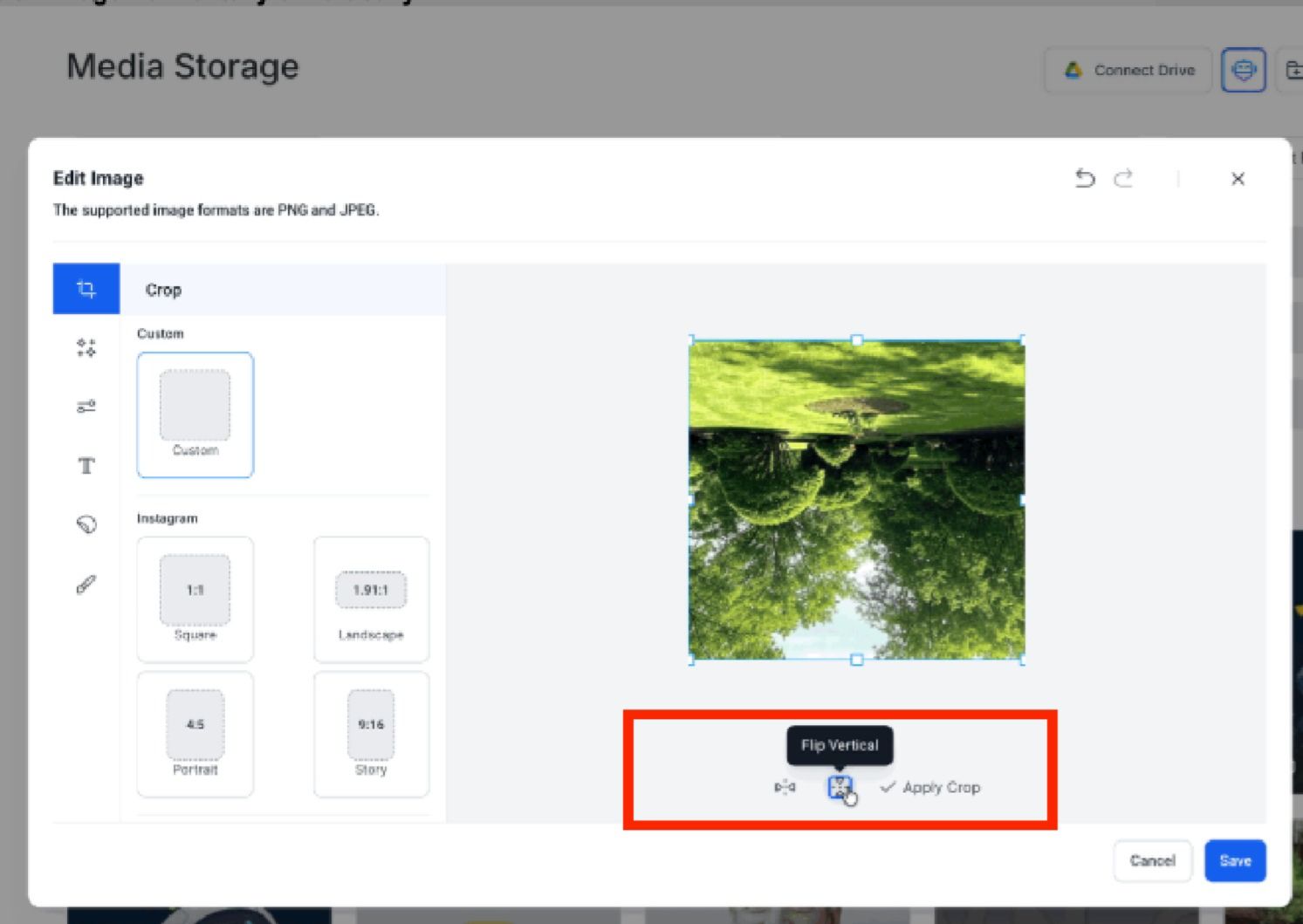
Crop & Transform
Crop using custom or preset aspect ratios
Rotate the image
Flip horizontally or vertically
Apply Filters
Choose from multiple filter styles to quickly enhance visuals

Adjust Image Settings
Brightness
Contrast
Saturation
Blur

Add Text
Customize:
Font family
Font size
Alignment
Font color
Background color
Line spacing

Add Stickers
Insert emojis or shapes
Adjust opacity and color
Draw with Brush
Draw directly on the image
Control brush size, hardness, and color

Undo / Redo
Easily reverse or reapply recent changes
Step 3: Save Your Edited Image
Click Save
Enter an image name
(Optional) Choose a folder
Click Save
The edited image is stored in your Media Library and is immediately usable across Tekmatix.
Sample Scenario: Quick Social Media Edit
Scenario
A marketing assistant schedules a social post but notices the image:
Is slightly off-center
Needs brighter contrast
Requires a short text label
Instead of:
Downloading the image
Editing it in another tool
Re-uploading a new file
They:
Open the image directly from Social Planner
Crop it to square format
Increase brightness and contrast
Add a short text label
Save the image
Result
The post is published within minutes, the Media Library stays clean, and the team avoids unnecessary file duplication.
Frequently Asked Questions
Is the image editor available on mobile?
Not yet. Editing is currently available on desktop. Saved edits are visible on mobile once completed.
Which image formats are supported?
PNG and JPEG files.
Can I edit multiple images at once?
No. Images must be edited individually.
Do edits affect images already in use?
If you save as a new image, existing content remains unchanged.

Latest Blog Posts
How To Edit and Prepare Images Faster Using the Built-In Image Editor in Tekmatix
How To Edit and Prepare Images Faster Using the Built-In Image Editor in Tekmatix
Why This Matters
Visuals are everywhere social posts, funnels, emails, and websites. But constantly downloading images, opening third-party editors, re-uploading files, and managing duplicates slows teams down.
The Built-In Image Editor in Tekmatix lets you make essential image edits directly inside the Media Library, right before publishing. This keeps your workflow fast, your assets organized, and your branding consistent without leaving the platform.
This is especially valuable for:
Marketing teams publishing content daily
Agencies managing multiple client assets
Anyone who wants quick edits without design software
What Is the Built-In Image Editor in Tekmatix?
The Built-In Image Editor is a lightweight, on-screen editing workspace embedded inside the Tekmatix Media Library.
From any image in Media Storage, you can click Edit to open a modal editor that allows you to:
Crop, rotate, and flip images
Adjust brightness, contrast, saturation, and blur
Apply filters
Add text, stickers, and drawings
Undo or redo changes
Save edits directly back to the Media Library
All edits happen without downloading the image or using external tools.
Key Benefits of the Built-In Image Editor
1. Work Entirely Inside Tekmatix
No need to switch to Canva, Photoshop, or other tools for quick adjustments.
2. Cleaner Asset Management
Choose to replace the image or save a new version—reducing duplicate clutter.
3. Maintain On-Brand Visuals
Make final tweaks right before publishing to ensure colors, framing, and text align with your brand.
4. Lower Storage Overhead
Avoid uploading multiple near-identical images just for small changes.
5. Faster Publishing Across Modules
Edited images are instantly available anywhere the Media Library is used, including:
Social Planner
Funnels
Email Builder
Websites
Step-by-Step: How To Use the Built-In Image Editor in Tekmatix
Step 1: Open the Image Editor
You can access the editor from multiple places:
Option A: From Media Storage
Open your account
Go to Media Storage
Hover over the image you want to edit
Click the three dots (⋮) in the top-right corner
Click Edit
Option B: From a Publishing Module
Open a module that supports Media Library (e.g., Social Planner)
Click Upload from Media Storage
Hover over the image
Click the three dots (⋮) → Edit
Step 2: Make Your Image Edits
Inside the editor, you can:
Crop & Transform
Crop using custom or preset aspect ratios
Rotate the image
Flip horizontally or vertically
Apply Filters
Choose from multiple filter styles to quickly enhance visuals
Adjust Image Settings
Brightness
Contrast
Saturation
Blur
Add Text
Customize:
Font family
Font size
Alignment
Font color
Background color
Line spacing
Add Stickers
Insert emojis or shapes
Adjust opacity and color
Draw with Brush
Draw directly on the image
Control brush size, hardness, and color
Undo / Redo
Easily reverse or reapply recent changes
Step 3: Save Your Edited Image
Click Save
Enter an image name
(Optional) Choose a folder
Click Save
The edited image is stored in your Media Library and is immediately usable across Tekmatix.
Sample Scenario: Quick Social Media Edit
Scenario
A marketing assistant schedules a social post but notices the image:
Is slightly off-center
Needs brighter contrast
Requires a short text label
Instead of:
Downloading the image
Editing it in another tool
Re-uploading a new file
They:
Open the image directly from Social Planner
Crop it to square format
Increase brightness and contrast
Add a short text label
Save the image
Result
The post is published within minutes, the Media Library stays clean, and the team avoids unnecessary file duplication.
Frequently Asked Questions
Is the image editor available on mobile?
Not yet. Editing is currently available on desktop. Saved edits are visible on mobile once completed.
Which image formats are supported?
PNG and JPEG files.
Can I edit multiple images at once?
No. Images must be edited individually.
Do edits affect images already in use?
If you save as a new image, existing content remains unchanged.
Marketing
How To Edit and Prepare Images Faster Using the Built-In Image Editor in Tekmatix
How To Edit and Prepare Images Faster Using the Built-In Image Editor in Tekmatix
Why This Matters
Visuals are everywhere social posts, funnels, emails, and websites. But constantly downloading images, opening third-party editors, re-uploading files, and managing duplicates slows teams down.
The Built-In Image Editor in Tekmatix lets you make essential image edits directly inside the Media Library, right before publishing. This keeps your workflow fast, your assets organized, and your branding consistent without leaving the platform.
This is especially valuable for:
Marketing teams publishing content daily
Agencies managing multiple client assets
Anyone who wants quick edits without design software
What Is the Built-In Image Editor in Tekmatix?
The Built-In Image Editor is a lightweight, on-screen editing workspace embedded inside the Tekmatix Media Library.
From any image in Media Storage, you can click Edit to open a modal editor that allows you to:
Crop, rotate, and flip images
Adjust brightness, contrast, saturation, and blur
Apply filters
Add text, stickers, and drawings
Undo or redo changes
Save edits directly back to the Media Library
All edits happen without downloading the image or using external tools.
Key Benefits of the Built-In Image Editor
1. Work Entirely Inside Tekmatix
No need to switch to Canva, Photoshop, or other tools for quick adjustments.
2. Cleaner Asset Management
Choose to replace the image or save a new version—reducing duplicate clutter.
3. Maintain On-Brand Visuals
Make final tweaks right before publishing to ensure colors, framing, and text align with your brand.
4. Lower Storage Overhead
Avoid uploading multiple near-identical images just for small changes.
5. Faster Publishing Across Modules
Edited images are instantly available anywhere the Media Library is used, including:
Social Planner
Funnels
Email Builder
Websites
Step-by-Step: How To Use the Built-In Image Editor in Tekmatix
Step 1: Open the Image Editor
You can access the editor from multiple places:
Option A: From Media Storage
Open your account
Go to Media Storage
Hover over the image you want to edit
Click the three dots (⋮) in the top-right corner
Click Edit
Option B: From a Publishing Module
Open a module that supports Media Library (e.g., Social Planner)
Click Upload from Media Storage
Hover over the image
Click the three dots (⋮) → Edit
Step 2: Make Your Image Edits
Inside the editor, you can:
Crop & Transform
Crop using custom or preset aspect ratios
Rotate the image
Flip horizontally or vertically
Apply Filters
Choose from multiple filter styles to quickly enhance visuals
Adjust Image Settings
Brightness
Contrast
Saturation
Blur
Add Text
Customize:
Font family
Font size
Alignment
Font color
Background color
Line spacing
Add Stickers
Insert emojis or shapes
Adjust opacity and color
Draw with Brush
Draw directly on the image
Control brush size, hardness, and color
Undo / Redo
Easily reverse or reapply recent changes
Step 3: Save Your Edited Image
Click Save
Enter an image name
(Optional) Choose a folder
Click Save
The edited image is stored in your Media Library and is immediately usable across Tekmatix.
Sample Scenario: Quick Social Media Edit
Scenario
A marketing assistant schedules a social post but notices the image:
Is slightly off-center
Needs brighter contrast
Requires a short text label
Instead of:
Downloading the image
Editing it in another tool
Re-uploading a new file
They:
Open the image directly from Social Planner
Crop it to square format
Increase brightness and contrast
Add a short text label
Save the image
Result
The post is published within minutes, the Media Library stays clean, and the team avoids unnecessary file duplication.
Frequently Asked Questions
Is the image editor available on mobile?
Not yet. Editing is currently available on desktop. Saved edits are visible on mobile once completed.
Which image formats are supported?
PNG and JPEG files.
Can I edit multiple images at once?
No. Images must be edited individually.
Do edits affect images already in use?
If you save as a new image, existing content remains unchanged.
How To Edit and Prepare Images Faster Using the Built-In Image Editor in Tekmatix
How To Edit and Prepare Images Faster Using the Built-In Image Editor in Tekmatix
Why This Matters
Visuals are everywhere social posts, funnels, emails, and websites. But constantly downloading images, opening third-party editors, re-uploading files, and managing duplicates slows teams down.
The Built-In Image Editor in Tekmatix lets you make essential image edits directly inside the Media Library, right before publishing. This keeps your workflow fast, your assets organized, and your branding consistent without leaving the platform.
This is especially valuable for:
Marketing teams publishing content daily
Agencies managing multiple client assets
Anyone who wants quick edits without design software
What Is the Built-In Image Editor in Tekmatix?
The Built-In Image Editor is a lightweight, on-screen editing workspace embedded inside the Tekmatix Media Library.
From any image in Media Storage, you can click Edit to open a modal editor that allows you to:
Crop, rotate, and flip images
Adjust brightness, contrast, saturation, and blur
Apply filters
Add text, stickers, and drawings
Undo or redo changes
Save edits directly back to the Media Library
All edits happen without downloading the image or using external tools.
Key Benefits of the Built-In Image Editor
1. Work Entirely Inside Tekmatix
No need to switch to Canva, Photoshop, or other tools for quick adjustments.
2. Cleaner Asset Management
Choose to replace the image or save a new version—reducing duplicate clutter.
3. Maintain On-Brand Visuals
Make final tweaks right before publishing to ensure colors, framing, and text align with your brand.
4. Lower Storage Overhead
Avoid uploading multiple near-identical images just for small changes.
5. Faster Publishing Across Modules
Edited images are instantly available anywhere the Media Library is used, including:
Social Planner
Funnels
Email Builder
Websites
Step-by-Step: How To Use the Built-In Image Editor in Tekmatix
Step 1: Open the Image Editor
You can access the editor from multiple places:
Option A: From Media Storage
Open your account
Go to Media Storage
Hover over the image you want to edit
Click the three dots (⋮) in the top-right corner
Click Edit
Option B: From a Publishing Module
Open a module that supports Media Library (e.g., Social Planner)
Click Upload from Media Storage
Hover over the image
Click the three dots (⋮) → Edit
Step 2: Make Your Image Edits
Inside the editor, you can:
Crop & Transform
Crop using custom or preset aspect ratios
Rotate the image
Flip horizontally or vertically
Apply Filters
Choose from multiple filter styles to quickly enhance visuals
Adjust Image Settings
Brightness
Contrast
Saturation
Blur
Add Text
Customize:
Font family
Font size
Alignment
Font color
Background color
Line spacing
Add Stickers
Insert emojis or shapes
Adjust opacity and color
Draw with Brush
Draw directly on the image
Control brush size, hardness, and color
Undo / Redo
Easily reverse or reapply recent changes
Step 3: Save Your Edited Image
Click Save
Enter an image name
(Optional) Choose a folder
Click Save
The edited image is stored in your Media Library and is immediately usable across Tekmatix.
Sample Scenario: Quick Social Media Edit
Scenario
A marketing assistant schedules a social post but notices the image:
Is slightly off-center
Needs brighter contrast
Requires a short text label
Instead of:
Downloading the image
Editing it in another tool
Re-uploading a new file
They:
Open the image directly from Social Planner
Crop it to square format
Increase brightness and contrast
Add a short text label
Save the image
Result
The post is published within minutes, the Media Library stays clean, and the team avoids unnecessary file duplication.
Frequently Asked Questions
Is the image editor available on mobile?
Not yet. Editing is currently available on desktop. Saved edits are visible on mobile once completed.
Which image formats are supported?
PNG and JPEG files.
Can I edit multiple images at once?
No. Images must be edited individually.
Do edits affect images already in use?
If you save as a new image, existing content remains unchanged.
CRM
How To Edit and Prepare Images Faster Using the Built-In Image Editor in Tekmatix
How To Edit and Prepare Images Faster Using the Built-In Image Editor in Tekmatix
Why This Matters
Visuals are everywhere social posts, funnels, emails, and websites. But constantly downloading images, opening third-party editors, re-uploading files, and managing duplicates slows teams down.
The Built-In Image Editor in Tekmatix lets you make essential image edits directly inside the Media Library, right before publishing. This keeps your workflow fast, your assets organized, and your branding consistent without leaving the platform.
This is especially valuable for:
Marketing teams publishing content daily
Agencies managing multiple client assets
Anyone who wants quick edits without design software
What Is the Built-In Image Editor in Tekmatix?
The Built-In Image Editor is a lightweight, on-screen editing workspace embedded inside the Tekmatix Media Library.
From any image in Media Storage, you can click Edit to open a modal editor that allows you to:
Crop, rotate, and flip images
Adjust brightness, contrast, saturation, and blur
Apply filters
Add text, stickers, and drawings
Undo or redo changes
Save edits directly back to the Media Library
All edits happen without downloading the image or using external tools.
Key Benefits of the Built-In Image Editor
1. Work Entirely Inside Tekmatix
No need to switch to Canva, Photoshop, or other tools for quick adjustments.
2. Cleaner Asset Management
Choose to replace the image or save a new version—reducing duplicate clutter.
3. Maintain On-Brand Visuals
Make final tweaks right before publishing to ensure colors, framing, and text align with your brand.
4. Lower Storage Overhead
Avoid uploading multiple near-identical images just for small changes.
5. Faster Publishing Across Modules
Edited images are instantly available anywhere the Media Library is used, including:
Social Planner
Funnels
Email Builder
Websites
Step-by-Step: How To Use the Built-In Image Editor in Tekmatix
Step 1: Open the Image Editor
You can access the editor from multiple places:
Option A: From Media Storage
Open your account
Go to Media Storage
Hover over the image you want to edit
Click the three dots (⋮) in the top-right corner
Click Edit
Option B: From a Publishing Module
Open a module that supports Media Library (e.g., Social Planner)
Click Upload from Media Storage
Hover over the image
Click the three dots (⋮) → Edit
Step 2: Make Your Image Edits
Inside the editor, you can:
Crop & Transform
Crop using custom or preset aspect ratios
Rotate the image
Flip horizontally or vertically
Apply Filters
Choose from multiple filter styles to quickly enhance visuals
Adjust Image Settings
Brightness
Contrast
Saturation
Blur
Add Text
Customize:
Font family
Font size
Alignment
Font color
Background color
Line spacing
Add Stickers
Insert emojis or shapes
Adjust opacity and color
Draw with Brush
Draw directly on the image
Control brush size, hardness, and color
Undo / Redo
Easily reverse or reapply recent changes
Step 3: Save Your Edited Image
Click Save
Enter an image name
(Optional) Choose a folder
Click Save
The edited image is stored in your Media Library and is immediately usable across Tekmatix.
Sample Scenario: Quick Social Media Edit
Scenario
A marketing assistant schedules a social post but notices the image:
Is slightly off-center
Needs brighter contrast
Requires a short text label
Instead of:
Downloading the image
Editing it in another tool
Re-uploading a new file
They:
Open the image directly from Social Planner
Crop it to square format
Increase brightness and contrast
Add a short text label
Save the image
Result
The post is published within minutes, the Media Library stays clean, and the team avoids unnecessary file duplication.
Frequently Asked Questions
Is the image editor available on mobile?
Not yet. Editing is currently available on desktop. Saved edits are visible on mobile once completed.
Which image formats are supported?
PNG and JPEG files.
Can I edit multiple images at once?
No. Images must be edited individually.
Do edits affect images already in use?
If you save as a new image, existing content remains unchanged.
How To Edit and Prepare Images Faster Using the Built-In Image Editor in Tekmatix
How To Edit and Prepare Images Faster Using the Built-In Image Editor in Tekmatix
Why This Matters
Visuals are everywhere social posts, funnels, emails, and websites. But constantly downloading images, opening third-party editors, re-uploading files, and managing duplicates slows teams down.
The Built-In Image Editor in Tekmatix lets you make essential image edits directly inside the Media Library, right before publishing. This keeps your workflow fast, your assets organized, and your branding consistent without leaving the platform.
This is especially valuable for:
Marketing teams publishing content daily
Agencies managing multiple client assets
Anyone who wants quick edits without design software
What Is the Built-In Image Editor in Tekmatix?
The Built-In Image Editor is a lightweight, on-screen editing workspace embedded inside the Tekmatix Media Library.
From any image in Media Storage, you can click Edit to open a modal editor that allows you to:
Crop, rotate, and flip images
Adjust brightness, contrast, saturation, and blur
Apply filters
Add text, stickers, and drawings
Undo or redo changes
Save edits directly back to the Media Library
All edits happen without downloading the image or using external tools.
Key Benefits of the Built-In Image Editor
1. Work Entirely Inside Tekmatix
No need to switch to Canva, Photoshop, or other tools for quick adjustments.
2. Cleaner Asset Management
Choose to replace the image or save a new version—reducing duplicate clutter.
3. Maintain On-Brand Visuals
Make final tweaks right before publishing to ensure colors, framing, and text align with your brand.
4. Lower Storage Overhead
Avoid uploading multiple near-identical images just for small changes.
5. Faster Publishing Across Modules
Edited images are instantly available anywhere the Media Library is used, including:
Social Planner
Funnels
Email Builder
Websites
Step-by-Step: How To Use the Built-In Image Editor in Tekmatix
Step 1: Open the Image Editor
You can access the editor from multiple places:
Option A: From Media Storage
Open your account
Go to Media Storage
Hover over the image you want to edit
Click the three dots (⋮) in the top-right corner
Click Edit
Option B: From a Publishing Module
Open a module that supports Media Library (e.g., Social Planner)
Click Upload from Media Storage
Hover over the image
Click the three dots (⋮) → Edit
Step 2: Make Your Image Edits
Inside the editor, you can:
Crop & Transform
Crop using custom or preset aspect ratios
Rotate the image
Flip horizontally or vertically
Apply Filters
Choose from multiple filter styles to quickly enhance visuals
Adjust Image Settings
Brightness
Contrast
Saturation
Blur
Add Text
Customize:
Font family
Font size
Alignment
Font color
Background color
Line spacing
Add Stickers
Insert emojis or shapes
Adjust opacity and color
Draw with Brush
Draw directly on the image
Control brush size, hardness, and color
Undo / Redo
Easily reverse or reapply recent changes
Step 3: Save Your Edited Image
Click Save
Enter an image name
(Optional) Choose a folder
Click Save
The edited image is stored in your Media Library and is immediately usable across Tekmatix.
Sample Scenario: Quick Social Media Edit
Scenario
A marketing assistant schedules a social post but notices the image:
Is slightly off-center
Needs brighter contrast
Requires a short text label
Instead of:
Downloading the image
Editing it in another tool
Re-uploading a new file
They:
Open the image directly from Social Planner
Crop it to square format
Increase brightness and contrast
Add a short text label
Save the image
Result
The post is published within minutes, the Media Library stays clean, and the team avoids unnecessary file duplication.
Frequently Asked Questions
Is the image editor available on mobile?
Not yet. Editing is currently available on desktop. Saved edits are visible on mobile once completed.
Which image formats are supported?
PNG and JPEG files.
Can I edit multiple images at once?
No. Images must be edited individually.
Do edits affect images already in use?
If you save as a new image, existing content remains unchanged.

Join The TekMatix Newsletter
Get sent regular tech and business growth tips.
Web Design
How To Edit and Prepare Images Faster Using the Built-In Image Editor in Tekmatix
How To Edit and Prepare Images Faster Using the Built-In Image Editor in Tekmatix
Why This Matters
Visuals are everywhere social posts, funnels, emails, and websites. But constantly downloading images, opening third-party editors, re-uploading files, and managing duplicates slows teams down.
The Built-In Image Editor in Tekmatix lets you make essential image edits directly inside the Media Library, right before publishing. This keeps your workflow fast, your assets organized, and your branding consistent without leaving the platform.
This is especially valuable for:
Marketing teams publishing content daily
Agencies managing multiple client assets
Anyone who wants quick edits without design software
What Is the Built-In Image Editor in Tekmatix?
The Built-In Image Editor is a lightweight, on-screen editing workspace embedded inside the Tekmatix Media Library.
From any image in Media Storage, you can click Edit to open a modal editor that allows you to:
Crop, rotate, and flip images
Adjust brightness, contrast, saturation, and blur
Apply filters
Add text, stickers, and drawings
Undo or redo changes
Save edits directly back to the Media Library
All edits happen without downloading the image or using external tools.
Key Benefits of the Built-In Image Editor
1. Work Entirely Inside Tekmatix
No need to switch to Canva, Photoshop, or other tools for quick adjustments.
2. Cleaner Asset Management
Choose to replace the image or save a new version—reducing duplicate clutter.
3. Maintain On-Brand Visuals
Make final tweaks right before publishing to ensure colors, framing, and text align with your brand.
4. Lower Storage Overhead
Avoid uploading multiple near-identical images just for small changes.
5. Faster Publishing Across Modules
Edited images are instantly available anywhere the Media Library is used, including:
Social Planner
Funnels
Email Builder
Websites
Step-by-Step: How To Use the Built-In Image Editor in Tekmatix
Step 1: Open the Image Editor
You can access the editor from multiple places:
Option A: From Media Storage
Open your account
Go to Media Storage
Hover over the image you want to edit
Click the three dots (⋮) in the top-right corner
Click Edit
Option B: From a Publishing Module
Open a module that supports Media Library (e.g., Social Planner)
Click Upload from Media Storage
Hover over the image
Click the three dots (⋮) → Edit
Step 2: Make Your Image Edits
Inside the editor, you can:
Crop & Transform
Crop using custom or preset aspect ratios
Rotate the image
Flip horizontally or vertically
Apply Filters
Choose from multiple filter styles to quickly enhance visuals
Adjust Image Settings
Brightness
Contrast
Saturation
Blur
Add Text
Customize:
Font family
Font size
Alignment
Font color
Background color
Line spacing
Add Stickers
Insert emojis or shapes
Adjust opacity and color
Draw with Brush
Draw directly on the image
Control brush size, hardness, and color
Undo / Redo
Easily reverse or reapply recent changes
Step 3: Save Your Edited Image
Click Save
Enter an image name
(Optional) Choose a folder
Click Save
The edited image is stored in your Media Library and is immediately usable across Tekmatix.
Sample Scenario: Quick Social Media Edit
Scenario
A marketing assistant schedules a social post but notices the image:
Is slightly off-center
Needs brighter contrast
Requires a short text label
Instead of:
Downloading the image
Editing it in another tool
Re-uploading a new file
They:
Open the image directly from Social Planner
Crop it to square format
Increase brightness and contrast
Add a short text label
Save the image
Result
The post is published within minutes, the Media Library stays clean, and the team avoids unnecessary file duplication.
Frequently Asked Questions
Is the image editor available on mobile?
Not yet. Editing is currently available on desktop. Saved edits are visible on mobile once completed.
Which image formats are supported?
PNG and JPEG files.
Can I edit multiple images at once?
No. Images must be edited individually.
Do edits affect images already in use?
If you save as a new image, existing content remains unchanged.
How To Edit and Prepare Images Faster Using the Built-In Image Editor in Tekmatix
How To Edit and Prepare Images Faster Using the Built-In Image Editor in Tekmatix
Why This Matters
Visuals are everywhere social posts, funnels, emails, and websites. But constantly downloading images, opening third-party editors, re-uploading files, and managing duplicates slows teams down.
The Built-In Image Editor in Tekmatix lets you make essential image edits directly inside the Media Library, right before publishing. This keeps your workflow fast, your assets organized, and your branding consistent without leaving the platform.
This is especially valuable for:
Marketing teams publishing content daily
Agencies managing multiple client assets
Anyone who wants quick edits without design software
What Is the Built-In Image Editor in Tekmatix?
The Built-In Image Editor is a lightweight, on-screen editing workspace embedded inside the Tekmatix Media Library.
From any image in Media Storage, you can click Edit to open a modal editor that allows you to:
Crop, rotate, and flip images
Adjust brightness, contrast, saturation, and blur
Apply filters
Add text, stickers, and drawings
Undo or redo changes
Save edits directly back to the Media Library
All edits happen without downloading the image or using external tools.
Key Benefits of the Built-In Image Editor
1. Work Entirely Inside Tekmatix
No need to switch to Canva, Photoshop, or other tools for quick adjustments.
2. Cleaner Asset Management
Choose to replace the image or save a new version—reducing duplicate clutter.
3. Maintain On-Brand Visuals
Make final tweaks right before publishing to ensure colors, framing, and text align with your brand.
4. Lower Storage Overhead
Avoid uploading multiple near-identical images just for small changes.
5. Faster Publishing Across Modules
Edited images are instantly available anywhere the Media Library is used, including:
Social Planner
Funnels
Email Builder
Websites
Step-by-Step: How To Use the Built-In Image Editor in Tekmatix
Step 1: Open the Image Editor
You can access the editor from multiple places:
Option A: From Media Storage
Open your account
Go to Media Storage
Hover over the image you want to edit
Click the three dots (⋮) in the top-right corner
Click Edit
Option B: From a Publishing Module
Open a module that supports Media Library (e.g., Social Planner)
Click Upload from Media Storage
Hover over the image
Click the three dots (⋮) → Edit
Step 2: Make Your Image Edits
Inside the editor, you can:
Crop & Transform
Crop using custom or preset aspect ratios
Rotate the image
Flip horizontally or vertically
Apply Filters
Choose from multiple filter styles to quickly enhance visuals
Adjust Image Settings
Brightness
Contrast
Saturation
Blur
Add Text
Customize:
Font family
Font size
Alignment
Font color
Background color
Line spacing
Add Stickers
Insert emojis or shapes
Adjust opacity and color
Draw with Brush
Draw directly on the image
Control brush size, hardness, and color
Undo / Redo
Easily reverse or reapply recent changes
Step 3: Save Your Edited Image
Click Save
Enter an image name
(Optional) Choose a folder
Click Save
The edited image is stored in your Media Library and is immediately usable across Tekmatix.
Sample Scenario: Quick Social Media Edit
Scenario
A marketing assistant schedules a social post but notices the image:
Is slightly off-center
Needs brighter contrast
Requires a short text label
Instead of:
Downloading the image
Editing it in another tool
Re-uploading a new file
They:
Open the image directly from Social Planner
Crop it to square format
Increase brightness and contrast
Add a short text label
Save the image
Result
The post is published within minutes, the Media Library stays clean, and the team avoids unnecessary file duplication.
Frequently Asked Questions
Is the image editor available on mobile?
Not yet. Editing is currently available on desktop. Saved edits are visible on mobile once completed.
Which image formats are supported?
PNG and JPEG files.
Can I edit multiple images at once?
No. Images must be edited individually.
Do edits affect images already in use?
If you save as a new image, existing content remains unchanged.