


Tekmatix Help Articles
Love your help
Use the search bar below to find help guides and articles for using Tekmatix
Use the search bar below to look for help articles you need.
How To Automate Relationships Between Contacts, Companies, and Custom Objects in Tekmatix
How To Automate Relationships Between Contacts, Companies, and Custom Objects in Tekmatix
Managing complex B2B processes often involves multiple records that are interconnected Contacts, Companies, and Custom Objects. With Tekmatix’s Custom Object and Company-Based Workflow Actions & Triggers, you can automate actions across these linked records, ensuring precise, data-driven automation without manual intervention.
This guide explains how to use these powerful workflow actions, with a sample scenario to demonstrate real-world application.
Why These Workflow Actions Matter
In traditional workflows, automation only affects the record that triggers it. With Custom Object and Company-Based Actions & Triggers in Tekmatix, you can:
Automate across associations: Enroll, update, or remove related Contacts, Companies, or Custom Objects.
Target relationships precisely: Use Association Labels, Record IDs, External IDs, or field filters.
Handle complex logic: Branch workflows depending on whether a related record is found or not.
Maintain operational control: Start or stop workflows for associated records automatically based on real-time events.
These capabilities make B2B automation smarter, reducing manual work and improving data consistency.
Sample Scenario
Scenario:
A car dealership manages multiple vehicles (Custom Objects) and associated buyers (Contacts). When a vehicle is ready for sale, the dealership wants to notify all associated buyers and assign follow-up tasks—but once sold, buyers should no longer receive notifications.
Solution with Tekmatix:
Vehicle Status Update: When a Car record changes to “Ready for Sale,” use Add Associated Records to Workflow to enroll all associated buyers in a “Vehicle Notification Workflow.”
Sold Vehicle: When the Car is marked “Sold,” use Remove Associated Records from Workflow to automatically unenroll buyers from the workflow.
Webhook Integration: If an inbound system posts { "companyDomain": "acme.com" }, use Find Object Record / Find Company to locate the Company record and enroll it in a workflow automatically.
Result: Buyers receive timely notifications, workflows remain clean, and no manual updates are needed.
Step-By-Step Guide to Using Custom Object & Company-Based Workflow Actions
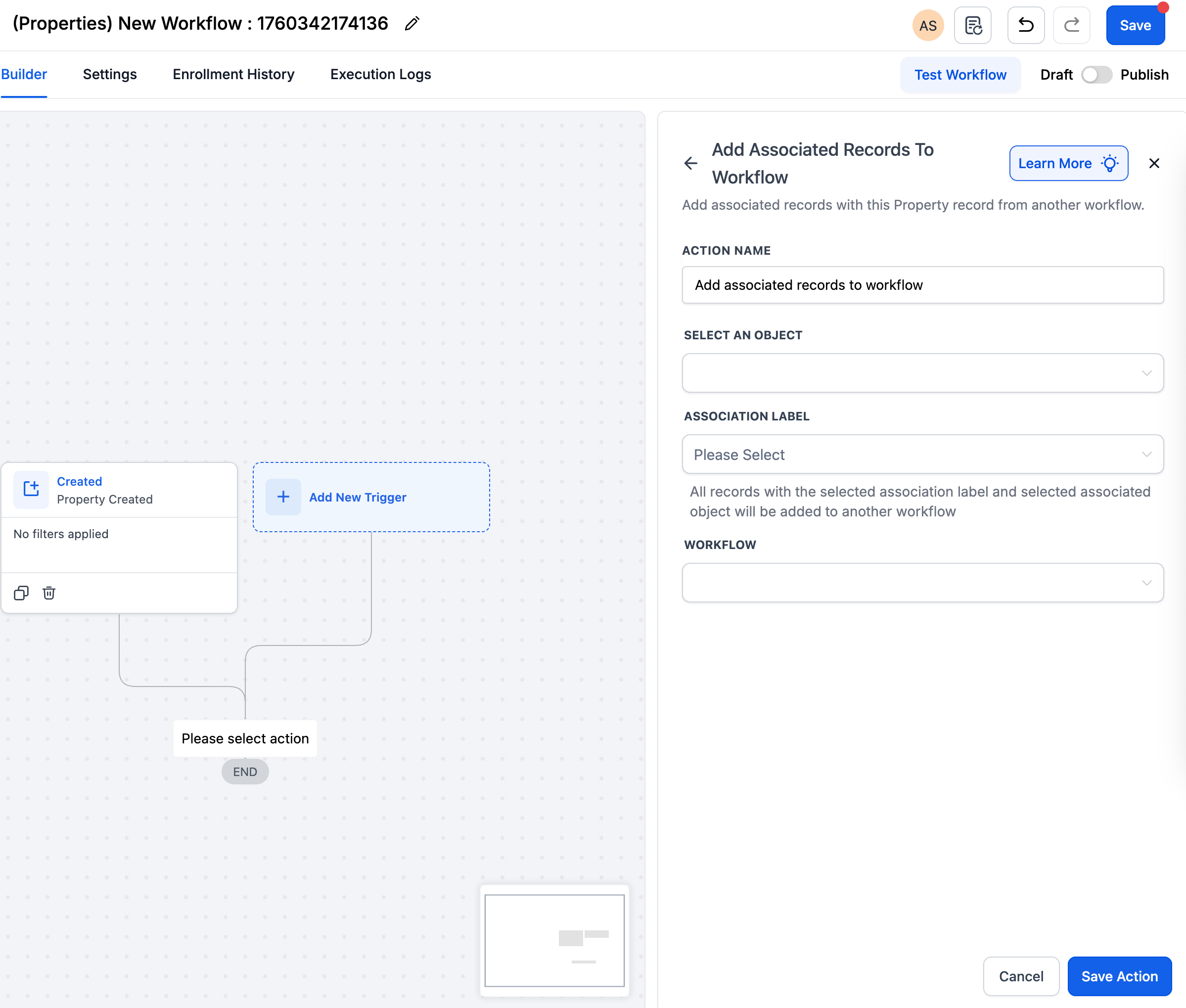
Step 1: Add Associated Records to Workflow
Open your Workflow and select Add Associated Records to Workflow.
Select the Object Type: Contact, Company, or Custom Object.
Filter by Association Label (e.g., Buyer, Account Owner).
Choose the Target Workflow where associated records should be enrolled.
Example: Enroll all Dealers linked to a Car object into the “Dealer Notification Workflow” when status is updated.
Step 2: Remove Associated Records from Workflow
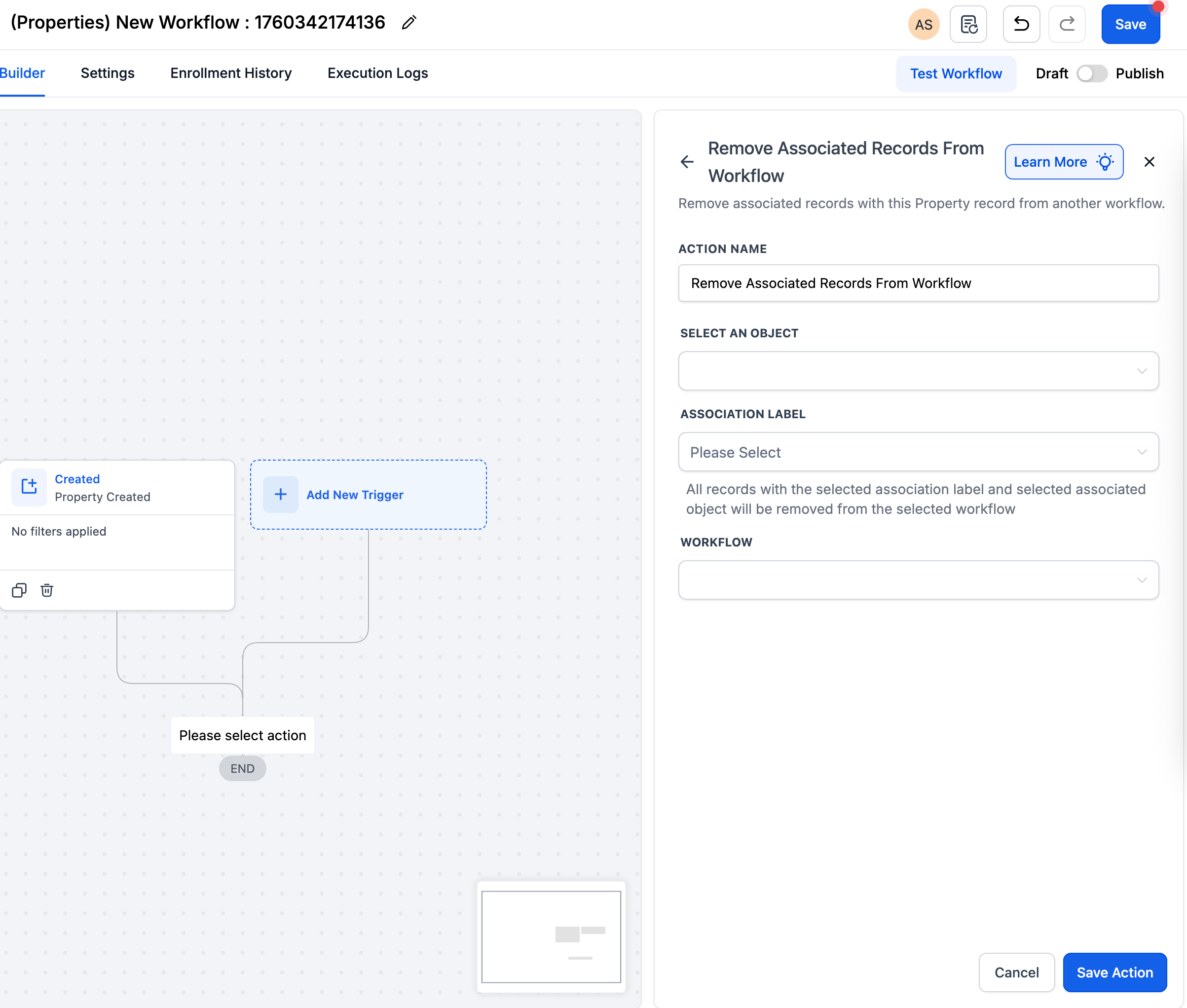
Open your Workflow and select Remove Associated Records from Workflow.
Target the associated Contacts, Companies, or Custom Objects.
Filter by the appropriate Association Label.
Specify the Workflow from which to remove them.
Example: Remove all Buyers associated with a Property record marked Sold from the “Active Listings Workflow.”
Step 3: Find Object Record / Find Company
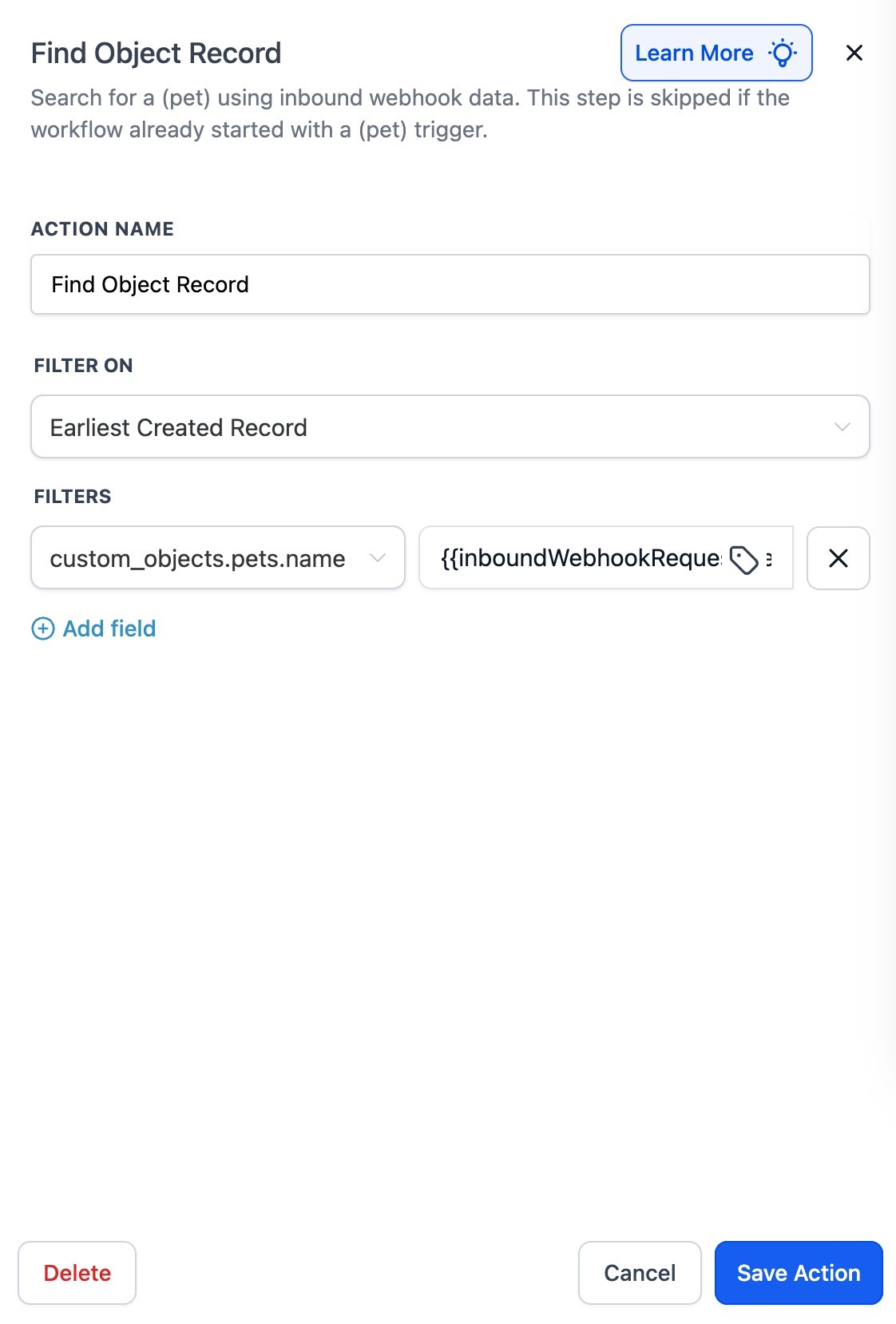
Use Find Object Record / Find Company to locate records by Record ID, External ID, or field filters.
Support dynamic values from inbound webhooks for real-time automation.
Choose how to handle multiple matches: Earliest, Latest, or All.
Branch logic depending on Record Found vs Record Not Found.
Example: Find the Company record corresponding to { "companyDomain": "acme.com" } in a webhook payload and enroll it in a workflow.
Best Practices
Use Association Labels to precisely control which related records are affected.
When targeting multiple labels, use separate Add/Remove actions per label.
Leverage branching logic to handle cases when a record is not found.
Test workflows with a small batch of records before scaling to production.
Maintain clean workflows by removing obsolete or inactive associations.
Frequently Asked Questions
Q: What’s the difference between “Add to Workflow” and “Add Associated Records to Workflow”?
Add to Workflow enrolls the triggering record only.
Add Associated Records to Workflow enrolls other records linked via associations, filtered by label.
Q: Can I target more than one Association Label at a time?
No, each action handles one label. Use multiple actions for multiple labels.
Q: How do Earliest / Latest / All affect the Find action?
Earliest or Latest processes a single best match.
All applies the downstream workflow steps to all matches.
Next Steps
Identify B2B processes or Custom Objects where related records should be automated.
Set up workflows using Add/Remove Associated Records or Find Object actions.
Test workflows on a small set of records before scaling.
Train your team on how associations and labels control workflow behavior.
Monitor workflow execution logs to maintain CRM integrity and data consistency.

Latest Blog Posts
How To Automate Relationships Between Contacts, Companies, and Custom Objects in Tekmatix
How To Automate Relationships Between Contacts, Companies, and Custom Objects in Tekmatix
Managing complex B2B processes often involves multiple records that are interconnected Contacts, Companies, and Custom Objects. With Tekmatix’s Custom Object and Company-Based Workflow Actions & Triggers, you can automate actions across these linked records, ensuring precise, data-driven automation without manual intervention.
This guide explains how to use these powerful workflow actions, with a sample scenario to demonstrate real-world application.
Why These Workflow Actions Matter
In traditional workflows, automation only affects the record that triggers it. With Custom Object and Company-Based Actions & Triggers in Tekmatix, you can:
Automate across associations: Enroll, update, or remove related Contacts, Companies, or Custom Objects.
Target relationships precisely: Use Association Labels, Record IDs, External IDs, or field filters.
Handle complex logic: Branch workflows depending on whether a related record is found or not.
Maintain operational control: Start or stop workflows for associated records automatically based on real-time events.
These capabilities make B2B automation smarter, reducing manual work and improving data consistency.
Sample Scenario
Scenario:
A car dealership manages multiple vehicles (Custom Objects) and associated buyers (Contacts). When a vehicle is ready for sale, the dealership wants to notify all associated buyers and assign follow-up tasks—but once sold, buyers should no longer receive notifications.
Solution with Tekmatix:
Vehicle Status Update: When a Car record changes to “Ready for Sale,” use Add Associated Records to Workflow to enroll all associated buyers in a “Vehicle Notification Workflow.”
Sold Vehicle: When the Car is marked “Sold,” use Remove Associated Records from Workflow to automatically unenroll buyers from the workflow.
Webhook Integration: If an inbound system posts { "companyDomain": "acme.com" }, use Find Object Record / Find Company to locate the Company record and enroll it in a workflow automatically.
Result: Buyers receive timely notifications, workflows remain clean, and no manual updates are needed.
Step-By-Step Guide to Using Custom Object & Company-Based Workflow Actions
Step 1: Add Associated Records to Workflow
Open your Workflow and select Add Associated Records to Workflow.
Select the Object Type: Contact, Company, or Custom Object.
Filter by Association Label (e.g., Buyer, Account Owner).
Choose the Target Workflow where associated records should be enrolled.
Example: Enroll all Dealers linked to a Car object into the “Dealer Notification Workflow” when status is updated.
Step 2: Remove Associated Records from Workflow
Open your Workflow and select Remove Associated Records from Workflow.
Target the associated Contacts, Companies, or Custom Objects.
Filter by the appropriate Association Label.
Specify the Workflow from which to remove them.
Example: Remove all Buyers associated with a Property record marked Sold from the “Active Listings Workflow.”
Step 3: Find Object Record / Find Company
Use Find Object Record / Find Company to locate records by Record ID, External ID, or field filters.
Support dynamic values from inbound webhooks for real-time automation.
Choose how to handle multiple matches: Earliest, Latest, or All.
Branch logic depending on Record Found vs Record Not Found.
Example: Find the Company record corresponding to { "companyDomain": "acme.com" } in a webhook payload and enroll it in a workflow.
Best Practices
Use Association Labels to precisely control which related records are affected.
When targeting multiple labels, use separate Add/Remove actions per label.
Leverage branching logic to handle cases when a record is not found.
Test workflows with a small batch of records before scaling to production.
Maintain clean workflows by removing obsolete or inactive associations.
Frequently Asked Questions
Q: What’s the difference between “Add to Workflow” and “Add Associated Records to Workflow”?
Add to Workflow enrolls the triggering record only.
Add Associated Records to Workflow enrolls other records linked via associations, filtered by label.
Q: Can I target more than one Association Label at a time?
No, each action handles one label. Use multiple actions for multiple labels.
Q: How do Earliest / Latest / All affect the Find action?
Earliest or Latest processes a single best match.
All applies the downstream workflow steps to all matches.
Next Steps
Identify B2B processes or Custom Objects where related records should be automated.
Set up workflows using Add/Remove Associated Records or Find Object actions.
Test workflows on a small set of records before scaling.
Train your team on how associations and labels control workflow behavior.
Monitor workflow execution logs to maintain CRM integrity and data consistency.
Marketing
How To Automate Relationships Between Contacts, Companies, and Custom Objects in Tekmatix
How To Automate Relationships Between Contacts, Companies, and Custom Objects in Tekmatix
Managing complex B2B processes often involves multiple records that are interconnected Contacts, Companies, and Custom Objects. With Tekmatix’s Custom Object and Company-Based Workflow Actions & Triggers, you can automate actions across these linked records, ensuring precise, data-driven automation without manual intervention.
This guide explains how to use these powerful workflow actions, with a sample scenario to demonstrate real-world application.
Why These Workflow Actions Matter
In traditional workflows, automation only affects the record that triggers it. With Custom Object and Company-Based Actions & Triggers in Tekmatix, you can:
Automate across associations: Enroll, update, or remove related Contacts, Companies, or Custom Objects.
Target relationships precisely: Use Association Labels, Record IDs, External IDs, or field filters.
Handle complex logic: Branch workflows depending on whether a related record is found or not.
Maintain operational control: Start or stop workflows for associated records automatically based on real-time events.
These capabilities make B2B automation smarter, reducing manual work and improving data consistency.
Sample Scenario
Scenario:
A car dealership manages multiple vehicles (Custom Objects) and associated buyers (Contacts). When a vehicle is ready for sale, the dealership wants to notify all associated buyers and assign follow-up tasks—but once sold, buyers should no longer receive notifications.
Solution with Tekmatix:
Vehicle Status Update: When a Car record changes to “Ready for Sale,” use Add Associated Records to Workflow to enroll all associated buyers in a “Vehicle Notification Workflow.”
Sold Vehicle: When the Car is marked “Sold,” use Remove Associated Records from Workflow to automatically unenroll buyers from the workflow.
Webhook Integration: If an inbound system posts { "companyDomain": "acme.com" }, use Find Object Record / Find Company to locate the Company record and enroll it in a workflow automatically.
Result: Buyers receive timely notifications, workflows remain clean, and no manual updates are needed.
Step-By-Step Guide to Using Custom Object & Company-Based Workflow Actions
Step 1: Add Associated Records to Workflow
Open your Workflow and select Add Associated Records to Workflow.
Select the Object Type: Contact, Company, or Custom Object.
Filter by Association Label (e.g., Buyer, Account Owner).
Choose the Target Workflow where associated records should be enrolled.
Example: Enroll all Dealers linked to a Car object into the “Dealer Notification Workflow” when status is updated.
Step 2: Remove Associated Records from Workflow
Open your Workflow and select Remove Associated Records from Workflow.
Target the associated Contacts, Companies, or Custom Objects.
Filter by the appropriate Association Label.
Specify the Workflow from which to remove them.
Example: Remove all Buyers associated with a Property record marked Sold from the “Active Listings Workflow.”
Step 3: Find Object Record / Find Company
Use Find Object Record / Find Company to locate records by Record ID, External ID, or field filters.
Support dynamic values from inbound webhooks for real-time automation.
Choose how to handle multiple matches: Earliest, Latest, or All.
Branch logic depending on Record Found vs Record Not Found.
Example: Find the Company record corresponding to { "companyDomain": "acme.com" } in a webhook payload and enroll it in a workflow.
Best Practices
Use Association Labels to precisely control which related records are affected.
When targeting multiple labels, use separate Add/Remove actions per label.
Leverage branching logic to handle cases when a record is not found.
Test workflows with a small batch of records before scaling to production.
Maintain clean workflows by removing obsolete or inactive associations.
Frequently Asked Questions
Q: What’s the difference between “Add to Workflow” and “Add Associated Records to Workflow”?
Add to Workflow enrolls the triggering record only.
Add Associated Records to Workflow enrolls other records linked via associations, filtered by label.
Q: Can I target more than one Association Label at a time?
No, each action handles one label. Use multiple actions for multiple labels.
Q: How do Earliest / Latest / All affect the Find action?
Earliest or Latest processes a single best match.
All applies the downstream workflow steps to all matches.
Next Steps
Identify B2B processes or Custom Objects where related records should be automated.
Set up workflows using Add/Remove Associated Records or Find Object actions.
Test workflows on a small set of records before scaling.
Train your team on how associations and labels control workflow behavior.
Monitor workflow execution logs to maintain CRM integrity and data consistency.
How To Automate Relationships Between Contacts, Companies, and Custom Objects in Tekmatix
How To Automate Relationships Between Contacts, Companies, and Custom Objects in Tekmatix
Managing complex B2B processes often involves multiple records that are interconnected Contacts, Companies, and Custom Objects. With Tekmatix’s Custom Object and Company-Based Workflow Actions & Triggers, you can automate actions across these linked records, ensuring precise, data-driven automation without manual intervention.
This guide explains how to use these powerful workflow actions, with a sample scenario to demonstrate real-world application.
Why These Workflow Actions Matter
In traditional workflows, automation only affects the record that triggers it. With Custom Object and Company-Based Actions & Triggers in Tekmatix, you can:
Automate across associations: Enroll, update, or remove related Contacts, Companies, or Custom Objects.
Target relationships precisely: Use Association Labels, Record IDs, External IDs, or field filters.
Handle complex logic: Branch workflows depending on whether a related record is found or not.
Maintain operational control: Start or stop workflows for associated records automatically based on real-time events.
These capabilities make B2B automation smarter, reducing manual work and improving data consistency.
Sample Scenario
Scenario:
A car dealership manages multiple vehicles (Custom Objects) and associated buyers (Contacts). When a vehicle is ready for sale, the dealership wants to notify all associated buyers and assign follow-up tasks—but once sold, buyers should no longer receive notifications.
Solution with Tekmatix:
Vehicle Status Update: When a Car record changes to “Ready for Sale,” use Add Associated Records to Workflow to enroll all associated buyers in a “Vehicle Notification Workflow.”
Sold Vehicle: When the Car is marked “Sold,” use Remove Associated Records from Workflow to automatically unenroll buyers from the workflow.
Webhook Integration: If an inbound system posts { "companyDomain": "acme.com" }, use Find Object Record / Find Company to locate the Company record and enroll it in a workflow automatically.
Result: Buyers receive timely notifications, workflows remain clean, and no manual updates are needed.
Step-By-Step Guide to Using Custom Object & Company-Based Workflow Actions
Step 1: Add Associated Records to Workflow
Open your Workflow and select Add Associated Records to Workflow.
Select the Object Type: Contact, Company, or Custom Object.
Filter by Association Label (e.g., Buyer, Account Owner).
Choose the Target Workflow where associated records should be enrolled.
Example: Enroll all Dealers linked to a Car object into the “Dealer Notification Workflow” when status is updated.
Step 2: Remove Associated Records from Workflow
Open your Workflow and select Remove Associated Records from Workflow.
Target the associated Contacts, Companies, or Custom Objects.
Filter by the appropriate Association Label.
Specify the Workflow from which to remove them.
Example: Remove all Buyers associated with a Property record marked Sold from the “Active Listings Workflow.”
Step 3: Find Object Record / Find Company
Use Find Object Record / Find Company to locate records by Record ID, External ID, or field filters.
Support dynamic values from inbound webhooks for real-time automation.
Choose how to handle multiple matches: Earliest, Latest, or All.
Branch logic depending on Record Found vs Record Not Found.
Example: Find the Company record corresponding to { "companyDomain": "acme.com" } in a webhook payload and enroll it in a workflow.
Best Practices
Use Association Labels to precisely control which related records are affected.
When targeting multiple labels, use separate Add/Remove actions per label.
Leverage branching logic to handle cases when a record is not found.
Test workflows with a small batch of records before scaling to production.
Maintain clean workflows by removing obsolete or inactive associations.
Frequently Asked Questions
Q: What’s the difference between “Add to Workflow” and “Add Associated Records to Workflow”?
Add to Workflow enrolls the triggering record only.
Add Associated Records to Workflow enrolls other records linked via associations, filtered by label.
Q: Can I target more than one Association Label at a time?
No, each action handles one label. Use multiple actions for multiple labels.
Q: How do Earliest / Latest / All affect the Find action?
Earliest or Latest processes a single best match.
All applies the downstream workflow steps to all matches.
Next Steps
Identify B2B processes or Custom Objects where related records should be automated.
Set up workflows using Add/Remove Associated Records or Find Object actions.
Test workflows on a small set of records before scaling.
Train your team on how associations and labels control workflow behavior.
Monitor workflow execution logs to maintain CRM integrity and data consistency.
CRM
How To Automate Relationships Between Contacts, Companies, and Custom Objects in Tekmatix
How To Automate Relationships Between Contacts, Companies, and Custom Objects in Tekmatix
Managing complex B2B processes often involves multiple records that are interconnected Contacts, Companies, and Custom Objects. With Tekmatix’s Custom Object and Company-Based Workflow Actions & Triggers, you can automate actions across these linked records, ensuring precise, data-driven automation without manual intervention.
This guide explains how to use these powerful workflow actions, with a sample scenario to demonstrate real-world application.
Why These Workflow Actions Matter
In traditional workflows, automation only affects the record that triggers it. With Custom Object and Company-Based Actions & Triggers in Tekmatix, you can:
Automate across associations: Enroll, update, or remove related Contacts, Companies, or Custom Objects.
Target relationships precisely: Use Association Labels, Record IDs, External IDs, or field filters.
Handle complex logic: Branch workflows depending on whether a related record is found or not.
Maintain operational control: Start or stop workflows for associated records automatically based on real-time events.
These capabilities make B2B automation smarter, reducing manual work and improving data consistency.
Sample Scenario
Scenario:
A car dealership manages multiple vehicles (Custom Objects) and associated buyers (Contacts). When a vehicle is ready for sale, the dealership wants to notify all associated buyers and assign follow-up tasks—but once sold, buyers should no longer receive notifications.
Solution with Tekmatix:
Vehicle Status Update: When a Car record changes to “Ready for Sale,” use Add Associated Records to Workflow to enroll all associated buyers in a “Vehicle Notification Workflow.”
Sold Vehicle: When the Car is marked “Sold,” use Remove Associated Records from Workflow to automatically unenroll buyers from the workflow.
Webhook Integration: If an inbound system posts { "companyDomain": "acme.com" }, use Find Object Record / Find Company to locate the Company record and enroll it in a workflow automatically.
Result: Buyers receive timely notifications, workflows remain clean, and no manual updates are needed.
Step-By-Step Guide to Using Custom Object & Company-Based Workflow Actions
Step 1: Add Associated Records to Workflow
Open your Workflow and select Add Associated Records to Workflow.
Select the Object Type: Contact, Company, or Custom Object.
Filter by Association Label (e.g., Buyer, Account Owner).
Choose the Target Workflow where associated records should be enrolled.
Example: Enroll all Dealers linked to a Car object into the “Dealer Notification Workflow” when status is updated.
Step 2: Remove Associated Records from Workflow
Open your Workflow and select Remove Associated Records from Workflow.
Target the associated Contacts, Companies, or Custom Objects.
Filter by the appropriate Association Label.
Specify the Workflow from which to remove them.
Example: Remove all Buyers associated with a Property record marked Sold from the “Active Listings Workflow.”
Step 3: Find Object Record / Find Company
Use Find Object Record / Find Company to locate records by Record ID, External ID, or field filters.
Support dynamic values from inbound webhooks for real-time automation.
Choose how to handle multiple matches: Earliest, Latest, or All.
Branch logic depending on Record Found vs Record Not Found.
Example: Find the Company record corresponding to { "companyDomain": "acme.com" } in a webhook payload and enroll it in a workflow.
Best Practices
Use Association Labels to precisely control which related records are affected.
When targeting multiple labels, use separate Add/Remove actions per label.
Leverage branching logic to handle cases when a record is not found.
Test workflows with a small batch of records before scaling to production.
Maintain clean workflows by removing obsolete or inactive associations.
Frequently Asked Questions
Q: What’s the difference between “Add to Workflow” and “Add Associated Records to Workflow”?
Add to Workflow enrolls the triggering record only.
Add Associated Records to Workflow enrolls other records linked via associations, filtered by label.
Q: Can I target more than one Association Label at a time?
No, each action handles one label. Use multiple actions for multiple labels.
Q: How do Earliest / Latest / All affect the Find action?
Earliest or Latest processes a single best match.
All applies the downstream workflow steps to all matches.
Next Steps
Identify B2B processes or Custom Objects where related records should be automated.
Set up workflows using Add/Remove Associated Records or Find Object actions.
Test workflows on a small set of records before scaling.
Train your team on how associations and labels control workflow behavior.
Monitor workflow execution logs to maintain CRM integrity and data consistency.
How To Automate Relationships Between Contacts, Companies, and Custom Objects in Tekmatix
How To Automate Relationships Between Contacts, Companies, and Custom Objects in Tekmatix
Managing complex B2B processes often involves multiple records that are interconnected Contacts, Companies, and Custom Objects. With Tekmatix’s Custom Object and Company-Based Workflow Actions & Triggers, you can automate actions across these linked records, ensuring precise, data-driven automation without manual intervention.
This guide explains how to use these powerful workflow actions, with a sample scenario to demonstrate real-world application.
Why These Workflow Actions Matter
In traditional workflows, automation only affects the record that triggers it. With Custom Object and Company-Based Actions & Triggers in Tekmatix, you can:
Automate across associations: Enroll, update, or remove related Contacts, Companies, or Custom Objects.
Target relationships precisely: Use Association Labels, Record IDs, External IDs, or field filters.
Handle complex logic: Branch workflows depending on whether a related record is found or not.
Maintain operational control: Start or stop workflows for associated records automatically based on real-time events.
These capabilities make B2B automation smarter, reducing manual work and improving data consistency.
Sample Scenario
Scenario:
A car dealership manages multiple vehicles (Custom Objects) and associated buyers (Contacts). When a vehicle is ready for sale, the dealership wants to notify all associated buyers and assign follow-up tasks—but once sold, buyers should no longer receive notifications.
Solution with Tekmatix:
Vehicle Status Update: When a Car record changes to “Ready for Sale,” use Add Associated Records to Workflow to enroll all associated buyers in a “Vehicle Notification Workflow.”
Sold Vehicle: When the Car is marked “Sold,” use Remove Associated Records from Workflow to automatically unenroll buyers from the workflow.
Webhook Integration: If an inbound system posts { "companyDomain": "acme.com" }, use Find Object Record / Find Company to locate the Company record and enroll it in a workflow automatically.
Result: Buyers receive timely notifications, workflows remain clean, and no manual updates are needed.
Step-By-Step Guide to Using Custom Object & Company-Based Workflow Actions
Step 1: Add Associated Records to Workflow
Open your Workflow and select Add Associated Records to Workflow.
Select the Object Type: Contact, Company, or Custom Object.
Filter by Association Label (e.g., Buyer, Account Owner).
Choose the Target Workflow where associated records should be enrolled.
Example: Enroll all Dealers linked to a Car object into the “Dealer Notification Workflow” when status is updated.
Step 2: Remove Associated Records from Workflow
Open your Workflow and select Remove Associated Records from Workflow.
Target the associated Contacts, Companies, or Custom Objects.
Filter by the appropriate Association Label.
Specify the Workflow from which to remove them.
Example: Remove all Buyers associated with a Property record marked Sold from the “Active Listings Workflow.”
Step 3: Find Object Record / Find Company
Use Find Object Record / Find Company to locate records by Record ID, External ID, or field filters.
Support dynamic values from inbound webhooks for real-time automation.
Choose how to handle multiple matches: Earliest, Latest, or All.
Branch logic depending on Record Found vs Record Not Found.
Example: Find the Company record corresponding to { "companyDomain": "acme.com" } in a webhook payload and enroll it in a workflow.
Best Practices
Use Association Labels to precisely control which related records are affected.
When targeting multiple labels, use separate Add/Remove actions per label.
Leverage branching logic to handle cases when a record is not found.
Test workflows with a small batch of records before scaling to production.
Maintain clean workflows by removing obsolete or inactive associations.
Frequently Asked Questions
Q: What’s the difference between “Add to Workflow” and “Add Associated Records to Workflow”?
Add to Workflow enrolls the triggering record only.
Add Associated Records to Workflow enrolls other records linked via associations, filtered by label.
Q: Can I target more than one Association Label at a time?
No, each action handles one label. Use multiple actions for multiple labels.
Q: How do Earliest / Latest / All affect the Find action?
Earliest or Latest processes a single best match.
All applies the downstream workflow steps to all matches.
Next Steps
Identify B2B processes or Custom Objects where related records should be automated.
Set up workflows using Add/Remove Associated Records or Find Object actions.
Test workflows on a small set of records before scaling.
Train your team on how associations and labels control workflow behavior.
Monitor workflow execution logs to maintain CRM integrity and data consistency.
Join The TekMatix Newsletter
Get sent regular tech and business growth tips.
Web Design
How To Automate Relationships Between Contacts, Companies, and Custom Objects in Tekmatix
How To Automate Relationships Between Contacts, Companies, and Custom Objects in Tekmatix
Managing complex B2B processes often involves multiple records that are interconnected Contacts, Companies, and Custom Objects. With Tekmatix’s Custom Object and Company-Based Workflow Actions & Triggers, you can automate actions across these linked records, ensuring precise, data-driven automation without manual intervention.
This guide explains how to use these powerful workflow actions, with a sample scenario to demonstrate real-world application.
Why These Workflow Actions Matter
In traditional workflows, automation only affects the record that triggers it. With Custom Object and Company-Based Actions & Triggers in Tekmatix, you can:
Automate across associations: Enroll, update, or remove related Contacts, Companies, or Custom Objects.
Target relationships precisely: Use Association Labels, Record IDs, External IDs, or field filters.
Handle complex logic: Branch workflows depending on whether a related record is found or not.
Maintain operational control: Start or stop workflows for associated records automatically based on real-time events.
These capabilities make B2B automation smarter, reducing manual work and improving data consistency.
Sample Scenario
Scenario:
A car dealership manages multiple vehicles (Custom Objects) and associated buyers (Contacts). When a vehicle is ready for sale, the dealership wants to notify all associated buyers and assign follow-up tasks—but once sold, buyers should no longer receive notifications.
Solution with Tekmatix:
Vehicle Status Update: When a Car record changes to “Ready for Sale,” use Add Associated Records to Workflow to enroll all associated buyers in a “Vehicle Notification Workflow.”
Sold Vehicle: When the Car is marked “Sold,” use Remove Associated Records from Workflow to automatically unenroll buyers from the workflow.
Webhook Integration: If an inbound system posts { "companyDomain": "acme.com" }, use Find Object Record / Find Company to locate the Company record and enroll it in a workflow automatically.
Result: Buyers receive timely notifications, workflows remain clean, and no manual updates are needed.
Step-By-Step Guide to Using Custom Object & Company-Based Workflow Actions
Step 1: Add Associated Records to Workflow
Open your Workflow and select Add Associated Records to Workflow.
Select the Object Type: Contact, Company, or Custom Object.
Filter by Association Label (e.g., Buyer, Account Owner).
Choose the Target Workflow where associated records should be enrolled.
Example: Enroll all Dealers linked to a Car object into the “Dealer Notification Workflow” when status is updated.
Step 2: Remove Associated Records from Workflow
Open your Workflow and select Remove Associated Records from Workflow.
Target the associated Contacts, Companies, or Custom Objects.
Filter by the appropriate Association Label.
Specify the Workflow from which to remove them.
Example: Remove all Buyers associated with a Property record marked Sold from the “Active Listings Workflow.”
Step 3: Find Object Record / Find Company
Use Find Object Record / Find Company to locate records by Record ID, External ID, or field filters.
Support dynamic values from inbound webhooks for real-time automation.
Choose how to handle multiple matches: Earliest, Latest, or All.
Branch logic depending on Record Found vs Record Not Found.
Example: Find the Company record corresponding to { "companyDomain": "acme.com" } in a webhook payload and enroll it in a workflow.
Best Practices
Use Association Labels to precisely control which related records are affected.
When targeting multiple labels, use separate Add/Remove actions per label.
Leverage branching logic to handle cases when a record is not found.
Test workflows with a small batch of records before scaling to production.
Maintain clean workflows by removing obsolete or inactive associations.
Frequently Asked Questions
Q: What’s the difference between “Add to Workflow” and “Add Associated Records to Workflow”?
Add to Workflow enrolls the triggering record only.
Add Associated Records to Workflow enrolls other records linked via associations, filtered by label.
Q: Can I target more than one Association Label at a time?
No, each action handles one label. Use multiple actions for multiple labels.
Q: How do Earliest / Latest / All affect the Find action?
Earliest or Latest processes a single best match.
All applies the downstream workflow steps to all matches.
Next Steps
Identify B2B processes or Custom Objects where related records should be automated.
Set up workflows using Add/Remove Associated Records or Find Object actions.
Test workflows on a small set of records before scaling.
Train your team on how associations and labels control workflow behavior.
Monitor workflow execution logs to maintain CRM integrity and data consistency.
How To Automate Relationships Between Contacts, Companies, and Custom Objects in Tekmatix
How To Automate Relationships Between Contacts, Companies, and Custom Objects in Tekmatix
Managing complex B2B processes often involves multiple records that are interconnected Contacts, Companies, and Custom Objects. With Tekmatix’s Custom Object and Company-Based Workflow Actions & Triggers, you can automate actions across these linked records, ensuring precise, data-driven automation without manual intervention.
This guide explains how to use these powerful workflow actions, with a sample scenario to demonstrate real-world application.
Why These Workflow Actions Matter
In traditional workflows, automation only affects the record that triggers it. With Custom Object and Company-Based Actions & Triggers in Tekmatix, you can:
Automate across associations: Enroll, update, or remove related Contacts, Companies, or Custom Objects.
Target relationships precisely: Use Association Labels, Record IDs, External IDs, or field filters.
Handle complex logic: Branch workflows depending on whether a related record is found or not.
Maintain operational control: Start or stop workflows for associated records automatically based on real-time events.
These capabilities make B2B automation smarter, reducing manual work and improving data consistency.
Sample Scenario
Scenario:
A car dealership manages multiple vehicles (Custom Objects) and associated buyers (Contacts). When a vehicle is ready for sale, the dealership wants to notify all associated buyers and assign follow-up tasks—but once sold, buyers should no longer receive notifications.
Solution with Tekmatix:
Vehicle Status Update: When a Car record changes to “Ready for Sale,” use Add Associated Records to Workflow to enroll all associated buyers in a “Vehicle Notification Workflow.”
Sold Vehicle: When the Car is marked “Sold,” use Remove Associated Records from Workflow to automatically unenroll buyers from the workflow.
Webhook Integration: If an inbound system posts { "companyDomain": "acme.com" }, use Find Object Record / Find Company to locate the Company record and enroll it in a workflow automatically.
Result: Buyers receive timely notifications, workflows remain clean, and no manual updates are needed.
Step-By-Step Guide to Using Custom Object & Company-Based Workflow Actions
Step 1: Add Associated Records to Workflow
Open your Workflow and select Add Associated Records to Workflow.
Select the Object Type: Contact, Company, or Custom Object.
Filter by Association Label (e.g., Buyer, Account Owner).
Choose the Target Workflow where associated records should be enrolled.
Example: Enroll all Dealers linked to a Car object into the “Dealer Notification Workflow” when status is updated.
Step 2: Remove Associated Records from Workflow
Open your Workflow and select Remove Associated Records from Workflow.
Target the associated Contacts, Companies, or Custom Objects.
Filter by the appropriate Association Label.
Specify the Workflow from which to remove them.
Example: Remove all Buyers associated with a Property record marked Sold from the “Active Listings Workflow.”
Step 3: Find Object Record / Find Company
Use Find Object Record / Find Company to locate records by Record ID, External ID, or field filters.
Support dynamic values from inbound webhooks for real-time automation.
Choose how to handle multiple matches: Earliest, Latest, or All.
Branch logic depending on Record Found vs Record Not Found.
Example: Find the Company record corresponding to { "companyDomain": "acme.com" } in a webhook payload and enroll it in a workflow.
Best Practices
Use Association Labels to precisely control which related records are affected.
When targeting multiple labels, use separate Add/Remove actions per label.
Leverage branching logic to handle cases when a record is not found.
Test workflows with a small batch of records before scaling to production.
Maintain clean workflows by removing obsolete or inactive associations.
Frequently Asked Questions
Q: What’s the difference between “Add to Workflow” and “Add Associated Records to Workflow”?
Add to Workflow enrolls the triggering record only.
Add Associated Records to Workflow enrolls other records linked via associations, filtered by label.
Q: Can I target more than one Association Label at a time?
No, each action handles one label. Use multiple actions for multiple labels.
Q: How do Earliest / Latest / All affect the Find action?
Earliest or Latest processes a single best match.
All applies the downstream workflow steps to all matches.
Next Steps
Identify B2B processes or Custom Objects where related records should be automated.
Set up workflows using Add/Remove Associated Records or Find Object actions.
Test workflows on a small set of records before scaling.
Train your team on how associations and labels control workflow behavior.
Monitor workflow execution logs to maintain CRM integrity and data consistency.