
Use the search bar below to find help guides and articles for using Tekmatix

Embedding a Voice AI widget directly into your website or funnel allows you to create a natural, interactive experience for visitors. Unlike sticky or floating chat buttons, embedded widgets integrate directly into your page content perfect for hero sections, CTAs, or form blocks.
This guide shows you step-by-step how to set up an embedded Voice AI widget, optimize its appearance, and deploy it effectively on your Tekmatix website or funnel.
Seamless UX: Visitors interact with your AI chat without a floating pop-up interrupting their browsing experience.
Custom Placement: Place your widget exactly where you want it in your page layout.
Flexible Styling: Align the widget with your brand, messaging, and design.
Higher Engagement: Integrated placement often increases interaction rates compared to sticky buttons.
Scenario:
Your Tekmatix e-commerce site has a hero section highlighting a new product launch. You want visitors to ask questions directly under the product image without opening a separate chat window.
Solution:
Use the Embedded/Inline Voice AI widget and place it under the hero section.
Customize the button text to “Ask about this product”.
Deploy it via a code block in your funnel or website.
Outcome: Visitors interact naturally while exploring the product, increasing engagement and reducing bounce rates.
Go to Websites & Funnels > Chat Widget in your Tekmatix sub-account dashboard.
Open an existing widget or click + New.
Select Voice AI as the chat widget type.
You’ll see four main tabs: Style, Chat Window, Messaging, and Agent.


Navigate to the Style tab.
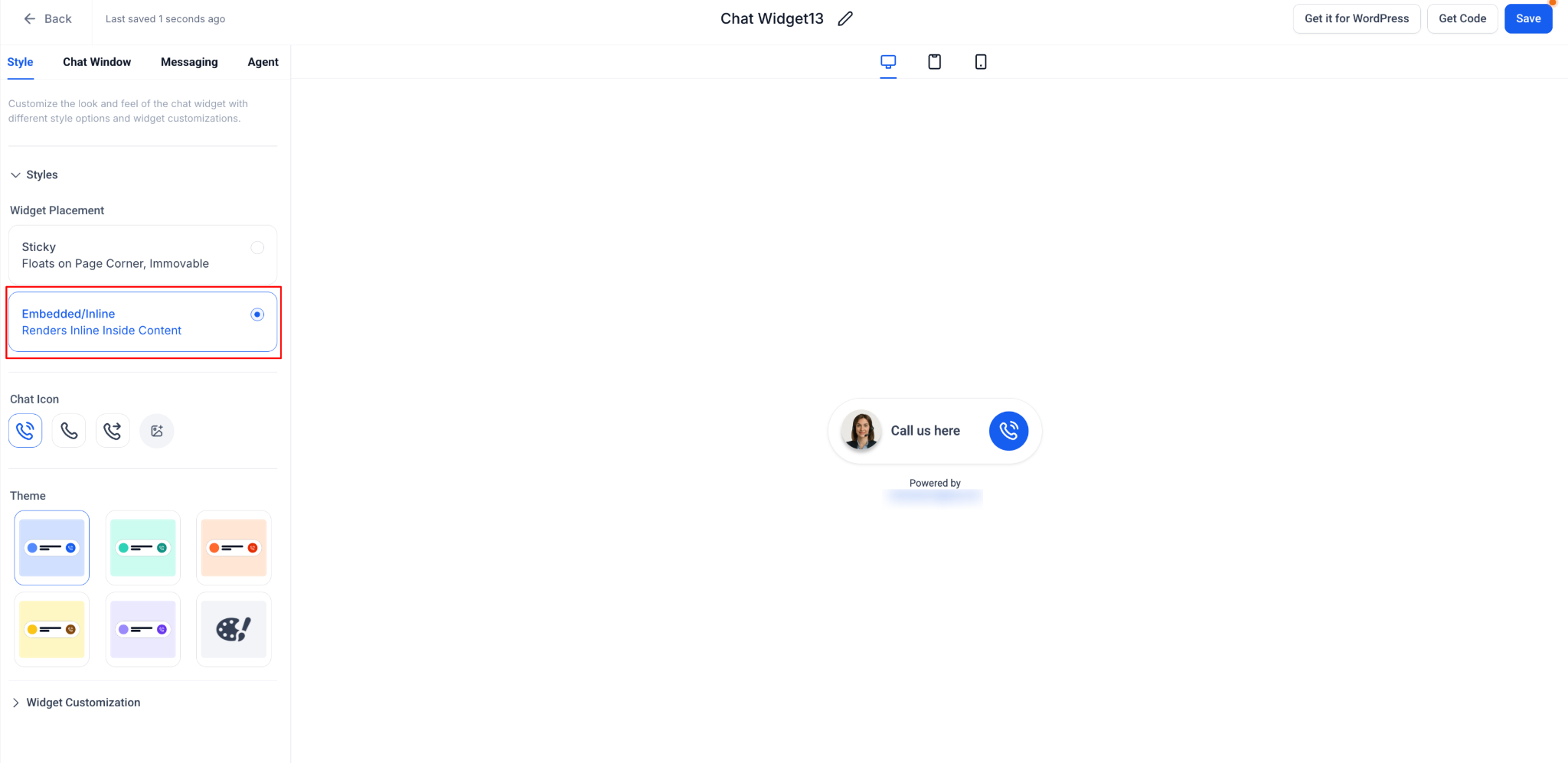
Open Widget Placement.
Select Embedded/Inline.
Notes:
The preview updates to show the widget inline.
Only Avatar and Theme styling options are shown.
Widget Position grid and Contact Form toggle are hidden since they don’t apply to embedded widgets.
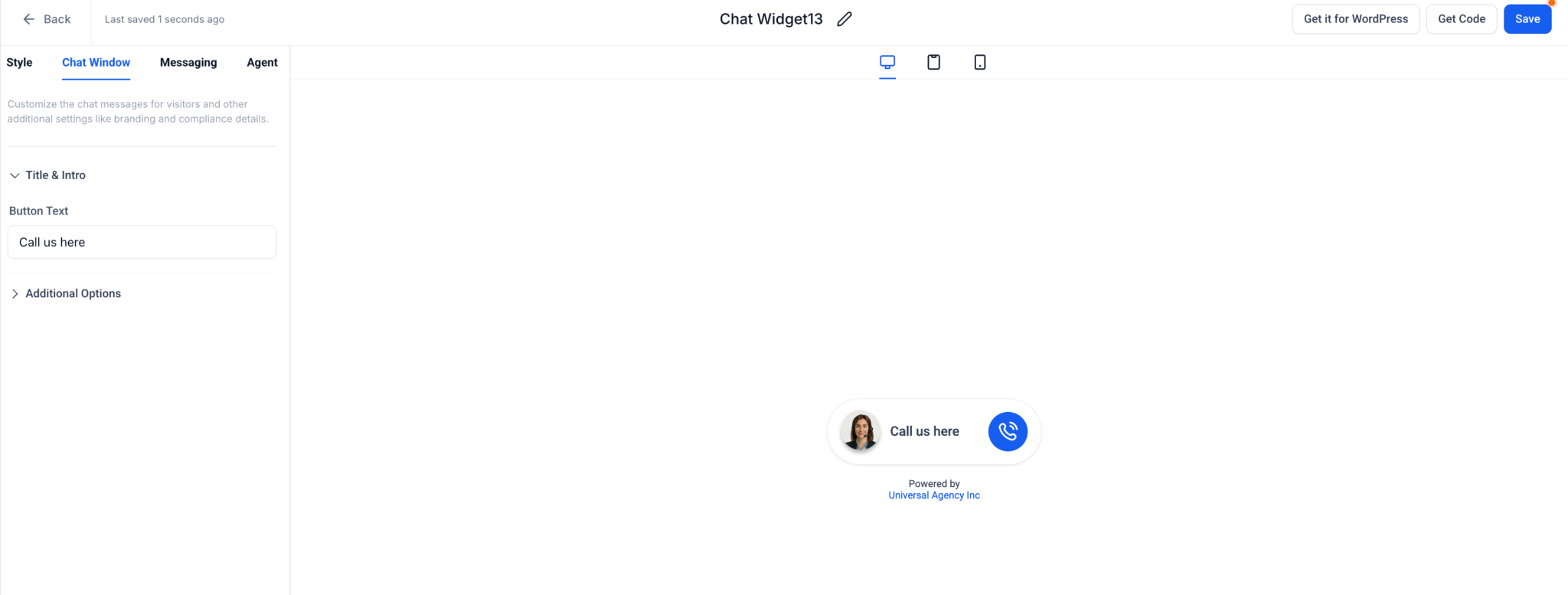
Go to the Chat Window tab.
Edit the Button Text (e.g., “Talk to our AI” or “Ask a Question”).
Optionally, adjust branding elements like business name or compliance footer.
Use the preview to ensure the design looks natural inline with your page.
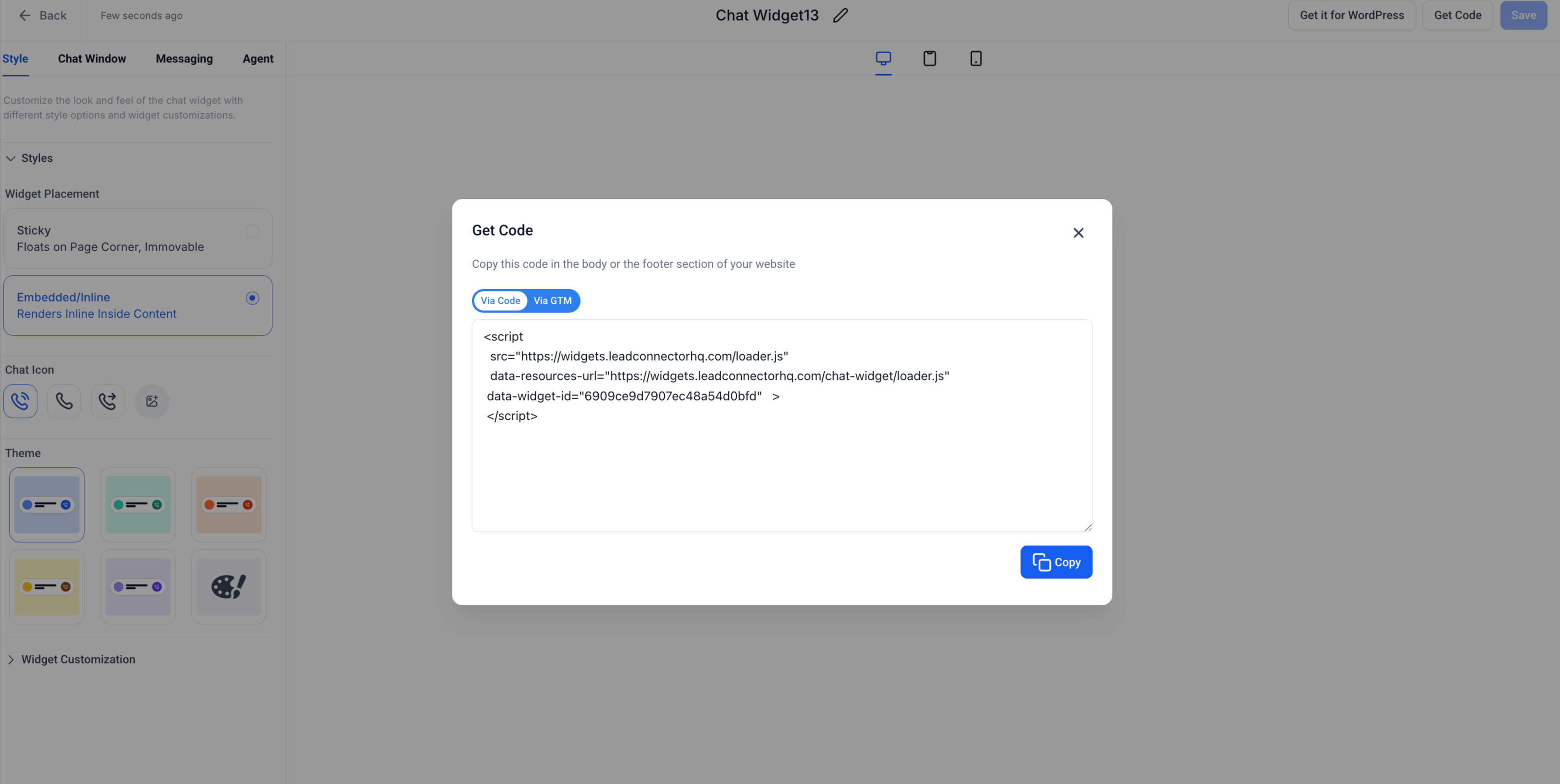
Click Get Code in the top-right corner.
Copy your unique Embed Code Snippet.
Navigate to the page or funnel where you want the widget.
Add a Code Block element:
For funnels: Websites & Funnels > Funnels > Edit Page → Quick Add > Custom > Code.
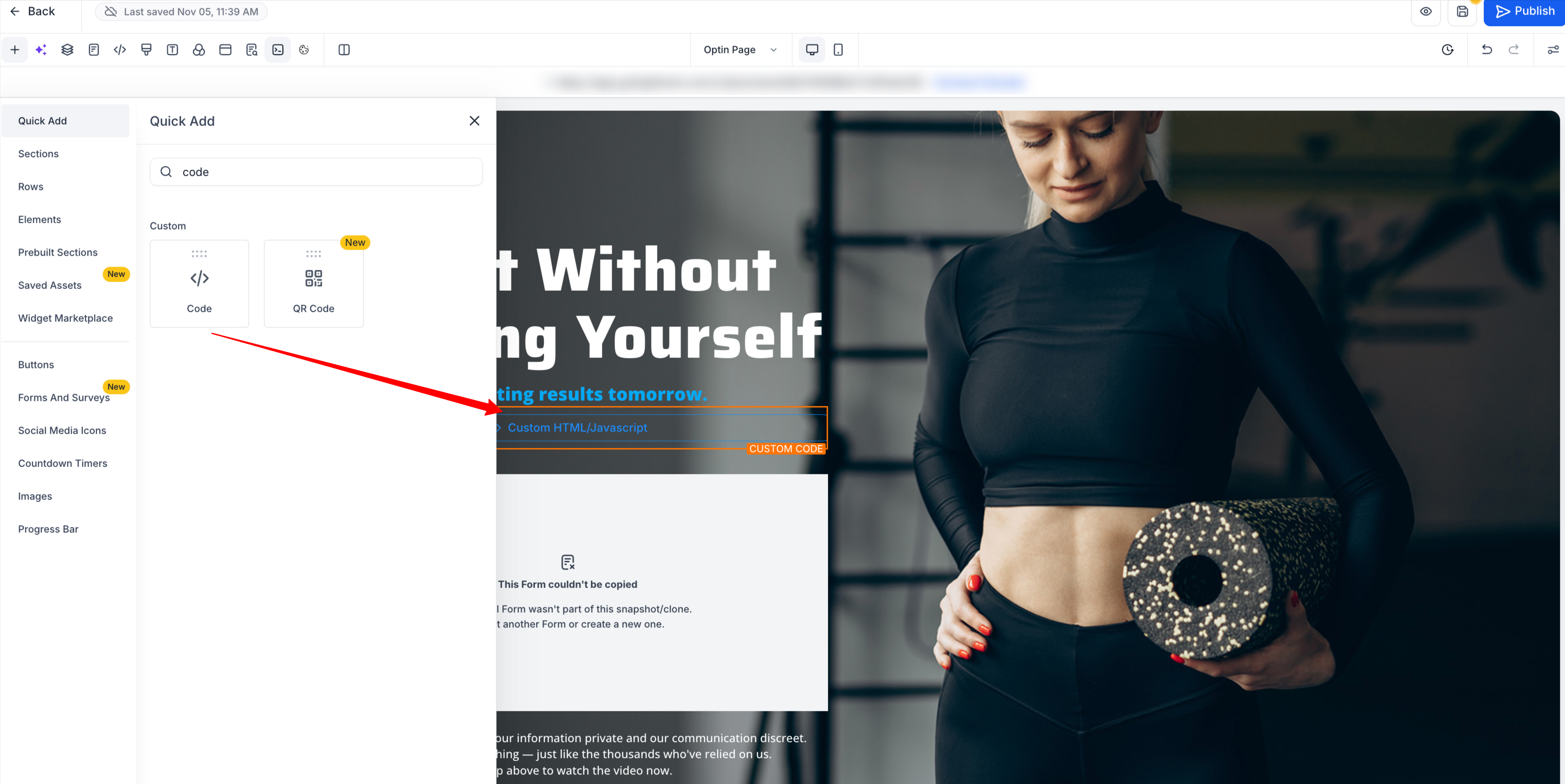
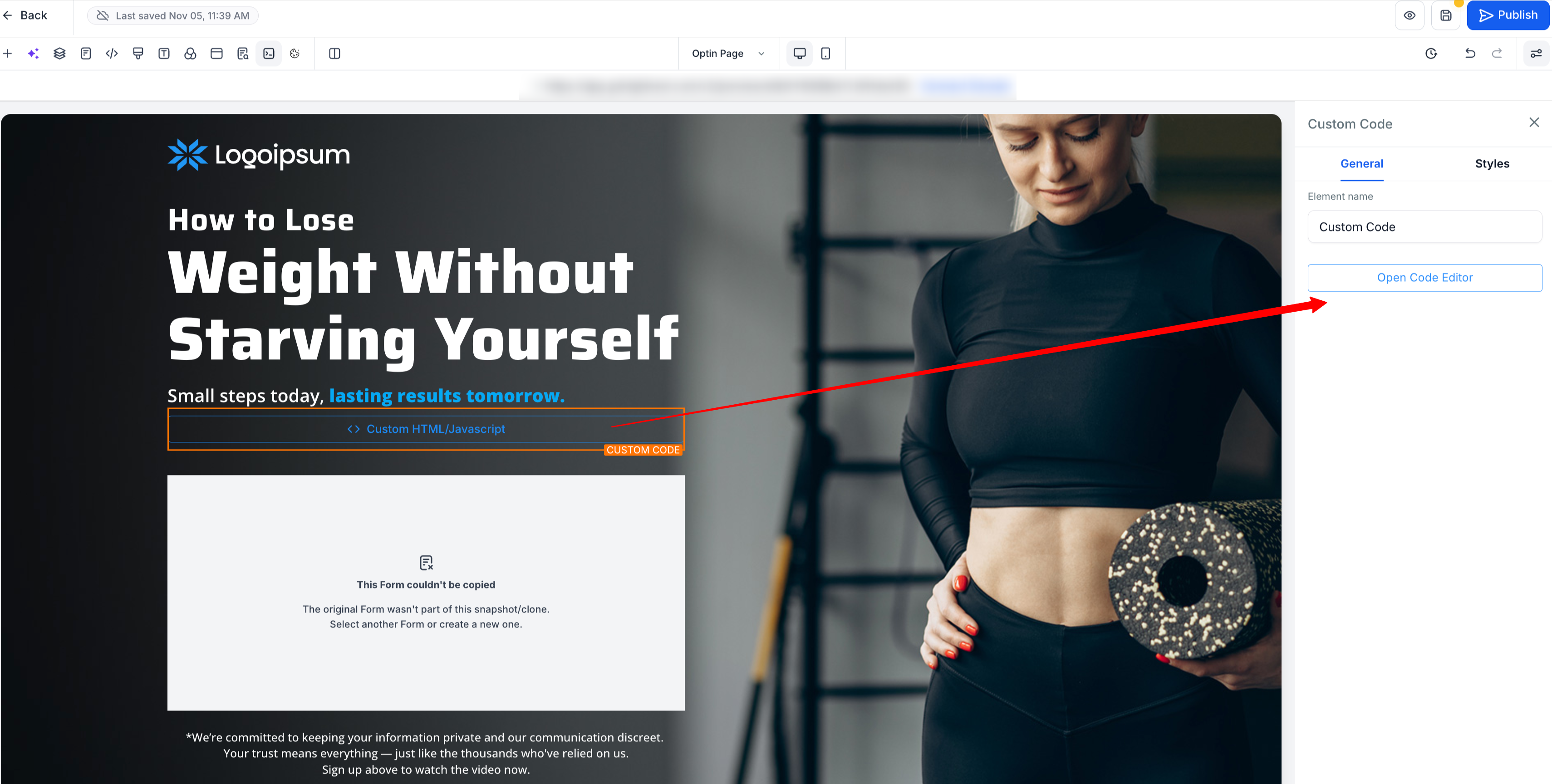
Paste the Embed Code into the editor.
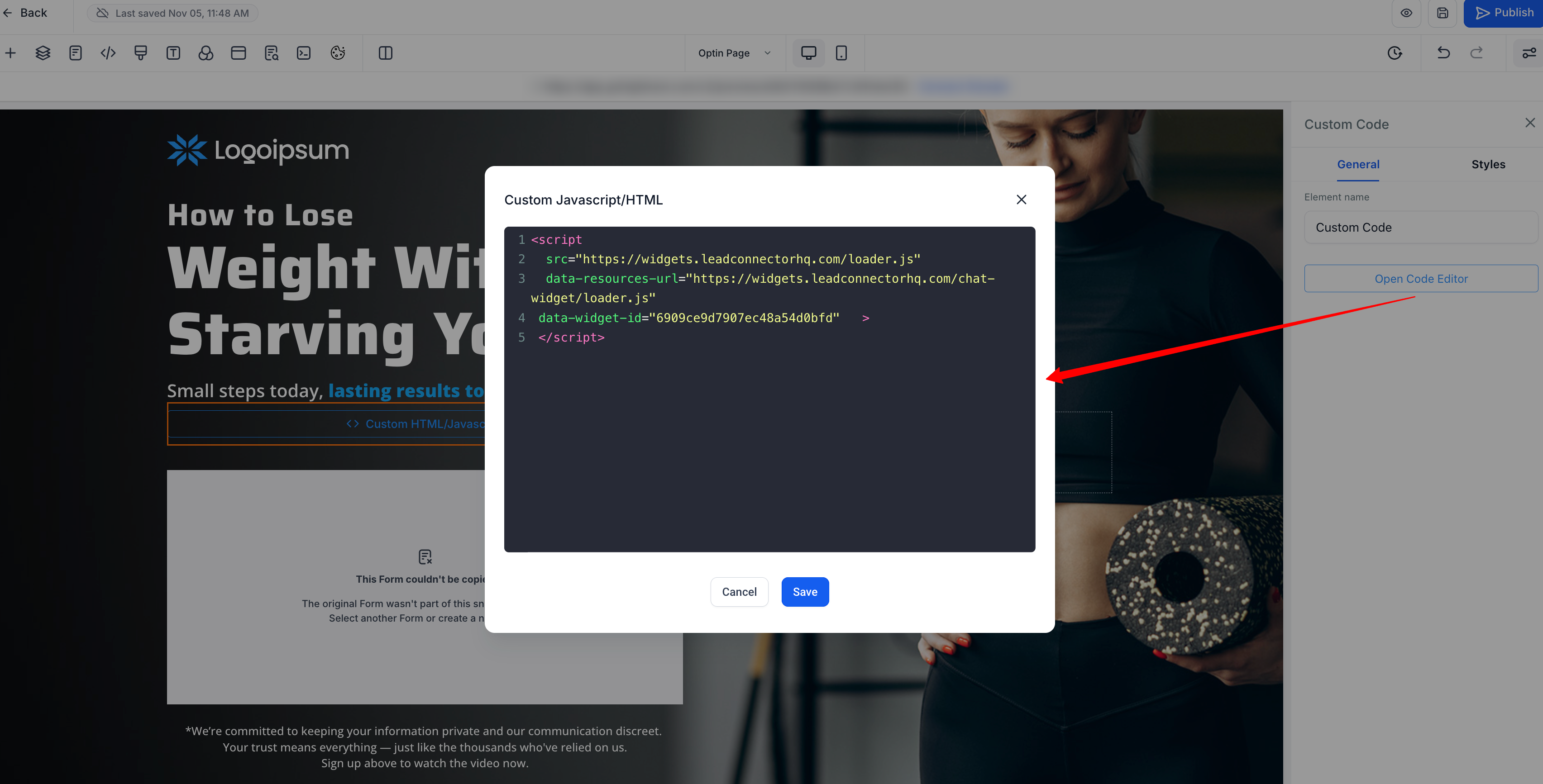
Click Save and Publish.

Result: The widget appears inline as part of your page content, fully mobile-responsive and interactive.\
You can place multiple embedded widgets on a single site or funnel, all connected to the same Voice AI agent.
Combine embedded and sticky widgets across different sections for maximum engagement.
Ensure button text is clear and action-oriented to increase interactions.
Test mobile responsiveness to confirm the widget scales properly on smaller screens.
Using the Embedded/Inline Voice AI Widget in Tekmatix, you can:
Place the widget anywhere on your site or funnel.
Create a seamless, integrated customer experience.
Maintain full control over styling and placement for brand consistency.
This setup is ideal for businesses looking to make the AI chat experience feel like a natural part of their website, rather than a separate pop-up.

Embedding a Voice AI widget directly into your website or funnel allows you to create a natural, interactive experience for visitors. Unlike sticky or floating chat buttons, embedded widgets integrate directly into your page content perfect for hero sections, CTAs, or form blocks.
This guide shows you step-by-step how to set up an embedded Voice AI widget, optimize its appearance, and deploy it effectively on your Tekmatix website or funnel.
Seamless UX: Visitors interact with your AI chat without a floating pop-up interrupting their browsing experience.
Custom Placement: Place your widget exactly where you want it in your page layout.
Flexible Styling: Align the widget with your brand, messaging, and design.
Higher Engagement: Integrated placement often increases interaction rates compared to sticky buttons.
Scenario:
Your Tekmatix e-commerce site has a hero section highlighting a new product launch. You want visitors to ask questions directly under the product image without opening a separate chat window.
Solution:
Use the Embedded/Inline Voice AI widget and place it under the hero section.
Customize the button text to “Ask about this product”.
Deploy it via a code block in your funnel or website.
Outcome: Visitors interact naturally while exploring the product, increasing engagement and reducing bounce rates.
Go to Websites & Funnels > Chat Widget in your Tekmatix sub-account dashboard.
Open an existing widget or click + New.
Select Voice AI as the chat widget type.
You’ll see four main tabs: Style, Chat Window, Messaging, and Agent.


Navigate to the Style tab.
Open Widget Placement.
Select Embedded/Inline.

Notes:
The preview updates to show the widget inline.
Only Avatar and Theme styling options are shown.
Widget Position grid and Contact Form toggle are hidden since they don’t apply to embedded widgets.
Go to the Chat Window tab.
Edit the Button Text (e.g., “Talk to our AI” or “Ask a Question”).
Optionally, adjust branding elements like business name or compliance footer.
Use the preview to ensure the design looks natural inline with your page.

Click Get Code in the top-right corner.
Copy your unique Embed Code Snippet.

Navigate to the page or funnel where you want the widget.
Add a Code Block element:
For funnels: Websites & Funnels > Funnels > Edit Page → Quick Add > Custom > Code.


Paste the Embed Code into the editor.

Click Save and Publish.

Result: The widget appears inline as part of your page content, fully mobile-responsive and interactive.\
You can place multiple embedded widgets on a single site or funnel, all connected to the same Voice AI agent.
Combine embedded and sticky widgets across different sections for maximum engagement.
Ensure button text is clear and action-oriented to increase interactions.
Test mobile responsiveness to confirm the widget scales properly on smaller screens.
Using the Embedded/Inline Voice AI Widget in Tekmatix, you can:
Place the widget anywhere on your site or funnel.
Create a seamless, integrated customer experience.
Maintain full control over styling and placement for brand consistency.
This setup is ideal for businesses looking to make the AI chat experience feel like a natural part of their website, rather than a separate pop-up.


Embedding a Voice AI widget directly into your website or funnel allows you to create a natural, interactive experience for visitors. Unlike sticky or floating chat buttons, embedded widgets integrate directly into your page content perfect for hero sections, CTAs, or form blocks.
This guide shows you step-by-step how to set up an embedded Voice AI widget, optimize its appearance, and deploy it effectively on your Tekmatix website or funnel.
Seamless UX: Visitors interact with your AI chat without a floating pop-up interrupting their browsing experience.
Custom Placement: Place your widget exactly where you want it in your page layout.
Flexible Styling: Align the widget with your brand, messaging, and design.
Higher Engagement: Integrated placement often increases interaction rates compared to sticky buttons.
Scenario:
Your Tekmatix e-commerce site has a hero section highlighting a new product launch. You want visitors to ask questions directly under the product image without opening a separate chat window.
Solution:
Use the Embedded/Inline Voice AI widget and place it under the hero section.
Customize the button text to “Ask about this product”.
Deploy it via a code block in your funnel or website.
Outcome: Visitors interact naturally while exploring the product, increasing engagement and reducing bounce rates.
Go to Websites & Funnels > Chat Widget in your Tekmatix sub-account dashboard.
Open an existing widget or click + New.
Select Voice AI as the chat widget type.
You’ll see four main tabs: Style, Chat Window, Messaging, and Agent.


Navigate to the Style tab.
Open Widget Placement.
Select Embedded/Inline.

Notes:
The preview updates to show the widget inline.
Only Avatar and Theme styling options are shown.
Widget Position grid and Contact Form toggle are hidden since they don’t apply to embedded widgets.
Go to the Chat Window tab.
Edit the Button Text (e.g., “Talk to our AI” or “Ask a Question”).
Optionally, adjust branding elements like business name or compliance footer.
Use the preview to ensure the design looks natural inline with your page.

Click Get Code in the top-right corner.
Copy your unique Embed Code Snippet.

Navigate to the page or funnel where you want the widget.
Add a Code Block element:
For funnels: Websites & Funnels > Funnels > Edit Page → Quick Add > Custom > Code.


Paste the Embed Code into the editor.

Click Save and Publish.

Result: The widget appears inline as part of your page content, fully mobile-responsive and interactive.\
You can place multiple embedded widgets on a single site or funnel, all connected to the same Voice AI agent.
Combine embedded and sticky widgets across different sections for maximum engagement.
Ensure button text is clear and action-oriented to increase interactions.
Test mobile responsiveness to confirm the widget scales properly on smaller screens.
Using the Embedded/Inline Voice AI Widget in Tekmatix, you can:
Place the widget anywhere on your site or funnel.
Create a seamless, integrated customer experience.
Maintain full control over styling and placement for brand consistency.
This setup is ideal for businesses looking to make the AI chat experience feel like a natural part of their website, rather than a separate pop-up.

Embedding a Voice AI widget directly into your website or funnel allows you to create a natural, interactive experience for visitors. Unlike sticky or floating chat buttons, embedded widgets integrate directly into your page content perfect for hero sections, CTAs, or form blocks.
This guide shows you step-by-step how to set up an embedded Voice AI widget, optimize its appearance, and deploy it effectively on your Tekmatix website or funnel.
Seamless UX: Visitors interact with your AI chat without a floating pop-up interrupting their browsing experience.
Custom Placement: Place your widget exactly where you want it in your page layout.
Flexible Styling: Align the widget with your brand, messaging, and design.
Higher Engagement: Integrated placement often increases interaction rates compared to sticky buttons.
Scenario:
Your Tekmatix e-commerce site has a hero section highlighting a new product launch. You want visitors to ask questions directly under the product image without opening a separate chat window.
Solution:
Use the Embedded/Inline Voice AI widget and place it under the hero section.
Customize the button text to “Ask about this product”.
Deploy it via a code block in your funnel or website.
Outcome: Visitors interact naturally while exploring the product, increasing engagement and reducing bounce rates.
Go to Websites & Funnels > Chat Widget in your Tekmatix sub-account dashboard.
Open an existing widget or click + New.
Select Voice AI as the chat widget type.
You’ll see four main tabs: Style, Chat Window, Messaging, and Agent.


Navigate to the Style tab.
Open Widget Placement.
Select Embedded/Inline.

Notes:
The preview updates to show the widget inline.
Only Avatar and Theme styling options are shown.
Widget Position grid and Contact Form toggle are hidden since they don’t apply to embedded widgets.
Go to the Chat Window tab.
Edit the Button Text (e.g., “Talk to our AI” or “Ask a Question”).
Optionally, adjust branding elements like business name or compliance footer.
Use the preview to ensure the design looks natural inline with your page.

Click Get Code in the top-right corner.
Copy your unique Embed Code Snippet.

Navigate to the page or funnel where you want the widget.
Add a Code Block element:
For funnels: Websites & Funnels > Funnels > Edit Page → Quick Add > Custom > Code.


Paste the Embed Code into the editor.

Click Save and Publish.

Result: The widget appears inline as part of your page content, fully mobile-responsive and interactive.\
You can place multiple embedded widgets on a single site or funnel, all connected to the same Voice AI agent.
Combine embedded and sticky widgets across different sections for maximum engagement.
Ensure button text is clear and action-oriented to increase interactions.
Test mobile responsiveness to confirm the widget scales properly on smaller screens.
Using the Embedded/Inline Voice AI Widget in Tekmatix, you can:
Place the widget anywhere on your site or funnel.
Create a seamless, integrated customer experience.
Maintain full control over styling and placement for brand consistency.
This setup is ideal for businesses looking to make the AI chat experience feel like a natural part of their website, rather than a separate pop-up.

Embedding a Voice AI widget directly into your website or funnel allows you to create a natural, interactive experience for visitors. Unlike sticky or floating chat buttons, embedded widgets integrate directly into your page content perfect for hero sections, CTAs, or form blocks.
This guide shows you step-by-step how to set up an embedded Voice AI widget, optimize its appearance, and deploy it effectively on your Tekmatix website or funnel.
Seamless UX: Visitors interact with your AI chat without a floating pop-up interrupting their browsing experience.
Custom Placement: Place your widget exactly where you want it in your page layout.
Flexible Styling: Align the widget with your brand, messaging, and design.
Higher Engagement: Integrated placement often increases interaction rates compared to sticky buttons.
Scenario:
Your Tekmatix e-commerce site has a hero section highlighting a new product launch. You want visitors to ask questions directly under the product image without opening a separate chat window.
Solution:
Use the Embedded/Inline Voice AI widget and place it under the hero section.
Customize the button text to “Ask about this product”.
Deploy it via a code block in your funnel or website.
Outcome: Visitors interact naturally while exploring the product, increasing engagement and reducing bounce rates.
Go to Websites & Funnels > Chat Widget in your Tekmatix sub-account dashboard.
Open an existing widget or click + New.
Select Voice AI as the chat widget type.
You’ll see four main tabs: Style, Chat Window, Messaging, and Agent.


Navigate to the Style tab.
Open Widget Placement.
Select Embedded/Inline.

Notes:
The preview updates to show the widget inline.
Only Avatar and Theme styling options are shown.
Widget Position grid and Contact Form toggle are hidden since they don’t apply to embedded widgets.
Go to the Chat Window tab.
Edit the Button Text (e.g., “Talk to our AI” or “Ask a Question”).
Optionally, adjust branding elements like business name or compliance footer.
Use the preview to ensure the design looks natural inline with your page.

Click Get Code in the top-right corner.
Copy your unique Embed Code Snippet.

Navigate to the page or funnel where you want the widget.
Add a Code Block element:
For funnels: Websites & Funnels > Funnels > Edit Page → Quick Add > Custom > Code.


Paste the Embed Code into the editor.

Click Save and Publish.

Result: The widget appears inline as part of your page content, fully mobile-responsive and interactive.\
You can place multiple embedded widgets on a single site or funnel, all connected to the same Voice AI agent.
Combine embedded and sticky widgets across different sections for maximum engagement.
Ensure button text is clear and action-oriented to increase interactions.
Test mobile responsiveness to confirm the widget scales properly on smaller screens.
Using the Embedded/Inline Voice AI Widget in Tekmatix, you can:
Place the widget anywhere on your site or funnel.
Create a seamless, integrated customer experience.
Maintain full control over styling and placement for brand consistency.
This setup is ideal for businesses looking to make the AI chat experience feel like a natural part of their website, rather than a separate pop-up.

Embedding a Voice AI widget directly into your website or funnel allows you to create a natural, interactive experience for visitors. Unlike sticky or floating chat buttons, embedded widgets integrate directly into your page content perfect for hero sections, CTAs, or form blocks.
This guide shows you step-by-step how to set up an embedded Voice AI widget, optimize its appearance, and deploy it effectively on your Tekmatix website or funnel.
Seamless UX: Visitors interact with your AI chat without a floating pop-up interrupting their browsing experience.
Custom Placement: Place your widget exactly where you want it in your page layout.
Flexible Styling: Align the widget with your brand, messaging, and design.
Higher Engagement: Integrated placement often increases interaction rates compared to sticky buttons.
Scenario:
Your Tekmatix e-commerce site has a hero section highlighting a new product launch. You want visitors to ask questions directly under the product image without opening a separate chat window.
Solution:
Use the Embedded/Inline Voice AI widget and place it under the hero section.
Customize the button text to “Ask about this product”.
Deploy it via a code block in your funnel or website.
Outcome: Visitors interact naturally while exploring the product, increasing engagement and reducing bounce rates.
Go to Websites & Funnels > Chat Widget in your Tekmatix sub-account dashboard.
Open an existing widget or click + New.
Select Voice AI as the chat widget type.
You’ll see four main tabs: Style, Chat Window, Messaging, and Agent.


Navigate to the Style tab.
Open Widget Placement.
Select Embedded/Inline.

Notes:
The preview updates to show the widget inline.
Only Avatar and Theme styling options are shown.
Widget Position grid and Contact Form toggle are hidden since they don’t apply to embedded widgets.
Go to the Chat Window tab.
Edit the Button Text (e.g., “Talk to our AI” or “Ask a Question”).
Optionally, adjust branding elements like business name or compliance footer.
Use the preview to ensure the design looks natural inline with your page.

Click Get Code in the top-right corner.
Copy your unique Embed Code Snippet.

Navigate to the page or funnel where you want the widget.
Add a Code Block element:
For funnels: Websites & Funnels > Funnels > Edit Page → Quick Add > Custom > Code.


Paste the Embed Code into the editor.

Click Save and Publish.

Result: The widget appears inline as part of your page content, fully mobile-responsive and interactive.\
You can place multiple embedded widgets on a single site or funnel, all connected to the same Voice AI agent.
Combine embedded and sticky widgets across different sections for maximum engagement.
Ensure button text is clear and action-oriented to increase interactions.
Test mobile responsiveness to confirm the widget scales properly on smaller screens.
Using the Embedded/Inline Voice AI Widget in Tekmatix, you can:
Place the widget anywhere on your site or funnel.
Create a seamless, integrated customer experience.
Maintain full control over styling and placement for brand consistency.
This setup is ideal for businesses looking to make the AI chat experience feel like a natural part of their website, rather than a separate pop-up.


Embedding a Voice AI widget directly into your website or funnel allows you to create a natural, interactive experience for visitors. Unlike sticky or floating chat buttons, embedded widgets integrate directly into your page content perfect for hero sections, CTAs, or form blocks.
This guide shows you step-by-step how to set up an embedded Voice AI widget, optimize its appearance, and deploy it effectively on your Tekmatix website or funnel.
Seamless UX: Visitors interact with your AI chat without a floating pop-up interrupting their browsing experience.
Custom Placement: Place your widget exactly where you want it in your page layout.
Flexible Styling: Align the widget with your brand, messaging, and design.
Higher Engagement: Integrated placement often increases interaction rates compared to sticky buttons.
Scenario:
Your Tekmatix e-commerce site has a hero section highlighting a new product launch. You want visitors to ask questions directly under the product image without opening a separate chat window.
Solution:
Use the Embedded/Inline Voice AI widget and place it under the hero section.
Customize the button text to “Ask about this product”.
Deploy it via a code block in your funnel or website.
Outcome: Visitors interact naturally while exploring the product, increasing engagement and reducing bounce rates.
Go to Websites & Funnels > Chat Widget in your Tekmatix sub-account dashboard.
Open an existing widget or click + New.
Select Voice AI as the chat widget type.
You’ll see four main tabs: Style, Chat Window, Messaging, and Agent.


Navigate to the Style tab.
Open Widget Placement.
Select Embedded/Inline.

Notes:
The preview updates to show the widget inline.
Only Avatar and Theme styling options are shown.
Widget Position grid and Contact Form toggle are hidden since they don’t apply to embedded widgets.
Go to the Chat Window tab.
Edit the Button Text (e.g., “Talk to our AI” or “Ask a Question”).
Optionally, adjust branding elements like business name or compliance footer.
Use the preview to ensure the design looks natural inline with your page.

Click Get Code in the top-right corner.
Copy your unique Embed Code Snippet.

Navigate to the page or funnel where you want the widget.
Add a Code Block element:
For funnels: Websites & Funnels > Funnels > Edit Page → Quick Add > Custom > Code.


Paste the Embed Code into the editor.

Click Save and Publish.

Result: The widget appears inline as part of your page content, fully mobile-responsive and interactive.\
You can place multiple embedded widgets on a single site or funnel, all connected to the same Voice AI agent.
Combine embedded and sticky widgets across different sections for maximum engagement.
Ensure button text is clear and action-oriented to increase interactions.
Test mobile responsiveness to confirm the widget scales properly on smaller screens.
Using the Embedded/Inline Voice AI Widget in Tekmatix, you can:
Place the widget anywhere on your site or funnel.
Create a seamless, integrated customer experience.
Maintain full control over styling and placement for brand consistency.
This setup is ideal for businesses looking to make the AI chat experience feel like a natural part of their website, rather than a separate pop-up.

Embedding a Voice AI widget directly into your website or funnel allows you to create a natural, interactive experience for visitors. Unlike sticky or floating chat buttons, embedded widgets integrate directly into your page content perfect for hero sections, CTAs, or form blocks.
This guide shows you step-by-step how to set up an embedded Voice AI widget, optimize its appearance, and deploy it effectively on your Tekmatix website or funnel.
Seamless UX: Visitors interact with your AI chat without a floating pop-up interrupting their browsing experience.
Custom Placement: Place your widget exactly where you want it in your page layout.
Flexible Styling: Align the widget with your brand, messaging, and design.
Higher Engagement: Integrated placement often increases interaction rates compared to sticky buttons.
Scenario:
Your Tekmatix e-commerce site has a hero section highlighting a new product launch. You want visitors to ask questions directly under the product image without opening a separate chat window.
Solution:
Use the Embedded/Inline Voice AI widget and place it under the hero section.
Customize the button text to “Ask about this product”.
Deploy it via a code block in your funnel or website.
Outcome: Visitors interact naturally while exploring the product, increasing engagement and reducing bounce rates.
Go to Websites & Funnels > Chat Widget in your Tekmatix sub-account dashboard.
Open an existing widget or click + New.
Select Voice AI as the chat widget type.
You’ll see four main tabs: Style, Chat Window, Messaging, and Agent.


Navigate to the Style tab.
Open Widget Placement.
Select Embedded/Inline.

Notes:
The preview updates to show the widget inline.
Only Avatar and Theme styling options are shown.
Widget Position grid and Contact Form toggle are hidden since they don’t apply to embedded widgets.
Go to the Chat Window tab.
Edit the Button Text (e.g., “Talk to our AI” or “Ask a Question”).
Optionally, adjust branding elements like business name or compliance footer.
Use the preview to ensure the design looks natural inline with your page.

Click Get Code in the top-right corner.
Copy your unique Embed Code Snippet.

Navigate to the page or funnel where you want the widget.
Add a Code Block element:
For funnels: Websites & Funnels > Funnels > Edit Page → Quick Add > Custom > Code.


Paste the Embed Code into the editor.

Click Save and Publish.

Result: The widget appears inline as part of your page content, fully mobile-responsive and interactive.\
You can place multiple embedded widgets on a single site or funnel, all connected to the same Voice AI agent.
Combine embedded and sticky widgets across different sections for maximum engagement.
Ensure button text is clear and action-oriented to increase interactions.
Test mobile responsiveness to confirm the widget scales properly on smaller screens.
Using the Embedded/Inline Voice AI Widget in Tekmatix, you can:
Place the widget anywhere on your site or funnel.
Create a seamless, integrated customer experience.
Maintain full control over styling and placement for brand consistency.
This setup is ideal for businesses looking to make the AI chat experience feel like a natural part of their website, rather than a separate pop-up.