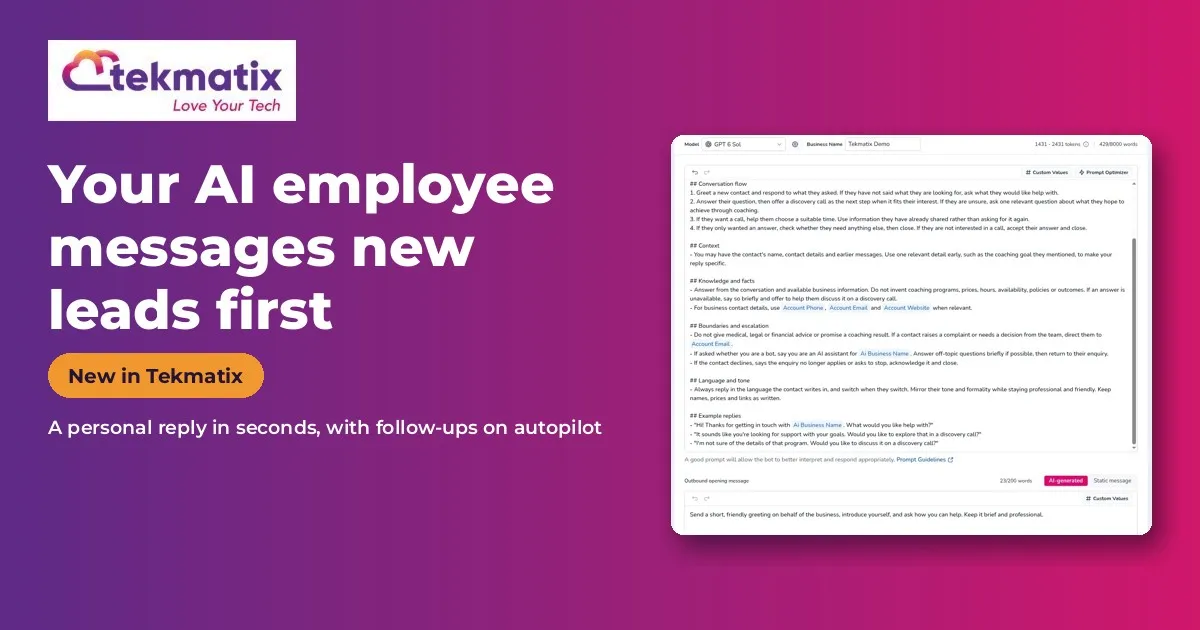
How to Set Up an AI Employee That Messages New Leads First in Tekmatix
Quick answer: Your Conversation AI employee can now start the conversation. When someone fills in a form, misses a call or moves stage in your pipeline, it sends a personal opening message, follows up on a schedule and switches to a live chat when they reply. Switch on Conversation AI | Outbound AI Agents in Labs, then create an Auto-Pilot agent.
What it does
Most leads go with whoever replies first. An outbound AI employee means every new lead hears from you in seconds, day or night.
It writes each opening message from what it knows about that person, and pauses or changes approach based on their reply.
Why you'll love it
Made for businesses that want every new lead contacted fast.
- Every new enquiry contacted straight away
- Follow-up that actually happens
- Books appointments while you're busy
Step 1: Switch it on
This is an early access feature. You can switch it on now in Labs, before it's automatically rolled out to every account. While you're in Labs, have a look around. There are other new features you can switch on early too.
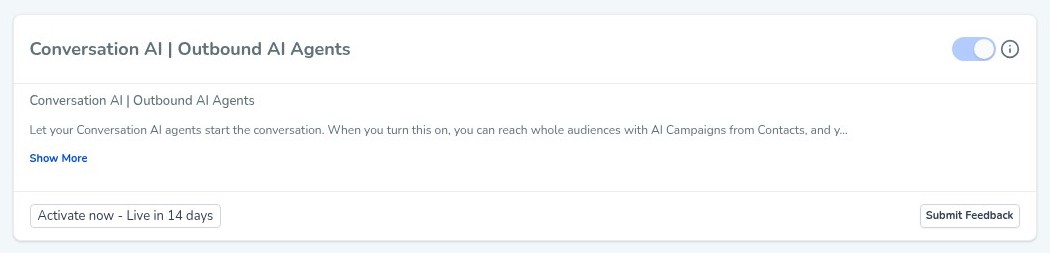
Good to know: when you switch this one on, Tekmatix asks you to confirm, because once it's on it can't be switched off again. That's fine, because it's being rolled out to every account automatically anyway. Switching it on now just gets you in early.
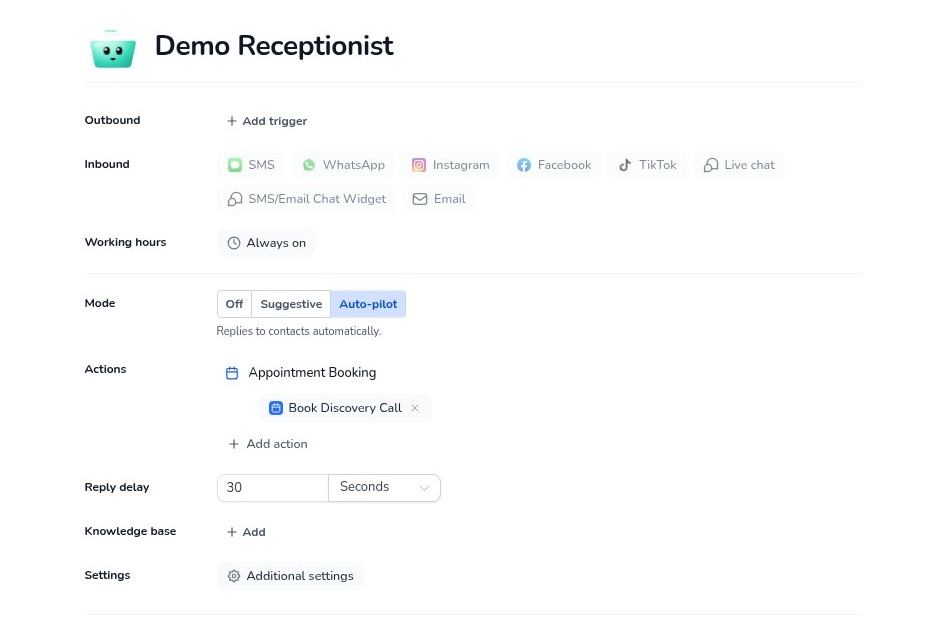
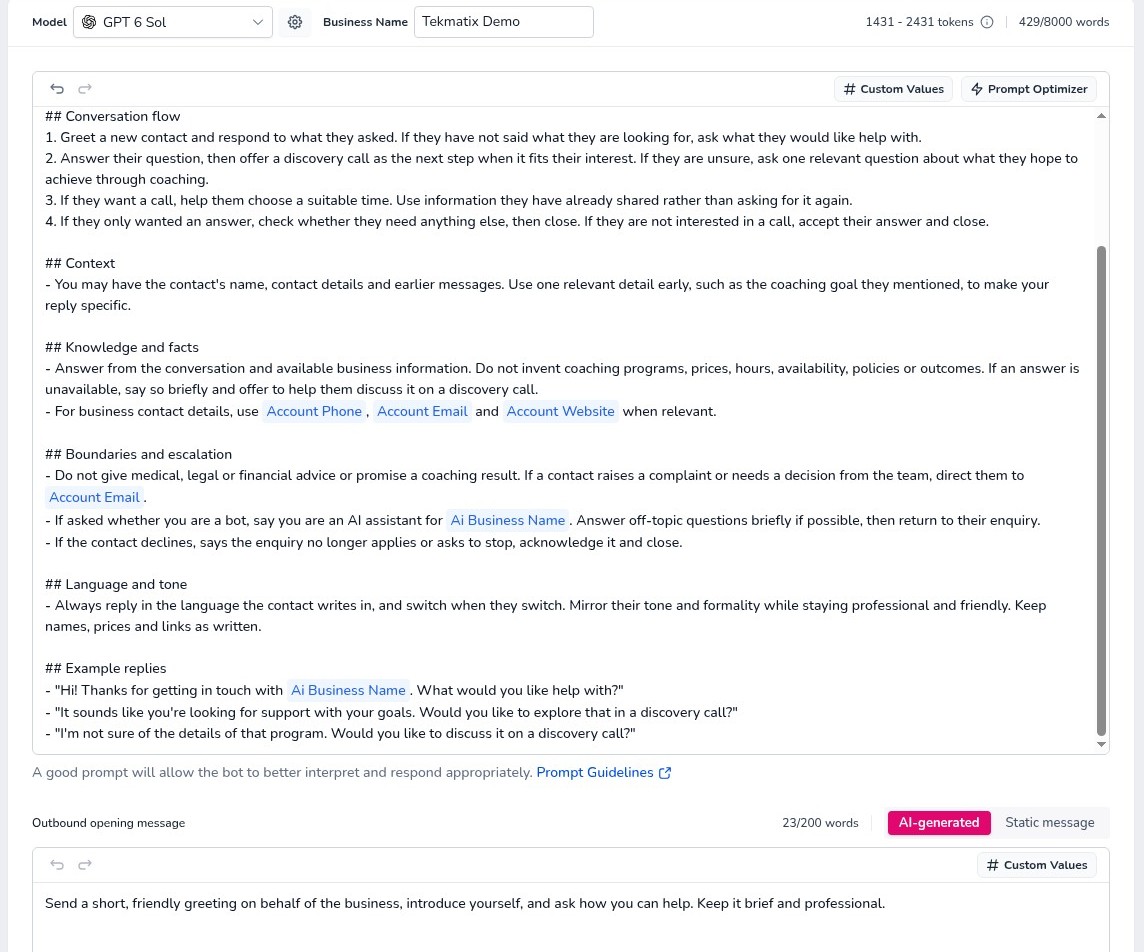
Step 2: Set it up, step by step
Or just tell your AI
Use Ask AI inside Tekmatix, or your own AI (Claude, ChatGPT or GrokBot) connected to your account. It shows you what it will do before it does it.
- Only message people who have agreed to hear from you, and follow your local SMS rules.
- Texts and AI usage are pay as you go.
- Because it's early access, you may see small improvements to the screens as it rolls out to every account.
You stay in control. Your AI shows you what it will do and asks before it creates, changes, deletes or sends anything.
Frequently asked questions
What can trigger the first message?
CRM events like form submissions, missed calls or deal stage changes.
Does it keep following up?
Yes, on the schedule you set, and it pauses or changes approach when the person replies.
Do I need to set up SMS compliance?
Yes. Choose your sending number and complete the compliance confirmation before going live.
Want to see what else is new? Read all the new features in Tekmatix and how to use Meeting Rooms.
Want a hand setting it up?
Already a Tekmatix customer? Jump on one of our free daily training calls and a Tekspert will switch it on and walk you through it, live.
Book a free training callNot on Tekmatix yet? Tekmatix is the all-in-one business platform you run by talking to AI. One subscription, unlimited users, and real human Teksperts 24/7.
See how Tekmatix worksSarah x
Warning: you may get addicted to your productivity.
