How to Get Your AI Agent to Prep and Follow Up Every Meeting in Tekmatix
You know the drill. Five minutes before a call you're scrolling through old emails trying to remember who this person is and what they asked for last time. Then the call ends, the next one starts, and the follow-up email you meant to send sits in your head until Thursday.
In Tekmatix your AI agent can now do both jobs for you. It can wake up before a meeting starts to pull together a brief or send a reminder, and wake up after the meeting's scheduled end time to send the follow-up, log next steps and update the contact. Set it once. Make a cuppa. Your agent handles every meeting from then on.
What is new
- Meeting Starting Soon trigger: your agent runs anywhere from 5 minutes to 24 hours before a meeting. Use it to send reminders, prepare a meeting brief or gather what you need to know about the person you're meeting.
- Meeting Ended trigger: your agent runs straight away or up to 24 hours after a meeting's scheduled end time. Use it for follow-up messages, next steps and contact updates.
- Pick which meetings count: choose specific calendars and meeting types, including Zoom, Google Meet, Microsoft Teams, Tekmatix video meetings, phone and in-person meetings. Meeting-type filtering also works on the Appointment Booked trigger.
- Reschedules and cancellations handled: if a meeting is moved, the trigger timing moves with it. Cancelled meetings don't trigger anything. Meetings that were already booked before you set this up are covered too.
- Your agent gets the meeting details: the meeting title, time, contact and meeting link (when there is one) are passed to your agent, so it knows exactly which meeting and which person it's working on.
What AI should I use?
Meeting triggers run inside your Tekmatix AI agents (Managed Agents), which are built into your Tekmatix account, so you don't need to pay for an outside AI to use them. The agent's instructions are where you tell it what to do before and after each meeting.
To plan what your agent should do, or to write its instructions, the prompts below work in Ask AI (the AI assistant built into your Tekmatix dashboard), GrokBot, Claude, ChatGPT or any other AI you have connected to your Tekmatix account. If you don't already pay for an outside AI and don't want another subscription, start with Ask AI. Adding triggers is done inside Agent Studio, so either follow the steps below yourself or use an AI you've connected to your Tekmatix account with browser control (such as GrokBot, Claude or ChatGPT). Your AI shows you what it will do and you approve it before anything is published.
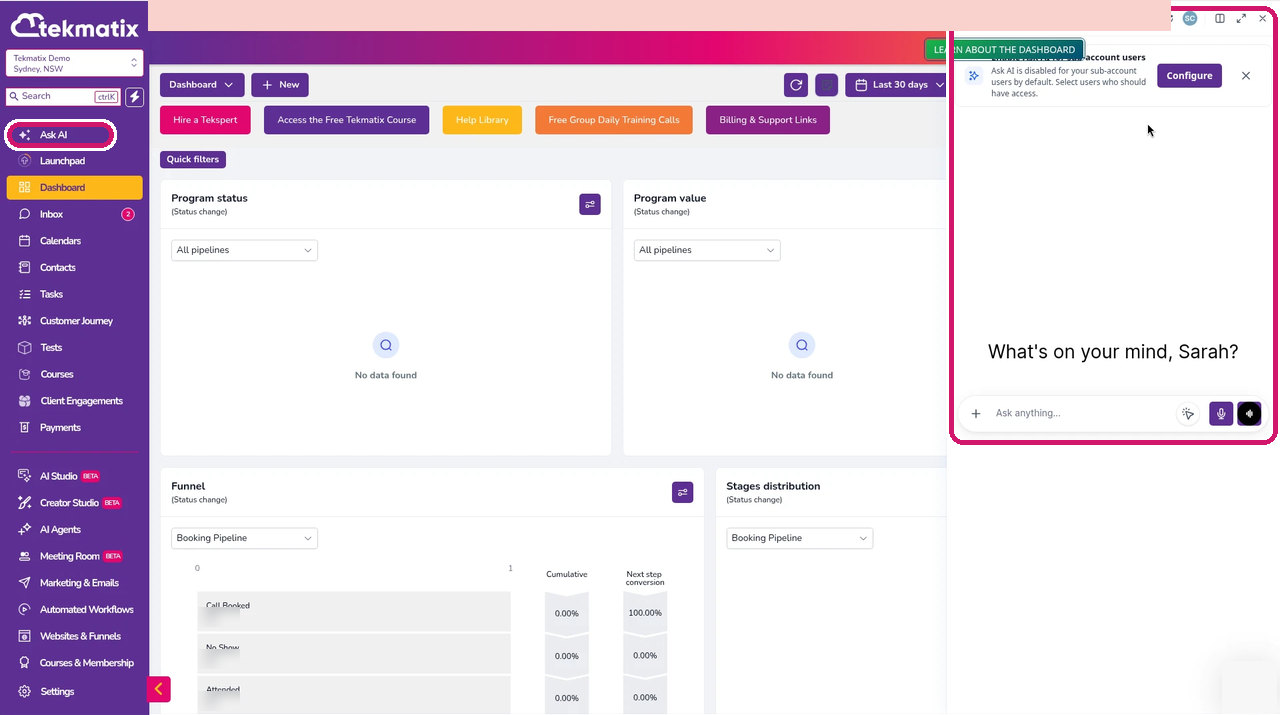
*Tekmatix AI usage applies as a billable consumable. You can find out more about pricing on our public page: tekmatix.com/pricing.
How to add a meeting trigger to your AI agent
- Go to AI Agents > Agent Studio > Managed Agents.
- Open the agent you want to handle your meetings, or create a new one (for example "Meeting Assistant").
- Click + Add Trigger.
- Search for Meeting Starting Soon (for prep and reminders) or Meeting Ended (for follow-ups).
- Choose the calendars the trigger should watch. Pick only the ones that matter, for example your Discovery Call and Client Session calendars, and leave out internal team calendars.
- Choose the meeting types, such as Zoom, Google Meet, Microsoft Teams, Tekmatix video meetings, phone or in-person.
- Set the timing. For Meeting Starting Soon, pick anywhere from 5 minutes to 24 hours before. For Meeting Ended, pick straight away or up to 24 hours after the scheduled end time.
- Update your agent's instructions so it knows exactly what to do when that trigger fires (the prompts below will write these for you).
- Publish your agent. The triggers only start working once the agent is published.
- Book a test meeting with yourself on one of the chosen calendars and check the agent ran at the right time and did what you asked.
You can add both triggers to the same agent, or keep a separate "prep" agent and "follow-up" agent if you want different instructions and permissions for each.
Prompts you can copy
Prompt to copy into Ask AI, GrokBot, Claude or ChatGPT (work out which meetings to automate)
Taking everything you know about me and access to all of the data and systems you already have, log into my Tekmatix account and look at my calendars and the appointments booked over the last 60 days. Tell me which calendars and meeting types I use most, how many no-shows I had, and which meetings usually need a follow-up afterwards. Then recommend which meetings my AI agent should prep for, which it should follow up, and the best timing for each.
Prompt to copy into Ask AI, GrokBot, Claude or ChatGPT (write the pre-meeting instructions)
Taking everything you know about me and access to all of the data and systems you already have, write instructions for my Tekmatix AI agent to follow every time the Meeting Starting Soon trigger fires 2 hours before a meeting on my [calendar name] calendar. The agent should look up the contact in my Tekmatix account, read their notes, recent conversations, emails, social DMs, opportunities and any past call transcripts, then send me a one-page brief with who they are, what they want, what they've bought, open questions and three things I should ask. It should also send the contact a short, friendly reminder with the meeting link. Write it in my brand voice and Australian English.
Prompt to copy into Ask AI, GrokBot, Claude or ChatGPT (write the follow-up instructions)
Taking everything you know about me and access to all of the data and systems you already have, write instructions for my Tekmatix AI agent to follow every time the Meeting Ended trigger fires 15 minutes after a meeting on my [calendar name] calendar. The agent should look up the contact in my Tekmatix account, draft a warm thank-you message with the next step and any link they need, create a follow-up task for me in 3 days, add a note to the contact saying the meeting took place, and move their opportunity to the next stage if it is still at "Call Booked". It must ask me before sending anything or changing a stage.
Prompt to copy into GrokBot, Claude or ChatGPT (set it up with browser control)
Taking everything you know about me and access to all of the data and systems you already have, log into my Tekmatix account and open AI Agents > Agent Studio > Managed Agents. Open my [agent name] agent and add a Meeting Starting Soon trigger for my [calendar name] calendar, set to 2 hours before, and a Meeting Ended trigger for the same calendar, set to 15 minutes after. Add the instructions we wrote for each trigger. Show me every setting before you save, and do not publish the agent until I approve.
*Tekmatix AI usage applies as a billable consumable. You can find out more about pricing on our public page: tekmatix.com/pricing.
Good to know
- Meeting Ended goes by the scheduled end time, not when the call actually finishes. If your 30-minute call runs to 45 minutes, a "straight away" follow-up could arrive while you're still talking, so give yourself a buffer (15 to 30 minutes works well).
- Recordings and transcripts are not passed to the agent by this trigger. Your agent gets the meeting title, time, contact and link. If you want it to use what was said, ask it in the instructions to look for notes or transcripts already saved in your account.
- Moved meetings update automatically and cancelled meetings don't trigger, so you don't need to babysit your calendar.
- Your agent only runs when it's published. If you edit the triggers, publish again.
- Meeting triggers are available wherever AI agents (Managed Agents) are switched on in your account.
Ideas for using it
- No-show buster: 24 hours before every discovery call, send a friendly reminder with the meeting link and one question to think about before the call.
- Sales call brief: 1 hour before, send yourself a summary of the lead, where they came from, what they've looked at and their opportunity value.
- Client session wrap-up: 30 minutes after each coaching or consulting session, send the client their agreed actions and book in a check-in task for you.
- Proposal nudge: after a strategy call, draft the proposal email and create a task to follow up in 2 days if they haven't replied.
- In-person appointments: for phone or in-person meetings, send directions or parking details the morning of the appointment.
Want a hand setting it up?
- Free live training calls, Monday to Friday: jump on one of our free daily training calls and set it up alongside a Tekmatix expert. Book a free training call
Love Your Tech.