How to Stop Your AI Chatbot Talking Over Your Team's Replies in Tekmatix
There's nothing more awkward than this. A customer messages your Facebook page. Your team member jumps in from Meta Business Suite on their phone and answers beautifully. Then, a few seconds later, your AI chatbot pipes up with its own answer, because it had no idea a human had already replied.
In Tekmatix that no longer happens. When your team replies to a contact from outside your Tekmatix account, for example from Meta Business Suite, and that reply syncs into the conversation, your Conversation AI bot now goes to sleep for that contact, exactly as it does when you reply from inside Tekmatix. Your human takes over. Your bot steps back. Your customer gets one clear conversation.
What is new
- Replies sent outside Tekmatix now count: when a team member replies from another app and the reply syncs into the conversation, the bot goes to sleep for that contact.
- Works on every channel the bot replies on: SMS (including custom SMS providers), WhatsApp, Facebook, Instagram, TikTok, Web Chat and Live Chat.
- Workflow messages keep their own setting: messages sent by a workflow still follow the bot's separate workflow-message sleep setting, so your automations don't accidentally silence the bot.
- Nothing new to learn: your bot's existing sleep settings are used.
What AI should I use?
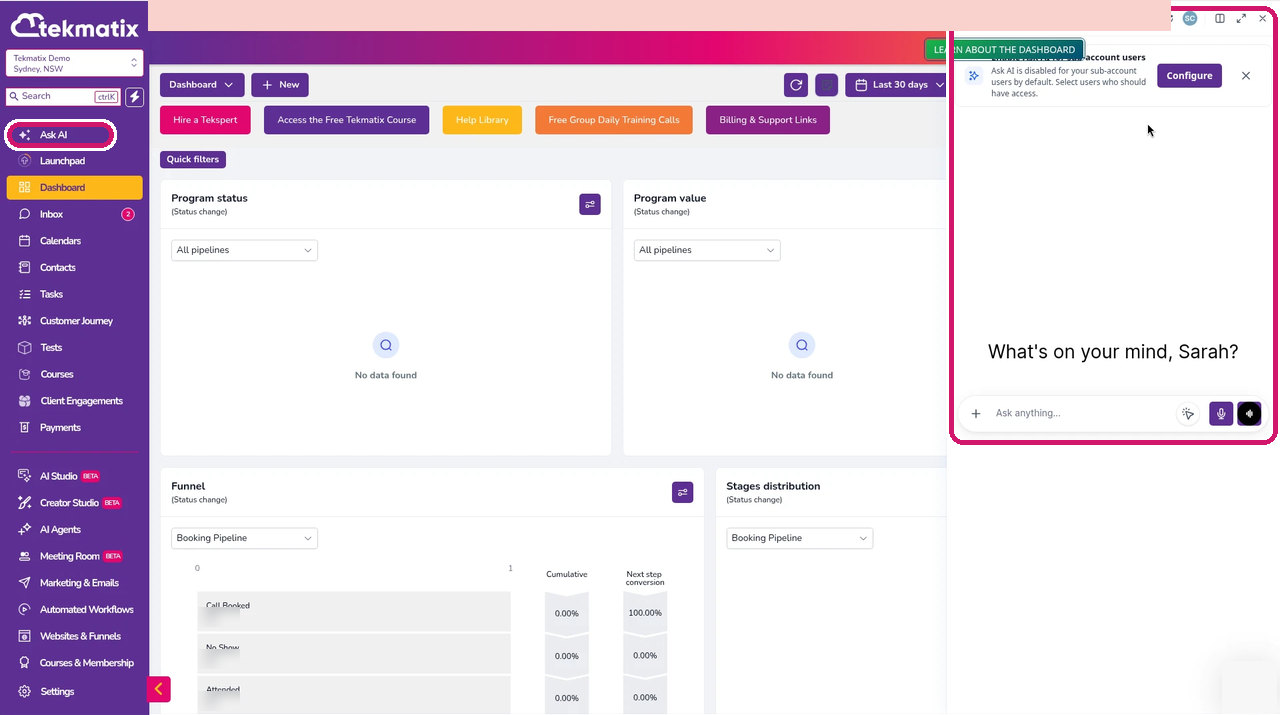
The prompts below work in Ask AI (the AI assistant built into your Tekmatix dashboard), GrokBot, Claude, ChatGPT or any other AI you have connected to your Tekmatix account. If you don't already pay for an outside AI and don't want another subscription, start with Ask AI. Bot settings live in the Conversation AI area, so to change the setting itself either follow the steps below yourself or use an AI you've connected to your Tekmatix account with browser control (such as GrokBot, Claude or ChatGPT). Your AI shows you what it will do and you approve it before anything is saved.
*Tekmatix AI usage applies as a billable consumable. You can find out more about pricing on our public page: tekmatix.com/pricing.
How to make your bot sleep when your team replies from anywhere
- Go to AI Agents > Conversation AI and open your bot.
- In Bot Settings, check the bot status is set to Auto Pilot. (This change only affects bots on Auto Pilot. Suggestive mode never replies on its own, so there's nothing to clash with.)
- Open Timing & Pacing and find Send bot to sleep when I send a:.
- Turn on Manual Message.
- Set the sleep time, which is how long the bot stays quiet for that contact after a human replies. Pick a time that matches how long a conversation with your team usually lasts. A few hours to a full day is a sensible starting point.
- Save your settings.
- Test it. From a test contact (your own Facebook or Instagram account works well), message your page. Reply from Meta Business Suite or the app your team uses. Then send another message from the test contact and check the bot stays quiet.
That's it. From then on, your team can reply from wherever they work, in Tekmatix or outside it, and the bot will step aside.
Prompts you can copy
Prompt to copy into Ask AI, GrokBot, Claude or ChatGPT (find where the bot and your team clash)
Taking everything you know about me and access to all of the data and systems you already have, log into my Tekmatix account and review my conversations from the last 30 days on Facebook, Instagram, WhatsApp, SMS and web chat. Find every conversation where my Conversation AI bot replied after a team member had already answered, or where the customer got two different answers. List them with the contact name, channel and what went wrong, and tell me what sleep time would have prevented it.
Prompt to copy into GrokBot, Claude or ChatGPT (check and change the setting with browser control)
Taking everything you know about me and access to all of the data and systems you already have, log into my Tekmatix account, go to AI Agents > Conversation AI and open each of my bots. For each bot, tell me whether it's on Auto Pilot, whether "Send bot to sleep when I send a: Manual Message" is turned on and what the sleep time is. Then turn Manual Message on with a [number] hour sleep time for any bot on Auto Pilot where it's off. Show me each change before you save it.
Prompt to copy into Ask AI, GrokBot, Claude or ChatGPT (catch the email gap)
Taking everything you know about me and access to all of the data and systems you already have, log into my Tekmatix account and find any contacts from the last 14 days who emailed us and also messaged us on Facebook, Instagram, WhatsApp, SMS or web chat. List any where my team replied by email from outside Tekmatix while the bot was still chatting with them on another channel, and draft a short, friendly message my team can send to tidy up each conversation.
*Tekmatix AI usage applies as a billable consumable. You can find out more about pricing on our public page: tekmatix.com/pricing.
Good to know
- Only bots on Auto Pilot with Manual Message turned on are affected. If Manual Message is off, the bot keeps replying no matter who else answers.
- The reply has to sync into the conversation. Replies from connected channels such as Meta Business Suite sync across, which is what tells the bot a human has stepped in.
- Email replies sent outside Tekmatix don't put the bot to sleep yet. If your team answers by email from Gmail or Outlook, reply from inside Tekmatix instead, or keep an eye on those contacts.
- Workflow messages follow their own setting, so an automated message from a workflow won't silence the bot unless you've told it to.
- When the sleep time runs out, the bot wakes up again for that contact and carries on as normal.
Ideas for using it
- Busy social teams: let your team answer comments and DMs from Meta Business Suite on their phones without worrying about the bot jumping in.
- After-hours cover: keep the bot on Auto Pilot overnight and on weekends, and let it hand over the moment someone from your team replies in the morning.
- Sales handover: when a hot lead asks about pricing, your sales person replies from wherever they are and the bot steps back until the conversation is done.
- WhatsApp support: if your team uses the WhatsApp Business app alongside Tekmatix, set a sleep time long enough to cover a full support conversation.
Want a hand setting it up?
- Free live training calls, Monday to Friday: jump on one of our free daily training calls and set it up alongside a Tekmatix expert. Book a free training call
Love Your Tech.